Sign In Start Free Trial
Account

Add to playlist

Create a Playlist

Modal Close icon
You need to login to use this feature.
  • Book Overview & Buying Mastering Android Development with Kotlin
  • Table Of Contents Toc
Mastering Android Development with Kotlin

Mastering Android Development with Kotlin

By : Vasić
2.7 (11)
close
close
Mastering Android Development with Kotlin

Mastering Android Development with Kotlin

2.7 (11)
By: Vasić

Overview of this book

Kotlin is a programming language intended to be a better Java, and it's designed to be usable and readable across large teams with different levels of knowledge. As a language, it helps developers build amazing Android applications in an easy and effective way. This book begins by giving you a strong grasp of Kotlin's features in the context of Android development and its APIs. Moving on, you'll take steps towards building stunning applications for Android. The book will show you how to set up the environment, and the difficulty level will grow steadily with the applications covered in the upcoming chapters. Later on, the book will introduce you to the Android Studio IDE, which plays an integral role in Android development. We'll use Kotlin's basic programming concepts such as functions, lambdas, properties, object-oriented code, safety aspects, type parameterization, testing, and concurrency, which will guide you through writing Kotlin code in production. We'll also show you how to integrate Kotlin into any existing Android project.
Table of Contents (17 chapters)
close
close

Running your first Android application


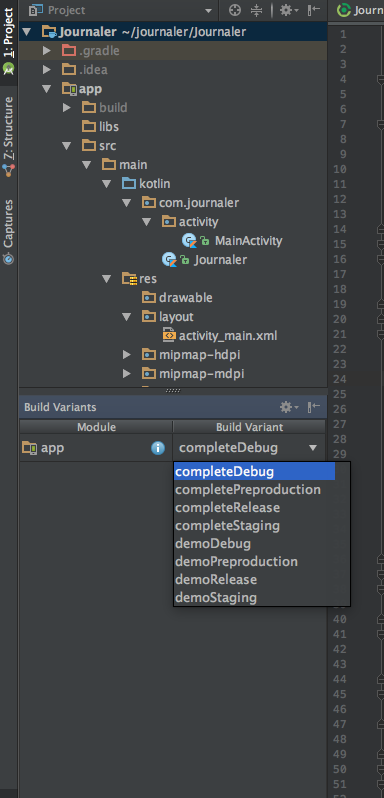
We made our first screen and defined some specifics for the application itself. To be sure that what we did so far is ok, we do the build and run our application. We will run the completeDebug build variant. If you forgot how to switch to this build variant, we will remind you. Open Android Studio and the Journaler project. Open the Build Variants pane by clicking on the Build Variants pane on the left side of the Android Studio window or by choosing View |Tool Windows | Build Variants. The Build Variants pane will appear. Choose completeDebug from the drop-down list, as shown in the screenshot:

We will use this Build Variant as our main build variant for the try out execution, and for production build, we will use the completeDebug build variant. After we choose Build Variant from the drop-down list, it takes some time for Gradle to build the chosen variant.

We will run our application now. We will do it on an emulator first and then on a real live device...

Visually different images
CONTINUE READING
83
Tech Concepts
36
Programming languages
73
Tech Tools
Icon Unlimited access to the largest independent learning library in tech of over 8,000 expert-authored tech books and videos.
Icon Innovative learning tools, including AI book assistants, code context explainers, and text-to-speech.
Icon 50+ new titles added per month and exclusive early access to books as they are being written.
Mastering Android Development with Kotlin
notes
bookmark Notes and Bookmarks search Search in title playlist Add to playlist download Download options font-size Font size

Change the font size

margin-width Margin width

Change margin width

day-mode Day/Sepia/Night Modes

Change background colour

Close icon Search
Country selected

Close icon Your notes and bookmarks

Confirmation

Modal Close icon
claim successful

Buy this book with your credits?

Modal Close icon
Are you sure you want to buy this book with one of your credits?
Close
YES, BUY

Submit Your Feedback

Modal Close icon
Modal Close icon
Modal Close icon