-
Book Overview & Buying
-
Table Of Contents
-
Feedback & Rating
vCenter Troubleshooting
By :
While SQL Express is never recommended for a production environment, many times the setup of vCenter is completed with SQL Express for a Proof of Concept (POC), Pilot or a Test/Development environment. For various reasons, there might be a time you want or need to migrate from SQL Express to the full SQL Server. So, for whatever reason you might have to perform the process, here are the steps used to migrate from SQL Express to the full SQL version:
But before you begin, here are a few items to document to make sure the migration goes as smoothly as possible:
Make sure you check the interoperability of your vCenter with the planned database version and verify that they support each other.
You will need to schedule some downtime of both SSO and your vCenter. While you are moving the database and the services between servers, vCenter and SSO services must be stopped. They will need to be stopped until the data is copied and the configurations are changed. No Virtual Machine workload is touched and it can remain running. If needed, your host can be managed using the standalone vSphere client while the migration is in progress.
Create back-ups of the items that are to be changed such as any files, registry keys, and other items that would need to be recovered if something goes wrong.
Use this process if you are migrating from a pre-5.5 version. SSO in vCenter 5.5 does not use a database.
If you are not sure of the current password for the RSA_USER/RSA_DBA, you will need to go to the SSOServer\utils folder. Open an administrative command prompt and type the following:
ssocli manage-secrets -a listallkeys
Make sure both vCenter Single Sign-On services are stopped. After verifying that the services are stopped, you can:
Two SQL Server users are created when installing SSO:
RSA_DBARSA_USERThe RSA_DBA is the account used during an installation and is not needed for the migration. During the migration process, the RSA_USER will be used. The login/user is added to the target SQL Server and the password along with the required permissions are set.
Open an administrative elevated command prompt and move to the default directory of the SSO server directory\utils. Type in the following:
ssocli configure-riat -a configure-db –database-host newdbhost –database-port newdatabaseport –rsa-user RSA_USER –rsa-user-password password -m master_password
In the preceding code, replace the following:
1433 for standard SQL-m master password for the Admin@System-Domain passwordThe rsa-user password will only work with the rsa-user option.
Prepare to edit two files jndi.properties and config.properties using your preferred text editor (for example, Notepad.exe) and using elevated permissions.
For the first file, SSOServer\webapps\ims\web-inf\classes\jndi.properties, check the following values:
com.rsa.db.type=MSSQL. com.rsa.db.instance=RSA. (your RSA instance dbname is) com.rsa.db.msserverinstance= . (Leave empty when using the default MSSQLSERVER instance on the target server) com.rsa.db.hostname=destinationSQL server. com.rsa.db.port=1433.
Pay special attention to com.rsa.instanceName and remember that this does not refer to the SQL Instance. This refers to the SSO instance and you should not change this.
For the second file, SSOServer\webapps\lookupservice\WEB-INF\classes\config.properties, check the following values:
db.url=jdbc:jtds:sqlserver://;serverName=;portNumber=1433;databaseName=RSA. PortNumber has to be added here. db.user=RSA_USER db.pass=yourpassword db.type=mssql db.host=destination SQL server fqdn.
Make the changes to the lines in order to match your environment. Now, save the files and start the service for your vCenter Single Sign-On.
Stop the vCenter services if they are not already stopped. Include all the services for vCenter, excluding Update Manager, SSO, and Orchestrator. After all the services are stopped:
Then, create the login/user to the target SQL Server, and set the required password and permissions. The user for the vCenter database must be db_owner and also dbo on the Microsoft DB system database can be found on the target server.
Now, use the ODBC Manager (64-bit) to change the System DSN being used by your destination SQL Server.
VIM_VCDB. If you did not change it or if you decided to use a new name for the database, you would type it here.After the changes are complete, check the connection to verify whether it works.
The next step is to modify the ODBC connection found in the registry:
Navigate to Start | Run, type regedit, and then click on OK. This will start the Registry Editor and the window will open. Move to HKEY_LOCAL_MACHINE | SOFTWARE | VMware, Inc. | VMware VirtualCenter and make a change to the key DbInstanceName by removing its current Value data. Do not delete this key. See the following screenshot:

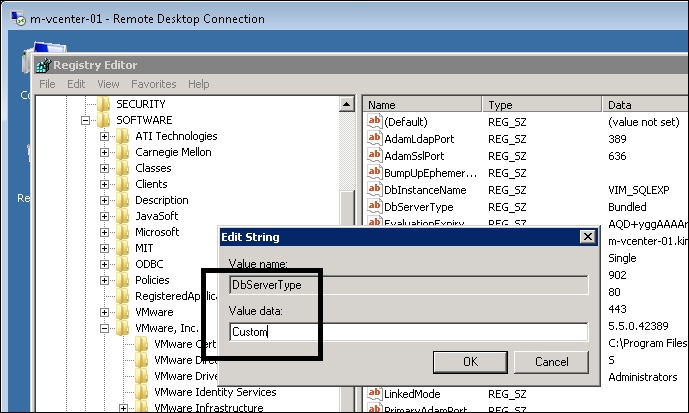
Then change the key DbServerType. Edit the Value data from SQL Express value Bundled to Custom, as displayed in the following screenshot:

Now, navigate to HKEY_LOCAL_MACHINE | SOFTWARE | VMware, Inc. | VMware VirtualCenter | DB and change key 4. Do this by entering the new ODBC driver, changing the ODBC in place of the original. If this did not change, verify the value and leave it alone. You will add the user for vCenter Server SQL to key 2. You need to set the password that is kept in key 3. This is completed by opening an Administrator command prompt and typing C:\Program Files\VMware\Infrastructure\VirtualCenter Server\vpxd.exe -p.
Now, on the SQL Server, you need to recreate the SQL jobs. This is completed by using the SQL Server Management Studio and going to SQL Server Agent.
Use the following list to create the job list:
|
Rollup job |
SQL job filename |
|---|---|
|
Event Task Cleanup vCenter Database |
|
|
Past Day stats rollup vCenter Database |
|
|
Past Month stats rollup vCenter Database |
|
|
Past Week stats rollup vCenter Database |
|
|
Process Performance Data vCenter Database |
|
|
Property Bulletin Daily Update vCenter Database |
|
|
Topn past day vCenter Database |
|
|
Topn past month vCenter Database |
|
|
Topn past week vCenter Database |
|
|
Topn past year vCenter Database |
|
To add the jobs, browse to C:\Program Files\VMware\Infrastructure\VirtualCenter Server\sql and open the equivalent SQL file using Open | file and choose the vCenter database. Next, execute each Query and continue through each one. When you find the existing jobs, make sure to check that each matching SQL user in jobs is the right one. Choose a job and right–click on it; then go to properties to make sure the user and database name is right. If they are incorrect, recreate them.
Review the vcdb.properties file by going to C:\ProgramData\VMware\VMware VirtualCenter (for Windows 2008R2 and higher). Make sure to use Explorer to uncheck hidden and protected files. Then, edit the vcdb.properties file value url= ;integratedSecurity\ to:
false – For SQL authenticationtrue – For Windows authenticationThe following screenshot shows the edited vcdb.properties file value url= ;integratedSecurity\ is set to true:

The remaining should match sqlserver://<your SQL server>\\SQL instance;databaseName=\dbname; dbtype=mssql.
Check to be sure the Windows user has the permissions to the SQL database. The user also needs to run VMware VirtualCenter Management Webservices and VMware VirtualCenter. Run regedit again and move to HKLM\System\CurrentControlSet\Services\ to remove the old service values from SQL Express from the DependOnService Multi string found in the vCenter services. Do not delete the value, just remove the VIM_SQLEXP from the data. The other dependencies should not be changed. Start the service for vCenter and use the logs to verify everything has started up.
Change the font size
Change margin width
Change background colour