Sign In Start Free Trial
Account

Add to playlist

Create a Playlist

Modal Close icon
You need to login to use this feature.
  • Book Overview & Buying Monitoring Docker
  • Table Of Contents Toc
  • Feedback & Rating feedback
Monitoring Docker

Monitoring Docker

By : Russ McKendrick
4.6 (5)
close
close
Monitoring Docker

Monitoring Docker

4.6 (5)
By: Russ McKendrick

Overview of this book

This book will show you how monitoring containers and keeping a keen eye on the working of applications helps improve the overall performance of the applications that run on Docker. With the increased adoption of Docker containers, the need to monitor which containers are running, what resources they are consuming, and how these factors affect the overall performance of the system has become the need of the moment. This book covers monitoring containers using Docker's native monitoring functions, various plugins, as well as third-party tools that help in monitoring. Well start with how to obtain detailed stats for active containers, resources consumed, and container behavior. We also show you how to use these stats to improve the overall performance of the system. Next, you will learn how to use SysDig to both view your containers performance metrics in real time and record sessions to query later. By the end of this book, you will have a complete knowledge of how to implement monitoring for your containerized applications and make the most of the metrics you are collecting
Table of Contents (10 chapters)
close
close
9
Index

Running a virtual server

In the repository, you will find two folders containing the necessary Vagrant file to launch either a CentOS 7 or a Ubuntu 14.04 virtual server.

If you would like to use the CentOS 7 vagrant box, change the directory to vagrant-centos:

cd vagrant-centos

Once you are in the vagrant-centos directory, you will see that there is a Vagrant file; this file is all you need to launch a CentOS 7 virtual server. After the virtual server has been booted, the latest version of docker and docker-compose will be installed and the monitoring-docker directory will also be mounted inside the virtual machine using the mount point /monitoring-docker.

To launch the virtual server, simply type the following command:

vagrant up

This will download the latest version of the vagrant box from https://atlas.hashicorp.com/russmckendrick/boxes/centos71 and then boot the virtual server; it's a 450 MB download so it may take several minutes to download; it only has to do this once.

If all goes well, you should see something similar to the following output:

Running a virtual server

Now that you have booted the virtual server, you can connect to it using the following command:

vagrant ssh

Once logged in, you should verify that docker and docker-compose are both available:

Running a virtual server

Finally, you can try running the hello-world container using the following command:

docker run hello-world

If everything goes as expected, you should see the following output:

Running a virtual server

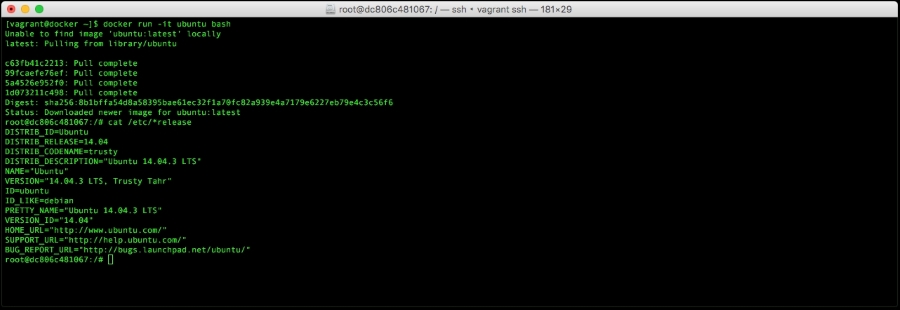
To try something more ambitious, you can run an Ubuntu container with the following command:

docker run -it ubuntu bash

Before we launch and enter the Ubuntu container, lets confirm that we are running the CentOS host machine by checking the release file that can be found in /etc:

Running a virtual server

Now, we can launch the Ubuntu container. Using the same command, we can confirm that we are inside the Ubuntu container by viewing its release file:

Running a virtual server

To exit the container just type in exit. This will stop the container from running, as it has terminated the only running process within the container, which was bash, and returned you to the host CentOS machine.

As you can see here from our CentOS 7 host, we have launched and removed an Ubuntu container.

Both the CentOS 7 and Ubuntu Vagrant files will configure a static IP address on your virtual machine. It is 192.168.33.10; also, there is a DNS record for this IP address available at docker.media-glass.es. These will allow you to access any containers that expose themselves to a browser at either http://192.168.33.10/ or http://docker.media-glass.es/.

Tip

The URL http://docker.media-glass.es/ will only work while the vagrant box is up, and you have a container running which serves Web pages.

You can see this in action by running the following command:

docker run -d -p 80:80russmckendrick/nginx-php

Tip

Downloading the example code

You can download the example code files from your account at http://www.packtpub.com for all the Packt Publishing books you have purchased. If you purchased this book elsewhere, you can visit http://www.packtpub.com/support and register to have the files e-mailed directly to you.

This will download and launch a container running NGINX. You can then go to http://192.168.33.10/ or http://docker.media-glass.es/ in your browser; you should see a forbidden page. This is because we have not yet given NGINX any content to serve (more on this will be covered later in the book):

Running a virtual server

For more examples and ideas, go to the website at http://docs.docker.com/userguide/.

Visually different images
CONTINUE READING
83
Tech Concepts
36
Programming languages
73
Tech Tools
Icon Unlimited access to the largest independent learning library in tech of over 8,000 expert-authored tech books and videos.
Icon Innovative learning tools, including AI book assistants, code context explainers, and text-to-speech.
Icon 50+ new titles added per month and exclusive early access to books as they are being written.
Monitoring Docker
notes
bookmark Notes and Bookmarks search Search in title playlist Add to playlist font-size Font size

Change the font size

margin-width Margin width

Change margin width

day-mode Day/Sepia/Night Modes

Change background colour

Close icon Search
Country selected

Close icon Your notes and bookmarks

Confirmation

Modal Close icon
claim successful

Buy this book with your credits?

Modal Close icon
Are you sure you want to buy this book with one of your credits?
Close
YES, BUY

Submit Your Feedback

Modal Close icon
Modal Close icon
Modal Close icon