Sign In Start Free Trial
Account

Add to playlist

Create a Playlist

Modal Close icon
You need to login to use this feature.
  • Book Overview & Buying pfSense 2.x Cookbook
  • Table Of Contents Toc
  • Feedback & Rating feedback
pfSense 2.x Cookbook

pfSense 2.x Cookbook - Second Edition

By : David Zientara
5 (1)
close
close
pfSense 2.x Cookbook

pfSense 2.x Cookbook

5 (1)
By: David Zientara

Overview of this book

pfSense is an open source distribution of the FreeBSD-based firewall that provides a platform for ?exible and powerful routing and firewalling. The versatility of pfSense presents us with a wide array of configuration options, which makes determining requirements a little more difficult and a lot more important compared to other offerings. pfSense 2.x Cookbook – Second Edition starts by providing you with an understanding of how to complete the basic steps needed to render a pfSense firewall operational. It starts by showing you how to set up different forms of NAT entries and firewall rules and use aliases and scheduling in firewall rules. Moving on, you will learn how to implement a captive portal set up in different ways (no authentication, user manager authentication, and RADIUS authentication), as well as NTP and SNMP configuration. You will then learn how to set up a VPN tunnel with pfSense. The book then focuses on setting up traffic shaping with pfSense, using either the built-in traffic shaping wizard, custom ?oating rules, or Snort. Toward the end, you will set up multiple WAN interfaces, load balancing and failover groups, and a CARP failover group. You will also learn how to bridge interfaces, add static routing entries, and use dynamic routing protocols via third-party packages.
Table of Contents (13 chapters)
close
close

Accessing the SSH

This recipe describes how to access the console from any Linux, macOS, or Windows computer.

Getting ready

The SSH server must be enabled and configured on your pfSense box. You must have an SSH client on your computer. An SSH client is installed by default on Linux and macOS. If you are using Windows, you need to install an SSH client such as PuTTY.

How to do it...

In Linux or macOS, follow these steps:

  1. Launch a Terminal window and type the following: ssh [email protected].
  2. If you are using the default configuration, you will be prompted for a password.
  3. If you are using RSA key authentication, the client will directly connect to the server, or you may be asked for a passphrase. If asked for a passphrase, use the one you created when creating the RSA key.
  4. If you configured SSH to use a different port, you can specify it using the -p option; for example, ssh -p 12345 [email protected].

In Windows, follow these steps:

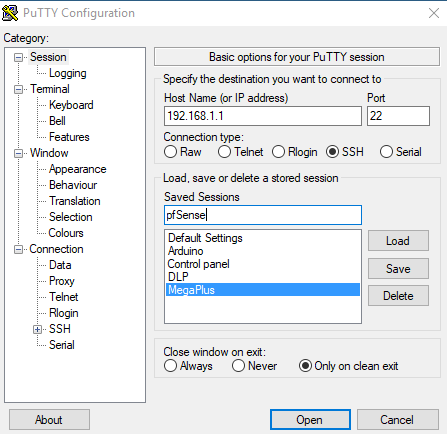
  1. Launch PuTTY and, on the initial screen, enter the hostname or IP address of pfSense:

  1. Specify an alternate port if necessary.
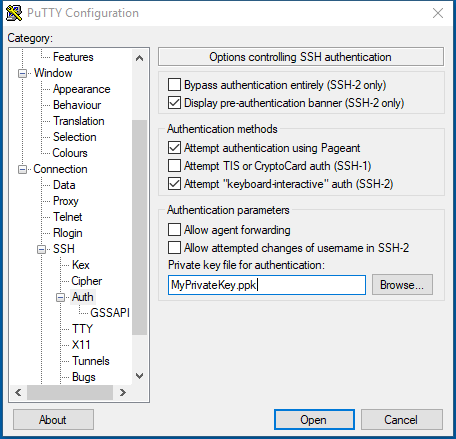
  1. If you are using RSA key authentication, navigate to Connection | SSH | Auth | Private key file for authentication:
  1. You'll connect and be prompted for a username.
  2. You will then be prompted for a password, or if RSA authentication is used, you will connect directly, or be prompted for a passphrase.

How it works...

SSH allows access to the pfSense console from any computer or device that has an SSH client installed on it.

See also

  • The Enabling SSH access recipe
  • The Generating authorized RSA keys recipe
  • The Configuring SSH RSA auhentication recipe
Visually different images
CONTINUE READING
83
Tech Concepts
36
Programming languages
73
Tech Tools
Icon Unlimited access to the largest independent learning library in tech of over 8,000 expert-authored tech books and videos.
Icon Innovative learning tools, including AI book assistants, code context explainers, and text-to-speech.
Icon 50+ new titles added per month and exclusive early access to books as they are being written.
pfSense 2.x Cookbook
notes
bookmark Notes and Bookmarks search Search in title playlist Add to playlist font-size Font size

Change the font size

margin-width Margin width

Change margin width

day-mode Day/Sepia/Night Modes

Change background colour

Close icon Search
Country selected

Close icon Your notes and bookmarks

Confirmation

Modal Close icon
claim successful

Buy this book with your credits?

Modal Close icon
Are you sure you want to buy this book with one of your credits?
Close
YES, BUY

Submit Your Feedback

Modal Close icon
Modal Close icon
Modal Close icon