Sign In Start Free Trial
Account

Add to playlist

Create a Playlist

Modal Close icon
You need to login to use this feature.
  • Book Overview & Buying Active Directory Administration Cookbook
  • Table Of Contents Toc
  • Feedback & Rating feedback
Active Directory Administration Cookbook

Active Directory Administration Cookbook

By : Sander Berkouwer
5 (2)
close
close
Active Directory Administration Cookbook

Active Directory Administration Cookbook

5 (2)
By: Sander Berkouwer

Overview of this book

Active Directory is an administration system for Windows administrators to automate network, security and access management tasks in the Windows infrastructure. This book starts off with a detailed focus on forests, domains, trusts, schemas and partitions. Next, you'll learn how to manage domain controllers, organizational units and the default containers. Going forward, you'll explore managing Active Directory sites as well as identifying and solving replication problems. The next set of chapters covers the different components of Active Directory and discusses the management of users, groups and computers. You'll also work through recipes that help you manage your Active Directory domains, manage user and group objects and computer accounts, expiring group memberships and group Managed Service Accounts (gMSAs) with PowerShell. You'll understand how to work with Group Policy and how to get the most out of it. The last set of chapters covers federation, security and monitoring. You will also learn about Azure Active Directory and how to integrate on-premises Active Directory with Azure AD. You'll discover how Azure AD Connect synchronization works, which will help you manage Azure AD. By the end of the book, you have learned about Active Directory and Azure AD in detail.
Table of Contents (16 chapters)
close
close

Using Install From Media

For Active Directory environments with really low bandwidth or networking resiliency between locations with domain controllers, regardless of whether these are read-only domain controllers or fully writable domain controllers, promoting a Windows Server installation to a domain controller can take a long time or even fail.

In these types of scenarios, for adding an additional domain controller or read-only domain controller to an existing domain, Microsoft offers the Install From Media (IFM) option.

Getting ready

When creating IFM media, check for proper Active Directory replication before creating the IFM media on the domain controller. This ensures that the domain controller is up to date with all changes in Active Directory.

Create a folder on the source and destination domain controller to store the files needed for IFM.

How to do it...

IFM consists of two steps:

  • Creating the IFM package
  • Leveraging the IFM package

Creating the IFM package

To create the IFM package, perform the following actions on a domain controller in a well-connected networking location, running the same version of Windows Server on which you intend to use the IFM package to swiftly promote it to a domain controller in a low-bandwidth scenario:

Tip

IFM packages to create read-only domain controllers can be created on both read-only domain controllers and on fully writable domain controllers. IFM packages to create fully writable domain controllers can only be created on fully writable domain controllers.

  1. Sign in interactively to the domain controller that you want to use as the source server for IFM.
  2. Press Start.
  3. Search for Command Prompt, right-click its search result, and choose Run as administrator from the context menu. Alternatively, run cmd.exe, but instead of running it by pressing Enter, press Ctrl, Shift, and Enter.
  4. Run the following command to start the NTDS utility in interactive mode:
    ntdsutil.exe
  5. Type the following command in interactive mode to select the Active Directory database:
    activate instance ntds
  6. Type the following command in interactive mode to enter the IFM creation context:
    IFM
  7. Type the following command in interactive mode to create IFM, including the contents of the Active Directory SYSVOL for a read-only domain controller, and place it in the C:\IFM folder:
    create RODC C:\IFM 
  8. Type the following command in interactive mode to exit the IFM context:
    quit
  9. Type the following command in interactive mode to exit the NTDS utility itself:
    quit
  10. Close the Command Prompt window.

Leveraging the IFM package

To leverage the IFM package on the destination domain controller in the remote location, choose one of the following methods:

  • Using the Active Directory Domain Services Configuration Wizard after you've installed the Active Directory Domain Services role
  • Using dcpromo.exe
  • Using the Install-ADDSDomainController PowerShell cmdlet

Using the Active Directory Domain Services Configuration Wizard

Perform these steps to leverage the install using the Active Directory Domain Services Configuration Wizard:

  1. Promote the Windows Server installation as you would normally.
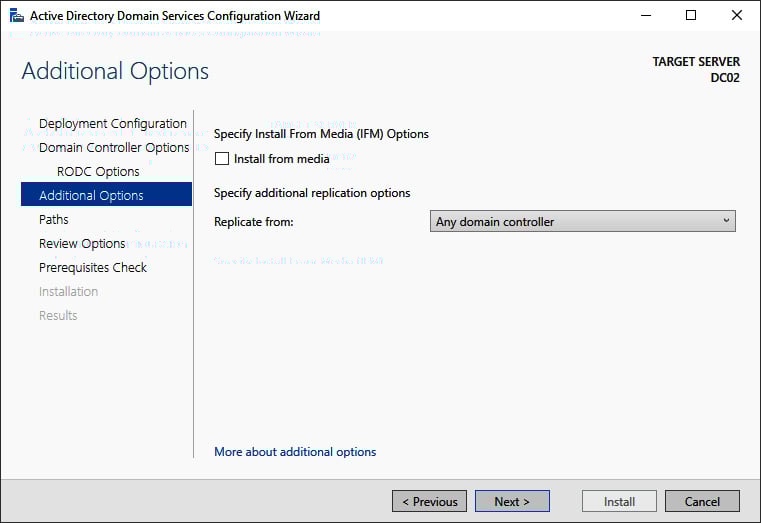
  2. On the Additional Options screen, click the Install from media option:
Figure 2.12 – The Additional Options screen of the Active Directory Domain 
Services Configuration Wizard

Figure 2.12 – The Additional Options screen of the Active Directory Domain Services Configuration Wizard

  1. On the Install from Media screen, specify the location on the drive of the Windows Server installation you intend to promote to a (read-only) domain controller using the Install from Media option.
  2. Optionally, specify the fully writable domain controller you want to replicate from. Specify a domain controller that is best reachable from the intended domain controller.
  3. Click Next > to proceed to the next screens as you normally would.

Using the Install-ADDSDomainController PowerShell cmdlet

The Install-ADDSDomainController PowerShell cmdlet only needs the -InstallationMediaPath additional parameter to leverage the IFM package when promoting a Windows Server installation to a domain controller.

When combining it with the sample PowerShell command for adding a domain controller to an existing domain, the following line of Windows PowerShell emerges:

Install-ADDSDomainController -DomainName lucernpub.com -InstallationMediaPath "C:\IFM"

Replace lucernpub.com with the DNS domain name of your Active Directory domain.

Using dcpromo.exe

As with the Install-ADDSDomainController PowerShell cmdlet, dcpromo.exe requires an optional parameter to leverage the IFM package.

Perform the following steps:

  1. Promote the Windows Server installation, as you would normally.
  2. When using an answer file, add the following line:
    ReplicationSourcePath= "C:\IFM"
  3. When using unattended mode, add the following argument:
    /ReplicationSourcePath:"C:\IFM"

How it works...

As a Windows Server installation becomes a domain controller, it replicates the contents of the Active Directory database and the Active Directory SYSVOL to its local hard drive(s). The entire package needed for this replication can also be assembled before promotion. Then, the IFM package can be delivered to the remote location, or even carried by the technician that will promote the (read-only) domain controller.

Important Note

The amount of network traffic needed when using the IFM option is heavily reduced but is certainly not zero. As the IFM package represents a point-in-time snapshot of the contents of the Active Directory database and the Active Directory SYSVOL, any changes between the time of the creation of the IFM package and using it will need to replicate before promotion of the domain controller is successfully completed.

Visually different images
CONTINUE READING
83
Tech Concepts
36
Programming languages
73
Tech Tools
Icon Unlimited access to the largest independent learning library in tech of over 8,000 expert-authored tech books and videos.
Icon Innovative learning tools, including AI book assistants, code context explainers, and text-to-speech.
Icon 50+ new titles added per month and exclusive early access to books as they are being written.
Active Directory Administration Cookbook
notes
bookmark Notes and Bookmarks search Search in title playlist Add to playlist download Download options font-size Font size

Change the font size

margin-width Margin width

Change margin width

day-mode Day/Sepia/Night Modes

Change background colour

Close icon Search
Country selected

Close icon Your notes and bookmarks

Confirmation

Modal Close icon
claim successful

Buy this book with your credits?

Modal Close icon
Are you sure you want to buy this book with one of your credits?
Close
YES, BUY

Submit Your Feedback

Modal Close icon
Modal Close icon
Modal Close icon