Sign In Start Free Trial
Account

Add to playlist

Create a Playlist

Modal Close icon
You need to login to use this feature.
  • Book Overview & Buying Mathematica Data Analysis
  • Table Of Contents Toc
Mathematica Data Analysis

Mathematica Data Analysis

By : Sergiy Suchok
5 (1)
close
close
Mathematica Data Analysis

Mathematica Data Analysis

5 (1)
By: Sergiy Suchok

Overview of this book

There are many algorithms for data analysis and it’s not always possible to quickly choose the best one for each case. Implementation of the algorithms takes a lot of time. With the help of Mathematica, you can quickly get a result from the use of a particular method, because this system contains almost all the known algorithms for data analysis. If you are not a programmer but you need to analyze data, this book will show you the capabilities of Mathematica when just few strings of intelligible code help to solve huge tasks from statistical issues to pattern recognition. If you're a programmer, with the help of this book, you will learn how to use the library of algorithms implemented in Mathematica in your programs, as well as how to write algorithm testing procedure. With each chapter, you'll be more immersed in the special world of Mathematica. Along with intuitive queries for data processing, we will highlight the nuances and features of this system, allowing you to build effective analysis systems. With the help of this book, you will learn how to optimize the computations by combining your libraries with the Mathematica kernel.
Table of Contents (10 chapters)
close
close
9
Index

System installation

Depending on your needs, you can work with Mathematica both online and offline. For a deeper understanding of the system and its settings and capabilities, we will use the offline version. In this book, we'll deal with examples of Mathematica, version 10.2 (the current version at the time of writing this book), which are fully compatible with all future versions.

You can install Mathematica on the major operating systems: Windows, Linux, and Mac OS X.

To download a trial version of Mathematica, use this link: https://www.wolfram.com/mathematica/trial. You will be prompted to create a new Wolfram Mathematica ID or sign in with your already registered ID:

System installation

After registration, you will receive an e-mail containing the link to activate your Wolfram ID, as well as the link to access Mathematica Online. Activate your account and log in using https://user.wolfram.com/portal/login.html.

System installation

On this page, you can choose and download the Mathematica installer for your operating system.

Note

Copy the code in the Activation Key field. You will need it later to activate the product.

Let's download the Windows version of the program (by clicking on the Download for Windows button) and go through the main stages of system installation on a computer. The size of the downloaded file will be slightly larger than 2 GB, so make sure you have enough free space on your computer, both for the installer and for the installation of Mathematica.

Once the Mathematica_10.2.0_WIN.zip file is downloaded to your computer, extract it into a separate directory and run setup.exe:

System installation

At this point, the installer will inform us that the installation process of Mathematica 10.2 is about to start. In order to proceed, click on Next in the preceding screenshot.

System installation

Note that the system installation requires 6.2 GB of free disk space. In the preceding screenshot, select the directory where you want to install Mathematica and click on Next.

System installation

In the next dialog window, as shown in the preceding screenshot, you should choose the components of Mathematica you want to install. The Wolfram Extras package includes plugins for browsers that allow you to preview the Mathematica files embedded in web pages.

To continue the installation, click on the Next button.

System installation

As shown in the previous screenshot, you need to select a folder in the Start Menu to place the program's shortcuts. Then click on Next.

System installation

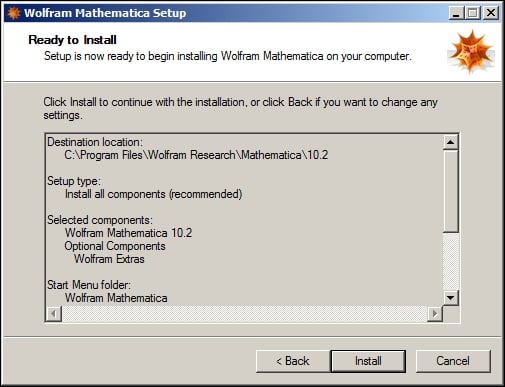
After that, we will see the summary of the previously selected options as shown in the preceding screenshot. Click on the Install button to start copying the files. After all files are copied, you will be notified that the installation is finished. You can check off the Launch Wolfram Mathematica checkbox to start learning the system immediately:

System installation

Once the system launches, you need to enter the activation key that we copied from the Wolfram website earlier:

System installation

Now, click on the Activate button. You will be redirected to the following page:

System installation

Read the license agreement and check the I accept the terms of this agreement box. Then click on OK.

Now, the Mathematica system is ready for the first use:

System installation
CONTINUE READING
83
Tech Concepts
36
Programming languages
73
Tech Tools
Icon Unlimited access to the largest independent learning library in tech of over 8,000 expert-authored tech books and videos.
Icon Innovative learning tools, including AI book assistants, code context explainers, and text-to-speech.
Icon 50+ new titles added per month and exclusive early access to books as they are being written.
Mathematica Data Analysis
notes
bookmark Notes and Bookmarks search Search in title playlist Add to playlist font-size Font size

Change the font size

margin-width Margin width

Change margin width

day-mode Day/Sepia/Night Modes

Change background colour

Close icon Search
Country selected

Close icon Your notes and bookmarks

Confirmation

Modal Close icon
claim successful

Buy this book with your credits?

Modal Close icon
Are you sure you want to buy this book with one of your credits?
Close
YES, BUY

Submit Your Feedback

Modal Close icon
Modal Close icon
Modal Close icon