Sign In Start Free Trial
Account

Add to playlist

Create a Playlist

Modal Close icon
You need to login to use this feature.
  • Book Overview & Buying Building an FPS Game with Unity
  • Table Of Contents Toc
  • Feedback & Rating feedback
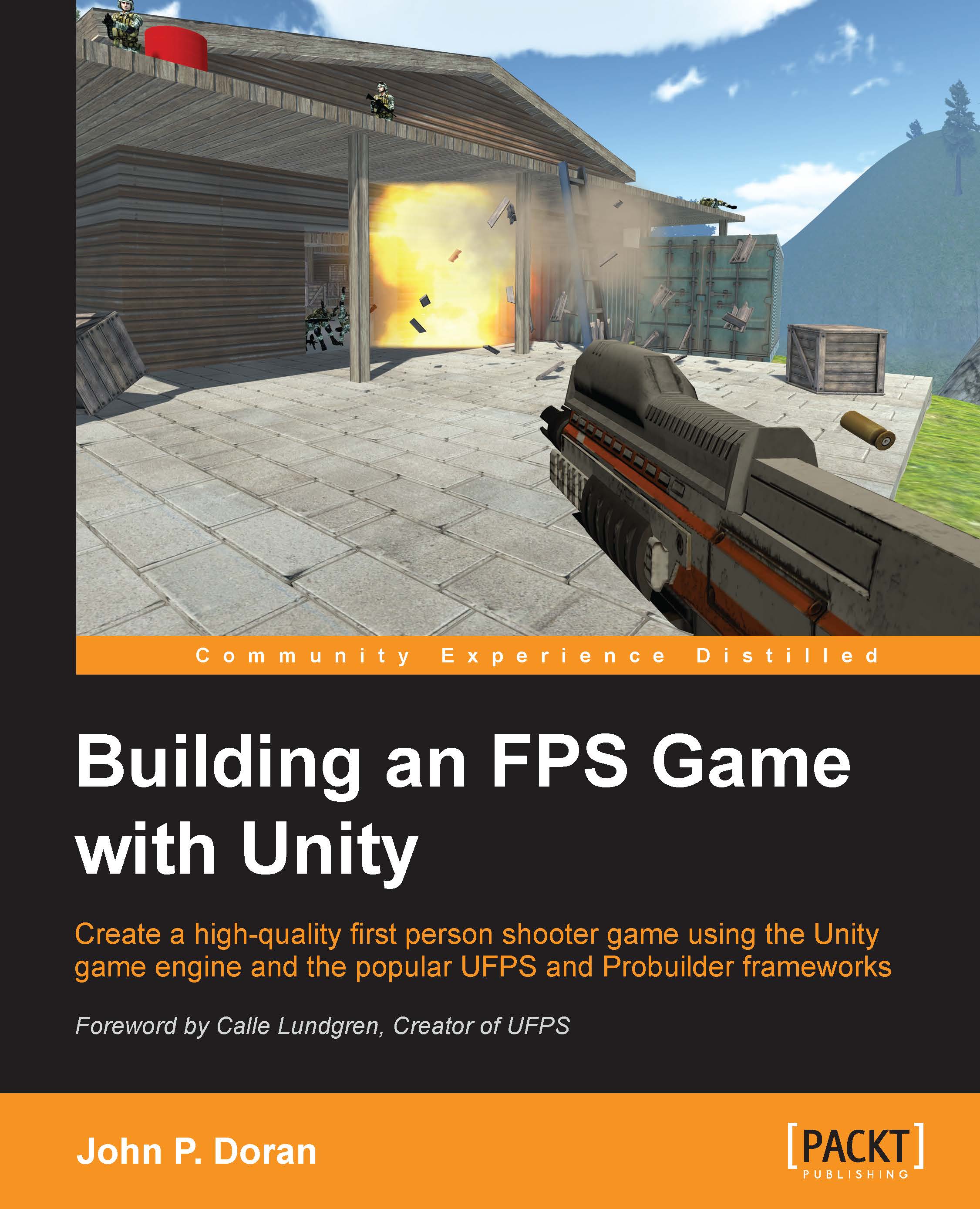
Building an FPS Game with Unity

Building an FPS Game with Unity

By : John P. Doran, jamal seaton
3.9 (10)
close
close
Building an FPS Game with Unity

Building an FPS Game with Unity

3.9 (10)
By: John P. Doran, jamal seaton

Overview of this book

Unity, available in free and pro versions, is one of the most popular third-party game engines available. It is a cross-platform game engine, making it easy to write your game once and then port it to PC, consoles, and even the web, making it a great choice for both indie and AAA developers. Building an FPS Game in Unity takes readers on an exploration of how to use Unity to create a 3D first person shooter (FPS) title, leveraging the powerful UFPS framework by VisionPunk and Prototype/ProBuilder 2.0 by ProCore3D. After some setting up, you will start by learning how to create custom weapons, prototype levels, create exterior and interior environments, and breathe life into our levels. We will then add polish to the levels. Finally, we will create a custom GUI and menus for our title to create a complete package.
Table of Contents (11 chapters)
close
close
10
Index

Replacing the default UFPS HUD


We now have a Main menu, but our regular game level is showing a default UI. While it's fine for testing purposes, we may want to make something a little more custom for our finished product.

  1. Start off by opening up any of the levels you've created that have the AdvancedPlayer prefab inside it (I chose Chapter7_MeshingYourLevel).

  2. From there select your AdvancedPlayer and look at it from the Inspector. One of the components you'll see is the vp_SimpleHUD component.

    This is what draws the screen in the default way and can be a good reference when it comes to accessing variables. However, we do not want to use it in this case.

  3. Right-click on the vp_SimpleHUD component and select Remove Component.

  4. Now that we've removed the previous HUD, it's time to add in our own. Create a Canvas by selecting GameObject | UI | Canvas.

  5. For our purposes we're going to be using Slider as the basis of our lifebar. To do that with the Canvas selected, go to GameObject | UI | Slider.

    A slider...

Visually different images
CONTINUE READING
83
Tech Concepts
36
Programming languages
73
Tech Tools
Icon Unlimited access to the largest independent learning library in tech of over 8,000 expert-authored tech books and videos.
Icon Innovative learning tools, including AI book assistants, code context explainers, and text-to-speech.
Icon 50+ new titles added per month and exclusive early access to books as they are being written.
Building an FPS Game with Unity
notes
bookmark Notes and Bookmarks search Search in title playlist Add to playlist font-size Font size

Change the font size

margin-width Margin width

Change margin width

day-mode Day/Sepia/Night Modes

Change background colour

Close icon Search
Country selected

Close icon Your notes and bookmarks

Confirmation

Modal Close icon
claim successful

Buy this book with your credits?

Modal Close icon
Are you sure you want to buy this book with one of your credits?
Close
YES, BUY

Submit Your Feedback

Modal Close icon
Modal Close icon
Modal Close icon