-
Book Overview & Buying
-
Table Of Contents
-
Feedback & Rating
Raspberry Pi Projects for Kids (Second Edition)
By :
Now that your Raspberry Pi is up and running, you'll want to know how to keep it working properly, and how to customize it to your needs.
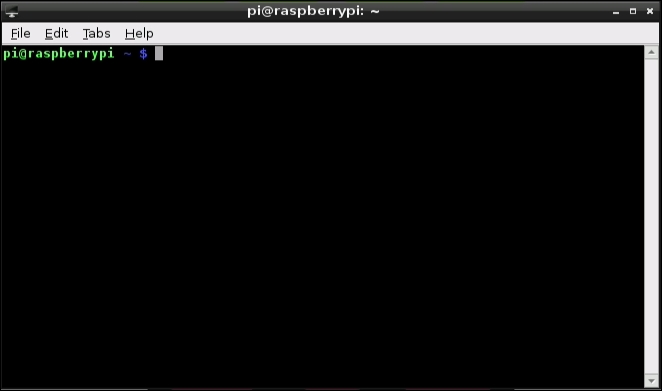
Most of the time, it will be possible to do what you want to do using the mouse, by clicking on different parts of the screen, but at some point, you might find yourself needing to use the command line, as shown in the following screenshot:

The command line is a completely text-based way to control a computer, and can be used to do just about anything which can be done by clicking and more. It is available on almost all computers, but is usually hidden away. Some computer users prefer using the command line because they can type faster than they can click the mouse!
Here is a very quick overview of some common commands. Open a command line by double-clicking on the LXTerminal icon on the desktop, and try these out. You will need to press Enter to tell the Raspberry Pi that your command has finished. A longer introduction, including information on how to watch a movie in the command line, can be found online at http://www.techradar.com/news/computing/pc/1161712.
The following are few of the most important commands that are used in LXterminal:
ls (list): This command lists directory contents (directory is Linux's word for a folder.) This will show you all of the files and directories available to you in the current directory.cd <folderdirectory name> (change directory). This command allows you to move into another directory so you can see its contents, in the same way that double-clicking on a directory icon moves you into that directory. You can move through multiple levels of directories in one go by separating the folder directory names with a "/", and you can go up to the parent directory (the directory that contains the current directory) using the special .. directory name.man <program name> (open manual): This command will bring up lots of information about a particular program, including what it does and how to use it. Very useful if you forget how to use something! Try man ls to see some advanced information on the ls program we tried earlier, and press Q on the keyboard to quit. You can scroll through this information using the arrow keys or the Space Bar.<program name> (extra information): This is used to start the program, and optionally pass it some extra information. Try typing in scratch to start the Scratch program (we'll cover this in more detail in the next chapter), or if you are connected to the Internet, go to epiphany www.raspberrypi.org to open the Epiphany web browser and then go straight to the Raspberry Pi home page.The Tab key can be used to automatically complete a word. Even if you have not completely finished typing in the name of a program or file or folder, try pressing Tab. If there is only one option available, which begins with the letters you have typed so far, the whole word will be completed for you. If there are multiple options (or none), nothing will change; you can press Tab again to show you a list of possibilities.
If you want to install a program on your Raspberry Pi, you either need to download a version which is specifically for the Raspberry Pi, or use Raspbian's package system.
A package is a program or a part of a program, and many versions of Linux (including Raspbian) maintain a list of all the compatible packages, making it easy to keep all your software up to date. You can update to the latest version of this list if you have an Internet connection, by typing the following command in a command line:
sudo apt-get update
Be very careful when using the sudo command. It forces the Raspberry Pi to do exactly what you tell it to do, without checking to make sure that the command is sensible. The command is useful in situations like this, where we want to make changes to the installed programs, but it also allows you to delete essential files. Double-check your spelling before continuing.
You can search for available packages with keywords using the following command:
apt-cache search <keywords>
Try the following command, for example, to see a list of available free games. You could even try installing one (xbubble is good, for example):
apt-cache search game
The name of the package is the first word of the line, and you can install a package using the following command:
sudo apt-get install <package name>
To update all the installed packages to the latest available version, type the following command:
sudo apt-get upgrade
Although the Raspberry Pi was designed to get people interested in computing, its cost and power mean that it is also popular for other reasons. Since the Raspberry Pi is a general-purpose computer, it is capable of everything a traditional computer can do, just perhaps a little slower. There is a web browser (Epiphany), and word processors and web servers are available in the Pi that helps you with the basic computing needs . A common use for Raspberry Pi is as a media center, to watch films and view pictures.
There are many different operating systems included with the NOOBS package: if you have NOOBS installed, you can see them if you press Shift when the Raspberry Pi first starts to boot; you will get a screen similar to this:

This will take you back to the list of operating systems you saw earlier when you started your Raspberry Pi for the first time. Each operating system comes with a short description: there are a couple of different flavors of Linux, the very fast RISC OS, and two different media centers, OpenELEC and RaspBMC.
If you want to try out one of these operating systems, make sure you first back up all your data, as it will be erased when the new operating system is installed.
One of the main strengths of the Raspberry Pi is its fantastic community. If you ever have any difficulties, consider stopping by the Raspberry Pi forums, which can be found at http://www.raspberrypi.org/forum/. Your question may have already been asked, and if not, there are thousands of enthusiastic Pi owners on hand to help. Some of the most common issues are covered here:
Also make sure that you do not have particularly power-hungry peripherals plugged into your Raspberry Pi. Some Wi-Fi dongles and keyboards with extremely bright LEDs can cause problems, for example.
sudo raspi-config in a command line and selecting the appropriate option. If this still does not work, search the Internet for Raspberry Pi overscan troubleshooting for detailed guides.Change the font size
Change margin width
Change background colour