Sign In Start Free Trial
Account

Add to playlist

Create a Playlist

Modal Close icon
You need to login to use this feature.
  • Book Overview & Buying C Programming for Arduino
  • Table Of Contents Toc
  • Feedback & Rating feedback
C Programming for Arduino

C Programming for Arduino

By : Julien Bayle
2.8 (11)
close
close
C Programming for Arduino

C Programming for Arduino

2.8 (11)
By: Julien Bayle

Overview of this book

Physical computing allows us to build interactive physical systems by using software & hardware in order to sense and respond to the real world. C Programming for Arduino will show you how to harness powerful capabilities like sensing, feedbacks, programming and even wiring and developing your own autonomous systems. C Programming for Arduino contains everything you need to directly start wiring and coding your own electronic project. You'll learn C and how to code several types of firmware for your Arduino, and then move on to design small typical systems to understand how handling buttons, leds, LCD, network modules and much more. After running through C/C++ for the Arduino, you'll learn how to control your software by using real buttons and distance sensors and even discover how you can use your Arduino with the Processing framework so that they work in unison. Advanced coverage includes using Wi-Fi networks and batteries to make your Arduino-based hardware more mobile and flexible without wires. If you want to learn how to build your own electronic devices with powerful open-source technology, then this book is for you.
Table of Contents (21 chapters)
close
close
C Programming for Arduino
Credits
About the Author
Acknowledgement
About the Reviewers
www.PacktPub.com
Preface
1
Index

Installing Arduino development environment (IDE)


Let's find the compressed file downloaded from http://arduino.cc/en/Main/Software in the previous part and let's decompress it on our computer.

Whatever the platform, the IDE works equally and even if I'll describe some specific bits of three different platforms, I'll only describe the use of the IDE and show screenshots from OS X.

Installing the IDE

There isn't a typical installation of the IDE because it runs into the Java Virtual Machine . This means you only have to download it, to decompress it somewhere on your system, and then launch it and JAVA will execute the program. It is possible to use only the CLI (command-line interface, the famous g33ks window in which you can type the command directly to the system) to build your binaries instead of the graphical interface, but at this point, I don't recommend this.

Usually, Windows and OS X come with Java installed. If that isn't the case, please install it from the java.com website page at http://www.java.com/en/download/.

On Linux, the process really depends on the distribution you are using, so I suggest to check the page http://www.arduino.cc/playground/Learning/Linux and if you want to check and install all the environment and dependencies from sources, you can also check the page http://www.arduino.cc/playground/Linux/All.

How to launch the environment?

In Windows, let's click on the .exe file included in the uncompressed folder. On OS X, let's click on the global self-contained package with the pretty Arduino logo. On Linux, you'll have to start the Arduino script from the GUI or by typing in the CLI.

You have to know that using the IDE you can do everything we will make in this book.

What does the IDE look like?

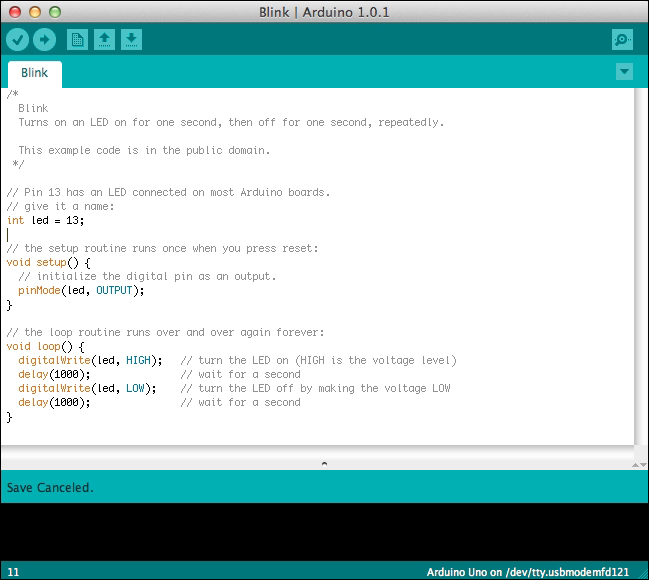
The IDE provides a graphical interface in which you can write your code, debug it, compile it, and upload it, basically.

The famous Blink code example opened in the Arduino IDE

There are six icons from left to right that we have to know very well because we'll use them every time:

  • Verify (check symbol): This provides code checking for errors

  • Upload (right-side arrow): This compiles and uploads our code to the Arduino board

  • New (small blank page): This creates a new blank sketch

  • Open (up arrow): This opens a list of all sketches already existing in our sketchbook

  • Save (down arrow): This saves our sketch in our sketchbook

  • Serial Monitor (small magnifying glass): This provides the serial monitoring

Each menu item in the top bar provides more options we will discover progressively all throughout this book.

However, the Tools menu deserves closer attention:

  • Auto Format: This provides code formatting with correct and standard indentations

  • Archive Sketch: This compresses the whole current sketch with all files

  • Board: This provides a list of all boards supported

  • Serial Port: This provides a list of all serial devices on the system

  • Programmer: This provides a list of all programmer devices supported and used in case of total reprogramming of the AVR chipset

  • Burn Bootloader: This is the option used when you want to overwrite (or even write) a new bootloader on your board.

    The Tools menu

The preferences dialog is also a part we have to learn about right now. As usual, the preferences dialog is a place where we don't really need to go often but only for changing global parameters of the IDE. You can choose the sketchbook location and the Editor language in this dialog. You can also change a couple of bits like automatic check-up of IDE updates at start up or Editor font size.

The sketchbook concept will make our life easier. Indeed, the sketchbook is a folder where, basically, all your sketches will go. On my personal point of view, it is very precious to use it like this because it really organizes things for you and you can retrieve your pieces of code easier. Follow me there; you'll thank me later.

When we start a sketch from scratch, we basically type the code, verify it, upload it, and save it. By saving it, the first time, the IDE creates a folder in which it will put all the files related to our current sketch. By clicking on the sketch file inside this folder, the Arduino IDE will open and the related code will be displayed in the edit/typing part of the window.

We are almost done!

Let's install the drivers of the Arduino USB interface on our system.

Visually different images
CONTINUE READING
83
Tech Concepts
36
Programming languages
73
Tech Tools
Icon Unlimited access to the largest independent learning library in tech of over 8,000 expert-authored tech books and videos.
Icon Innovative learning tools, including AI book assistants, code context explainers, and text-to-speech.
Icon 50+ new titles added per month and exclusive early access to books as they are being written.
C Programming for Arduino
notes
bookmark Notes and Bookmarks search Search in title playlist Add to playlist font-size Font size

Change the font size

margin-width Margin width

Change margin width

day-mode Day/Sepia/Night Modes

Change background colour

Close icon Search
Country selected

Close icon Your notes and bookmarks

Confirmation

Modal Close icon
claim successful

Buy this book with your credits?

Modal Close icon
Are you sure you want to buy this book with one of your credits?
Close
YES, BUY

Submit Your Feedback

Modal Close icon
Modal Close icon
Modal Close icon