Sign In Start Free Trial
Account

Add to playlist

Create a Playlist

Modal Close icon
You need to login to use this feature.
  • Book Overview & Buying C++ Application Development with Code::Blocks
  • Table Of Contents Toc
  • Feedback & Rating feedback
C++ Application Development with Code::Blocks

C++ Application Development with Code::Blocks

By : BIPLAB MODAK
2.3 (4)
close
close
C++ Application Development with Code::Blocks

C++ Application Development with Code::Blocks

2.3 (4)
By: BIPLAB MODAK

Overview of this book

Table of Contents (13 chapters)
close
close

First run


On the Windows platform navigate to the Start | All Programs | CodeBlocks | CodeBlocks menu options to launch Code::Blocks. Alternatively you may double-click on the shortcut displayed on the desktop to launch Code::Blocks, as in the following screenshot:

On Linux navigate to Applications | Programming | Code::Blocks IDE menu options to run Code::Blocks. Please note that in subsequent chapters of this book we'll limit our discussion mostly to the Windows platform. However, usage of Code::Blocks and C++ development (excluding platform specific areas) remain the same over both platforms.

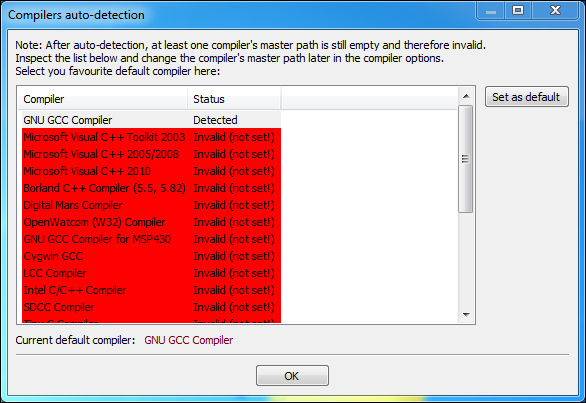
Code::Blocks will now ask the user to select the default compiler. Code::Blocks supports several compilers and hence, is able to detect the presence of other compilers. The following screenshot shows that Code::Blocks has detected GNU GCC Compiler (which was bundled with the installer and has been installed). Click on it to select and then click on Set as default button, as shown in the following screenshot:

Do not worry about the items highlighted in red in the previous screenshot. Red colored lines indicate Code::Blocks was unable to detect the presence of a particular compiler.

Finally, click on the OK button to continue with the loading of Code::Blocks. After the loading is complete the Code::Blocks window will be shown.

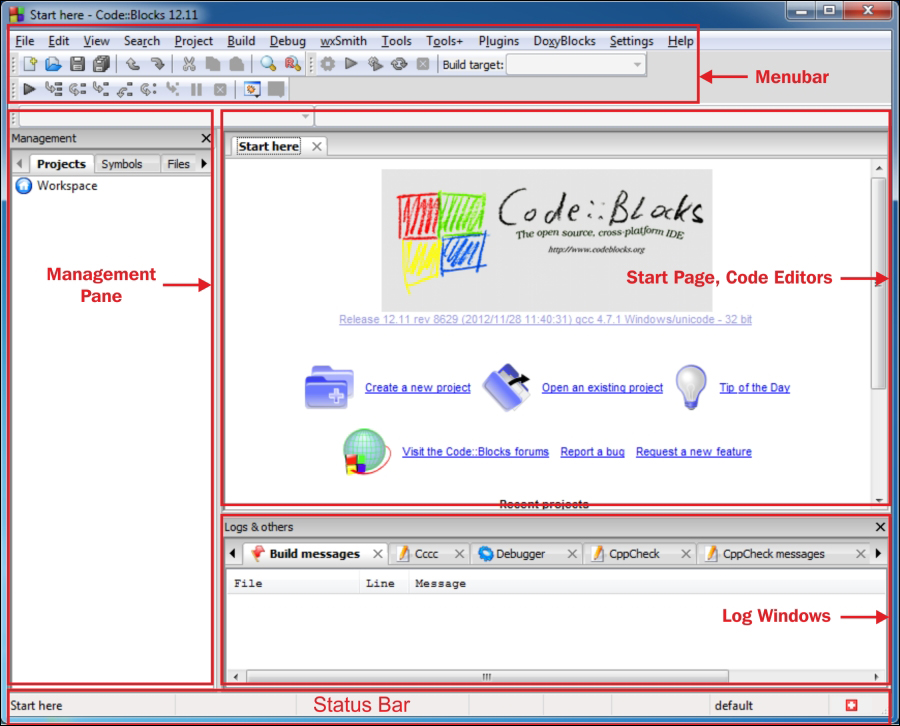
The following screenshot shows main window of Code::Blocks. Annotated portions highlight different User Interface (UI) components:

Now, let us understand more about different UI components:

  • Menu bar and toolbar: All Code::Blocks commands are available via menu bar. On the other hand toolbars provide quick access to commonly used commands.

  • Start page and code editors: Start page is the default page when Code::Blocks is launched. This contains some useful links and recent project and file history. Code editors are text containers to edit C++ (and other language) source files. These editors offer syntax highlighting—a feature that highlights keywords in different colors.

  • Management pane: This window shows all open files (including source files, project files, and workspace files). This pane is also used by other plugins to provide additional functionalities. In the preceding screenshot FileManager plugin is providing a Windows Explorer like facility and Code Completion plugin is providing details of currently open source files.

  • Log windows: Log messages from different tools, for example, compiler, debugger, document parser, and so on, are shown here. This component is also used by other plugins.

  • Status bar: This component shows various status information of Code::Blocks, for example, file path, file encoding, line numbers, and so on.

Visually different images
CONTINUE READING
83
Tech Concepts
36
Programming languages
73
Tech Tools
Icon Unlimited access to the largest independent learning library in tech of over 8,000 expert-authored tech books and videos.
Icon Innovative learning tools, including AI book assistants, code context explainers, and text-to-speech.
Icon 50+ new titles added per month and exclusive early access to books as they are being written.
C++ Application Development with Code::Blocks
notes
bookmark Notes and Bookmarks search Search in title playlist Add to playlist font-size Font size

Change the font size

margin-width Margin width

Change margin width

day-mode Day/Sepia/Night Modes

Change background colour

Close icon Search
Country selected

Close icon Your notes and bookmarks

Confirmation

Modal Close icon
claim successful

Buy this book with your credits?

Modal Close icon
Are you sure you want to buy this book with one of your credits?
Close
YES, BUY

Submit Your Feedback

Modal Close icon
Modal Close icon
Modal Close icon