-
Book Overview & Buying
-
Table Of Contents
-
Feedback & Rating
Building Web Applications with ArcGIS
By :
In this section, we will quickly install and configure both ArcGIS for Desktop and ArcGIS for Server on your new machine so that we can carry on with the exercise. You will need the ArcGIS for Desktop and ArcGIS for Server media CD-ROM. We will start by installing ArcGIS for Desktop, which uses the default installation configurations, and then we will install and configure ArcGIS for Server.
Before we start, we need to install Microsoft .NET Framework 3.5 SP1, which can be found in the installation media. Follow these steps to start the installation:
Administrator user.
http://resources.esri.com/help/9.3/arcgisdesktop/installGuides/ArcGIS_Desktop/whnjs.htm
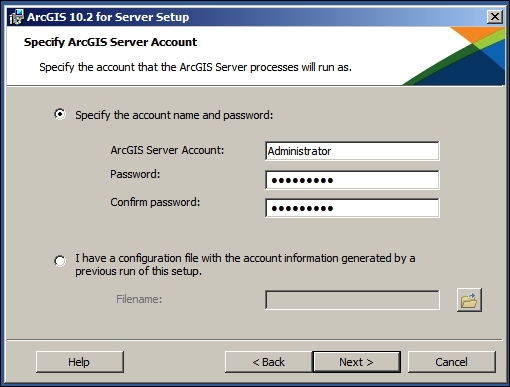
Now we need to install and configure ArcGIS for Server. We need to work with Version 10.1 and above since prior to that, ArcGIS for Server had a different architecture. Follow these steps to install ArcGIS for Server:
Administrator user.
If you accidently closed this browser, you can get to it by typing http://ARCGISMACHINE:6080/arcgis/manager, where ARCGISMACHINE is the machine you installed ArcGIS for Server on. The following link will work as well: http://localhost:6080/arcgis/manager.
siteadmin in the Username section, enter a password, and click on Next. This is the account we will use to publish the Bestaurant service to ArcGIS for Server. Make sure to remember these credentials.
You just finished installing ArcGIS for Desktop and Server. Next we will look at to publishing the service.
Note that this is a very basic installation manual and should not be followed for production environment. For advanced configurations and production setup, read my other book Administering ArcGIS for Server, published by Packt Publishing. You can also read more about this in the Esri online documentation (http://resources.esri.com/).
Change the font size
Change margin width
Change background colour