Sign In Start Free Trial
Account

Add to playlist

Create a Playlist

Modal Close icon
You need to login to use this feature.
  • Book Overview & Buying Mapbox Cookbook
  • Table Of Contents Toc
  • Feedback & Rating feedback
Mapbox Cookbook

Mapbox Cookbook

By : Kastanakis
2 (1)
close
close
Mapbox Cookbook

Mapbox Cookbook

2 (1)
By: Kastanakis

Overview of this book

Maps are an essential element in today’s location aware applications. Right from displaying earth surface information to creating thematic maps displaying plethora of information, most of the developers lack the necessary knowledge to create customizable maps with combination of various tools and libraries. The MapBox platform is one such platform which offers all the tools and API required to create and publish a totally customizable map. Starting with building your first map with the online MapBox Editor, we will take you all the way to building advanced web and mobile applications with totally customizable map styles. Through the course of chapters we’ll learn CartoCSS styling language and understand the various components of MapBox platform and their corresponding JavaScript API. In the initial few chapters we will dive deeper into the TileMill and MapBox Studio components of MapBox and use them to generate custom styled map tiles and vector maps. Furthermore, we will publish these custom maps using PHP, node.js and third party tools like Geoserver. We’ll also learn to create different visualizations and map styles like a choropleth map, a heat map and add user interactivity using a UFTGrid. Moving on, we dive into advanced concepts and focus on integration with third party services like Foursquare, Google FusionTables, CartoDB, and Torque to help you populate and even animate your maps. In the final chapter we’ll learn to use the Mapbox SDK to create and publish interactive maps for the iOS platform. By the end of this book, you will learn about MapBox GL and how to create a fully functional, location-aware mobile app, using the maps styles created in the recipes.
Table of Contents (8 chapters)
close
close
7
Index

Creating your own map

In this recipe, you will be introduced to the core functionality of Mapbox Editor. In the beginning, we will explore the project management dashboard to create a new project. After this, we will use the interactive color picker provided by Mapbox Editor's user interface to help us style our new map.

The power of Mapbox Editor must not be underestimated. The functionality provided allows us to experiment with color schemes and gives our map a unique personality without writing a single line of code. The controls are simple, but at the same time there are options for sophisticated color mixing, making our task easier than ever.

Even if you advance deeper into the book and learn the secrets of CartoCSS, the powerful styling language that powers TillMill and Mapbox Studio, you will often use Mapbox Editor as a scratchpad to experiment with new ideas and color schemes.

Getting ready

To start working with Mapbox, you need to create a user account. This account is needed when you want to create a new project, use the editor, share data, and access the APIs for development; it is used to get a unique access token that you will use in the future when developing using the APIs.

Mapbox offers a free, non-time-limited plan that suffices for the scope of learning Mapbox as long as you do not have any heavy traffic on your published maps. There are limitations, especially when using Mapbox Studio, but you can start with a free plan and upgrade later when needed.

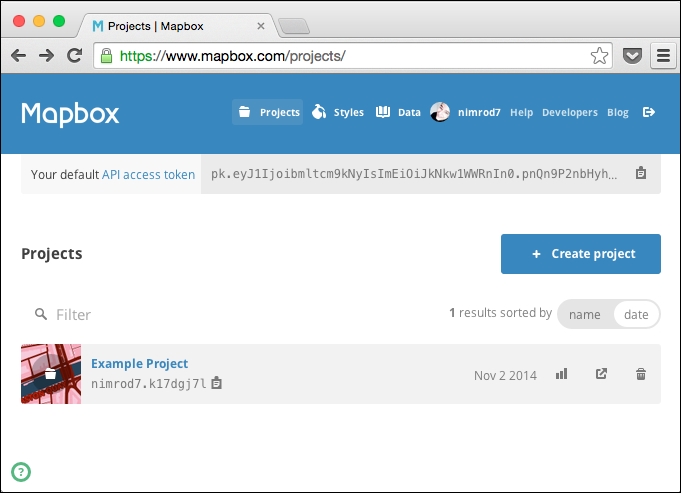
Head over to www.mapbox.com and click on Sign up in the upper-right corner. Follow the instructions to create a new account. After you have created it, simply sign in and select Projects from the menu:

Getting ready

How to do it…

The first step is to create a new project:

  1. Once you have signed in, you will be transferred to the Projects screen. From here, you can create new projects, edit them, or delete them. You will also see the default API access token at the top of the screen, but we will get to that a bit later:
    How to do it…
  2. Click on the Create project button, and you will be transferred to Mapbox Editor, where you can style or import data and save your map.

How it works…

You can pan simply by dragging the mouse on the map, and zoom using the mouse scroll wheel or the plus and minus buttons in the lower-left corner of the screen. Next to the zoom buttons, there is a handy box showing the current coordinates in latitude and longitude of the region currently on the screen. In the upper-left corner of the screen, you will see your profile picture and several buttons that give you access to the related sections. Next to the profile picture is Style, which is used to select one of the predefined map styles:

How it works…

You can start customizing your map immediately by selecting one of the available preset styles to get started with a predefined color style. You can select any of the 15 available styles provided by Mapbox.

Note

There was a time when Mapbox allowed us to customize the color theme using Mapbox Editor.

Sadly, this functionality has now been removed, and Mapbox kindly reminds us that we can use Mapbox Studio to customize our maps. Don't worry; in the end, it's much more powerful to do it this way, and we will learn more about it in Chapter 3, TileMill and Mapbox Studio.

Visually different images
CONTINUE READING
83
Tech Concepts
36
Programming languages
73
Tech Tools
Icon Unlimited access to the largest independent learning library in tech of over 8,000 expert-authored tech books and videos.
Icon Innovative learning tools, including AI book assistants, code context explainers, and text-to-speech.
Icon 50+ new titles added per month and exclusive early access to books as they are being written.
Mapbox Cookbook
notes
bookmark Notes and Bookmarks search Search in title playlist Add to playlist font-size Font size

Change the font size

margin-width Margin width

Change margin width

day-mode Day/Sepia/Night Modes

Change background colour

Close icon Search
Country selected

Close icon Your notes and bookmarks

Confirmation

Modal Close icon
claim successful

Buy this book with your credits?

Modal Close icon
Are you sure you want to buy this book with one of your credits?
Close
YES, BUY

Submit Your Feedback

Modal Close icon
Modal Close icon
Modal Close icon