-
Book Overview & Buying
-
Table Of Contents
-
Feedback & Rating
Java FX 8 Essentials
By :
The best way to show you what it is like to create and build a JavaFX application would be with a Hello World application.
In this section, you will be using the NetBeans IDE we just installed to develop, compile, and run a JavaFX-based Hello World application.
To quickly get started with creating, coding, compiling, and running a simple JavaFX-style Hello World application using the NetBeans IDE, follow the steps outlined in this section:
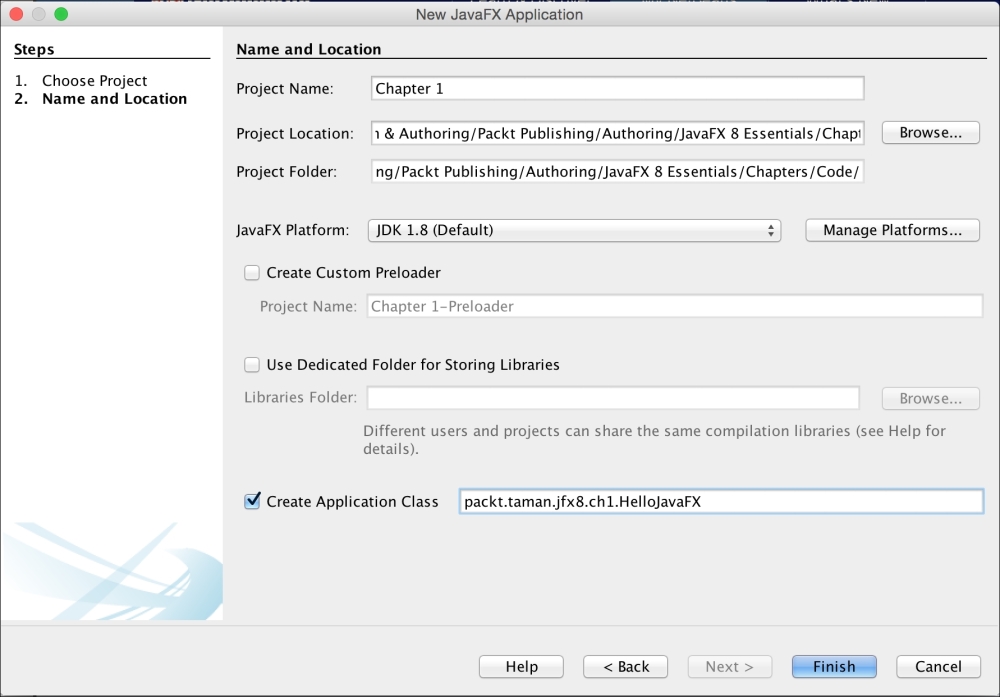
HelloJavaFX. Optionally, you can define the package structure for application classes. Then click on Finish as shown in the following screenshot:
New JavaFX application wizard
NetBeans opens the HelloJavaFX.java file and populates it with the code for a basic "Hello World" application.
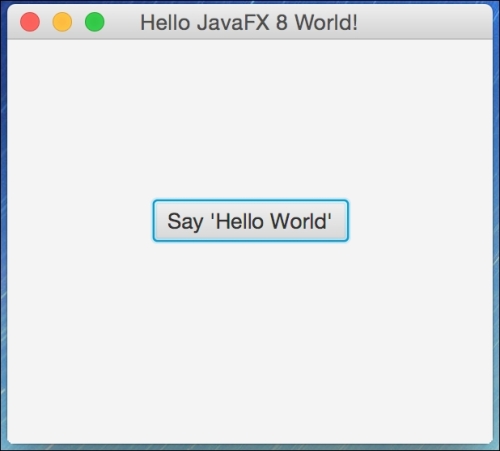
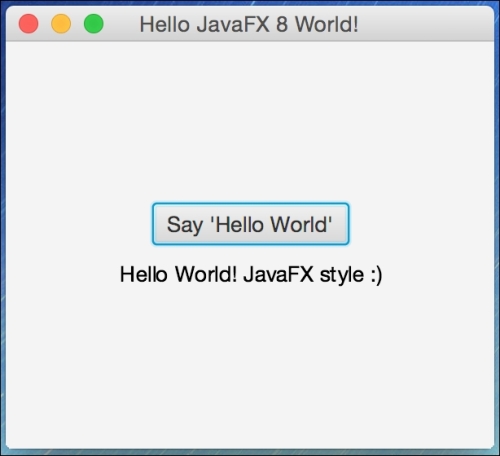
You will find that this version of code has been modified a bit from the one NetBeans actually creates, and you can compare them to find differences, but they have the same structure. I did that to show the result on the text node on the Scene instead of the console when clicking on the Say 'Hello World' button. For that, a VBox container has also been used.

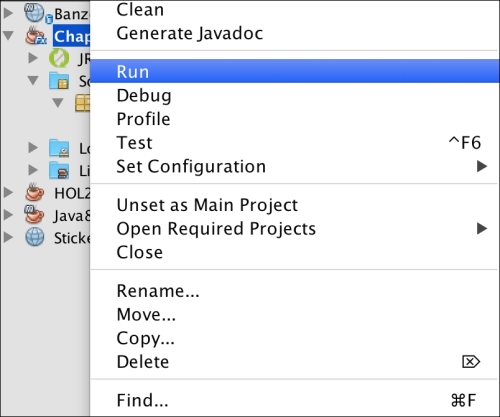
Running the application

JavaFX Hello World launched from the NetBeans IDE

JavaFX Hello World results
Here is the modified code of the basic Hello world application (HelloJavaFX.java):
import javafx.application.Application;
import javafx.scene.Scene;
import javafx.scene.control.Button;
import javafx.scene.text.Text;
import javafx.stage.Stage;
import static javafx.geometry.Pos.CENTER;
import javafx.scene.layout.VBox;
/**
* @author mohamed_taman
*/
public class HelloJavaFX extends Application {
@Override
public void start(Stage primaryStage) {
Button btn = new Button();
Text message = new Text();
btn.setText("Say 'Hello World'");
btn.setOnAction(event -> {
message.setText("Hello World! JavaFX style :)");
});
VBox root = new VBox(10,btn,message);
root.setAlignment(CENTER);
Scene scene = new Scene(root, 300, 250);
primaryStage.setTitle("Hello JavaFX 8 World!");
primaryStage.setScene(scene);
primaryStage.show();
}
public static void main(String[] args) {
launch(args);
}
}Here are the important things to know about the basic structure of a JavaFX application:
javafx.application.Application class. The start() method is the main entry point for all JavaFX applications.Stage class is the top-level JavaFX container. The JavaFX Scene class is the container for all content. The following code snippet creates a stage and scene and makes the scene visible in a given pixel size – new Scene(root, 300, 250).VBox layout object, which is a resizable layout node. This means that the root node's size tracks the scene's size and changes when a user resizes the stage.VBox is used here as the container that arranges its content nodes vertically in a single column with multiple rows. We have added the button btn control to the first row in the column, then the text message control to the second row on the same column, with vertical space of 10 pixels, as in the following code snippet:VBox root = new VBox(10,btn,message); root.setAlignment(CENTER);
Old School:
btn.setOnAction(new EventHandler<ActionEvent>() {
@Override
public void handle(ActionEvent event) {
message.setText("Hello World! JavaFX style :)");
}
});New Era:
btn.setOnAction(event -> {
message.setText("Hello World! JavaFX style :)");
});main() method is not required for JavaFX applications when the JAR file for the application is created with the JavaFX Packager tool, which embeds the JavaFX Launcher in the JAR file.main() method so you can run JAR files that were created without the JavaFX Launcher, such as when using an IDE in which the JavaFX tools are not fully integrated. Also, Swing applications that embed JavaFX code require the main() method.main() method's entry point, we launch the JavaFX application by simply passing in the command-line arguments to the Application.launch() method.Application.launch() method has executed, the application will enter a ready state and the framework internals will invoke the start() method to begin.start() method is invoked, a JavaFX javafx.stage.Stage object is available for you to use and manipulate.Advanced topics will be discussed at length in the next chapters. More importantly, we will go through the JavaFX application thread in the coming chapters. In the last three chapters, we will see how to bring the result from other threads into the JavaFX application thread in order to render it correctly on the scene.
Change the font size
Change margin width
Change background colour