-
Book Overview & Buying
-
Table Of Contents
-
Feedback & Rating
Professional Scala
By :
Let's look at our
chatbot program in a complete runnable project. Let's navigate to the
/day1-lesson1/1-project directory in our code supplement.
The code is available on Github at the following link: https://github.com/TrainingByPackt/Professional-Scala

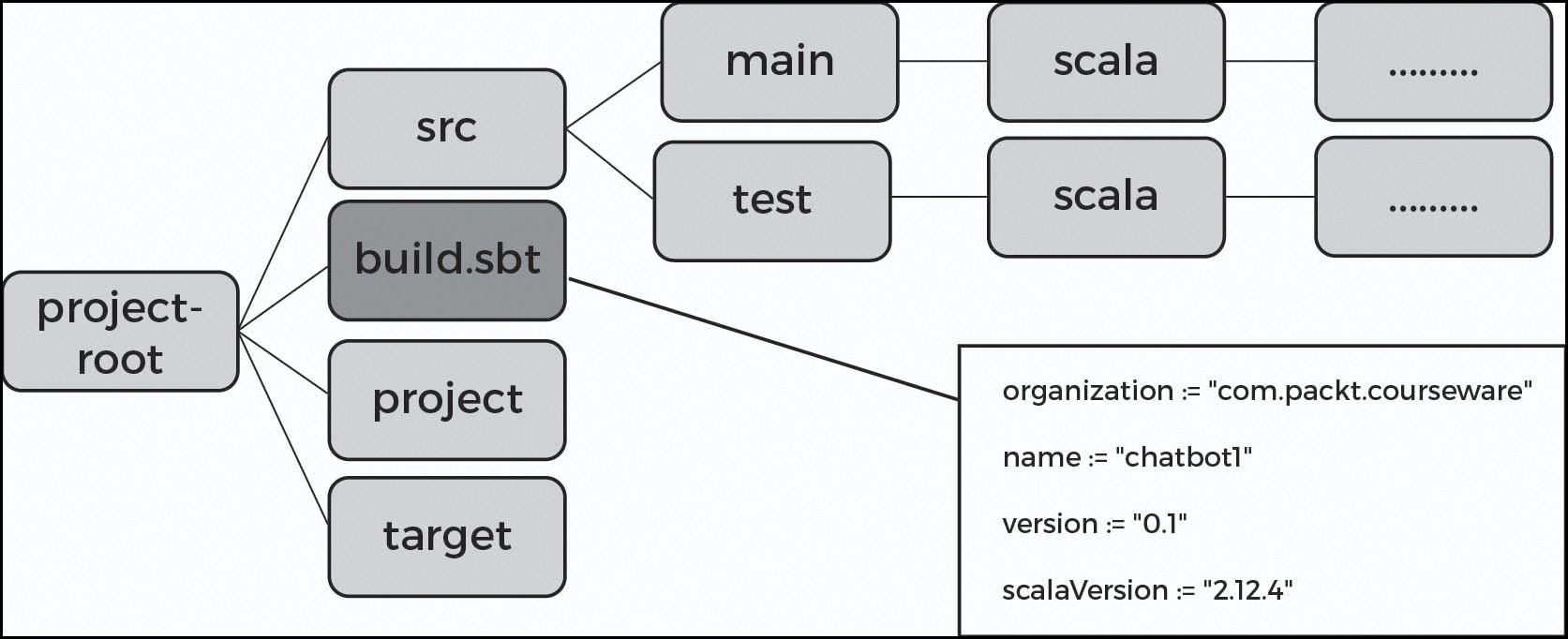
The preceding diagram is the typical directory structure of a Scala project. If you are familiar with the Java tools ecosystem, then you will notice the similarities between the
maven project layout.
In
src, we can
see project sources (
main and
test).
target is a place where output artifacts are created, whereas
project is used as a place to
internally build the project. We will cover all of these concepts later on.
organization := "com.packt.courseware"name := "chatbot1"version := "0.1-SNAPSHOT" scalaVersion := "2.12.4"
The head of any project is its
build.sbt file. It consists of the following code:
The text inside it is a plain Scala snippet.
organization,
name, and
version are instances of
sbt.key. For this point of view,
:= is a binary operator defined on
keys. In Scala, any method with two arguments can be used with the syntax of a binary operator.
:= is a valid method name.
build.sbt is interpreted by the
sbt tool.
sbt – The original intention for the name, when
sbt was created by Mark Harrah, was '
Simple Build Tool'. Later on, the author decided to avoid such a decipherment, and kept it as it was. You can read about the details of
sbt here:
https://www.scala-sbt.org/1.x/docs/index.html.
We will now
talk about the basic
sbt commands.
sbt compile should compile
the project and live somewhere in its target compiled Java classes.
sbt run executes
the
main function of the project. Therefore, we can try to interact with our
chatbot:
rssh3:1-project rssh$ sbt run [info] Loading global plugins from /Users/rssh/.sbt/0.13/plugins [info] Set current project to chatbot1 (in build file:/Users/rssh/work/packt/professional-scala/Lesson 1/1-project/) [info] Running com.packt.courseware.Chatbot1 Hi! What is your name? Jon Jon, tell me something interesting, say 'bye' to end the talk
>qqq interesting.. >ddd interesting... >bye ok, bye [success] Total time: 19 s, completed Dec 1, 2017 7:18:42 AM
The output of the code is as follows:
sbt package prepares
an output artifact. After running it, it will create file called
target/chatbot1_2.12-0.1-SNAPSHOT.jar.
chatbot1 is the name of our project;
0.1-SNAPSHOT – version. 2.12 is the version of the Scala compiler.
Scala
guarantees binary compatibility only within the scope of a minor version. If, for some reason, the project still uses
scala-2.11, then it must use the library, which was created for
scala-2.11. On the other hand, updating to the next compiler version can be a long process for projects with many dependencies. To allow the same library to exist in the repository with different
scalaVersions, we need to have an appropriate
suffix in the jar file.
sbt publish-local – publishes the artifact on to your local repository.
Now let's see
our sample project and
sbt tool.
sbt console by typing sbt console in the root directory of the 1-project (where build.sbt is situated).compile command into the sbt console.sbt run command into the sbt console.bye to the bot and return to the console.package into the sbt console.Another part of the developer toolbox is an IDE tool (Integrated Development Environment). For our book, we will use Intellij IDEA community edition with the Scala plugin. This is not the only option: other alternatives are scala-ide, based on IBM Eclipse and Ensime (http://ensime.github.io/), which brings IDE features to any programmable text editors, from vi to emacs.
All tools support importing the project layout from
build.sbt.
File -> Import -> navigate to build.sbtOpenday1-lesson1/1-project/build.sbtproject.src entry.main.main, as specified in the code.sbt console.For running our project from the IDE, we should edit the project's configuration (Menu:
Build/
Edit configuration or
Run/
Edit configuration, depending on which version of IDEA you are using).
Running the Project from IDE:
Run/Edit Configuration.Application.Chatbot1.Main class. In our case, it must be com.packt.courseware.Chatbot1.Another tool that we will frequently use is REPL (Read Eval Print Loop). It is often used for quickly evaluating Scala expressions.
From
sbt, we can enter REPL mode with the help of the
sbt console command. Let's try some
simple expressions.
Now, we'll look at how to evaluate expressions. Follow these steps to do so:
sbt tool.REPL by typing the following command:sbt console
2 + 2"2" + 22 + "2"(1 to 8).sumjava.time.LocalTime.now()Please note that we can have an interactive Scala
playboard inside IDE by creating a special file type: a Scala Worksheet. It's useful, but is mainly for demonstration purposes.
For now, let's return to our task: modifying the
chatbot program so that it replies with
the current time, as requested by the use of
time. Let's learn how to do this:
Steps for C ompletion
time to match the statement:case "time" =>
now method of java.time.LocalTime:java.time.LocalTime.now()
println("time is ${java.time.LocalTime.now()}")The
main method will look like this:
def main(args: Array[String]): Unit = {
val name = StdIn.readLine("Hi! What is your name?")
println(s" $name, tell me something interesting, say 'bay' to end the talk")
var timeToBye = false
while (!timeToBye)timeToBye = StdIn.readLine(">")
match {case "bye" => println("ok, bye")truecase "time" =>
println(s"time is ${java.time.LocalTime.now()}")truecase _ =>
println("interesting...")false}
}After we prepare and package our artifacts, we need to run them as well.
In this book, we will
use the running system from unpackaged sources via
sbt (as in the early days of Ruby applications), assuming that sources and
sbt tools are accessible from the production environment. Using this, we can use build tool commands for sources such as
sbt run. In real life, packaging for production is a bit more complex.
Popular methods for doing this are as follows:
sbt plugin for this exists, which can be found at the following link: https://github.com/sbt/sbt-assembly.sbt plugin to create native system packages, which can be found at the following link: https://github.com/sbt/sbt-native-packager.Change the font size
Change margin width
Change background colour