-
Book Overview & Buying
-
Table Of Contents

-
Feedback & Rating

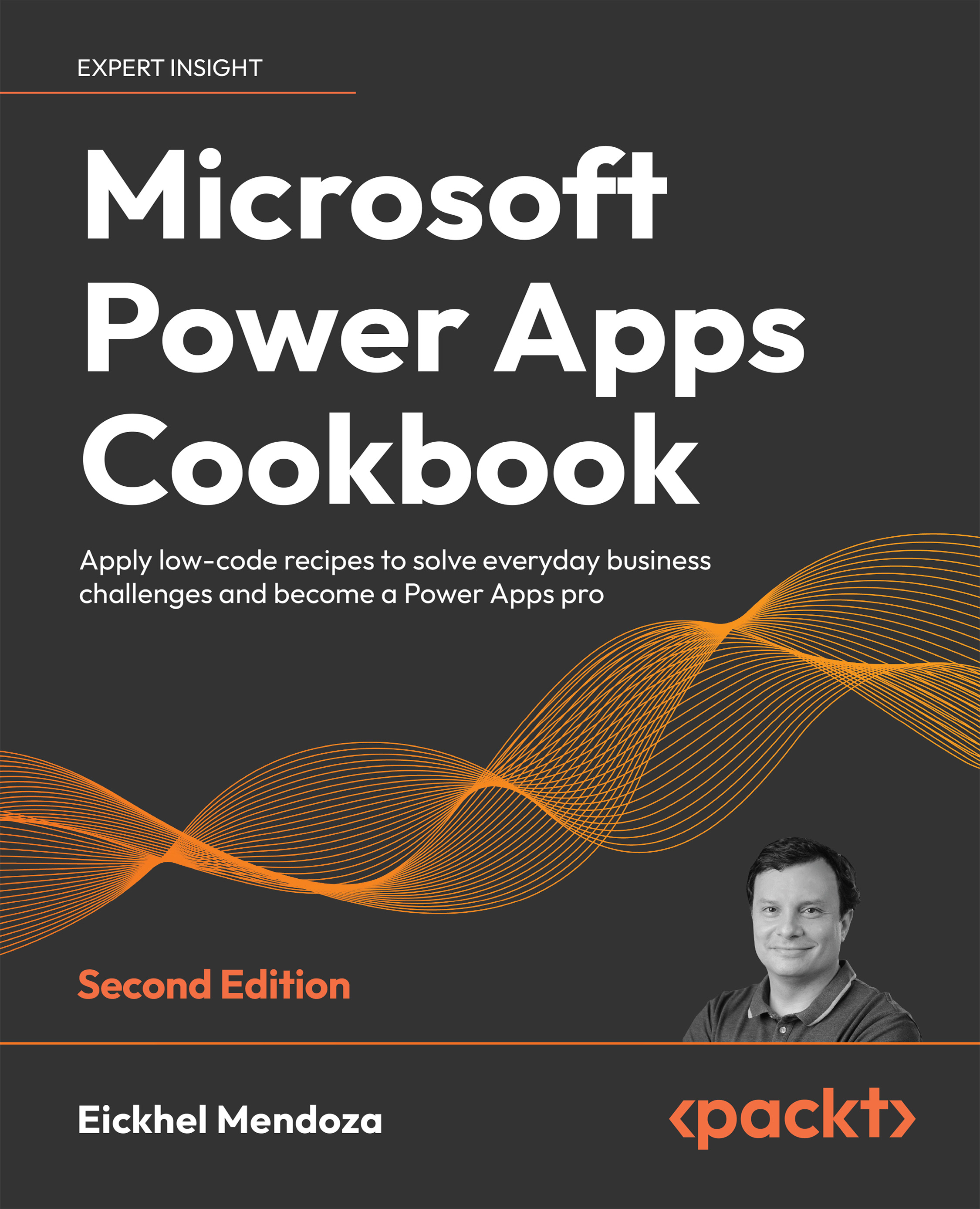
Microsoft Power Apps Cookbook - Second Edition
By :


Microsoft Power Apps Cookbook
By:
Overview of this book
Power Apps is a low-code platform owned by Microsoft. With this platform, you can create solutions to solve your business needs while integrating with other components of the Power Platform, such as Microsoft Power Automate, Microsoft Power BI, and others. This book is a handy solution guide to meet many organizational requirements.
Microsoft Power Apps Cookbook, Second Edition, takes a pragmatic approach where every business scenario is presented in a quick, practical, and action-oriented recipe. You will be able to use these instant solutions in your development environment and customize your business apps to meet challenging business needs. This will help you handle real-world scenarios and experiences to give you a head start in your Power Apps projects. You will discover various aspects of Power Apps, from building canvas apps, designing model-driven solutions, extending apps with custom connectors, and integrating apps with other platforms, to the pro-developer side including Power Apps Component Framework and creating website experiences for external users with Power Pages.
By the end of this Microsoft Power Apps book, you will have gained experience in developing applications using the Power Apps platform and all its features.
Table of Contents (15 chapters)
Preface


 Free Chapter
Building Pixel-Perfect Solutions with Canvas Apps

Building from Data with Model-Driven Apps
Choosing the Right Data Source for Your Applications
Automating Processes with Power Automate
Extending the Platform
Improving User Experience
Power Apps Everywhere
Empowering Your Applications with No Code Artificial Intelligence
Discovering the Power Platform Admin Center
Tips, Tricks, and Troubleshooting
Advanced Techniques with Power Apps Component Framework
Reaching Beyond the Organization with Power Pages
Other Books You May Enjoy
Index
Customer Reviews