Sign In Start Free Trial
Account

Add to playlist

Create a Playlist

Modal Close icon
You need to login to use this feature.
  • Book Overview & Buying Mastering Articulate Storyline
  • Table Of Contents Toc
  • Feedback & Rating feedback
Mastering Articulate Storyline

Mastering Articulate Storyline

By : Chiasson
3.2 (5)
close
close
Mastering Articulate Storyline

Mastering Articulate Storyline

3.2 (5)
By: Chiasson

Overview of this book

Storyline is a powerful e-learning authoring tool that allows you to take your creativity to the next level. However, more often than not, projects don't require such complex interactions, leaving Storyline's full capabilities untapped. This book will provide you with the information you need to take your Storyline development up a notch by leveraging the full suite of possibilities Storyline has to offer. You will be provided with a refresher of the key concepts before we take you deep into the exciting world of enhanced interactivity, variables, and even some JavaScript—oh my! With downloadable activities, you can either follow along and compare your output, use the activities as they are, modify the activities to suit your own needs, or reverse-engineer the activities to better understand how they were developed.
Table of Contents (10 chapters)
close
close

Using Zoom Region to create interactivity

The Zoom Region tool in Storyline allows you to zoom into a region of your slide, acting as a homing device for your learner's attention. This feature is great for creating interactive screenshots, conducting navigational tours, and creating hide-and-seek style interactions.

Note

Zoom regions are timeline based; you cannot trigger a zoom region.

Adding a Zoom Region is simple! First, consider the area you want to zoom in on and then select Zoom Region from the Insert tab.

Using Zoom Region to create interactivity

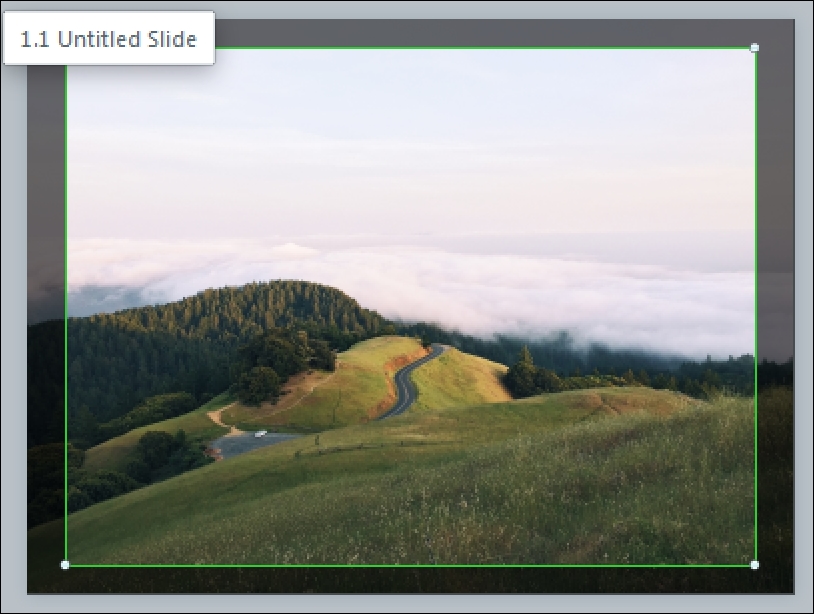
You will notice a green rectangle around your slide. This is your Zoom Region. You can move the region by dragging it and can reduce the size of the zoom region by clicking and dragging the white pull handles at the corners of the zoom region.

Using Zoom Region to create interactivity

Zooming in on an object

In the following example, we want to zoom in on the white parked car in the image, so we'll reduce the zoom region to that area. The default transition speed is Medium, but you can adjust the speed by right...

Visually different images
CONTINUE READING
83
Tech Concepts
36
Programming languages
73
Tech Tools
Icon Unlimited access to the largest independent learning library in tech of over 8,000 expert-authored tech books and videos.
Icon Innovative learning tools, including AI book assistants, code context explainers, and text-to-speech.
Icon 50+ new titles added per month and exclusive early access to books as they are being written.
Mastering Articulate Storyline
notes
bookmark Notes and Bookmarks search Search in title playlist Add to playlist download Download options font-size Font size

Change the font size

margin-width Margin width

Change margin width

day-mode Day/Sepia/Night Modes

Change background colour

Close icon Search
Country selected

Close icon Your notes and bookmarks

Confirmation

Modal Close icon
claim successful

Buy this book with your credits?

Modal Close icon
Are you sure you want to buy this book with one of your credits?
Close
YES, BUY

Submit Your Feedback

Modal Close icon
Modal Close icon
Modal Close icon