Sign In Start Free Trial
Account

Add to playlist

Create a Playlist

Modal Close icon
You need to login to use this feature.
  • Book Overview & Buying Leaflet.js Essentials
  • Table Of Contents Toc
Leaflet.js Essentials

Leaflet.js Essentials

By : Paul Crickard III
4 (7)
close
close
Leaflet.js Essentials

Leaflet.js Essentials

4 (7)
By: Paul Crickard III

Overview of this book

If you are a web developer working with geospatial concepts and mapping APIs, and you want to learn Leaflet to create mapping solutions, this book is for you. You need to have a basic knowledge of working with JavaScript and performing web application development.
Table of Contents (8 chapters)
close
close
7
Index

MultiPolylines and MultiPolygons

In the previous examples, you created each polyline and polygon as its own layer. When you start creating real data, you will find that you want multiple polylines or polygons on a single layer. For starters, it is more realistic, and it also makes it possible to deal with similar features as a single entity. If you want to map parks and bike trails on a single map, it makes sense to add the parks as MultiPolygon and the bike trails as MultiPolyline. Then, you can provide the user with the option of turning either layer on or off.

Tip

Bracketing for MultiPolylines and MultiPolygons can get confusing. You need brackets to hold the MultiPolyline or MultiPolygon, brackets for each polyline or polygon, and brackets for each latitude and longitude.

MultiPolylines

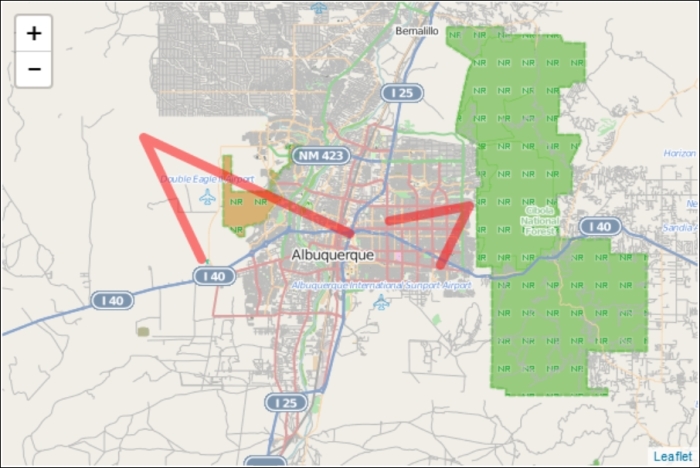
Creating a MultiPolyline is functionally the same as a single polyline, except that you pass multiple longitudes and latitudes; a set for each polygon. This is shown in the following code:

var multipolyline = L.multiPolyline([[[35.10418, -106.62987],[35.19738, -106.875],[35.07946, -106.80634]],[[35.11654, -106.58318],[35.13142, -106.48876],[35.07384, -106.52412]]],{color: 'red',weight:8}).addTo(map);

In the preceding code, the first polyline is the same as the polyline example. A second polyline is added, and the options are also the same as the first polyline example. The following screenshot shows the MultiPolyline added to the map:

MultiPolylines

MultiPolygons

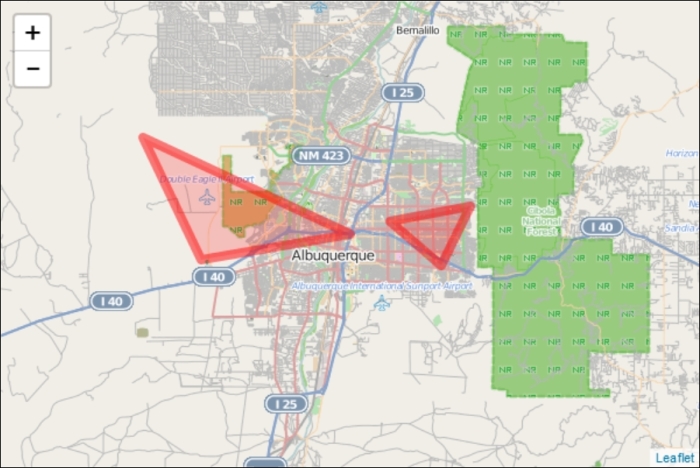
Creating a MultiPolygon is the same as creating a MultiPolyline. Since Leaflet will automatically close the polyline, as long as our polylines have three or more points, we can use them. This is shown in the following code:

var multipolygon = L.multiPolygon([[[35.10418, -106.62987],[35.19738, -106.875],[35.07946, -106.80634]],[[35.11654, -106.58318],[35.13142, -106.48876],[35.07384, -106.52412]]],{color: 'red',weight:8}).addTo(map).bindPopup("We are the same layer");

In the preceding code, you can see that the parameters used are identical to those used in the MultiPolyline example earlier. When we create a MultiPolygon or MultiPolyline, the options will apply to every polygon or polyline in the collection. This means that they all have to be the same color, weight, opacity, and so on. There is a new method in the preceding code: .bindPopup("We are the same layer"). MultiPolygons and MultiPolylines also share the same pop up. Pop ups will be discussed later in this chapter. Also, note the use of method chaining in the line L.multiPolygon().addTo().bindPopup(). The following screenshot shows the MultiPolygon added to the map:

MultiPolygons
Visually different images
CONTINUE READING
83
Tech Concepts
36
Programming languages
73
Tech Tools
Icon Unlimited access to the largest independent learning library in tech of over 8,000 expert-authored tech books and videos.
Icon Innovative learning tools, including AI book assistants, code context explainers, and text-to-speech.
Icon 50+ new titles added per month and exclusive early access to books as they are being written.
Leaflet.js Essentials
notes
bookmark Notes and Bookmarks search Search in title playlist Add to playlist font-size Font size

Change the font size

margin-width Margin width

Change margin width

day-mode Day/Sepia/Night Modes

Change background colour

Close icon Search
Country selected

Close icon Your notes and bookmarks

Confirmation

Modal Close icon
claim successful

Buy this book with your credits?

Modal Close icon
Are you sure you want to buy this book with one of your credits?
Close
YES, BUY

Submit Your Feedback

Modal Close icon
Modal Close icon
Modal Close icon