
Sign In Start Free Trial
Account

Add to playlist

Create a Playlist

Modal Close icon
You need to login to use this feature.
  • Book Overview & Buying Vue.js 2 Web Development Projects
  • Table Of Contents Toc
  • Feedback & Rating feedback
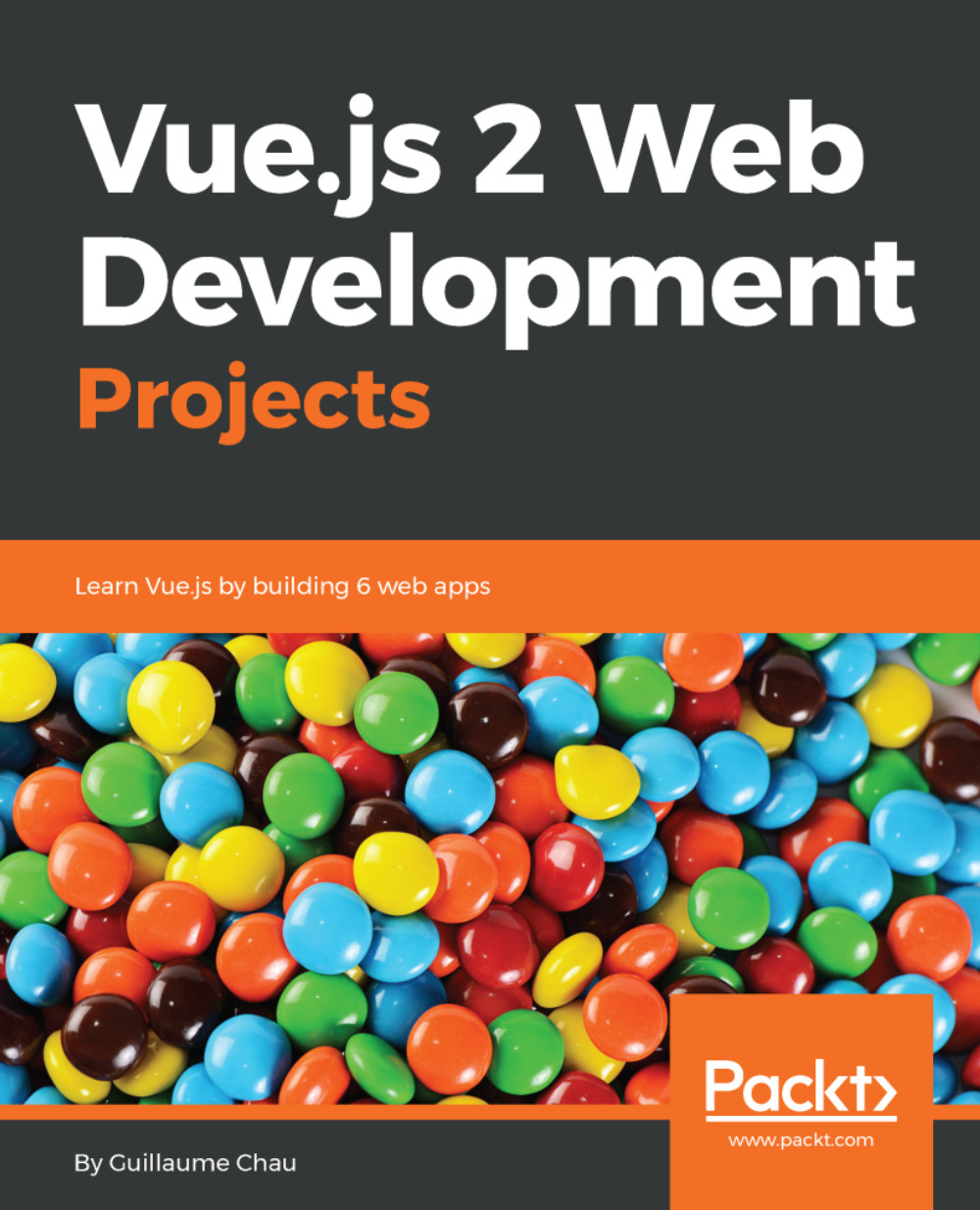
Vue.js 2 Web Development Projects

Vue.js 2 Web Development Projects

By : GUILLAUME
4.5 (2)
close
close
Vue.js 2 Web Development Projects

Vue.js 2 Web Development Projects

4.5 (2)
By: GUILLAUME

Overview of this book

Do you want to make your web application amazingly responsive? Are you unhappy with your app's performance and looking forward to trying out ways to make your app more powerful? Then Vue.js, a framework for building user interfaces, is a great choice, and this book is the ideal way to put it through its paces. This book's project-based approach will get you to build six stunning applications from scratch and gain valuable insights in Vue.js 2.5. You'll start by learning the basics of Vue.js and create your first web app using directives along with rich and attractive user experiences. You will learn about animations and interactivity by creating a browser-based game. Using the available tools and preprocessor, you will learn how to create multi-page apps with plugins. You will create highly efficient and performant functional components for your app. Next, you will create your own online store and optimize it. Finally, you will integrate Vue.js with the real-time Meteor library and create a dashboard showing real-time data. By the end of this book you will have enough skills and will have worked through enough examples of real Vue.js projects to create interactive professional web applications with Vue.js 2.5.
Table of Contents (9 chapters)
close
close

Creating an app

For now, we don't have any Vue app running on our web page. The whole library is based on Vue instances, which are the mediators between your View and your data. So, we need to create a new Vue instance to start our app:

// New Vue instance
var app = new Vue({
// CSS selector of the root DOM element
el: '#root',
// Some data
data () {
return {
message: 'Hello Vue.js!',
}
},
})

The Vue constructor is called with the new keyword to create a new instance. It has one argument--the option object. It can have multiple attributes (called options), which we will discover progressively in the following chapters. For now, we are using only two of them.

With the el option, we tell Vue where to add (or "mount") the instance on our web page using a CSS selector. In the example, our instance will use the <div id="root"> DOM element as its root element. We could also use the $mount method of the Vue instance instead of the el option:

var app = new Vue({
data () {
return {
message: 'Hello Vue.js!',
}
},
})
// We add the instance to the page
app.$mount('#root')
Most of the special methods and attributes of a Vue instance start with a dollar character.

We will also initialize some data in the data option with a message property that contains a string. Now the Vue app is running, but it doesn't do much, yet.

You can add as many Vue apps as you like on a single web page. Just create a new Vue instance for each of them and mount them on different DOM elements. This comes in handy when you want to integrate Vue in an existing project.

Vue devtools

An official debugger tool for Vue is available on Chrome as an extension called Vue.js devtools. It can help you see how your app is running to help you debug your code. You can download it from the Chrome Web Store (https://chrome.google.com/webstore/search/vue) or from the Firefox addons registry (https://addons.mozilla.org/en-US/firefox/addon/vue-js-devtools/?src=ss).

For the Chrome version, you need to set an additional setting. In the extension settings, enable Allow access to file URLs so that it can detect Vue on a web page opened from your local drive:

On your web page, open the Chrome Dev Tools with the F12 shortcut (or Shift + command + c on OS X) and search for the Vue tab (it may be hidden in the More tools... dropdown). Once it is opened, you can see a tree with our Vue instance named Root by convention. If you click on it, the sidebar displays the properties of the instance:

You can drag and drop the devtools tab to your liking. Don't hesitate to place it among the first tabs, as it will be hidden in the page where Vue is not in development mode or is not running at all.

You can change the name of your instance with the name option:

var app = new Vue({
name: 'MyApp',
// ...
})

This will help you see where your instance in the devtools is when you will have many more:

Visually different images
CONTINUE READING
83
Tech Concepts
36
Programming languages
73
Tech Tools
Icon Unlimited access to the largest independent learning library in tech of over 8,000 expert-authored tech books and videos.
Icon Innovative learning tools, including AI book assistants, code context explainers, and text-to-speech.
Icon 50+ new titles added per month and exclusive early access to books as they are being written.
Vue.js 2 Web Development Projects
notes
bookmark Notes and Bookmarks search Search in title playlist Add to playlist download Download options font-size Font size

Change the font size

margin-width Margin width

Change margin width

day-mode Day/Sepia/Night Modes

Change background colour

Close icon Search
Country selected

Close icon Your notes and bookmarks

Confirmation

Modal Close icon
claim successful

Buy this book with your credits?

Modal Close icon
Are you sure you want to buy this book with one of your credits?
Close
YES, BUY

Submit Your Feedback

Modal Close icon
Modal Close icon
Modal Close icon
