-
Book Overview & Buying
-
Table Of Contents
-
Feedback & Rating
Python Web Development with Sanic
By :
Cisco enterprise devices, such as their routers and switches, have a networking operating system known as the Cisco Internetwork Operating System (IOS). Cisco IOS enables network professionals to easily manage and control the hardware components within Cisco IOS devices. Furthermore, Cisco IOS also provides the necessary software features to support a wide range of network functionalities, including routing, switching, and security. However, unlike most network operating systems and firmware that provide the user with a graphical user interface (GUI), Cisco IOS provides command-line interface (CLI) access only.
Additionally, the Cisco routers and switches have similar hardware components to computers, such as the following:
Note
Cisco IOS is stored in flash memory. Using the show flash command will show all the contents in flash.
System administrators are required to understand each phase of the boot process of computers and servers, as this information is useful when troubleshooting any issues that may prevent the operating systems from loading properly. Similarly, both aspiring and seasoned network professionals are required to understand the boot process of Cisco IOS devices.
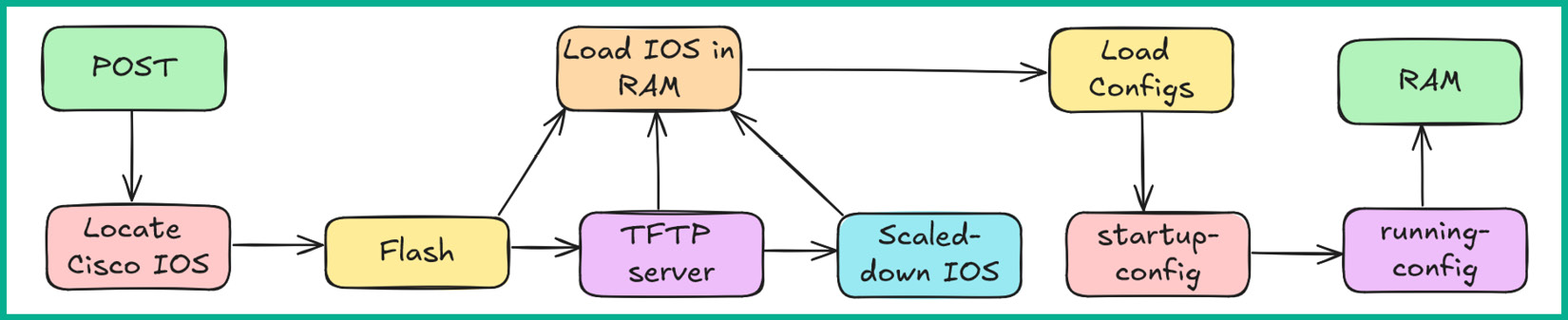
The following is the boot process of a Cisco IOS device:
startup-config file that is stored in non-volatile RAM (NVRAM) and loads it into running-config in RAM.startup-config file is not found, the device will enter the setup mode, which prompts the user to configure the device.Through these steps, you have learned how a Cisco IOS device boots into the operating system and loads its configurations into RAM.
Note
When configuring Cisco IOS, the configurations are stored within the running-config file in RAM. Since RAM is volatile and loses its contents when the device is powered off, it’s important to save the configurations in the startup-config files that are located in NVRAM. However, saving running-config in startup-config is a manual process, which you will learn about in a later section of this chapter.
Figure 2.1 shows the boot process of a Cisco IOS device:
Figure 2.1: Boot process
Cisco IOS is a full-fledged network operating system that enables network professionals to control the hardware and other components of a Cisco device. In addition, Cisco IOS provides advanced security features to help network professionals improve their network security and prevent unauthorized access to Cisco routers and switches.
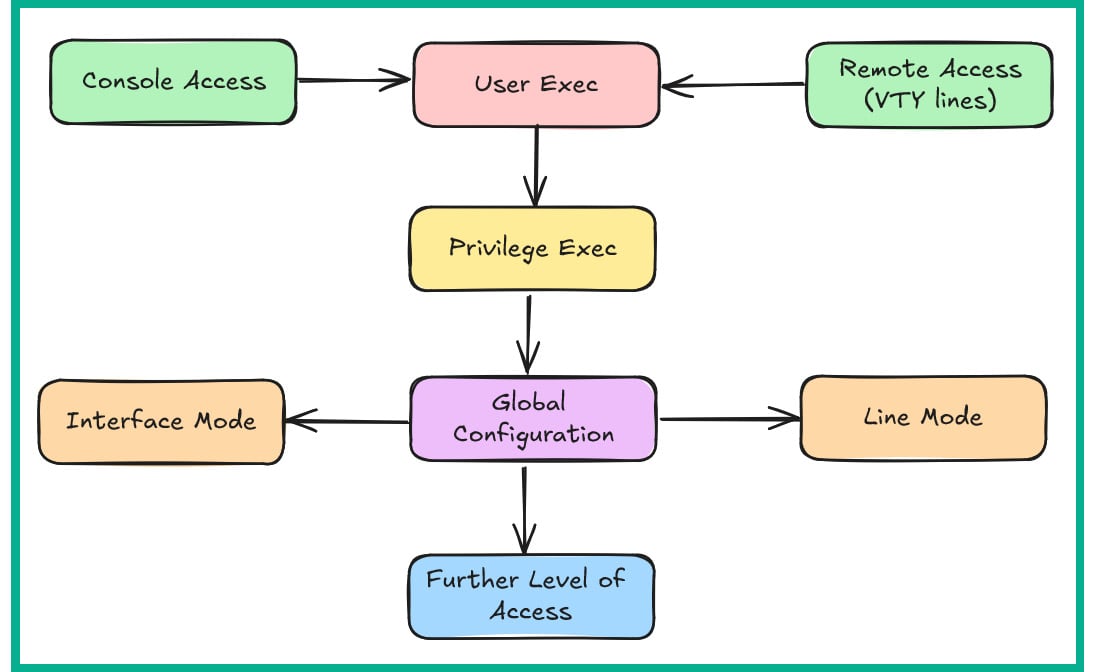
Cisco IOS has many modes or levels of access and each of these enables network professionals to execute specific commands. These levels of access/modes are as follows:
ping and traceroute to troubleshoot connectivity issues.> prompt, as shown here:Router>
# prompt, as shown here:Router#
(config)# prompt, as shown here:Router(config)#
(config-if)# prompt, as shown here:Router(config-if)#
(config-line)# prompt, as shown here:Router(config-line)#
Figure 2.2 shows the various levels of access or modes of Cisco IOS:
Figure 2.2: Cisco IOS modes
As shown in Figure 2.2, network professionals usually gain access to the User Exec mode via the console port or remote access through a VTY line using Secure Shell (SSH) or Telnet.
Note
SSH is a secure remote access protocol that enables network protocols to securely connect to a remote device over the network and obtain terminal access. By default, SSH encrypts the data between the SSH client on the network professional’s computer and the SSH service that’s running on the remote network device. Telnet is an unsecured remote access protocol that provides terminal access to networking devices. However, Telnet does not encrypt the data between the user and the Telnet service on the network device.
The following are examples of some common Cisco IOS commands for getting started with configuring a Cisco IOS device and moving around the different modes, such as User Exec, Privilege Exec, and even Global Configuration mode:
enable command and hit Enter, as shown here:Router> enable
configure terminal command and hit Enter, as shown here:Router# configure terminal
Router(config)# interface gigabitEthernet 0/1 Router(config-if)# ip address 192.168.1.1 255.255.255.0 Router(config-if)# no shutdown Router(config-if)# exit
Note
The exit command will return you to the previous mode. Therefore, if you’re in Interface mode, you will return to Global Configuration mode. After typing a command, hit Enter on the keyboard to execute the command within Cisco IOS.
exit command to return to Privilege Exec mode, as shown here:Router(config)# exit
disable command to return to User Exec mode, as shown here:Router# disable
running-config into startup-config, use the following command:Router# copy running-config startup-config
The following shows an example of using all the commands in the preceding steps:
Router> enable Router# configure terminal Router(config)# interface gigabitEthernet 0/1 Router(config-if)# ip address 192.168.1.1 255.255.255.0 Router(config-if)# no shutdown Router(config-if)# exit Router(config)# exit Router# copy running-config startup-config Router# disable Router>
Note
If you are in Router, Interface, or Line mode, using the exit command will return you to Privilege Exec mode.
Having completed this section, you have learned about the boot process of Cisco IOS devices and the fundamentals of navigating between various modes of Cisco IOS. Next, you will learn how to perform initial device access on a new Cisco IOS router or switch.