Sign In Start Free Trial
Account

Add to playlist

Create a Playlist

Modal Close icon
You need to login to use this feature.
  • Book Overview & Buying Python Web Development with Sanic
  • Table Of Contents Toc
  • Feedback & Rating feedback
Python Web Development with Sanic

Python Web Development with Sanic

By : Stephen Sadowski, Adam Hopkins
4.2 (6)
close
close
Python Web Development with Sanic

Python Web Development with Sanic

4.2 (6)
By: Stephen Sadowski, Adam Hopkins

Overview of this book

Today’s developers need something more powerful and customizable when it comes to web app development. They require effective tools to build something unique to meet their specific needs, and not simply glue a bunch of things together built by others. This is where Sanic comes into the picture. Built to be unopinionated and scalable, Sanic is a next-generation Python framework and server tuned for high performance. This Sanic guide starts by helping you understand Sanic’s purpose, significance, and use cases. You’ll learn how to spot different issues when building web applications, and how to choose, create, and adapt the right solution to meet your requirements. As you progress, you’ll understand how to use listeners, middleware, and background tasks to customize your application. The book will also take you through real-world examples, so you will walk away with practical knowledge and not just code snippets. By the end of this web development book, you’ll have gained the knowledge you need to design, build, and deploy high-performance, scalable, and maintainable web applications with the Sanic framework.
Table of Contents (21 chapters)
close
close

Setting Up a Cisco Lab Environment

Learning about networking can be a lot of fun and leveraging your imagination enables you to design, configure, and troubleshoot complex network architectures. However, as an aspiring network professional and candidate for the CCNA certification, it is important to gain a lot of practical, hands-on experience in implementing and administering Cisco devices. This means that everything you learn, in theory, should be applied to a practical lab to help you gain a solid understanding of the topic.

To assist with creating a lab environment, Cisco has created a very powerful network simulator application for students who are pursuing the CCNA certification. It is called Packet Tracer and it is available to anyone for free. The Cisco Packet Tracer application helps students design, configure, and troubleshoot real-world Cisco architectures without the need to acquire expensive physical devices. Most importantly, the Cisco Packet Tracer commands used on devices within the application can be easily copied and pasted into real Cisco devices.

Lab: Getting the Cisco Packet Tracer Application

To get your hands on the Cisco Packet Tracer application, please follow the given steps:

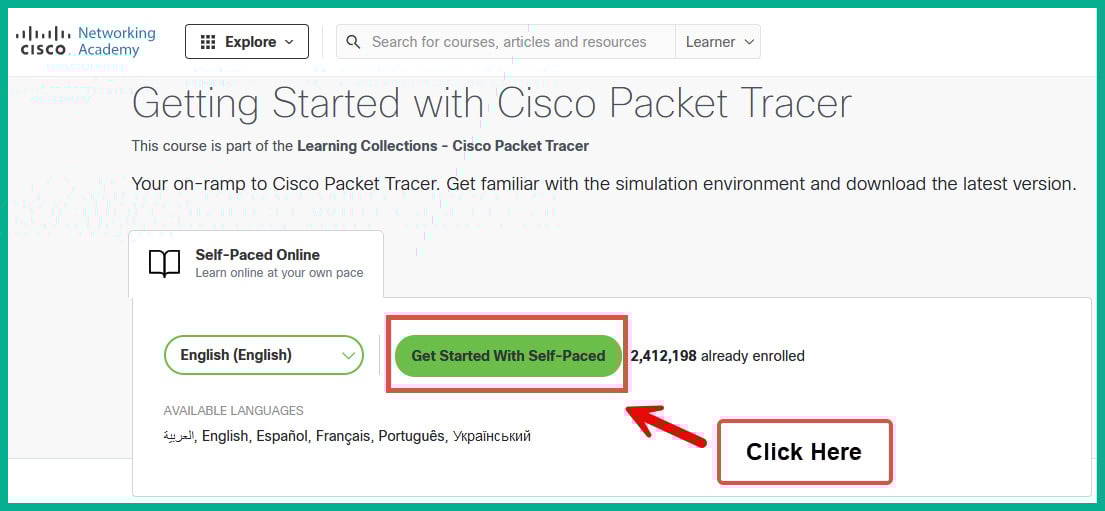
  1. On your host computer, go to https://www.netacad.com/courses/getting-started-cisco-packet-tracer and click on the Get Started With Self-Paced button, as shown in Figure 2.9:

Figure 2.9: Packet Tracer course

Figure 2.9: Packet Tracer course

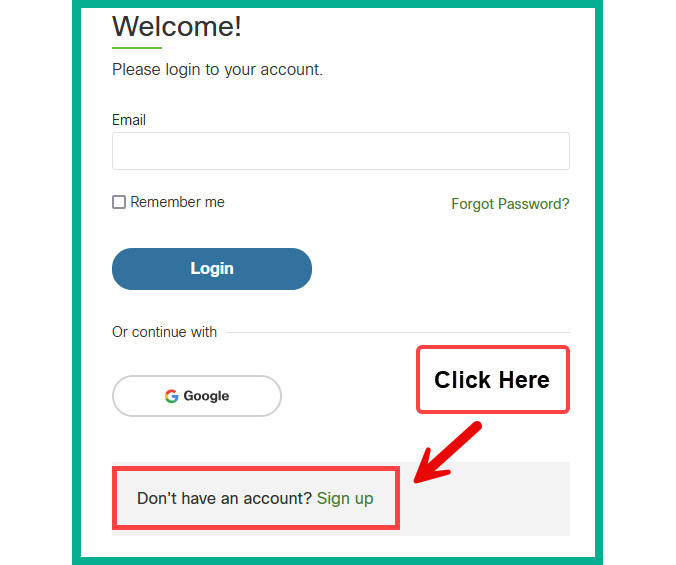
  1. Next, click on the Sign up link to register for a free user account on the platform, as shown in Figure 2.10:
    Figure 2.10: Login portal

Figure 2.10: Login portal

  1. Complete the sign-up form to create a new account.
  2. Once the account is created, the Terms and Conditions window will appear. Ensure you read and accept them to proceed to the next step.
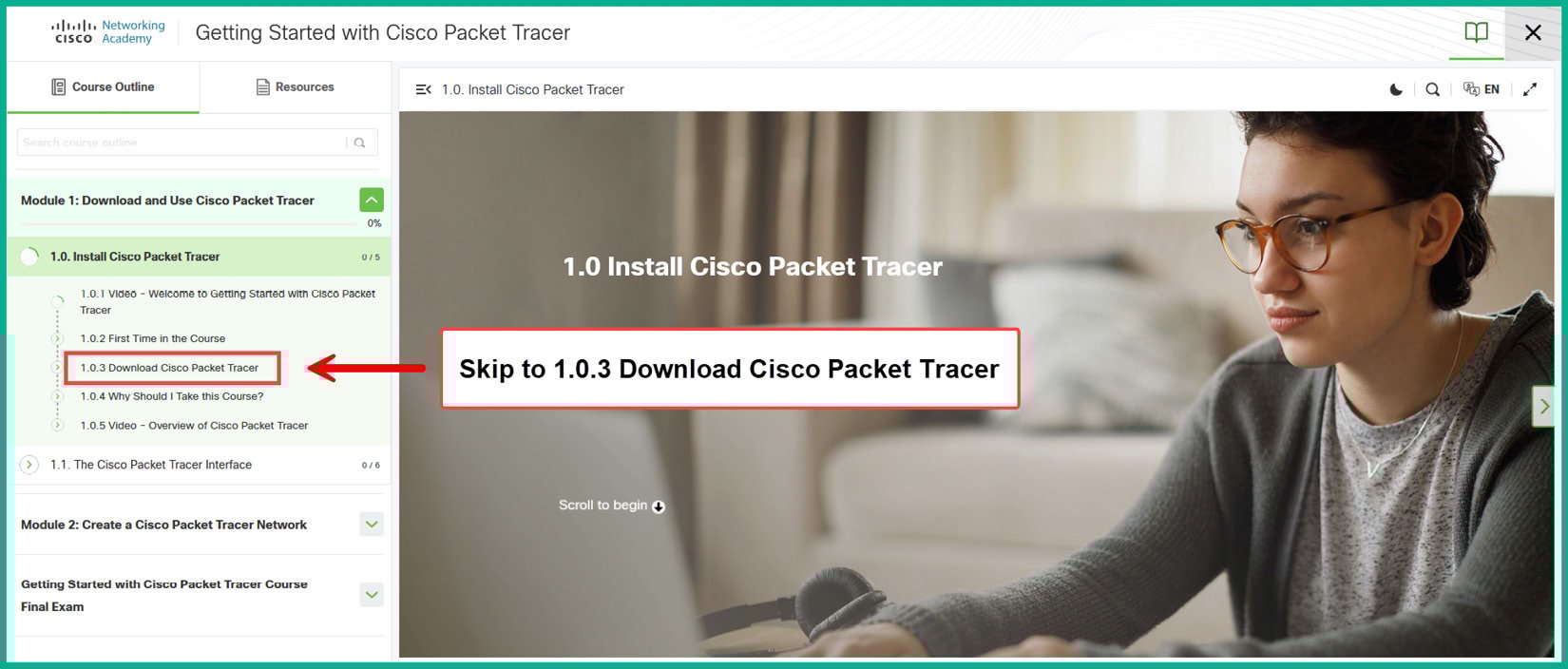
  3. On the Course Outline tab, click on 1.0.3 Download Cisco Packet Tracer to access the download link for the Cisco Packet Tracer application, as shown in Figure 2.11:
Figure 2.11: Course platform

Figure 2.11: Course platform

Note

I strongly suggest that you complete the Getting Started with Cisco Packet Tracer course at step 5 before proceeding further. The course will help you become familiar with the user interface to ensure you can find your way around the application.

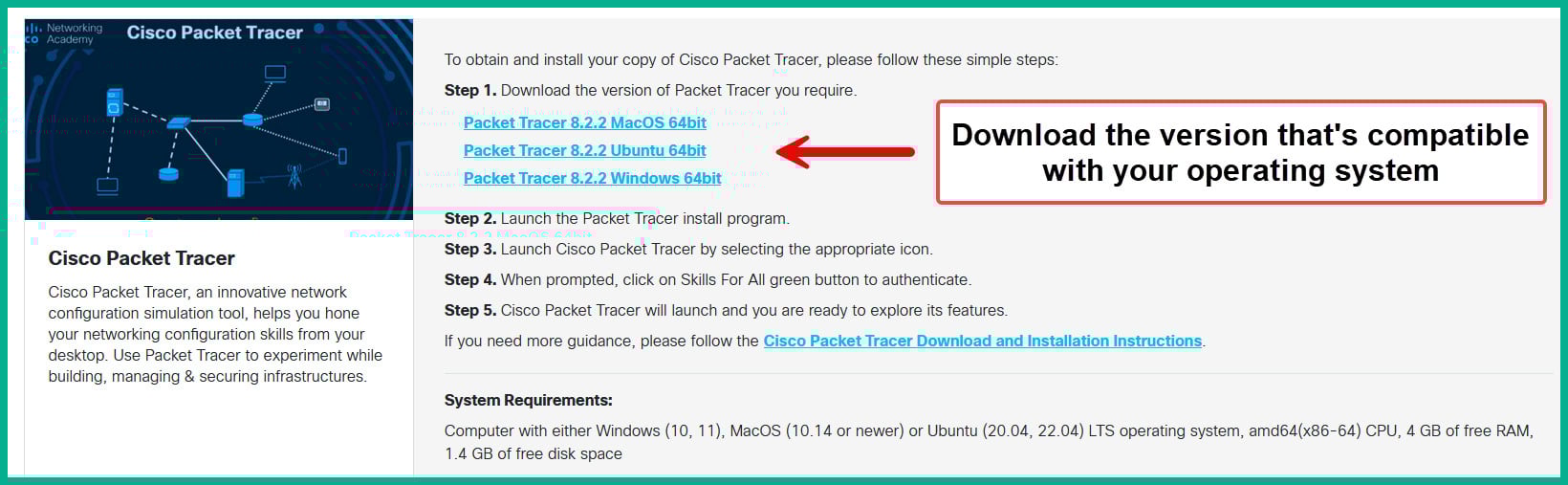
  1. Alternatively, you can go to https://www.netacad.com/resources/lab-downloads to download the version of Packet Tracer that’s compatible with your computer’s operating system, as shown in Figure 2.12:
Figure 2.12: Locating Cisco Packet Tracer

Figure 2.12: Locating Cisco Packet Tracer

Note

For the exercises throughout this book, I’ll be using Packet Tracer 8.2.2 Windows 64bit.

  1. After downloading Packet Tracer, ensure you have installed it on your computer.
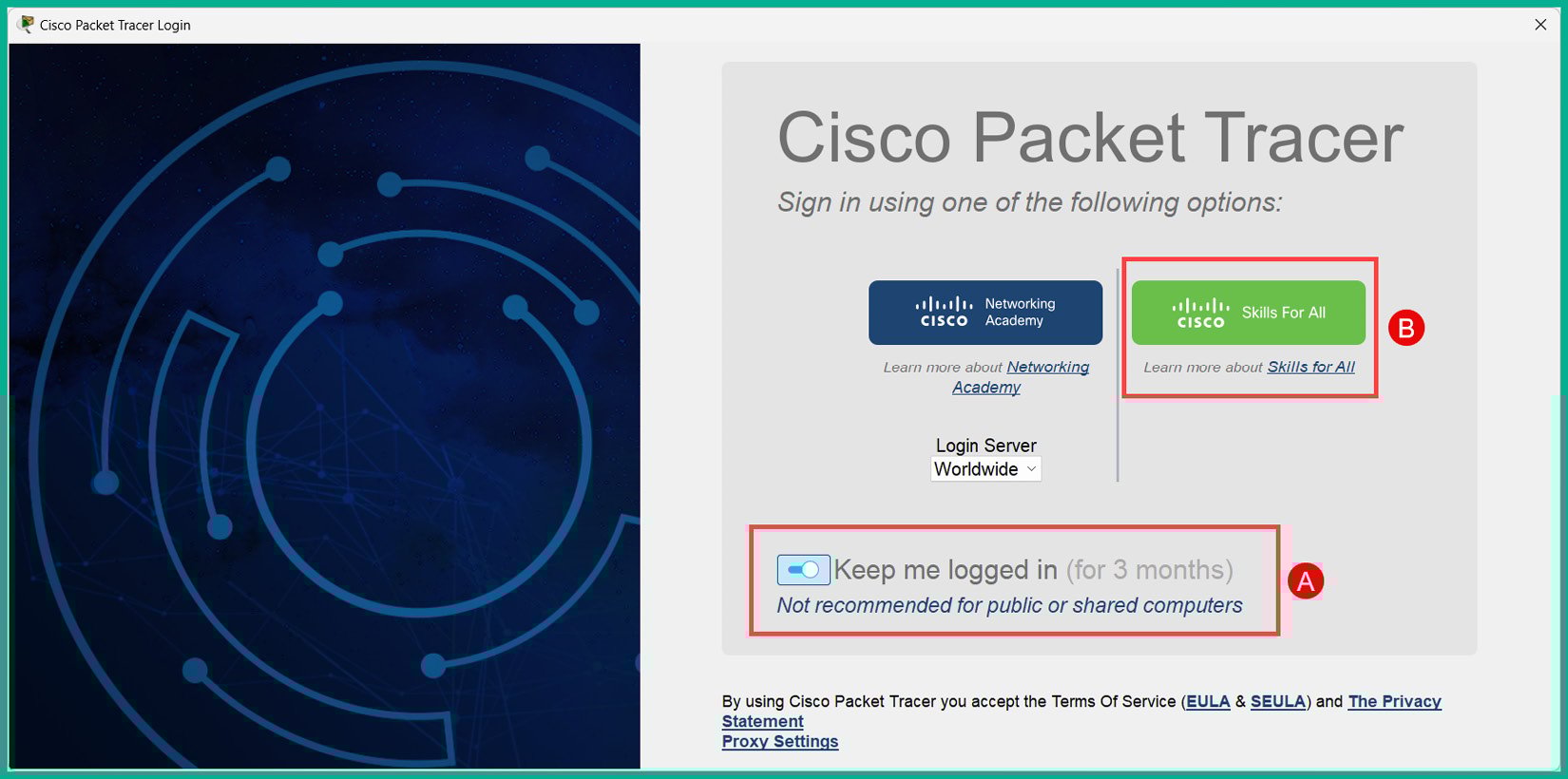
  2. After the installation is complete, launch the application and it will prompt you to log in. Select the Cisco Skills For All option, as shown in Figure 2.13:
Figure 2.13: Sign-in portal

Figure 2.13: Sign-in portal

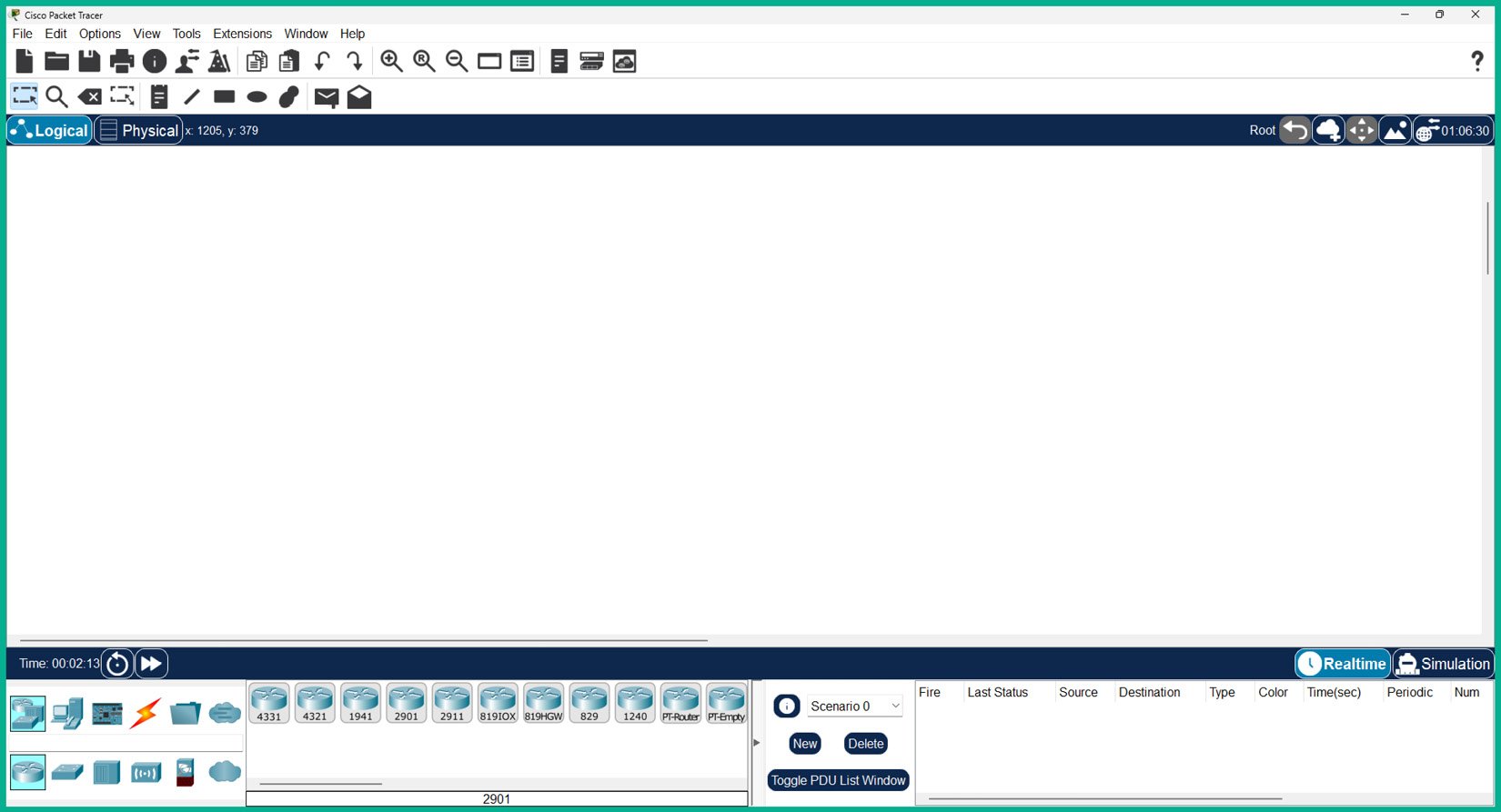
  1. Enter your newly created user credentials to authenticate yourself to the Packet Tracer application and unlock its features. Once you’ve logged in to the Packet Tracer application, its user interface will load, as shown in Figure 2.14:
Figure 2.14: Cisco Packet Tracer

Figure 2.14: Cisco Packet Tracer

Now that you have completed this exercise and have acquired a copy of the Cisco Packet Tracer application, you will learn how to use the Packet Tracer interface.

Lab: Understanding the Cisco Packet Tracer Interface

Now that you have installed Packet Tracer on your PC, the following instructions will help you become a bit more familiar with the user interface and locate items easily:

  1. Launch the Packet Tracer application as shown in Figure 2.15:
Figure 2.15: Cisco Packet Tracer user interface

Figure 2.15: Cisco Packet Tracer user interface

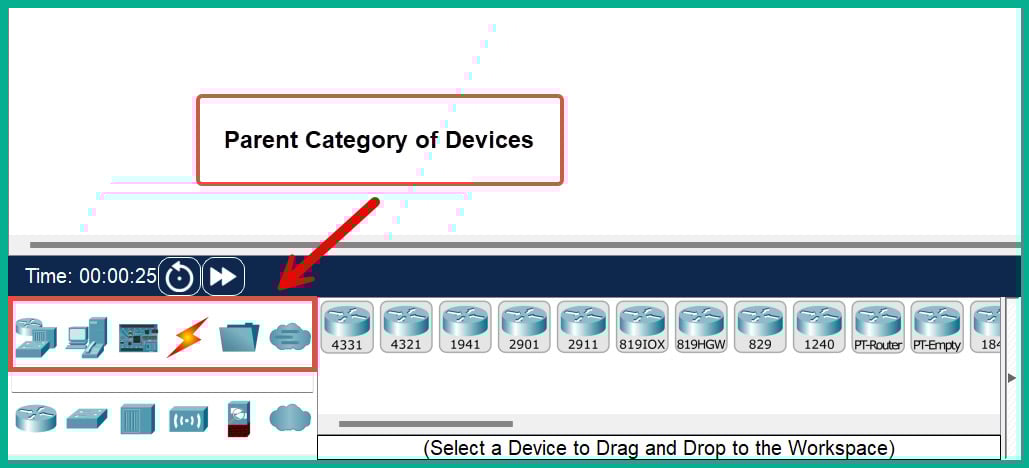
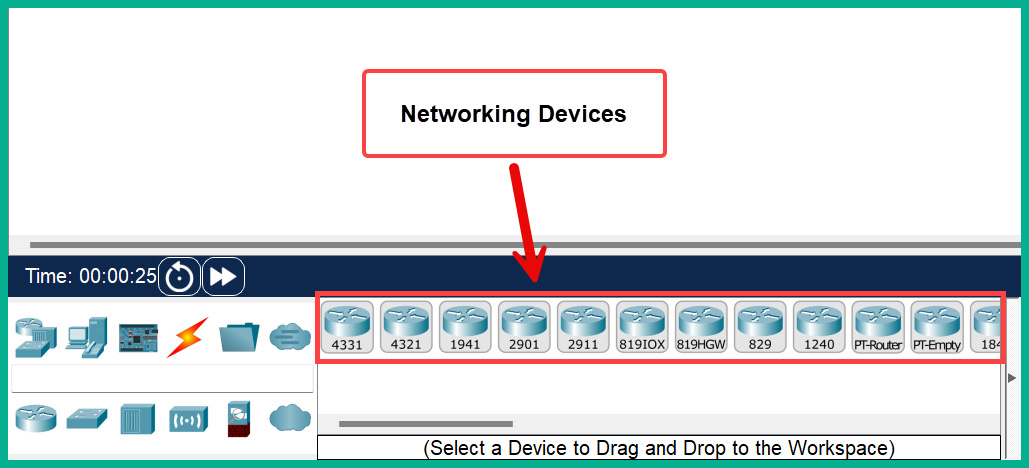
  1. The bottom toolbar contains all the network devices and components. The upper row represents various categories of networking devices and components, such as Networking Devices, End Devices, Components, Connections, Miscellaneous, and Multiuser Connection, as shown in Figure 2.16:
    Figure 2.16: Cisco Packet Tracer device categories

Figure 2.16: Cisco Packet Tracer device categories

Note

Hovering the mouse cursor over each icon shows you the name of the category or component.

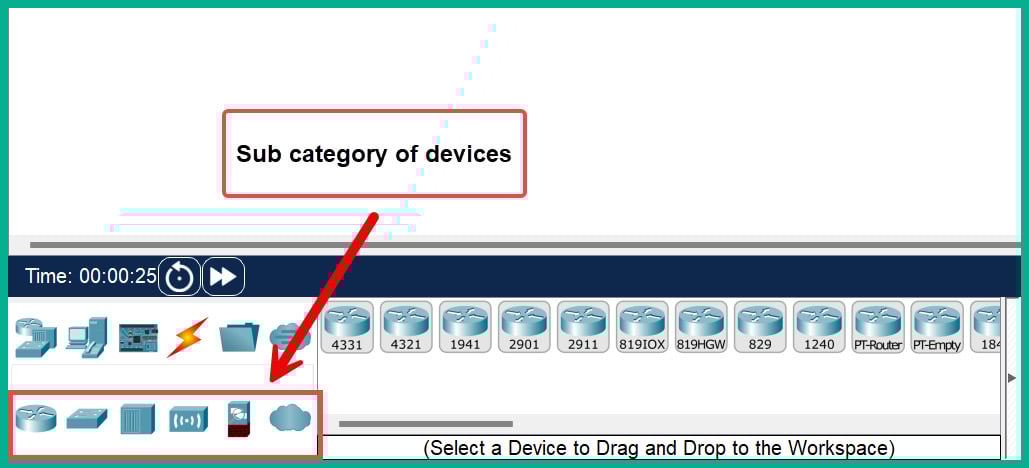
  1. Select the Networking Devices category to display the sub-category on the lower row, as shown in Figure 2.17:
    Figure 2.17: Device sub-categories

Figure 2.17: Device sub-categories

  1. As shown in the preceding screenshot, the sub-categories display various components, such as routers, switches, hubs, wireless devices, security, and WAN emulation.
  2. Select Routers within the sub-categories to display various models of Cisco routers that are integrated into the Packet Tracer application, as shown in Figure 2.18:
    Figure 2.18: Network devices in Cisco Packet Tracer

Figure 2.18: Network devices in Cisco Packet Tracer

  1. To place a device in the logical space, click on the 2911 router and drag it anywhere within the space.
  2. Select the End Devices category, click on PC0, and drag it onto the logical space, as shown in Figure 2.19:
Figure 2.19: PC and router within Cisco Packet Tracer

Figure 2.19: PC and router within Cisco Packet Tracer

  1. Click on the Connections category, select the Console cable, then click on PC0 and attach it to the RS-232 port. To connect the other end of the cable, click on the 2911 router and select the Console port, as shown in Figure 2.20:
Figure 2.20: PC to router using a console cable

Figure 2.20: PC to router using a console cable

  1. When a cable is selected and you click on a device, a list of available ports will appear. Then, clicking on a port will logically connect the cable to the selected port.

Note

If you’re having difficulties setting up the lab, you can download the pre-built lab file from https://packt.link/CCNArepoCh02 and select the Lab 1 - Accessing the Cisco IOS CLI.pkt file to download and open it with Packet Tracer on your computer.

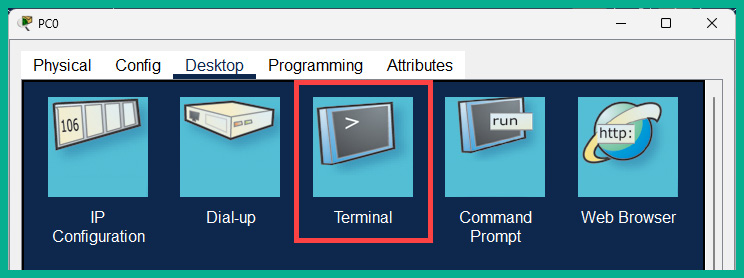
  1. To access the CLI of Cisco IOS on the router, click on PC0 and select Desktop | Terminal, as shown in Figure 2.21:
Figure 2.21: Terminal within Cisco Packet Tracer

Figure 2.21: Terminal within Cisco Packet Tracer

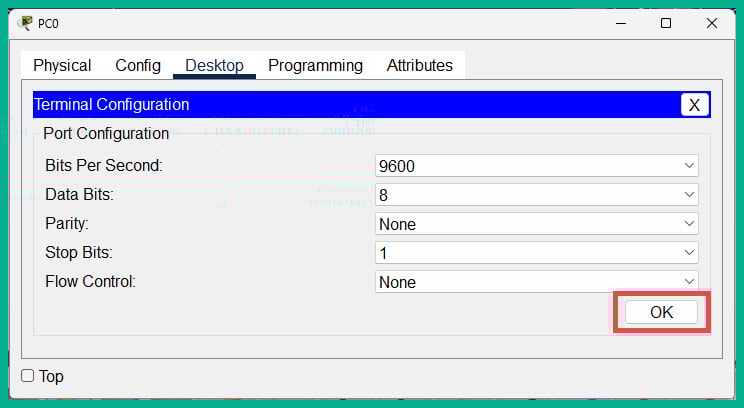
  1. When the Terminal application opens, click on OK to access the CLI on the router, as shown in Figure 2.22:
Figure 2.22: Terminal settings

Figure 2.22: Terminal settings

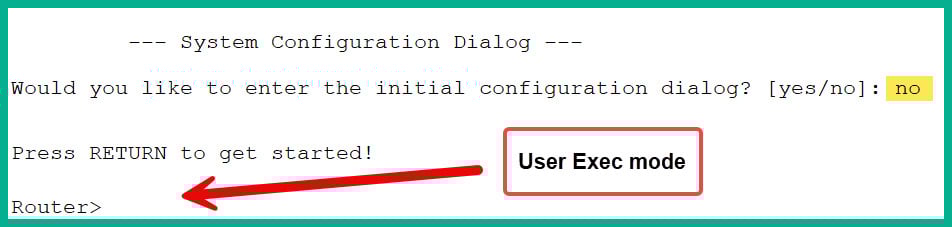
  1. You will notice Cisco IOS is decompressed and loaded into RAM. When a router is powered on without a startup-config file, it will prompt the user with the following question:
    Would you like to enter the initial configuration dialog? [yes/no]:
  2. Type no and hit Enter twice to continue, as shown in Figure 2.23:
Figure 2.23: CLI of a Cisco IOS device

Figure 2.23: CLI of a Cisco IOS device

  1. Typing yes will enable the initial configuration dialog; however, this option is not recommended for an aspiring network engineer pursuing the CCNA certification. Hence, always type no and hit Enter to access the User Exec mode.

Now that you have learned how to access a new Cisco IOS device using the console cable, next, you will learn how to set up a small Cisco network and test end-to-end connectivity.

Visually different images
CONTINUE READING
83
Tech Concepts
36
Programming languages
73
Tech Tools
Icon Unlimited access to the largest independent learning library in tech of over 8,000 expert-authored tech books and videos.
Icon Innovative learning tools, including AI book assistants, code context explainers, and text-to-speech.
Icon 50+ new titles added per month and exclusive early access to books as they are being written.
Python Web Development with Sanic
notes
bookmark Notes and Bookmarks search Search in title playlist Add to playlist download Download options font-size Font size

Change the font size

margin-width Margin width

Change margin width

day-mode Day/Sepia/Night Modes

Change background colour

Close icon Search
Country selected

Close icon Your notes and bookmarks

Confirmation

Modal Close icon
claim successful

Buy this book with your credits?

Modal Close icon
Are you sure you want to buy this book with one of your credits?
Close
YES, BUY

Submit Your Feedback

Modal Close icon
Modal Close icon
Modal Close icon