Sign In Start Free Trial
Account

Add to playlist

Create a Playlist

Modal Close icon
You need to login to use this feature.
  • Book Overview & Buying Learning Angular
  • Table Of Contents Toc
  • Feedback & Rating feedback
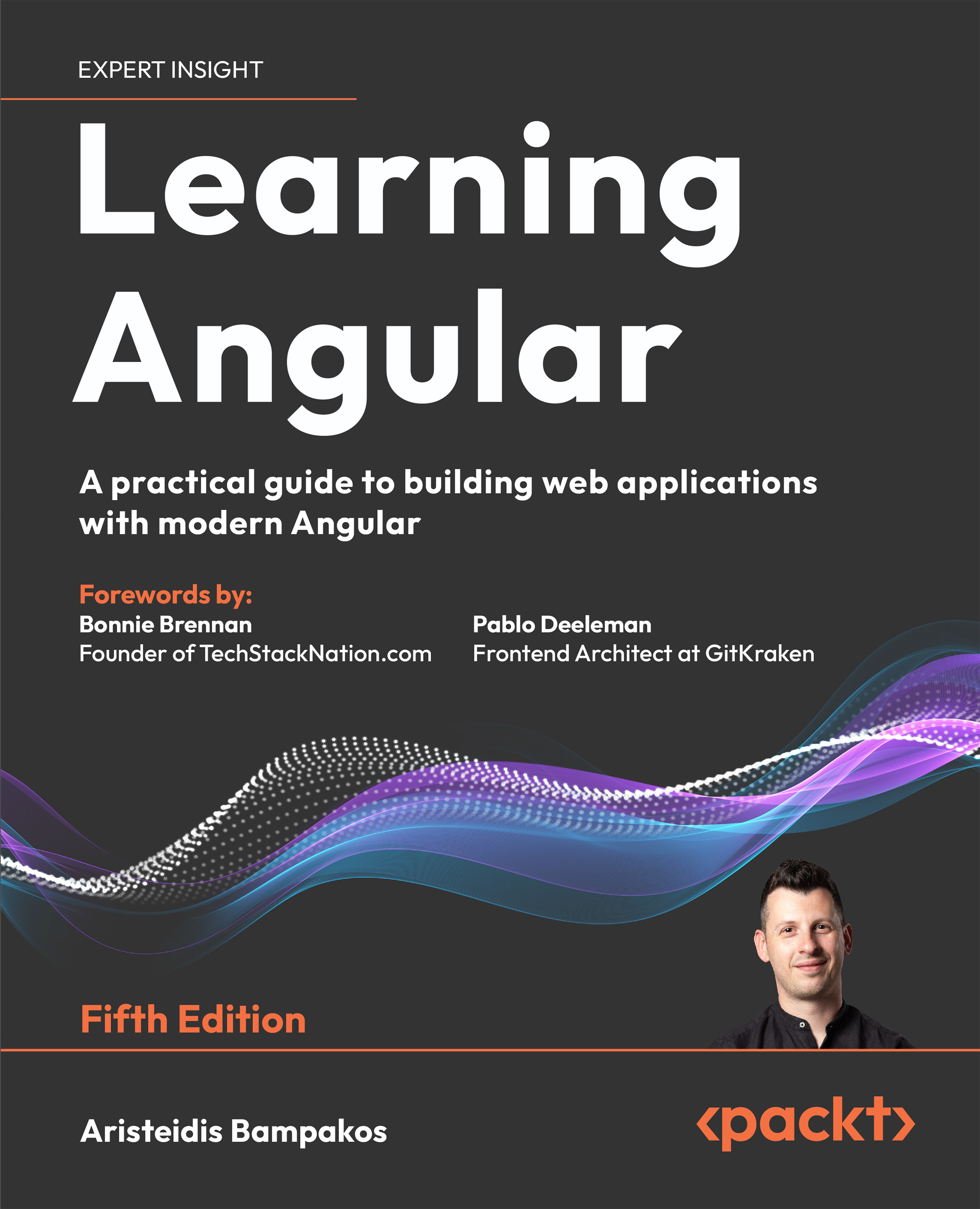
Learning Angular

Learning Angular - Fifth Edition

By : Aristeidis Bampakos
4.1 (7)
close
close
Learning Angular

Learning Angular

4.1 (7)
By: Aristeidis Bampakos

Overview of this book

Dive into Angular Development — With the Most Trusted Guide in the Industry Angular is one of the most powerful and widely adopted JavaScript frameworks, and Learning Angular is your go-to guide for building real-world, production-ready web applications. Written by a seasoned Angular developer and Google Developer Expert, this hands-on book takes you through every step of modern frontend development. This edition reflects the latest “Angular Renaissance,” covering standalone components, Angular Signals, and the new control flow syntax, while showing you how to integrate with legacy code. A new chapter also explores boosting performance with server-side rendering (SSR) and hydration. More than just a tutorial, Learning Angular builds your confidence chapter by chapter from scaffolding your first project to deploying it, with TypeScript best practices throughout. Whether you’re new to Angular or sharpening your skills, this book provides a complete path to becoming a productive, future-ready Angular developer. By the end, you’ll be able to build Angular apps from scratch, with clarity, structure, and confidence.
Table of Contents (19 chapters)
close
close
17
Other Books You May Enjoy
18
Index

The structure of an Angular application

We will take the first intrepid steps in examining our Angular application. The Angular CLI has already scaffolded our project and done much of the heavy lifting for us. All we need to do is fire up our favorite IDE and start working with the Angular project. We will use VSCode in this book, but feel free to choose any editor you are comfortable with:

  1. Open VSCode and select File | Open Folder… from the main menu.
  2. Navigate to the my-app folder and select it. VSCode will load the associated Angular CLI workspace.
  3. Expand the src folder.

When we develop an Angular application, we’ll likely interact with the src folder. It is where we write the code and tests of our application. It contains the following:

  • app: All the Angular-related files of the application. You interact with this folder most of the time during development.
  • index.html: The main HTML page of the Angular application.
  • main.ts: The main entry point of the Angular application.
  • styles.css: CSS styles that apply globally to the Angular application. The extension of this file depends on the stylesheet format you choose when creating the application.

The app folder contains the actual source code we write for our application. Developers spend most of their time inside that folder. The Angular application that was created automatically from the Angular CLI contains the following files:

  • app.component.css: Contains CSS styles specific to the sample page. The extension of this file depends on the stylesheet format you choose when creating the application.
  • app.component.html: Contains the HTML content of the sample page.
  • app.component.spec.ts: Contains unit tests for the sample page.
  • app.component.ts: Defines the presentational logic of the sample page.
  • app.config.ts: Defines the configuration of the Angular application.
  • app.routes.ts: Defines the routing configuration of the Angular application.

The filename extension .ts refers to TypeScript files.

In the following sections, we will learn how Angular orchestrates some of those files to display the sample page of the application.

Components

The files whose names start with app.component constitute an Angular component. A component in Angular controls part of a web page by orchestrating the interaction of the presentational logic with the HTML content of the page, called a template.

Each Angular application has a main HTML file, named index.html, that exists inside the src folder and contains the following <body> HTML element:

<body>
  <app-root></app-root>
</body>

The <app-root> tag is used to identify the main component of the application and acts as a container to display its HTML content. It instructs Angular to render the template of the main component inside that tag. We will learn how it works in Chapter 3, Structuring User Interfaces with Components.

When the Angular CLI builds an Angular application, it parses the index.html file and identifies HTML tags inside the <body> element. An Angular application is always rendered inside the <body> element and comprises a tree of components. When the Angular CLI finds a tag that is not a known HTML element, such as <app-root>, it starts searching through the components of the application tree. But how does it know where to start?

Bootstrapping

The startup method of an Angular application is called bootstrapping, and it is defined in the main.ts file inside the src folder:

import { bootstrapApplication } from '@angular/platform-browser';
import { appConfig } from './app/app.config';
import { AppComponent } from './app/app.component';
 
bootstrapApplication(AppComponent, appConfig)
  .catch((err) => console.error(err));

The main task of the bootstrapping file is to define the component that will be loaded at application startup. It calls the bootstrapApplication method, passing AppComponent as a parameter to specify the starting component of the application. It also passes the appConfig object as a second parameter to specify the configuration that will be used in the application startup. The application configuration is described in the app.config.ts file:

import { ApplicationConfig, provideZoneChangeDetection } from '@angular/core';
import { provideRouter } from '@angular/router';
import { routes } from './app.routes';
export const appConfig: ApplicationConfig = {
  providers: [provideZoneChangeDetection({ eventCoalescing: true }), provideRouter(routes)]
};

The appConfig object contains a providers property to define services provided throughout the Angular application. We will learn more about services in Chapter 5, Managing Complex Tasks with Services.

A new Angular CLI application provides routing services by default. Routing is related to in-app navigation between different components using the browser URL. It is activated using the provideRouter method, passing a routes object, called route configuration, as a parameter. The route configuration of the application is defined in the app.routes.ts file:

import { Routes } from '@angular/router';
export const routes: Routes = [];

Our application does not have a route configuration yet, as indicated by the empty routes array. We will learn how to set up routing and configure it in Chapter 9, Navigating through Applications with Routing.

Template syntax

Now that we have taken a brief overview of our sample application, it’s time to start interacting with the source code:

  1. Run the following command in a terminal window to start the application if it is not running already:
    ng serve
    

    If you are working with VSCode, it is preferable to use its integrated terminal, which is accessible from the Terminal | New Terminal option in the main menu.

  1. Open the application with your browser at http://localhost:4200, and notice the text below the Angular logo that reads Hello, my-app. The word my-app, which corresponds to the application name, comes from a variable declared in the TypeScript file of the main component. Open the app.component.ts file and locate the title variable:
    import { Component } from '@angular/core';
    import { RouterOutlet } from '@angular/router';
    @Component({
      selector: 'app-root',
      imports: [RouterOutlet],
      templateUrl: './app.component.html',
      styleUrl: './app.component.css'
    })
    export class AppComponent {
      title = 'my-app';
    }
    

The title variable is a component property that is used in the component template.

  1. Open the app.component.html file and go to line 228:
    <h1>Hello, {{ title }}</h1>
    

The title property is surrounded by double curly braces syntax called interpolation, which is part of the Angular template syntax. In a nutshell, interpolation converts the value of the title property to text and prints it on the page.

Angular uses specific template syntax to extend and enrich the standard HTML syntax in the application template. We will learn more about the Angular template syntax in Chapter 3, Structuring User Interfaces with Components.

  1. Change the value of the title property in the AppComponent class to World, save the changes, wait for the application to reload, and examine the output in the browser:
Εικόνα που περιέχει κείμενο, γραμματοσειρά, γραφικά, λογότυπο

Περιγραφή που δημιουργήθηκε αυτόματα

Figure 1.5: Landing page title

Congratulations! You have successfully interacted with the source code of your application.

By now, you should have a basic understanding of how Angular works and what the basic parts of an Angular application are. As a reader, you have had to absorb a lot of information so far. However, you will get a chance to get more acquainted with the components in the upcoming chapters. For now, the focus is to get you up and running, by giving you a powerful tool like the Angular CLI and showing you how only a few steps are needed to display an application on the screen.

Visually different images
CONTINUE READING
83
Tech Concepts
36
Programming languages
73
Tech Tools
Icon Unlimited access to the largest independent learning library in tech of over 8,000 expert-authored tech books and videos.
Icon Innovative learning tools, including AI book assistants, code context explainers, and text-to-speech.
Icon 50+ new titles added per month and exclusive early access to books as they are being written.
Learning Angular
notes
bookmark Notes and Bookmarks search Search in title playlist Add to playlist download Download options font-size Font size

Change the font size

margin-width Margin width

Change margin width

day-mode Day/Sepia/Night Modes

Change background colour

Close icon Search
Country selected

Close icon Your notes and bookmarks

Confirmation

Modal Close icon
claim successful

Buy this book with your credits?

Modal Close icon
Are you sure you want to buy this book with one of your credits?
Close
YES, BUY

Submit Your Feedback

Modal Close icon
Modal Close icon
Modal Close icon