Sign In Start Free Trial
Account

Add to playlist

Create a Playlist

Modal Close icon
You need to login to use this feature.
  • Book Overview & Buying Implementing DevOps with Microsoft Azure
  • Table Of Contents Toc
  • Feedback & Rating feedback
Implementing DevOps with Microsoft Azure

Implementing DevOps with Microsoft Azure

By : Mitesh Soni
4.1 (7)
close
close
Implementing DevOps with Microsoft Azure

Implementing DevOps with Microsoft Azure

4.1 (7)
By: Mitesh Soni

Overview of this book

This book will teach you all about the Visual Studio Team Services and Microsoft Azure PaaS offerings that support Continuous Integration, Continuous Delivery, Continuous Deployment, and execution in the cloud with high availability, disaster recovery, and security. You will first be given a tour of all the concepts and tools that Microsoft Azure has to offer and how these can be used in situations to cultivate the DevOps culture. You’ll be taught how to use and manage Visual Studio Team Services (VSTS) and about the structure of the sample application used throughout the book. You will become familiar with the nitty gritty of Continuous Integration and Continuous Development with VSTS and Microsoft Azure Apps. You will not only learn how to create App service environments, but also how to compare Azure Web Apps and App Service Environments to deploy web applications in a more secure environment. Once you have completed Continuous Integration and created the Platform for application deployment, you will learn more about the final stepping stone in achieving end-to-end automation using approval-based Continuous Delivery and Deployment. You will then learn about Continuous Monitoring, using the monitoring and notification options provided by Microsoft Azure and Visual Studio Team Services.
Table of Contents (9 chapters)
close
close
8
More from the Author

Configuring Web Apps with programming language specific settings


Now, once we have created web application, we can configure it based on our needs. For example, we need to configure the web application based on a 32-bit or 64-bit platform, programming language, and so on.

  1. Go to Azure web application in the Microsoft Azure portal.
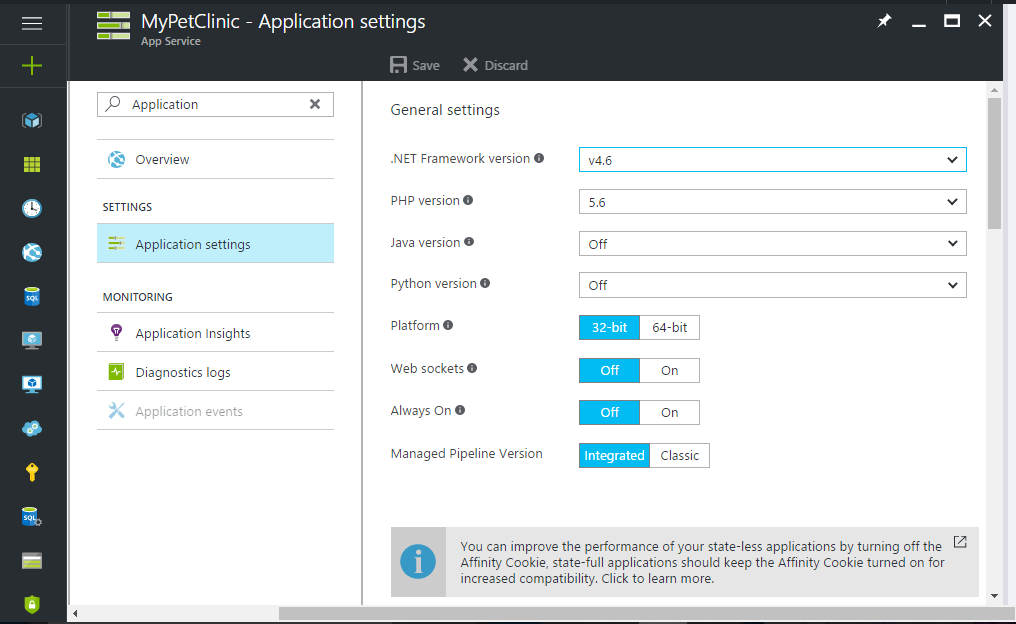
  1. Search for Application settings and click on it. It will open a General settings pane. Here we can configure the application runtime environment. There are different options available for configuration such as .NET Framework version, PHP version, Java version, Python version, and Platform:
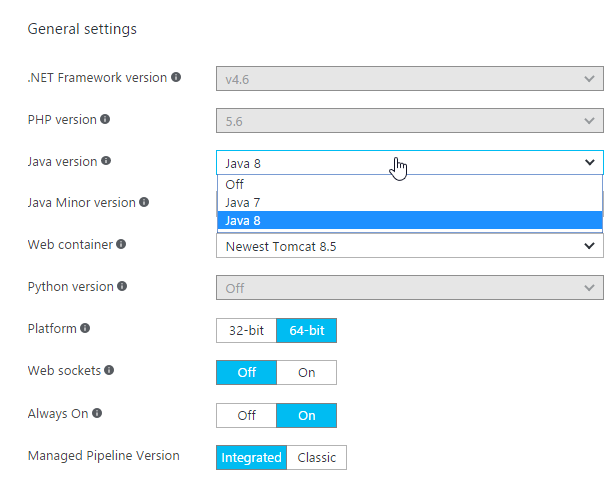
  1. We are going to deploy a Java-based application, hence we will configure Java settings in this web application. Select Java 8 in the Java version field:
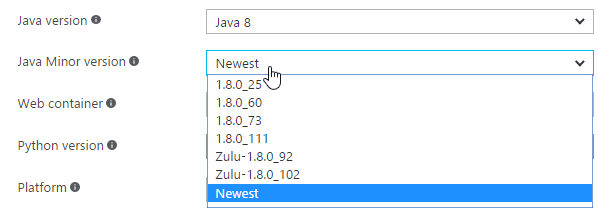
  1. Select Newest in the Java Minor version field:
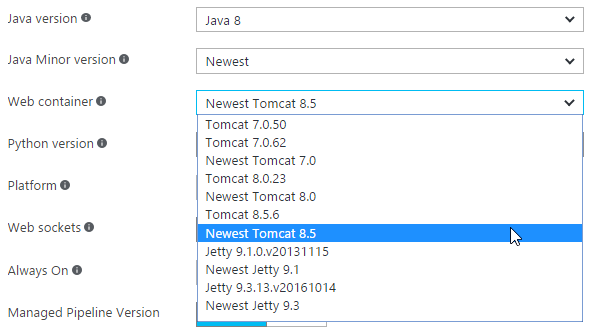
  1. In Web container, select Newest Tomcat 8.5:
  1. Select a 32-bit or 64-bit environment as Platform. Free and Shared pricing tiers can host a 32-bit environment only. The web application pricing...
Visually different images
CONTINUE READING
83
Tech Concepts
36
Programming languages
73
Tech Tools
Icon Unlimited access to the largest independent learning library in tech of over 8,000 expert-authored tech books and videos.
Icon Innovative learning tools, including AI book assistants, code context explainers, and text-to-speech.
Icon 50+ new titles added per month and exclusive early access to books as they are being written.
Implementing DevOps with Microsoft Azure
notes
bookmark Notes and Bookmarks search Search in title playlist Add to playlist download Download options font-size Font size

Change the font size

margin-width Margin width

Change margin width

day-mode Day/Sepia/Night Modes

Change background colour

Close icon Search
Country selected

Close icon Your notes and bookmarks

Confirmation

Modal Close icon
claim successful

Buy this book with your credits?

Modal Close icon
Are you sure you want to buy this book with one of your credits?
Close
YES, BUY

Submit Your Feedback

Modal Close icon
Modal Close icon
Modal Close icon