Sign In Start Free Trial
Account

Add to playlist

Create a Playlist

Modal Close icon
You need to login to use this feature.
  • Book Overview & Buying Learning PowerCLI for VMware VSphere
  • Table Of Contents Toc
Learning PowerCLI for VMware VSphere

Learning PowerCLI for VMware VSphere

By : Robert van den Nieuwendijk
3.9 (15)
close
close
Learning PowerCLI for VMware VSphere

Learning PowerCLI for VMware VSphere

3.9 (15)
By: Robert van den Nieuwendijk

Overview of this book

Table of Contents (17 chapters)
close
close
Learning PowerCLI
Credits
About the Author
About the Reviewers
www.PacktPub.com
Preface
1
Index

Retrieving a list of all of your hosts


Similar to the Get-VM cmdlet, which retrieves your virtual machines, is the Get-VMHost cmdlet, which displays your hosts. The Get-VMHost cmdlet has the following syntax:

Get-VMHost [[-Name] <String[]>] [-NoRecursion] [-Datastore <StorageResource[]>] [-State <VMHostState[]>] [-Location <VIContainer[]>] [-Tag <Tag[]>] [-Server <VIServer[]>] [<CommonParameters>]
Get-VMHost [[-Name] <String[]>] [-DistributedSwitch <DistributedSwitch[]>] [-Tag <Tag[]>] [-Server <VIServer[]>] [<CommonParameters>]
Get-VMHost [[-Name] <String[]>] [-NoRecursion] [-VM <VirtualMachine[]>] [-ResourcePool <ResourcePool[]>] [-Datastore <StorageResource[]>] [-Location <VIContainer[]>] [-Tag <Tag[]>] [-Server <VIServer[]>] [<CommonParameters>]
Get-VMHost -Id <String[]> [-Server <VIServer[]>] [<CommonParameters>]

You see that there are four different parameter sets. They are named: Default, DistributedSwitch, SecondaryParameterSet, and ById. Don't mix parameters from different sets or you will get an error as follows:

PowerCLI C:\> Get-VMHost -Id HostSystem-host-22 -Name 192.168.0.133
Get-VMHost : Parameter set cannot be resolved using the specifiednamed parameters.
At line:1 char:1
+ Get-VMHost -Id HostSystem-host-22 -Name 192.168.0.133
+ ~~~~~~~~~~~~~~~~~~~~~~~~~~~~~~~~~~~~~~~~~~~~~~~~~~~~~
    + CategoryInfo          : InvalidArgument: (:) [Get-VMHost], ParameterBindingException
    + FullyQualifiedErrorId :AmbiguousParameterSet,VMware.VimAutomation.ViCore.Cmdlets.Commands.GetVMHost

To get a list of all of your hosts, type the following command:

PowerCLI C:\> Get-VMHost

By default, only the Name, ConnectionState, PowerState, NumCPU, CpuUsageMhz, CpuTotalMhz, MemoryUsageGB, MemoryTotalGB, and Version properties are shown. To get a list of all of the properties, type the following command:

PowerCLI C:\> Get-VMHost | Format-List –Property *

State                 : Connected
ConnectionState       : Connected
PowerState            : PoweredOn
VMSwapfileDatastoreId :
VMSwapfilePolicy      : Inherit
ParentId              : ClusterComputeResource-domain-c7
IsStandalone          : False
Manufacturer          : VMware, Inc.
Model                 : VMware Virtual Platform
NumCpu                : 2
CpuTotalMhz           : 4588
CpuUsageMhz           : 54
LicenseKey            : 00000-00000-00000-00000-00000
MemoryTotalMB         : 2047.48828125
MemoryTotalGB         : 1.999500274658203125
MemoryUsageMB         : 965
MemoryUsageGB         : 0.9423828125
ProcessorType         : Intel(R) Core(TM) i5-2415M CPU @ 2.30GHz
HyperthreadingActive  : False
TimeZone              : UTC
Version               : 5.5.0
Build                 : 1331820
Parent                : Cluster01
VMSwapfileDatastore   :
StorageInfo           : HostStorageSystem-storageSystem-22
NetworkInfo           : localhost:sitecomwl306
DiagnosticPartition   : mpx.vmhba1:C0:T0:L0
FirewallDefaultPolicy : VMHostFirewallDefaultPolicy:HostSystem-host-22
ApiVersion            : 5.5
Name                  : 192.168.0.133
CustomFields          : {[AutoDeploy.MachineIdentity, ]}
ExtensionData         : VMware.Vim.HostSystem
Id                    : HostSystem-host-22
Uid                   : /[email protected]:443/VMHost=HostSystem-host-22/
Client                : VMware.VimAutomation.ViCore.Impl.V1.VimClient
DatastoreIdList       : {Datastore-datastore-23}

You can use the Get-VMHost parameters or the Where-Object cmdlet to filter the hosts you want to display, as we did with the Get-VM cmdlet.

Displaying the output in a grid view

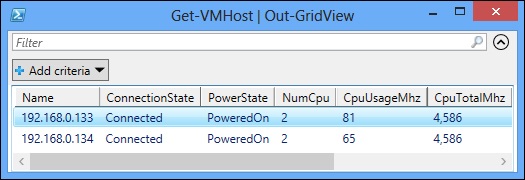
Instead of displaying the output of your PowerCLI commands in the PowerCLI console, you can also display the output in a grid view. A grid view is a pop up that looks like a spreadsheet with rows and columns. To display the output of the Get-VMHost cmdlet in a grid view, type the following command:

PowerCLI C:\> Get-VMHost | Out-GridView

The preceding command opens the window of the following screenshot:

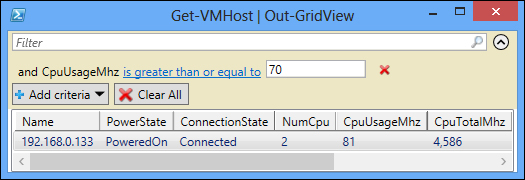
You can create filters to display only certain rows, and you can sort columns by clicking on the column header. You can also reorder columns by dragging and dropping them. In the next screenshot, we created a filter to show only the hosts with a CpuUsageMhz value greater than or equal to 70. We also changed the order of the ConnectionState and PowerState columns.

Isn't that cool?

CONTINUE READING
83
Tech Concepts
36
Programming languages
73
Tech Tools
Icon Unlimited access to the largest independent learning library in tech of over 8,000 expert-authored tech books and videos.
Icon Innovative learning tools, including AI book assistants, code context explainers, and text-to-speech.
Icon 50+ new titles added per month and exclusive early access to books as they are being written.
Learning PowerCLI for VMware VSphere
notes
bookmark Notes and Bookmarks search Search in title playlist Add to playlist font-size Font size

Change the font size

margin-width Margin width

Change margin width

day-mode Day/Sepia/Night Modes

Change background colour

Close icon Search
Country selected

Close icon Your notes and bookmarks

Confirmation

Modal Close icon
claim successful

Buy this book with your credits?

Modal Close icon
Are you sure you want to buy this book with one of your credits?
Close
YES, BUY

Submit Your Feedback

Modal Close icon
Modal Close icon
Modal Close icon