Sign In Start Free Trial
Account

Add to playlist

Create a Playlist

Modal Close icon
You need to login to use this feature.
  • Book Overview & Buying DevOps for Salesforce
  • Table Of Contents Toc
  • Feedback & Rating feedback
DevOps for Salesforce

DevOps for Salesforce

By : Dive, Aphale, Gornalli
1 (2)
close
close
DevOps for Salesforce

DevOps for Salesforce

1 (2)
By: Dive, Aphale, Gornalli

Overview of this book

Salesforce is one of the top CRM tools used these days, and with its immense functionalities and features, it eases the functioning of an enterprise in various areas of sales, marketing, and finance, among others. Deploying Salesforce applications is a tricky event, and it can get quite taxing for admins and consultants. This book addresses all the problems that you might encounter while trying to deploy your applications and shows you how to resort to DevOps to take these challenges head on. Beginning with an overview of the development and delivery process of a Salesforce app, DevOps for Salesforce covers various types of sandboxing and helps you understand when to choose which type. You will then see how different it is to deploy with Salesforce as compared to deploying with another app. You will learn how to leverage a migration tool and automate deployment using the latest and most popular tools in the ecosystem. This book explores topics such as version control and DevOps techniques such as Continuous Integration, Continuous Delivery, and testing. Finally, the book will conclude by showing you how to track bugs in your application changes using monitoring tools and how to quantify your productivity and ROI. By the end of the book, you will have acquired skills to create, test, and effectively deploy your applications by leveraging the features of DevOps.
Table of Contents (10 chapters)
close
close

Eclipse for Salesforce development

First, we will go through how we can use Eclipse for Salesforce application development. We will start from the very basic steps, such as installing Eclipse and Force.com IDE, followed by configuring Git with Eclipse.

Installing Eclipse Neon with the Force.com IDE plugin

We will start by installing Eclipse on the developer machine. To install Eclipse, you should have a minimum of Java 6 installed. If it is not installed, you can install it from the official website at https://java.com/en/download/.

We are going to install Eclipse Neon. Java version 7 is required for Eclipse Neon.

The following are the prerequisites for a development environment for Salesforce:

  • Operating systems:
    • Windows 7, 8, or 10
    • macOS 10.7, 10.8, 10.9, 10.10, or 10.11
    • Ubuntu 12.04 LTS or 14.04 LTS
  • Java SE Development Kit (JDK), Runtime Environment 8 or later (Java download page).

The installation steps are as follows:

  1. Eclipse 4.5 or later is recommended. Go to the download site at https://www.eclipse.org/downloads/.
  2. Select the appropriate executable package for the operating system you are using. 
  3. Once the download is complete, you can proceed with Eclipse installation. Double-click on the .exe file if you are using Windows.
  4. The Eclipse IDE for Java Developers distribution is the recommended installer.
  5. Choose an installation folder for Eclipse and click on INSTALL. It will take some time to install Eclipse.
  6. After completing the installation, launch Eclipse. Select the workspace for Eclipse.
  7. You will see the welcome page for Eclipse.

Now we have installed Eclipse on our system, we can move forward with the installation of Force.com IDE.

The following are the steps to install Force.com IDE:

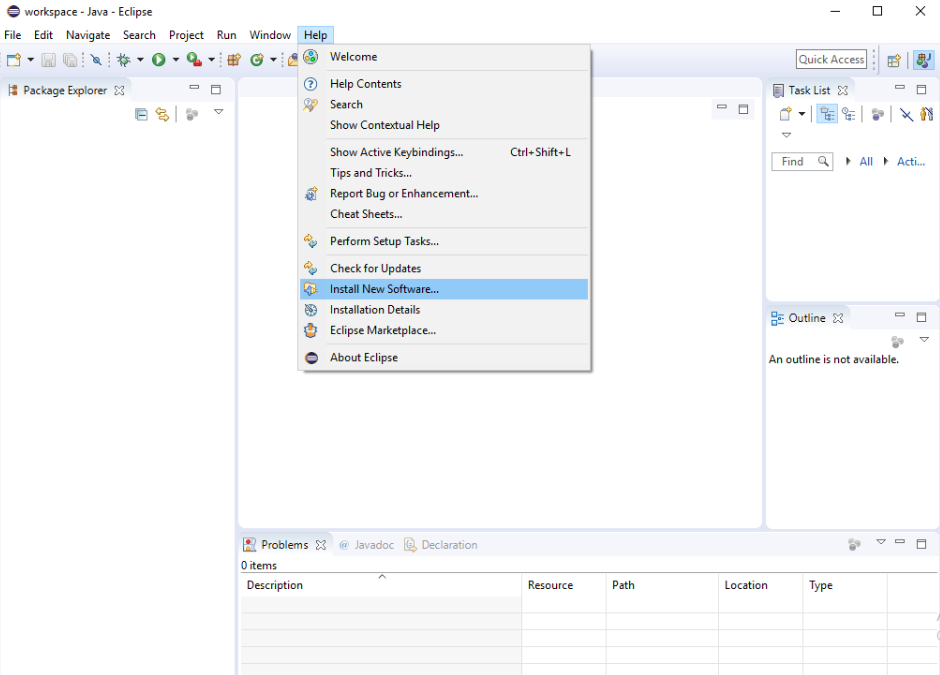
  1. Launch Eclipse, go to the Help option and choose the Install New Software option from the drop-down list:
  1. Click Add.
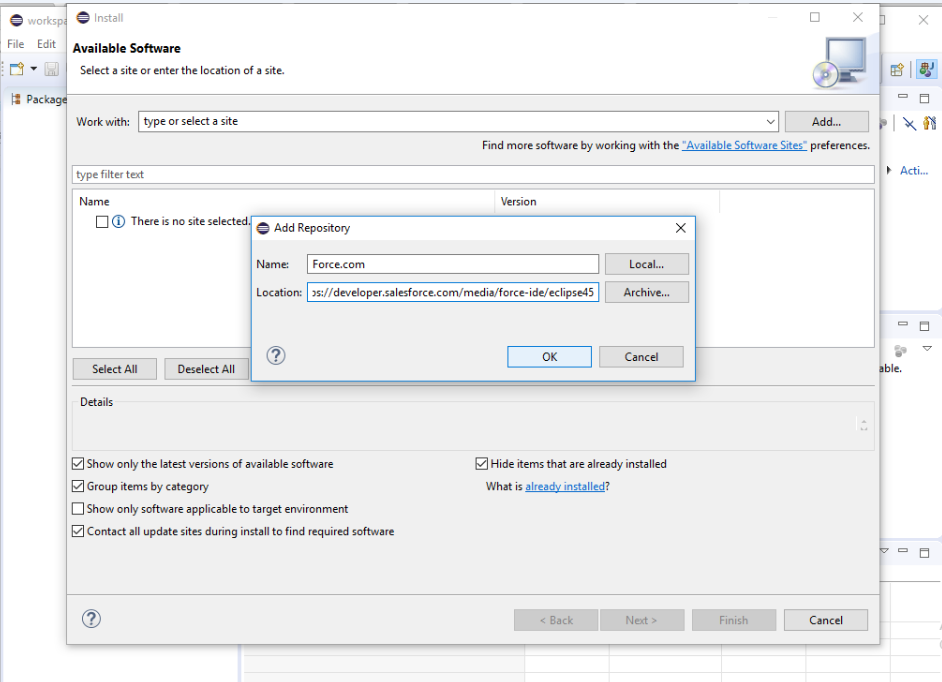
  2. In the Add Repository dialog, set the name to Force.com IDE and the location to https://developer.salesforce.com/media/force-ide/eclipse45:
  1. Click OK.
  2. If you are not using Java 8, then deselect Show only the latest versions of available software, and it will show an older version of the plugin.
  3. Eclipse will show a list of all available plugins. Select the Force.com IDE plugin, and then click Next.
  4. In the Install Details dialog, click Next.
  5. Review the licenses, accept the terms, and click Finish.
  6. Eclipse starts downloading Force.com IDE and installs it and other required dependencies. Once the installation is completed, you need to restart Eclipse to reflect the changes. Click Yes.
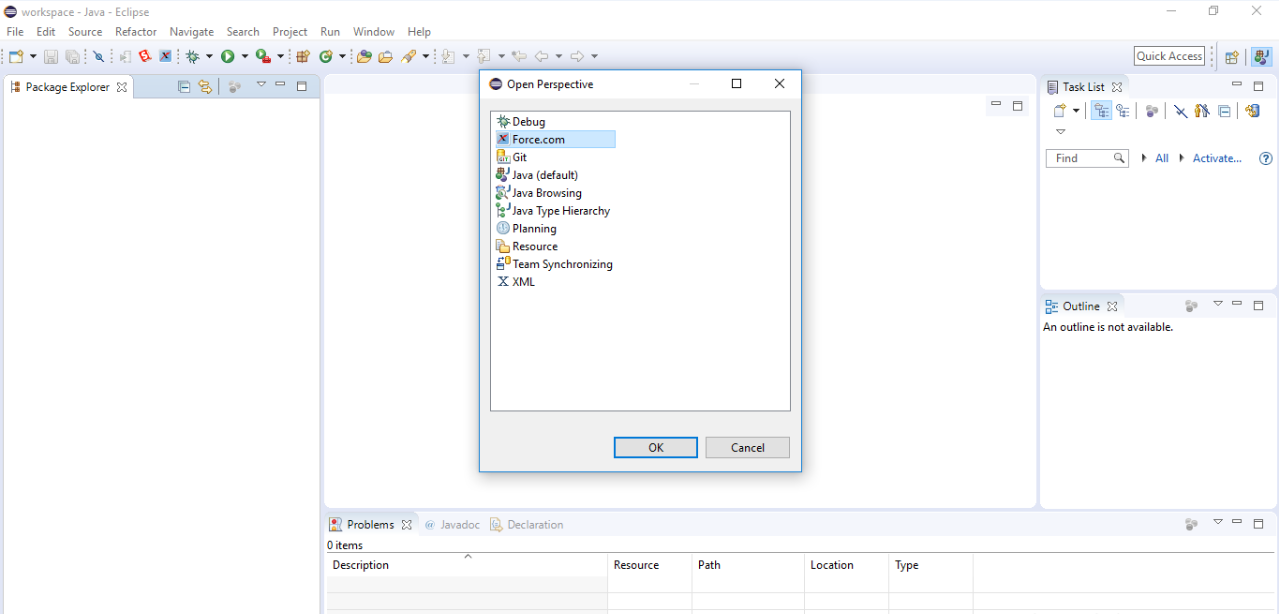
  1. When Eclipse restarts, select Window | Open Perspective | Other. Select Force.com and then click OK:

We are done with setting up the Salesforce development environment in Eclipse.

Configuring a Force.com project in Eclipse

We have a Salesforce application, and we want Salesforce code in the local workspace we just created using Force.com IDE:

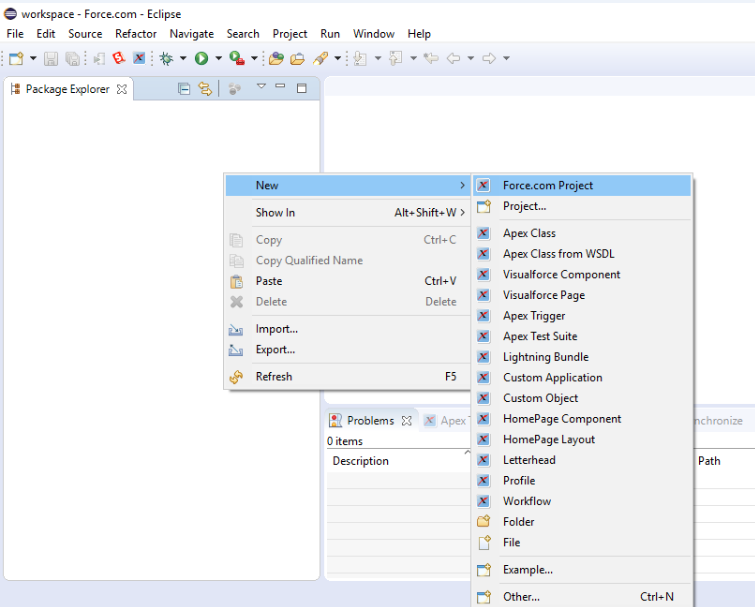
  1. Right-click on the Package Explorer area, then choose New and select Force.com Project:
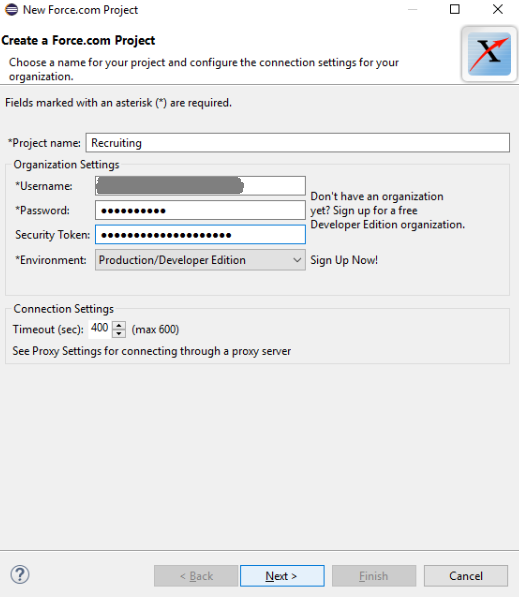
  1. Create a new Force.com project. You need to provide details about your project. Enter the Project name and Organization Settings details for connection: 
    • Username: Provide a username and append the sandbox name to it.
    • Password: Provide a password for the given username.
    • Security Token: You need to provide a security token for the sandbox.
    • EnvironmentChoose the environment you are using, such as sandbox or Production Edition:
  1. Once you have filled in all the details, click Next.

We will get all the code in Eclipse from Salesforce. Now, whatever changes a developer makes in Eclipse will be in sync with the sandbox being used.

Visually different images
CONTINUE READING
83
Tech Concepts
36
Programming languages
73
Tech Tools
Icon Unlimited access to the largest independent learning library in tech of over 8,000 expert-authored tech books and videos.
Icon Innovative learning tools, including AI book assistants, code context explainers, and text-to-speech.
Icon 50+ new titles added per month and exclusive early access to books as they are being written.
DevOps for Salesforce
notes
bookmark Notes and Bookmarks search Search in title playlist Add to playlist font-size Font size

Change the font size

margin-width Margin width

Change margin width

day-mode Day/Sepia/Night Modes

Change background colour

Close icon Search
Country selected

Close icon Your notes and bookmarks

Confirmation

Modal Close icon
claim successful

Buy this book with your credits?

Modal Close icon
Are you sure you want to buy this book with one of your credits?
Close
YES, BUY

Submit Your Feedback

Modal Close icon
Modal Close icon
Modal Close icon