-
Book Overview & Buying
-
Table Of Contents

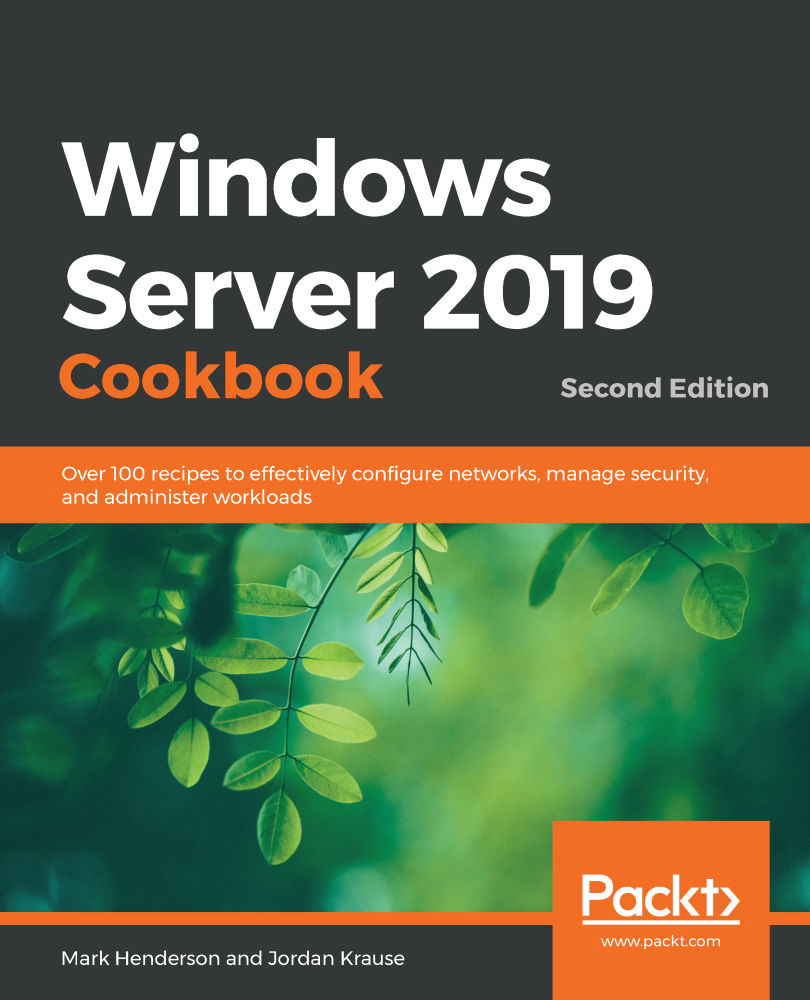
Windows Server 2019 Cookbook - Second Edition
By :


Windows Server 2019 Cookbook
By:
Overview of this book
Do you want to get up and running with essential administrative tasks in Windows Server 2019?
This second edition of the Windows Server 2019 Cookbook is packed with practical recipes that will help you do just that.
The book starts by taking you through the basics that you need to know to get a Windows Server operating system working, before teaching you how to navigate through daily tasks using the upgraded graphical user interface (GUI). You'll then learn how to compose an optimal Group Policy and perform task automation with PowerShell scripting. As you advance, you’ll get to grips with faster app innovation, improved Windows security measures, and hybrid cloud environments. After you’ve explored the functions available to provide remote network access to your users, you’ll cover the new Hyper-V enhancements. Finally, this Windows Server book will guide you through practical recipes relating to Azure integration and important tips for how to manage a Windows Server environment seamlessly.
By the end of this book, you’ll be well-versed with Windows Server 2019 essentials and have the skills you need to configure Windows services and implement best practices for securing a Windows Server environment.
Table of Contents (18 chapters)
Preface


Chapter 1: Learning the Interface

 Free Chapter
Chapter 2: Core Infrastructure Tasks
Chapter 3: Networking
Chapter 4: Working with Certificates
Chapter 5: Internet Information Services
Chapter 6: Remote Access
Chapter 7: Remote Desktop Services
Chapter 8: Monitoring and Backup
Chapter 9: System Insights
Chapter 10: Group Policy
Chapter 11: File Services and Data Control
Chapter 12: Server Core
Chapter 13: Working with Hyper-V
Chapter 14: Containers and Docker
Chapter 15: Desired State Configuration and Automation
Chapter 16: Hardening Your Infrastructure
Other Books You May Enjoy