Sign In Start Free Trial
Account

Add to playlist

Create a Playlist

Modal Close icon
You need to login to use this feature.
  • Book Overview & Buying SQL Server 2012 with PowerShell V3 Cookbook
  • Table Of Contents Toc
SQL Server 2012 with PowerShell V3 Cookbook

SQL Server 2012 with PowerShell V3 Cookbook

By : Donabel Santos
4.4 (5)
close
close
SQL Server 2012 with PowerShell V3 Cookbook

SQL Server 2012 with PowerShell V3 Cookbook

4.4 (5)
By: Donabel Santos

Overview of this book

PowerShell is Microsoft's new command-line shell and scripting language that promises to simplify automation and integration across different Microsoft applications and components. Database professionals can leverage PowerShell by utilizing its numerous built-in cmdlets, or using any of the readily available .NET classes, to automate database tasks, simplify integration, or just discover new ways to accomplish the job at hand."SQL Server 2012 with PowerShell V3 Cookbook" provides easy-to-follow, practical examples for the busy database professional. Whether you're auditing your servers, or exporting data, or deploying reports, there is a recipe that you can use right away!You start off with basic topics to get you going with SQL Server and PowerShell scripts and progress into more advanced topics to help you manage and administer your SQL Server databases.The first few chapters demonstrate how to work with SQL Server settings and objects, including exploring objects, creating databases, configuring server settings, and performing inventories. The book then deep dives into more administration topics like backup and restore, credentials, policies, jobs.Additional development and BI-specific topics are also explored, including deploying and downloading assemblies, BLOB data, SSIS packages, and SSRS reports. A short PowerShell primer is also provided as a supplement in the Appendix, which the database professional can use as a refresher or occasional reference material. Packed with more than 100 practical, ready-to-use scripts, "SQL Server 2012 with PowerShell V3 Cookbook" will be your go-to reference in automating and managing SQL Server.
Table of Contents (15 chapters)
close
close
12
C. Resources
14
Index

Exploring the SQL Server PowerShell hierarchy

In SQL Server 2012, the original mini-shell has been deprecated, and SQLPS is now provided as a module. Launching PowerShell from SSMS now launches a Windows PowerShell session, imports the SQLPS module, and sets the current context to the item the PowerShell session was launched from. DBAs and developers can then start navigating the object hierarchy from here.

Getting ready

Log in to SQL Server 2012 Management Studio.

How to do it...

In this recipe, we will navigate the SQL Server PowerShell hierarchy by launching a PowerShell session from SQL Server Management Studio:

  1. Right-click on your instance node.
  2. Click on Start PowerShell. This will launch a PowerShell session and load the SQLPS module. This window looks similar to a command prompt, with a prompt set to the SQL Server object you launched this window from:
    How to do it...

    Note the starting path in this window.

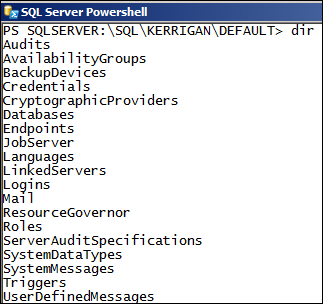
  3. Type dir. This should give you a list of all objects directly accessible from the current server instance—in our case, from the default SQL Server instance KERRIGAN. Note that dir is an alias for the cmdlet Get-ChildItem.
    How to do it...

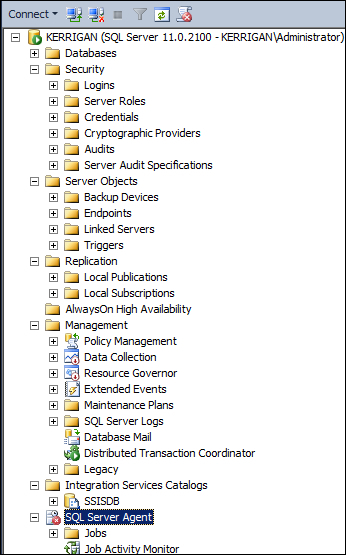
    This is similar to the objects you can find under the instance node in Object Explorer in SQL Server Management Studio.

    How to do it...
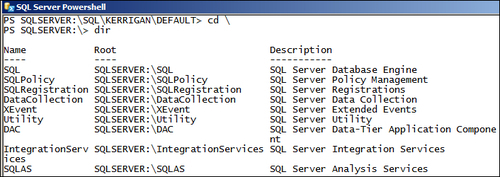
  4. While our PowerShell window is open, let's explore the SQL Server PSDrive, or the SQL Server data store, which PowerShell treats as a series of items. Type cd\. This will change the path to the root of the current drive, which is our SQL Server PSDrive.
  5. Type dir. This will list all Items accessible from the root SQL Server PSDrive. You should see something similar to the following screenshot:
    How to do it...
  6. Close this window.
  7. Go back to Management Studio, and right-click on one of your user databases.
  8. Click on Start PowerShell. Note that this will launch another PowerShell session, with a path that points to the database you right-clicked from:
    How to do it...
    How to do it...

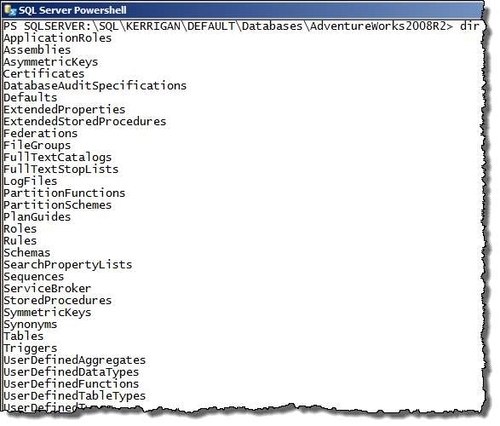
    Note that the starting path of this window is different from the starting path when you first launched PowerShell in the second step. If you type dir from this location, you will see all items that are sitting underneath the AdventureWorks2008R2 database.

    How to do it...

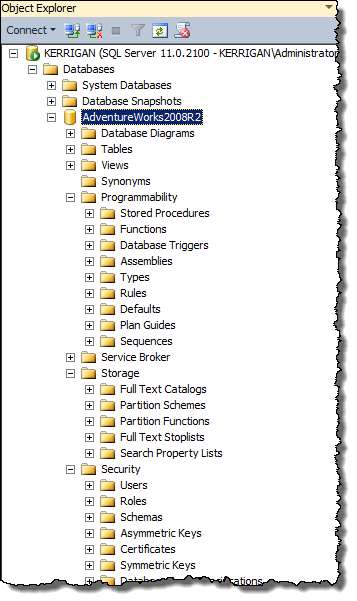
    You can see some of the items enumerated in this screen in SQL Server Management Studio's Object Explorer, if you expand the AdventureWorks2008R2 database node.

How it works...

When PowerShell is launched through Management Studio, a context-sensitive PowerShell session is created, which automatically loads the SQLPS module. This will be evident in the prompt, which by default shows the current path of the object from which the Start PowerShell menu item was clicked.

How it works...

SQL Server 2008/2008 R2 was shipped with a SQLPS mini-shell, also referred to as SQLPS utility. This can also be launched from SSMS by right-clicking on an object from Object Explorer, and clicking on Start PowerShell. This mini-shell was designed to be a closed shell preloaded with SQL Server extensions. This shell was meant to be used for SQL Server only, which proved to be quite limiting because DBAs and developers often need to load additional snap-ins and modules in order to integrate SQL Server with other systems through PowerShell. The alternative way is to launch a full-fledged PowerShell session, and depending on your PowerShell version either load snap-ins or load the SQLPS module.

In SQL Server 2012, the original mini-shell has been deprecated. When you launch a PowerShell session from SSMS in SQL Server 2012, it launches the full-fledged PowerShell session, with the updated SQLPS module loaded by default.

SQL Server is exposed as a PowerShell drive (PSDrive), which allows for traversing of objects as if they are folders and files. Thus, familiar commands for traversing directories are supported in this provider, such as dir or ls. Note that these familiar commands are often just aliases to the real cmdlet name, in this case, Get-ChildItem.

When you launch PowerShell from Management Studio, you can immediately start navigating the SQL Server PowerShell hierarchy.

CONTINUE READING
83
Tech Concepts
36
Programming languages
73
Tech Tools
Icon Unlimited access to the largest independent learning library in tech of over 8,000 expert-authored tech books and videos.
Icon Innovative learning tools, including AI book assistants, code context explainers, and text-to-speech.
Icon 50+ new titles added per month and exclusive early access to books as they are being written.
SQL Server 2012 with PowerShell V3 Cookbook
notes
bookmark Notes and Bookmarks search Search in title playlist Add to playlist download Download options font-size Font size

Change the font size

margin-width Margin width

Change margin width

day-mode Day/Sepia/Night Modes

Change background colour

Close icon Search
Country selected

Close icon Your notes and bookmarks

Confirmation

Modal Close icon
claim successful

Buy this book with your credits?

Modal Close icon
Are you sure you want to buy this book with one of your credits?
Close
YES, BUY

Submit Your Feedback

Modal Close icon
Modal Close icon
Modal Close icon