-
Book Overview & Buying
-
Table Of Contents
SolarWinds Orion Network Performance Monitor
By :
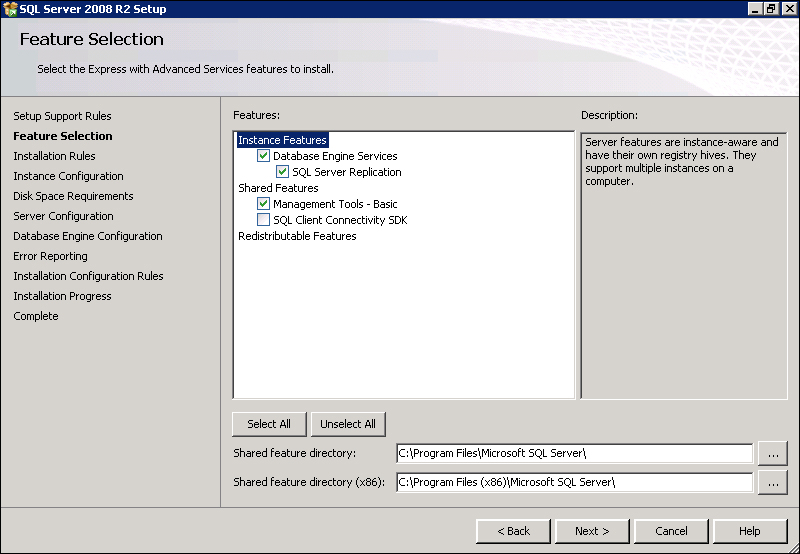
This section will demonstrate installing and configuring SQL Server 2008 R2 Express with SP1 x64 on a Windows Server 2008 R2 with SP1 computer. The installation and configuration process is exactly the same for the standard and enterprise editions of SQL Server 2008, SQL Server 2008 R2, and SQL Server 2012. Because SQL Server needs to be configured for Orion NPM further than a simple default installation, I will be installing the edition of SQL Server which includes the management tools.
The installation and configuration process for SQL Server is straightforward. The following is what we will be covering in this section:
SQL Server 2008 R2 Express is available for download for free at http://www.microsoft.com/en-us/download/details.aspx?id=26729.
Using the preceding link, download one of the following files from the SQL Server 2008 R2 Express download page:
SQLEXPRWT_x64.exe (329.9 MB) for 64 bit Windows ServerSQLEXPRWT_x86.exe (302 MB) for 32 bit Windows ServerBoth of these downloads include the SQL Server Management Studio tools needed to configure SQL Server services after the installation has completed.
Before starting the SQL Server installation, there is a little bit of prep work that needs to be done regarding user accounts and administrative rights on the target server on which you are installing the Microsoft SQL Server software.
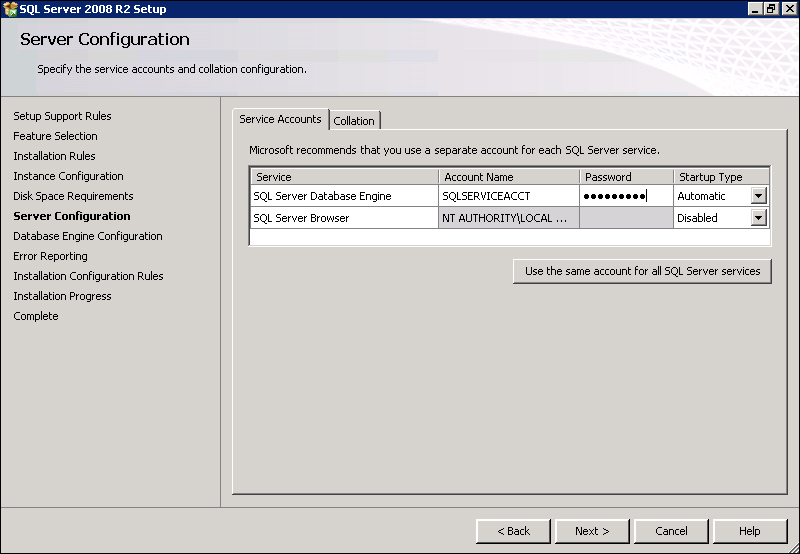
There is a point in the SQL Server installation wizard where you must define a user account that has administrative rights. This account will be used by Windows to manage the SQL services on the computer. User accounts that are used exclusively by software to perform internal tasks are called service accounts . Service accounts can be created on the local Windows Server, or they can be an Active Directory domain account. If SQL Server is installed on a member server in an Active Directory domain, create a domain service account and assign it administrative rights to the target Windows Server where you will be installing SQL Server. Otherwise, create a local service account on the target server and assign it administrative rights. All that truly matters is that the service account has administrative rights on the target server.
If you already have a SQL Server 2008 or 2012 instance on your network and do not need to install or set up a new server, please skip to the Verifying SQL Server authentication settings section.
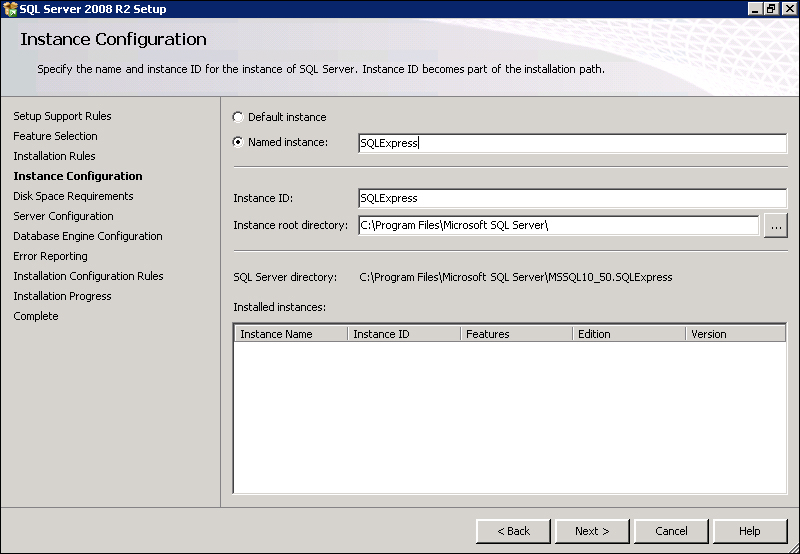
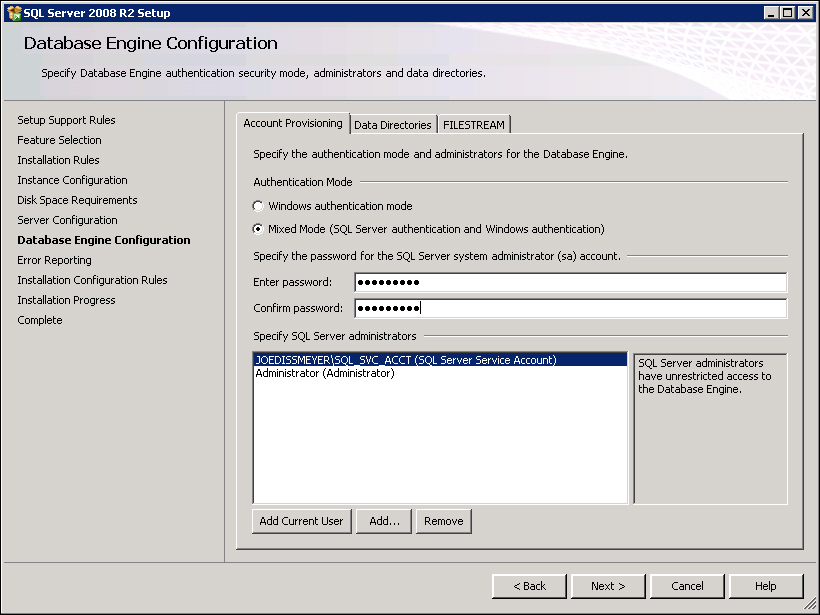
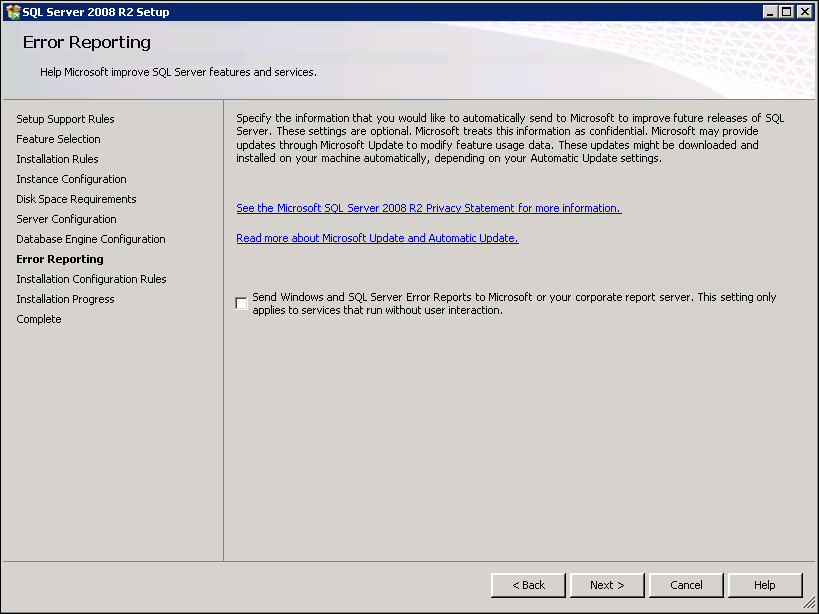
Perform the following steps to set up a new SQL Server 2008 R2 Express installation from scratch.
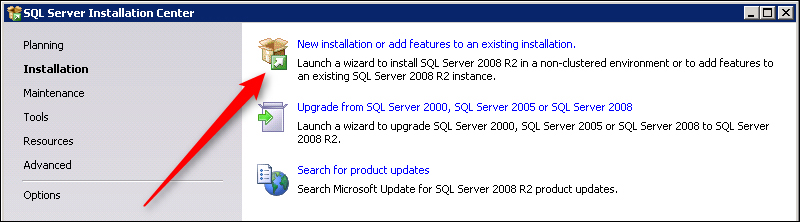
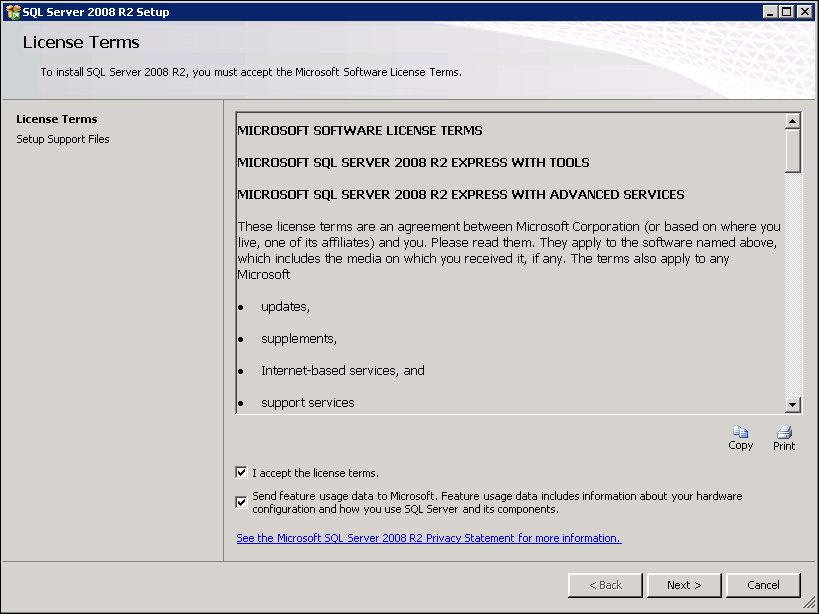
The installation steps displayed in this section are tailored for SQL Server 2008 R2 Express edition. However, these do apply to the all business editions of SQL Server 2008, SQL Server 2008 R2, and SQL Server 2012 after step 3.
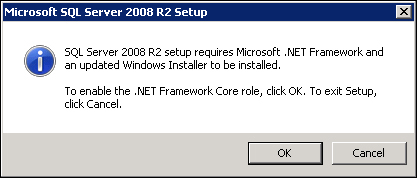
SQLEXPRWT_x64.exe or SQLEXPRWT_x86.exe file to launch the SQL Server Express installer.


I recommend not to remove the local administrator account from the SQL Server administrators group. If the SQL service account becomes deactivated or is locked out due to too many invalid login attempts, you may not be able to access the SQL database.

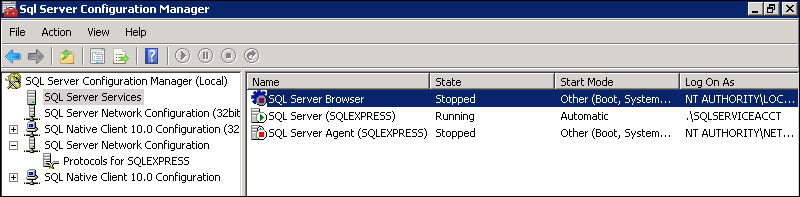
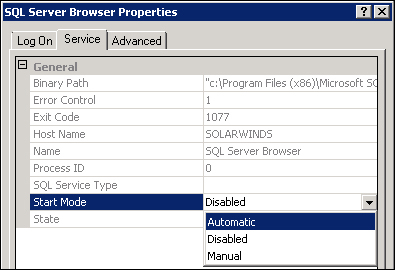
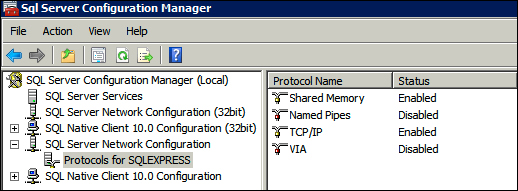
Now that the SQL Server installation has finished, we can start the disabled SQL Server services and verify that the SQL Server authentication is configured correctly for SolarWinds Orion NPM.
The following steps are only for those who installed SQL Server from scratch using the instructions from the previous section. However, if you already have a SQL Server on your network and you will be using it to create a new Orion NPM database in it, use the following steps to verify the permissions and configuration for Orion NPM.


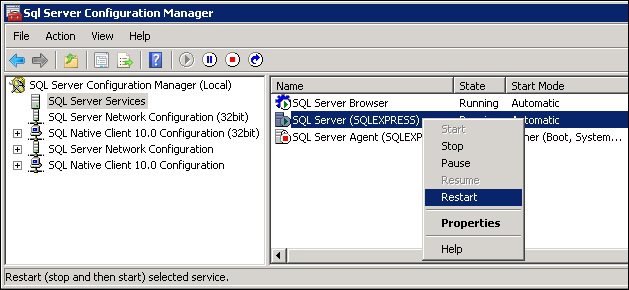
Any type of change made using the SQL Server Configuration Manager will not take effect until the SQL Server service has been restarted.
The SQL Server Agent service is stopped and disabled in this example because the SQL Server Agent cannot be enabled in SQL Server Express editions. This is true even though it appears in the SQL Server Configuration Manager tool. The SQL Server Agent service is not required for SolarWinds Orion NPM to work, so you may ignore it. Do not stop this service if it is enabled and running on Standard, Developer, or Enterprise editions of your SQL Server installation.
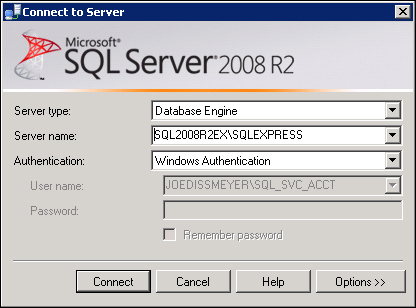
Now that the SQL Server services are enabled and configured properly, we can use the SQL Server Management Studio tool to log into the SQL instance and verify that the authentication options are properly configured for SolarWinds Orion NPM.
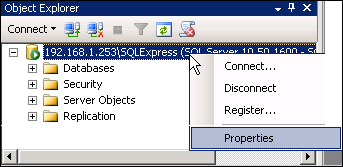
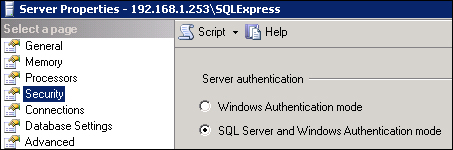
If you have followed the previous SQL Server installation steps in the previous section, then we have already configured the correct authentication settings. However, it is a good idea to verify that your new SQL Server instance is properly configured even though the SQL installation wizard did all of the work for you. This section will familiarize you in working with the SQL Server Management Studio utility, so I do recommend following the instructions in this section.

In this example, I am logged into the Windows Server with the SQL service account. This is the best practice for setting up a SQL Server for the first time. An alternative technique is to log into the Windows Server with its local administrator user account.


If the SQL service account is not listed, right-click on Logins in the Object Explorer pane and choose New Login... to add it.
If you are unsure about the security aspects of SQL Server, Microsoft has excellent documentation and guidance on how to secure SQL Server at http://msdn.microsoft.com/en-us/library/bb283235.aspx.
Now it is time to configure the Windows Firewall on the Windows Server where you will be installing the Orion NPM software as well as on the server running Microsoft SQL Server. If you planned your installation by following SolarWinds' recommendations, you have SQL Server running on one server and Orion NPM installed another.
You must unblock specific TCP/IP ports in the Windows Firewall on each server to allow the SQL Server and Orion NPM software to be able to communicate with each other, as well as receive inbound traffic from nodes when they are polled. If you installed SQL Server and Orion NPM on the same Windows Server, you still must allow specific ports in the Windows Firewall for inbound and outbound polling traffic. This section addresses both of these issues.
If you installed SQL Server on a Windows Server 2008 or 2008 R2 computer, you will use Windows Firewall with Advanced Security from Administrative Tools in the Control Panel to allow specific IP traffic into the server. If you installed SQL Server on a Windows Server 2003 or 2003 R2 computer, use Windows Firewall from the Control panel.
On the SolarWinds Orion NPM server, allow the following ports for inbound traffic:
Use UDP 162 for inbound SNMP traps if you are using a third-party firewall. For the other ports, follow the preceding chart to allow the TCP/IP traffic for both SQL Server and SolarWinds Orion NPM.
Allow inbound traffic to the following programs on the SQL Server only if Orion NPM and SQL Server is running on two different Windows servers:
%ProgramFiles% (x86)\Microsoft SQL Server\90\Shared\sqlbrowser.exe%ProgramFiles% (x86)\ Microsoft SQL Server\MSSQL10.SQLEXPRESS\bin\sqlservr.exeFor SQL Server 2008 and 2012 Standard and Datacenter editions, the folder locations will be slightly different within the %ProgramFiles%\Microsoft SQL Server\ folder. For detailed information, refer to http://technet.microsoft.com/en-us/library/cc646023.aspx.
Change the font size
Change margin width
Change background colour