Sign In Start Free Trial
Account

Add to playlist

Create a Playlist

Modal Close icon
You need to login to use this feature.
  • Book Overview & Buying Windows Server 2012 Automation with PowerShell Cookbook
  • Table Of Contents Toc
Windows Server 2012 Automation with PowerShell Cookbook

Windows Server 2012 Automation with PowerShell Cookbook

By : EDRICK GOAD
4.3 (11)
close
close
Windows Server 2012 Automation with PowerShell Cookbook

Windows Server 2012 Automation with PowerShell Cookbook

4.3 (11)
By: EDRICK GOAD

Overview of this book

Automating server tasks allows administrators to repeatedly perform the same, or similar, tasks over and over again. With PowerShell scripts, you can automate server tasks and reduce manual input, allowing you to focus on more important tasks. Windows Server 2012 Automation with PowerShell Cookbook will show several ways for a Windows administrator to automate and streamline his/her job. Learn how to automate server tasks to ease your day-to-day operations, generate performance and configuration reports, and troubleshoot and resolve critical problems. Windows Server 2012 Automation with PowerShell Cookbook will introduce you to the advantages of using Windows Server 2012 and PowerShell. Each recipe is a building block that can easily be combined to provide larger and more useful scripts to automate your systems. The recipes are packed with examples and real world experience to make the job of managing and administrating Windows servers easier. The book begins with automation of common Windows Networking components such as AD, DHCP, DNS, and PKI, managing Hyper-V, and backing up the server environment. By the end of the book you will be able to use PowerShell scripts to automate tasks such as performance monitoring, reporting, analyzing the environment to match best practices, and troubleshooting.
Table of Contents (19 chapters)
close
close
Windows Server 2012 Automation with PowerShell Cookbook
Credits
About the Author
About the Reviewers
www.PacktPub.com
Preface
1
Index

Signing PowerShell scripts


When creating PowerShell scripts, modules, and profiles, it is considered best practice to digitally sign them. Signing scripts performs the following two functions:

  • Ensures the script is from a trusted source

  • Ensures the script hasn't been altered since it was signed

Getting ready

To sign a PowerShell script, a code-signing certificate will be needed. Normally these certificates will be provided by your enterprise Private Key Infrastructure (PKI), and the PKI Administrator should be able to help you with the requesting process. Code-signing certificates can also be purchased from third party Certificate Authorities (CA) which can be helpful if your scripts are being distributed outside of your corporate environment.

Once received, the code-signing cert should be added to your Current User | Personal | Certificates certificate store on your computer. Additionally, the root certificate from the Certificate Authority should be added to the Trusted Publishers store for all computers that are going to execute the signed scripts.

How to do it...

Carry out the following steps:

  1. Create and test a PowerShell script.

  2. Sign the script with Set-AuthenticodeSignature.

    $cert = Get-ChildItem Cert:CurrentUser\My\ -CodeSigningCert
    Set-AuthenticodeSignature C:\temp\ServerInfo.ps1 $cert

How it works...

The signing process is fairly simple, but also extremely powerful. The process starts by searching the Current User certificate store for a certificate capable of code signing and is placed into a $cert variable. Set-AuthenticodeSignature is then called to sign the script with the certificate.

If there is more than one code signing certificate on your system, you need to select which certificate to use. To achieve this, update the first line to include a where clause. For example:

$cert = Get-ChildItem Cert:CurrentUser\My\ -CodeSigningCert | Where-Object Subject -eq 'CN=CorpInternal' 

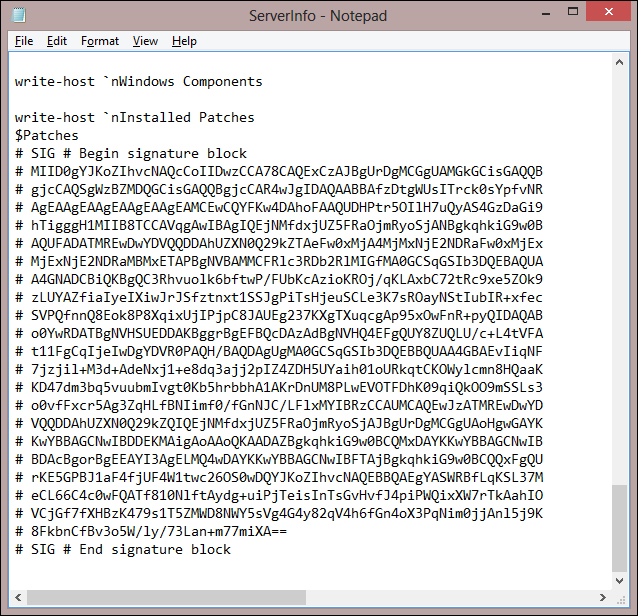
If you open the script in a text editor after it has been signed, you will notice several lines of content appended to the end. These additional lines are the signature that PowerShell will verify before running the script.

Note

Any change to the script (even adding or removing a space) will invalidate the signature. Once the script has been signed, if you need to make changes, you must repeat the signing process.

There's more...

If you don't have an available PKI to obtain a code-signing certificate, or your PKI Administrator is hesitant to give you one, you can create a self-signed certificate for testing purposes. To do this, you can use the following PowerShell script which is based on the script by Vishal Agarwal at http://blogs.technet.com/b/vishalagarwal/archive/2009/08/22/generating-a-certificate-self-signed-using-powershell-and-certenroll-interfaces.aspx:

$name = new-object -com "X509Enrollment.CX500DistinguishedName.1"
$name.Encode("CN=TestCode", 0)

$key = new-object -com "X509Enrollment.CX509PrivateKey.1"
$key.ProviderName = "Microsoft RSA SChannel Cryptographic Provider"
$key.KeySpec = 1
$key.Length = 1024
$key.SecurityDescriptor = "D:PAI(A;;0xd01f01ff;;;SY)(A;;0xd01f01ff;;;BA)(A;;0x80120089;;;NS)"
$key.MachineContext = 1
$key.Create()

$serverauthoid = new-object -com "X509Enrollment.CObjectId.1"
$serverauthoid.InitializeFromValue("1.3.6.1.5.5.7.3.3") # Code Signing
$ekuoids = new-object -com "X509Enrollment.CObjectIds.1"
$ekuoids.add($serverauthoid)
$ekuext = new-object -com "X509Enrollment.CX509ExtensionEnhancedKeyUsage.1"
$ekuext.InitializeEncode($ekuoids)

$cert = new-object -com "X509Enrollment.CX509CertificateRequestCertificate.1"
$cert.InitializeFromPrivateKey(2, $key, "")
$cert.Subject = $name
$cert.Issuer = $cert.Subject
$cert.NotBefore = get-date
$cert.NotAfter = $cert.NotBefore.AddDays(90)
$cert.X509Extensions.Add($ekuext)
$cert.Encode()

$enrollment = new-object -com "X509Enrollment.CX509Enrollment.1"
$enrollment.InitializeFromRequest($cert)
$certdata = $enrollment.CreateRequest(0)
$enrollment.InstallResponse(2, $certdata, 0, "")

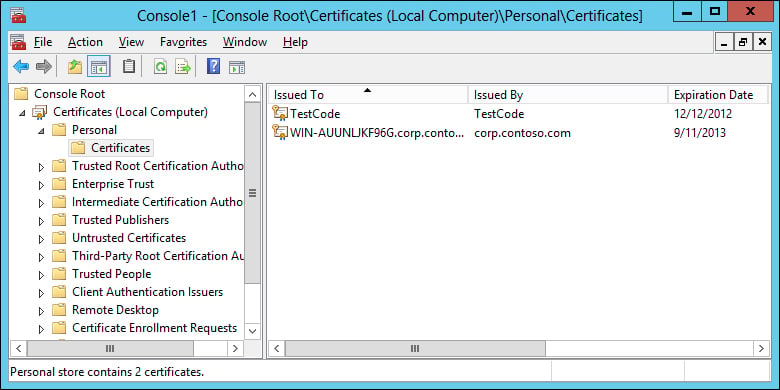
Executing this script will create the certificate and install it on the local computer as shown in the following screenshot:

Note

The self-signed certificate still needs to be added to your Trusted Root Certification Authorities and Trusted Publishers store for the certificate to be considered valid by client computers.

Visually different images
CONTINUE READING
83
Tech Concepts
36
Programming languages
73
Tech Tools
Icon Unlimited access to the largest independent learning library in tech of over 8,000 expert-authored tech books and videos.
Icon Innovative learning tools, including AI book assistants, code context explainers, and text-to-speech.
Icon 50+ new titles added per month and exclusive early access to books as they are being written.
Windows Server 2012 Automation with PowerShell Cookbook
notes
bookmark Notes and Bookmarks search Search in title playlist Add to playlist font-size Font size

Change the font size

margin-width Margin width

Change margin width

day-mode Day/Sepia/Night Modes

Change background colour

Close icon Search
Country selected

Close icon Your notes and bookmarks

Confirmation

Modal Close icon
claim successful

Buy this book with your credits?

Modal Close icon
Are you sure you want to buy this book with one of your credits?
Close
YES, BUY

Submit Your Feedback

Modal Close icon
Modal Close icon
Modal Close icon