Sign In Start Free Trial
Account

Add to playlist

Create a Playlist

Modal Close icon
You need to login to use this feature.
  • Book Overview & Buying OpenCV Computer Vision with Java
  • Table Of Contents Toc
  • Feedback & Rating feedback
OpenCV Computer Vision with Java

OpenCV Computer Vision with Java

By : Baggio
3.4 (5)
close
close
OpenCV Computer Vision with Java

OpenCV Computer Vision with Java

3.4 (5)
By: Baggio

Overview of this book

If you are a Java developer, student, researcher, or hobbyist wanting to create computer vision applications in Java then this book is for you. If you are an experienced C/C++ developer who is used to working with OpenCV, you will also find this book very useful for migrating your applications to Java. All you need is basic knowledge of Java, with no prior understanding of computer vision required, as this book will give you clear explanations and examples of the basics.
Table of Contents (9 chapters)
close
close
8
Index

Building OpenCV from the source code

In this section, we are mostly interested in generating all the OpenCV Java class files contained in a JAR file as well as the native dynamic library for Java OpenCV. This is a self-contained library that works with JNI and is required to run a Java OpenCV application.

In case you are working with Linux or OSX, or if you want to build from the source in Windows, then to get the latest features committed in OpenCV, you should use the source code. You can visit the OpenCV download page at http://opencv.org/downloads.html and choose the appropriate link for your distribution.

Another way to get the source code is by using the git tool. Appropriate instructions for installing it can be found at http://git-scm.com/downloads. When using git, use the following commands:

git clone git://github.com/Itseez/opencv.git
cd opencv
git checkout 3.0.0-rc1
mkdir build
cd build

These commands will access the OpenCV developers' repository and download the most updated code from branch 3.0.0-rc1, which is the release candidate for version 3.0.0.

In either method of obtaining the source code, you will need building tools in order to make binaries. The required packages are as follows:

In order to install these software in a Linux distribution such as Ubuntu or Debian, the user should issue the following command:

sudo apt-get install build-essential cmake git libgtk2.0-dev pkg-config libavcodec-dev libavformat-dev libswscale-dev python-dev python-numpy libtbb2 libtbb-dev libjpeg-dev libpng-dev libtiff-dev libjasper-dev libdc1394-22-dev ant

Once you have installed all these packages, you will be ready to build the library. Make sure you are in the build directory, as you should be, if you have followed the preceding Git instructions. In case you downloaded the source file from OpenCV downloads, the parent folder of your build should have CMakeLists.txt as well as the 3rdparty, apps, cmake, data, doc, include, modules, platforms, samples, and test folders.

CMake is a build tool and it will generate your compiler-specific solution files. You should then use your compiler to generate the binary files. Make sure you are in the build directory, as this should follow the last cd build command. If you are using Linux, run the following commands:

cmake -DBUILD_SHARED_LIBS=OFF

If you are using Windows, run the following command:

cmake -DBUILD_SHARED_LIBS=OFF -G "Visual Studio 10"

Notice that it is important to use the DBUILD_SHARED_LIBS=OFF flag, because it will instruct CMake to build OpenCV on a set of static libraries. This way, it will compile a single dynamic link library for Java without dependencies on other libraries. This makes it easier to deploy your Java projects.

Note

If you are using other compilers in Windows, type cmake –help and it will show all the generators available.

In case you want to use MinGW makefiles, just change the CMake command to the following command:

cmake -DBUILD_SHARED_LIBS=OFF -G "MinGW Makefiles"

One of the key points to watch for when generating project files through CMake is that java is one of the modules that is going to be built. You should see a screen as shown in the following screenshot:

Building OpenCV from the source code

In case you can't see java as one of the to-be-built modules, like in the following screenshot, you should look for a couple of things, such as whether Ant is correctly configured. Also make sure that you have set the ANT_HOME environment variable and that Python is correctly configured. Check if NumPy is installed by simply typing numpy import * in a Python shell and check for any errors:

Building OpenCV from the source code

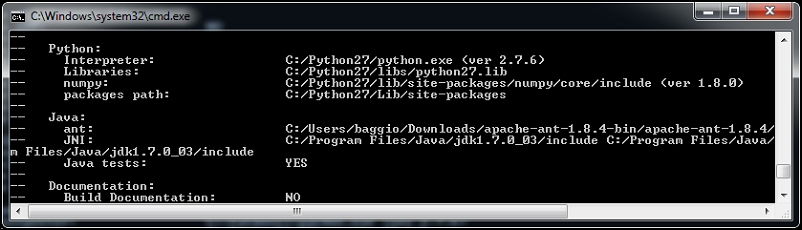
In case you are in doubt about the Python and Java installations, slide down to check their configurations. They should be similar to the next screenshot:

Building OpenCV from the source code

Once everything has been correctly configured, it is time to start compiling the sources. In order to do so in Windows, type the following:

msbuild /m OpenCV.sln /t:Build /p:Configuration=Release /v:m

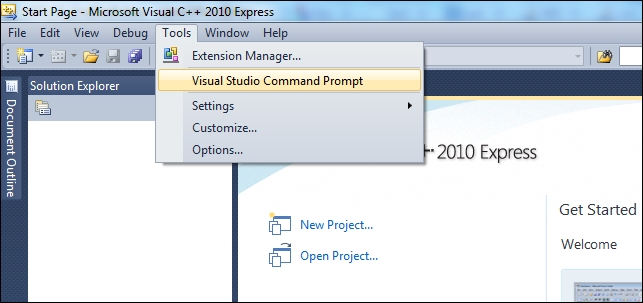
Notice that you might get an error saying, 'msbuild' is not recognized as an internal or external command, operable program or batch file. This occurs when you haven't set the msbuild path. In order to set it right, open Visual Studio and in the Tools menu, click Visual Studio Command Prompt. This will yield a fully working command prompt with access to msbuild. Refer to the following screenshot for clearer directions:

Building OpenCV from the source code

In case you are using newer Visual Studio versions, press the Windows key and type VS2012 Command Prompt. This should set up your environment variables.

In order to start building in Linux, simply type the following command:

make -j8

The preceding command will compile the OpenCV library with Java support. Notice that the -j8 flag tells make to run in parallel with eight job threads, which makes the build theoretically faster.

Tip

Downloading the example code

You can download the example code files from your account at http://www.packtpub.com for all the Packt Publishing books you have purchased. If you purchased this book elsewhere, you can visit http://www.packtpub.com/support and register to have the files e-mailed directly to you.

The entire process will last for some minutes before generating a JAR file that contains the Java interfaces, which is located at bin/opencv-300.jar. The native dynamic link library containing Java bindings is generated at lib/libopencv_java300.so or bin/Release/opencv_java300.dll, depending on your operating system. These files will be used when we create our first OpenCV application.

Congratulations! You are now halfway to becoming a great developer using OpenCV!

Visually different images
CONTINUE READING
83
Tech Concepts
36
Programming languages
73
Tech Tools
Icon Unlimited access to the largest independent learning library in tech of over 8,000 expert-authored tech books and videos.
Icon Innovative learning tools, including AI book assistants, code context explainers, and text-to-speech.
Icon 50+ new titles added per month and exclusive early access to books as they are being written.
OpenCV Computer Vision with Java
notes
bookmark Notes and Bookmarks search Search in title playlist Add to playlist font-size Font size

Change the font size

margin-width Margin width

Change margin width

day-mode Day/Sepia/Night Modes

Change background colour

Close icon Search
Country selected

Close icon Your notes and bookmarks

Confirmation

Modal Close icon
claim successful

Buy this book with your credits?

Modal Close icon
Are you sure you want to buy this book with one of your credits?
Close
YES, BUY

Submit Your Feedback

Modal Close icon
Modal Close icon
Modal Close icon