Sign In Start Free Trial
Account

Add to playlist

Create a Playlist

Modal Close icon
You need to login to use this feature.
  • Book Overview & Buying Apache Superset Quick Start Guide
  • Table Of Contents Toc
Apache Superset Quick Start Guide

Apache Superset Quick Start Guide

By : Shekhar
3.5 (2)
close
close
Apache Superset Quick Start Guide

Apache Superset Quick Start Guide

3.5 (2)
By: Shekhar

Overview of this book

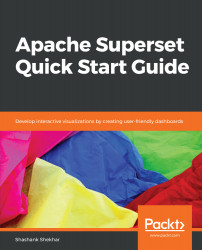
Apache Superset is a modern, open source, enterprise-ready business intelligence (BI) web application. With the help of this book, you will see how Superset integrates with popular databases like Postgres, Google BigQuery, Snowflake, and MySQL. You will learn to create real time data visualizations and dashboards on modern web browsers for your organization using Superset. First, we look at the fundamentals of Superset, and then get it up and running. You'll go through the requisite installation, configuration, and deployment. Then, we will discuss different columnar data types, analytics, and the visualizations available. You'll also see the security tools available to the administrator to keep your data safe. You will learn how to visualize relationships as graphs instead of coordinates on plain orthogonal axes. This will help you when you upload your own entity relationship dataset and analyze the dataset in new, different ways. You will also see how to analyze geographical regions by working with location data. Finally, we cover a set of tutorials on dashboard designs frequently used by analysts, business intelligence professionals, and developers.
Table of Contents (10 chapters)
close
close

Sharing Superset

We will need to share our Superset web app with others, and for that we will have to figure out the URL users can use to access it through their internet browsers.

The standard format of a web server URL is http://{address}:{port number}.

The default port for Superset is 8088. On a locally run Superset web app server, the address is localhost. Servers on internal networks are available on their internal IP address. Web apps on cloud services such as GCE or Amazon Elastic Compute have the machine's external IP as the address.

On GCE's VM instances screen, an external IP is displayed for each instance that is started. A new external IP is generated for every new instance. In the following screenshot, the external IP specified is 35.233.177.180. To share the server with registered users on the internet, we make a note of the external IP on our own screens:


The sidebar on Google Cloud Platform

To allow users to access the port, we need to go to VPC network | Firewall rules and Create a firewall rule that will open port 8088 for users. We can use the field values shown in the following screenshot for the rule:

Firewall rule setup

Now, we are ready to install Superset!

Before we proceed, use the ssh option to open a Terminal that is connected to the GCE instance while staying inside your browser. This is one of the many amazing features of GCE.

In the Terminal, we will run some commands to install the dependencies and configure Superset for our first dashboard:

# 1) Install os-level dependencies
sudo apt-get install build-essential libssl-dev libffi-dev python-dev python-pip libsasl2-dev libldap2-dev
# 2) Check for Python 2.7
python --version
# 3) Install pip
wget https://bootstrap.pypa.io/get-pip.py
sudo python get-pip.py
# 4) Install virtualenv
sudo pip install --upgrade virtualenv
# 5) Install virtualenvironment manager
sudo pip install virtualenvwrapper
source /usr/local/bin/virtualenvwrapper.sh
echo 'source /usr/local/bin/virtualenvwrapper.sh' >> ~/.bash_profile
# 6) Make virtual environment
mkvirtualenv supervenv
# 7) Install superset and virtualenv in the new virtual environment
(supervenv) pip install superset
(supervenv) pip install virtualenv virtualenvwrapper
# 8) Install database connector
(supervenv) pip install pybigquery
# 9) Create and open an authentication file for BigQuery
(supervenv) vim ~/.google_cdp_key.json
# 10) Copy and paste the contents of <project_id>.json key file to ~/.google_cdp_key.json
# 11) Load the new authentication file
(supervenv) echo 'export GOOGLE_APPLICATION_CREDENTIALS="$HOME/
.google_cdp_key.json"' >> ~/.bash_profile
(supervenv) source ~/.bash_profile

CONTINUE READING
83
Tech Concepts
36
Programming languages
73
Tech Tools
Icon Unlimited access to the largest independent learning library in tech of over 8,000 expert-authored tech books and videos.
Icon Innovative learning tools, including AI book assistants, code context explainers, and text-to-speech.
Icon 50+ new titles added per month and exclusive early access to books as they are being written.
Apache Superset Quick Start Guide
notes
bookmark Notes and Bookmarks search Search in title playlist Add to playlist font-size Font size

Change the font size

margin-width Margin width

Change margin width

day-mode Day/Sepia/Night Modes

Change background colour

Close icon Search
Country selected

Close icon Your notes and bookmarks

Confirmation

Modal Close icon
claim successful

Buy this book with your credits?

Modal Close icon
Are you sure you want to buy this book with one of your credits?
Close
YES, BUY

Submit Your Feedback

Modal Close icon
Modal Close icon
Modal Close icon