In this section, we will look into the basic tasks of IBM Watson.
-
Book Overview & Buying
-
Table Of Contents
IBM Watson Projects
By :
In this section, we will look into the basic tasks of IBM Watson.
Before you can do anything with Watson, you need to set up an account (and for general discovery, you can use the free version!) and log in. You can get started with IBM Watson by going directly to: https://watson.analytics.ibmcloud.com (as of this writing) and (or course!) using user your IBM ID to sign-in (or sign-up if you're a new user).
Not too much more to add here on this topic, as logging in is pretty much self-explanatory.
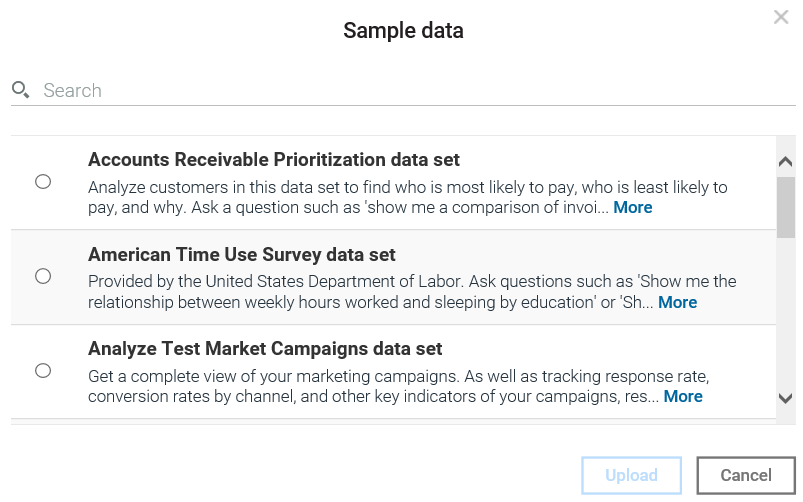
Typically, one would start by adding data—some project-focused new data—to IBM Watson, but for now, as we are just reviewing the basics of the Watson interface, we'll mention that IBM Watson offers a pretty extensive library of sample data, which is always available to you to use in your efforts to gain an understanding of how the basic functions and features of the tool work.
So, with those thoughts in mind we'll move right along, starting here with a discussion on Explore, which is, starting from left to right, the first IBM Watson feature available on the start-up bar.
IBM Watson Explore is designed to allow you to effortlessly integrate the use of visualizations in an effort to gain an understanding of the data you are interested in, so that you can notice patterns and relationships within that data. These can then have major impacts on the business or problem you are solving for.
Watson Analytics makes it easy to jump right in and get going with the process of data exploration without requiring a lot of setup or data preparation.
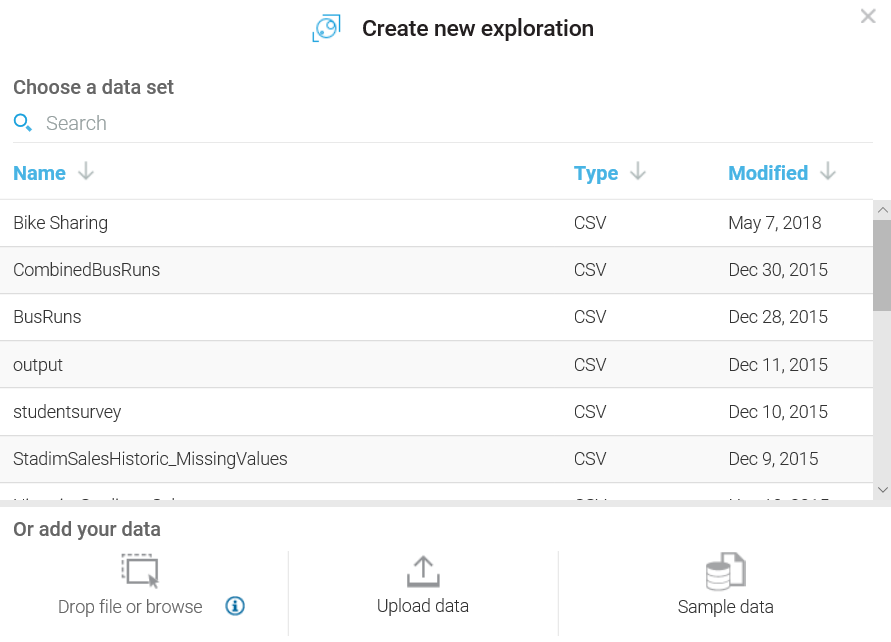
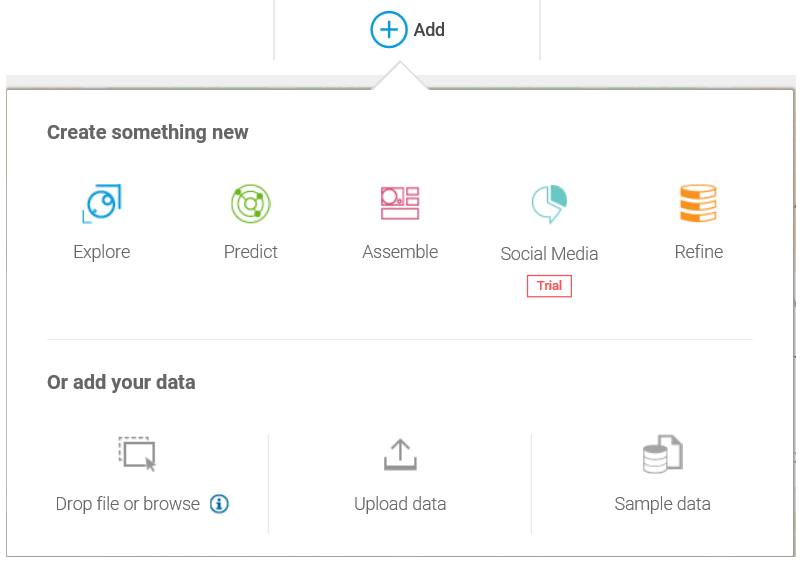
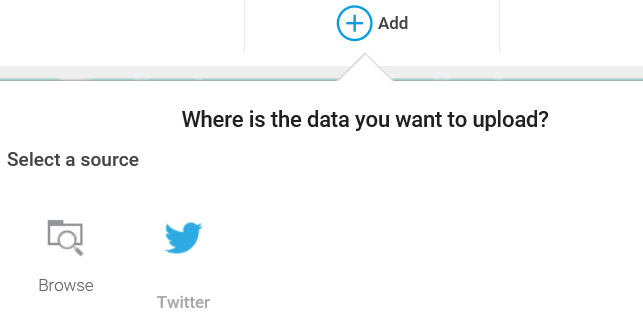
After clicking Explore, the Create new exploration dialog (shown in the following screenshot) offers you a list of existing datasets (if you've already added any to Watson) to begin exploring as well as the ability to add your data by browsing to a file or selecting Twitter as the data's source, and finally, you can also explore the Sample data offered by Watson:

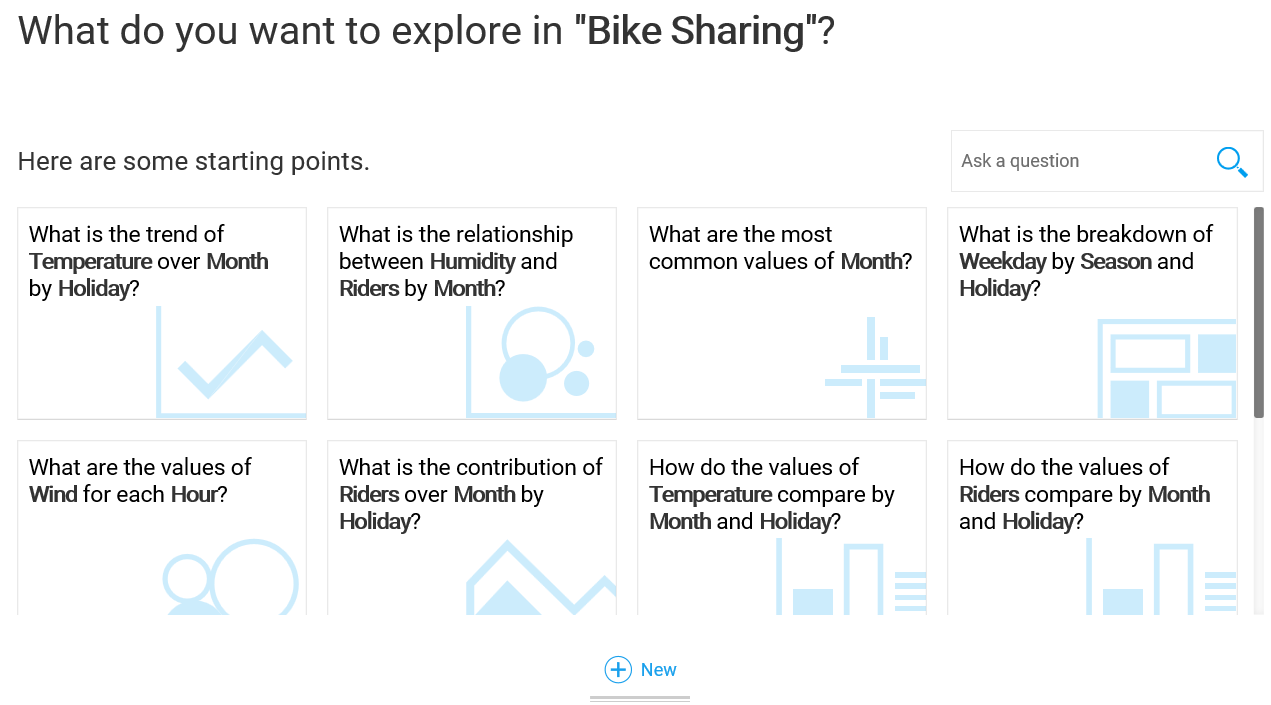
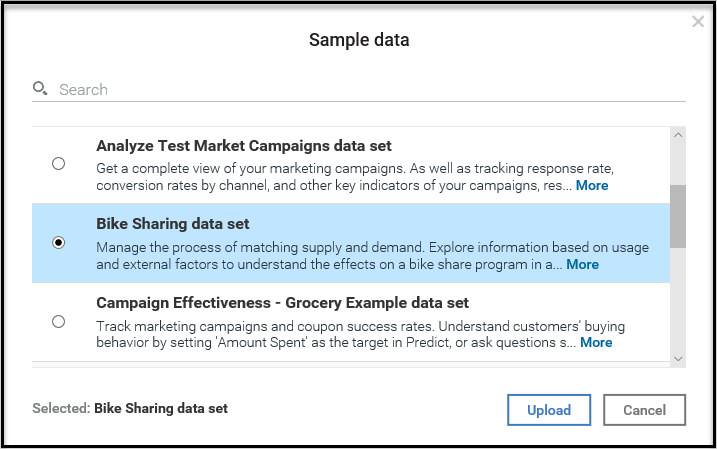
What's exciting is what happens after you select a dataset. IBM Watson asks you: What do you want to explore in your selected dataset? and also prompts you with suggested starting points based on the data you selected.
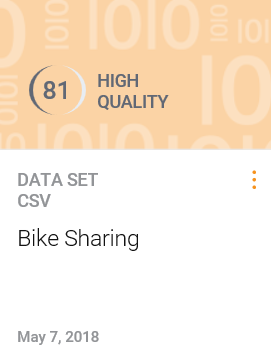
In the following example, we have selected a dataset named Bike Sharing:

The IBM Watson Predict feature delivers highly interpretable insights that are based on internal Watson complex modeling. In the Predict capability, Watson Analytics uses sophisticated algorithms to quickly and efficiently deliver its predictions based on the data you provide.
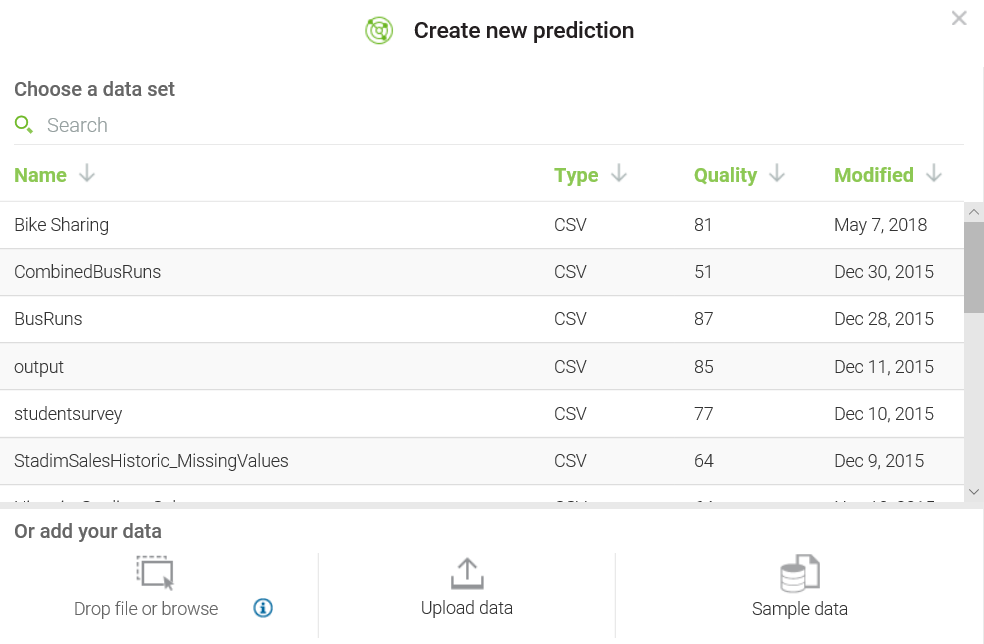
Just like the previously-mentioned Explore capability, once you click on Predict, IBM Watson provides you with the Create new prediction dialog (shown in the following screenshot), which displays a list of existing datasets that you can select as the source for your new Watson prediction, as well as the option to upload/add new data (or utilize the provided sample data):

IBM Watson Predict automatically identifies the data that you are analyzing and includes visual as well as textual understandings that are generated from your selected data.
Watson couldn't make it much easier! The basic steps for using Predict are simply:
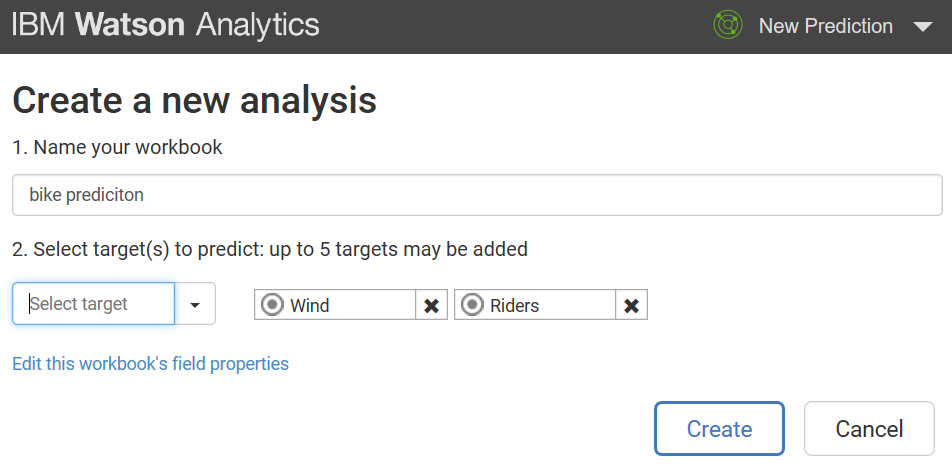
Creating your prediction (after selecting the data source) starts with the Create a new Analysis dialog (a bit of a misnomer; are we creating a new analysis or prediction?) where you provide a name and target:

Next, you click Create and let Watson do its work:

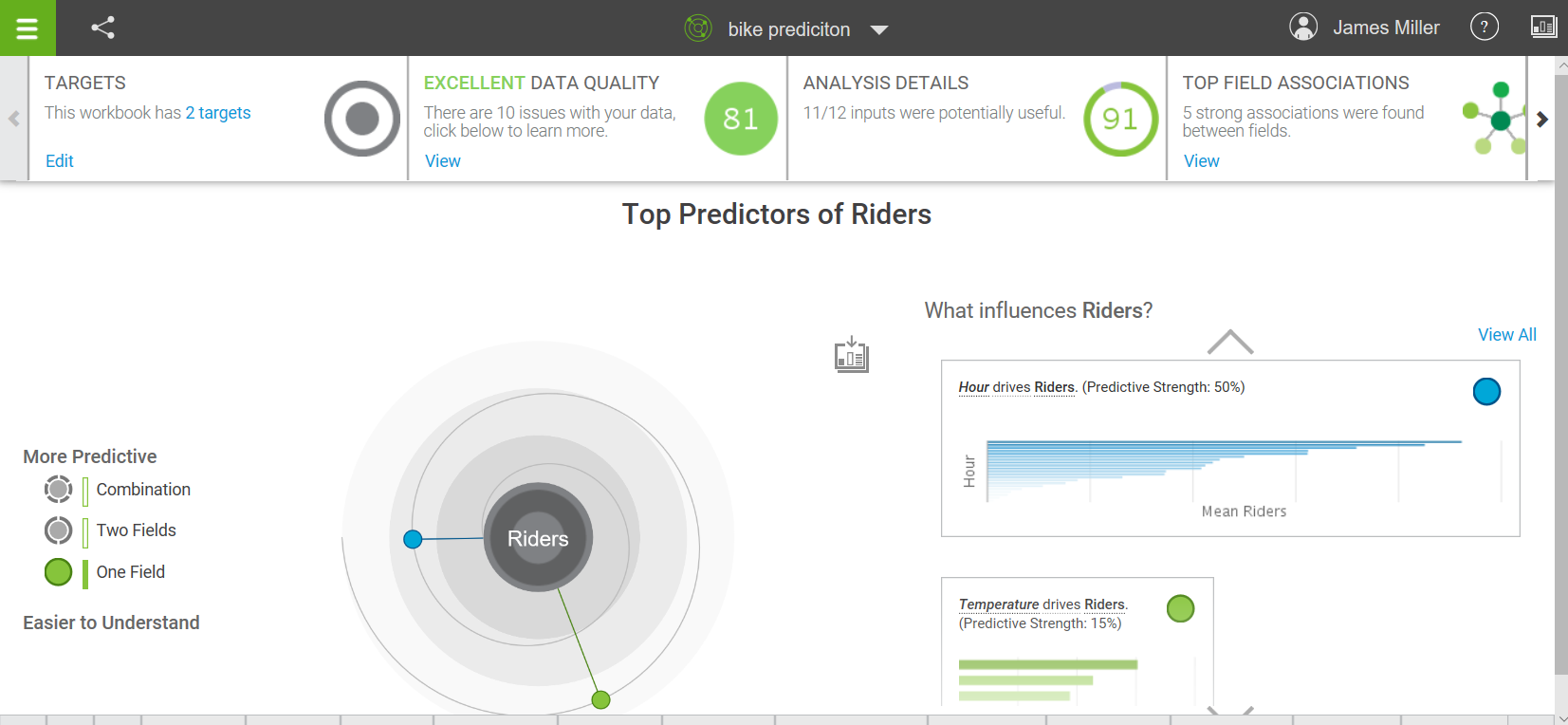
And then (momentarily), we have our prediction:

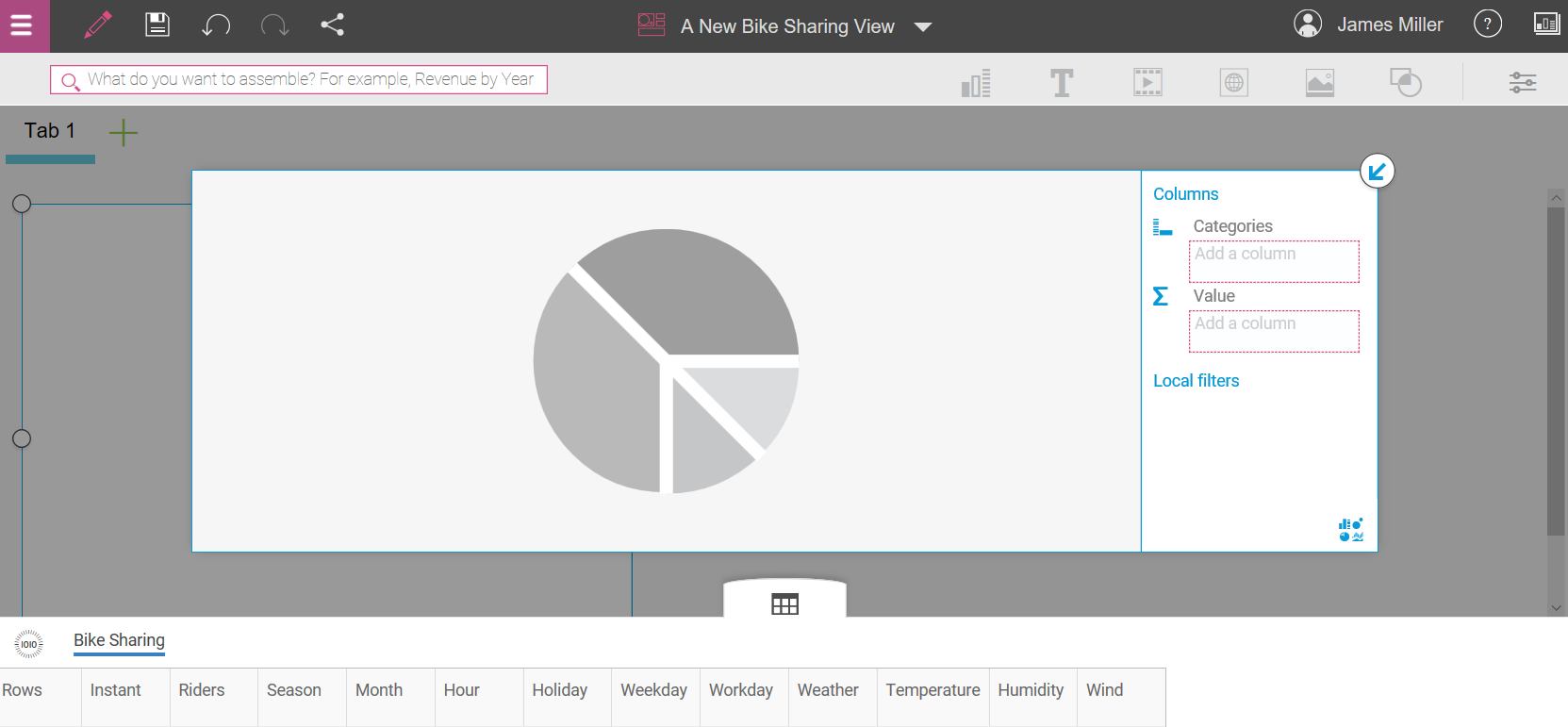
Another fundamental feature of IBM Watson is Assemble. Simply put, you can use this to group the results generated from using Explore and Predict.
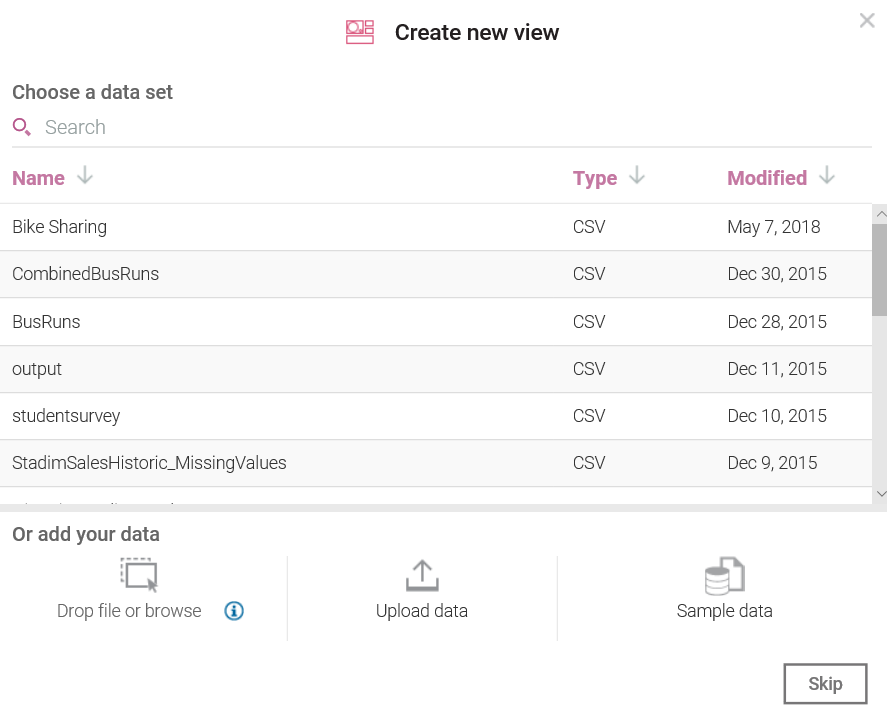
Clicking on Assemble, you will see a dialog with a familiar format:

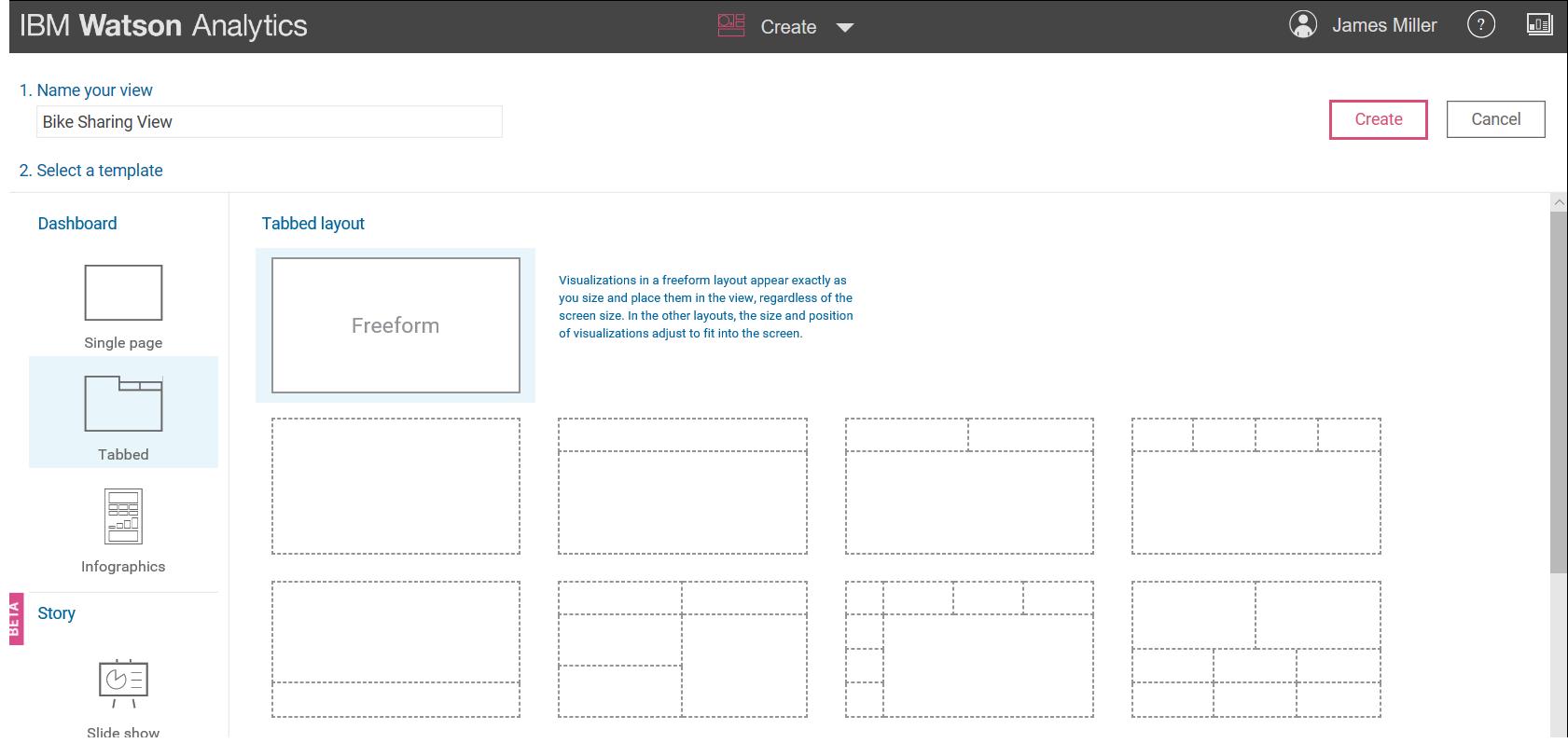
Again, you have the option to select an existing dataset or add your new data (you also have another misnomer, Create a new view even though you clicked on Assemble). You also have the option of clicking on Skip, but for now, we see that the next page is where you do the assembling by entering a name and selecting a Watson template:

Once you select a template (templates are the way you can easily organize your artifacts) and click Create you can then build your Assembly (or view) by dragging and dropping various data points into your favorite visualizations (more on this later!):

Newer to IBM Watson are the built-in Social Media capabilities. Now, you can discover insights based upon data gathered by IBM Watson from key words and hashtags you choose. This data can be from Twitter, forums, reviews, Facebook pages, video descriptions, comments, blogs, and other news sources. Exploring and analyzing social media trends is now a fundamental task using IBM Watson.
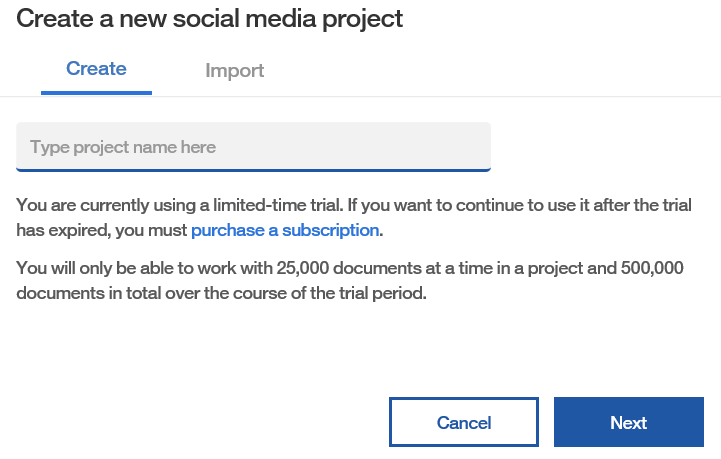
Clicking on Social Media presents the Create a new social media project dialog (shown as follows) that steps you through the process of creating a real, IBM Watson-based, social media (SM) project:

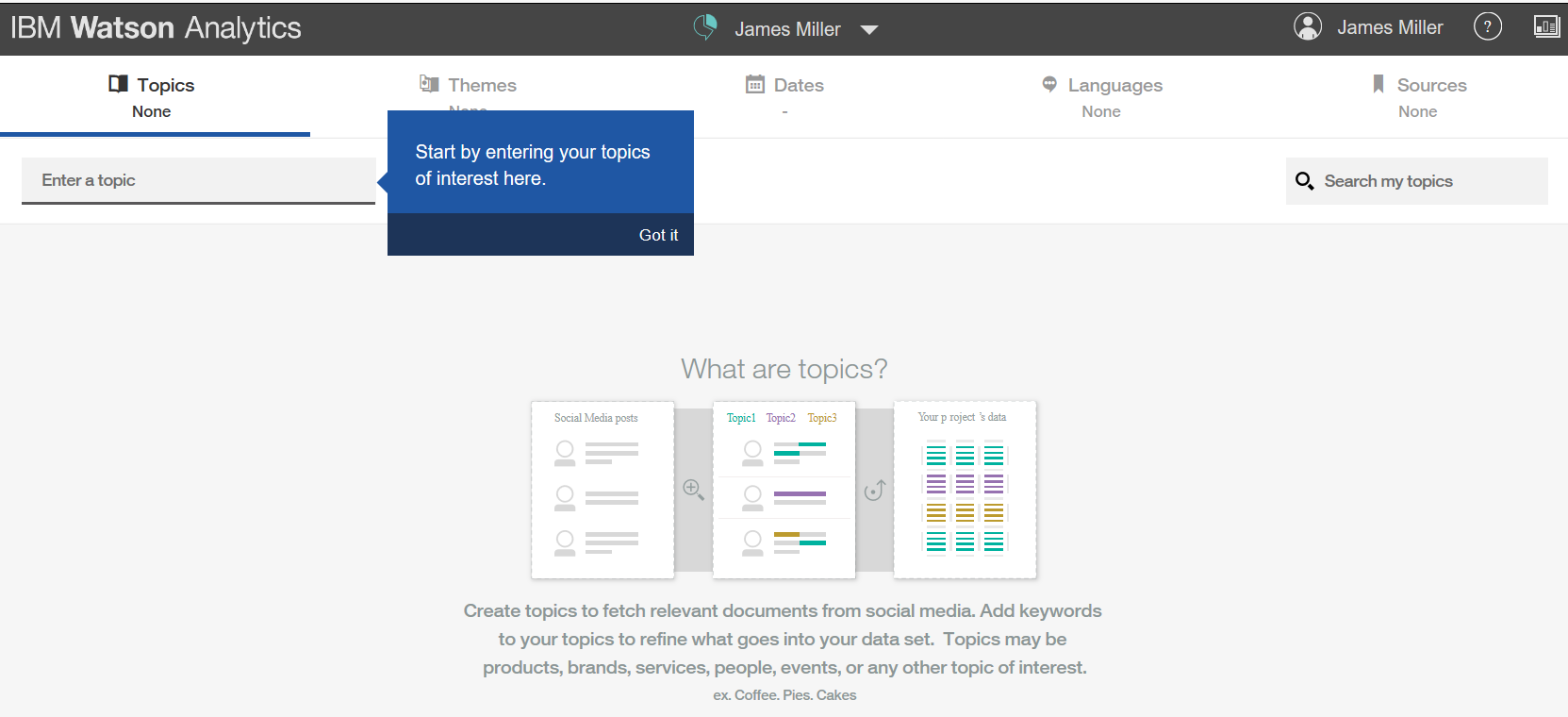
Once you have typed a name for your (SM) project, you can click Next to go to the page shown in the following screenshot, where you can define the details for your project:

It's always all about the data, right? That is because having a thorough understanding of your data can actually make or break the outcome of a project.
Perhaps of all the out of the box features that IBM Watson delivers, the most important may just be Refine. Refine means just that—to hone, enhance, polish, improve or even perfect—the data you are planning to use in your IBM Watson project.
But why would you modify your data? Well, there are various reasons you may want to consider (or possibly need to) modify the data you are using. For example:
As a rule, a proven practice when making any sort of change to your data file is to preserve the original state of the data. Not to worry, IBM Watson saves you the time and effort of backing up, saving, and then maintaining version control, since whenever you use Refine, a new and separate dataset is created automatically for you that is related to your original dataset.
Note: The changes that you make using Refine are saved as a separate version of the original dataset and are automatically available in Predict, Explore, and Assemble. If you modify the data in an exploration, the changed data is available only in that exploration.
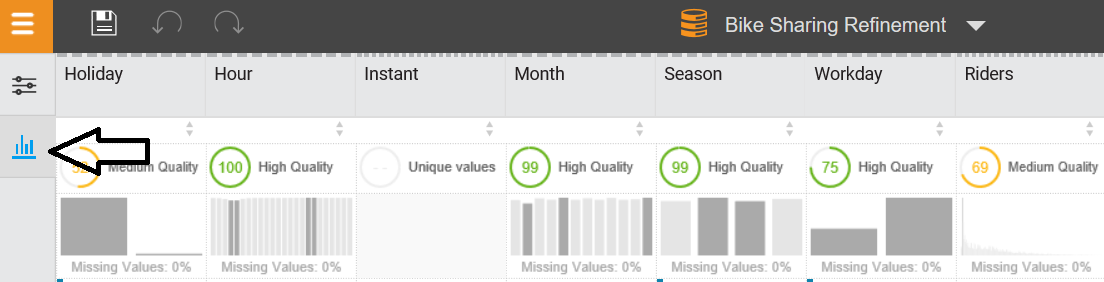
In addition to using Refine to make your data more usable, you can also use Refine to learn more about your data. Once you are on the Refine page, you can click on the data metrics icon (it is the little bar graph on the left of the page), shown as follows:

When you view the data metrics for your selected dataset, you will see the following information for each column of your data:
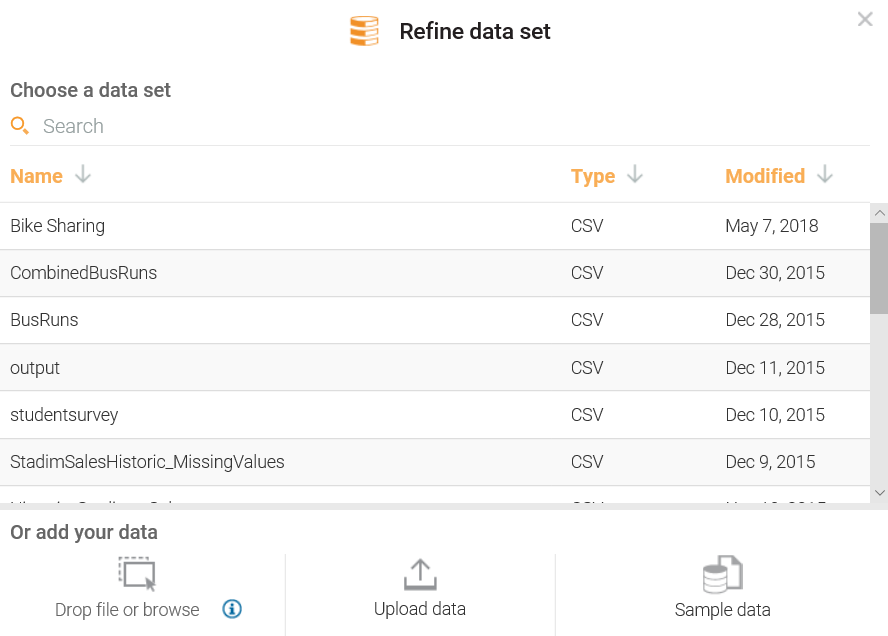
Getting started with Refine is easy; once you click on Refine, a familiarly-formatted Refine data set dialog is presented (shown in the following screenshot), where you can select an existing dataset, add a new dataset, or take advantage of Watson's sample data:

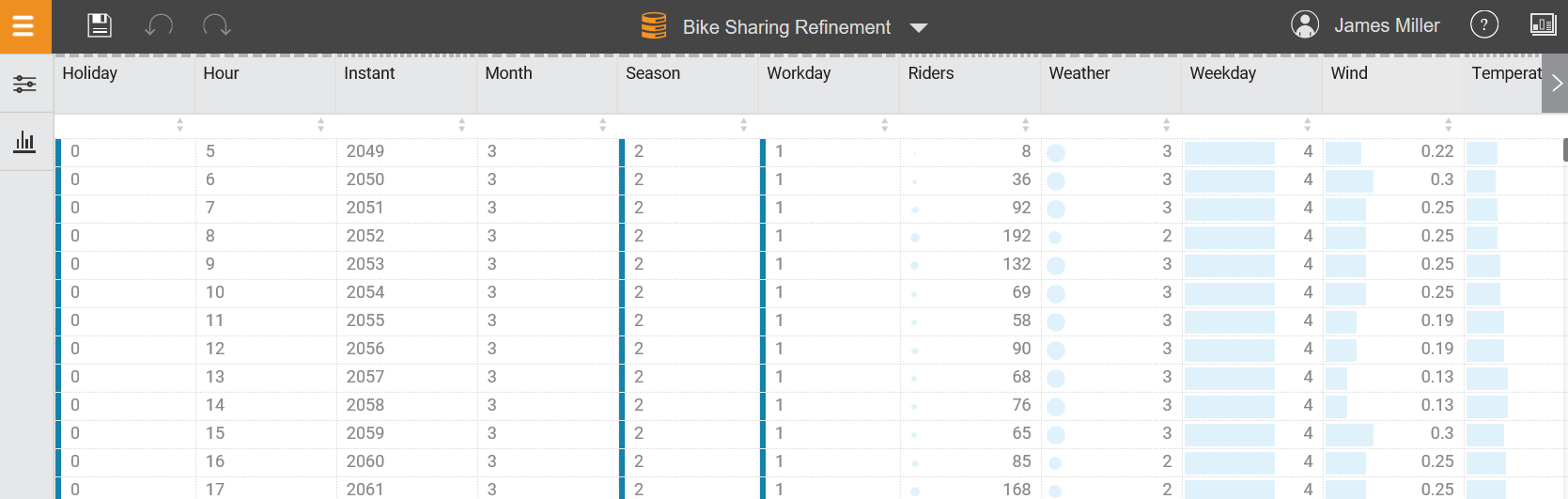
After selecting (or uploading) a dataset, the data is displayed in the Refine page (shown in the following screenshot), where you can explore your data's metrics and perform the appropriate refinements based upon your requirements:

Now that we've done the high-level, quick review of most of the fundamental features of the IBM Watson interface, and before we jump into our first IBM Watson project, let's move on to the final section of this chapter, where we will walk through the steps required to add some new data to IBM Watson as well as do some exploring and refining of that data.
You can add new data to IBM Watson easily. There is no need for extensive Extract Transform Load (ETL) scripting. The data can be contained in a cloud-based or on-premises database or simply uploaded to IBM Watson as a simple text file.
The following steps can be followed to add data to Watson.
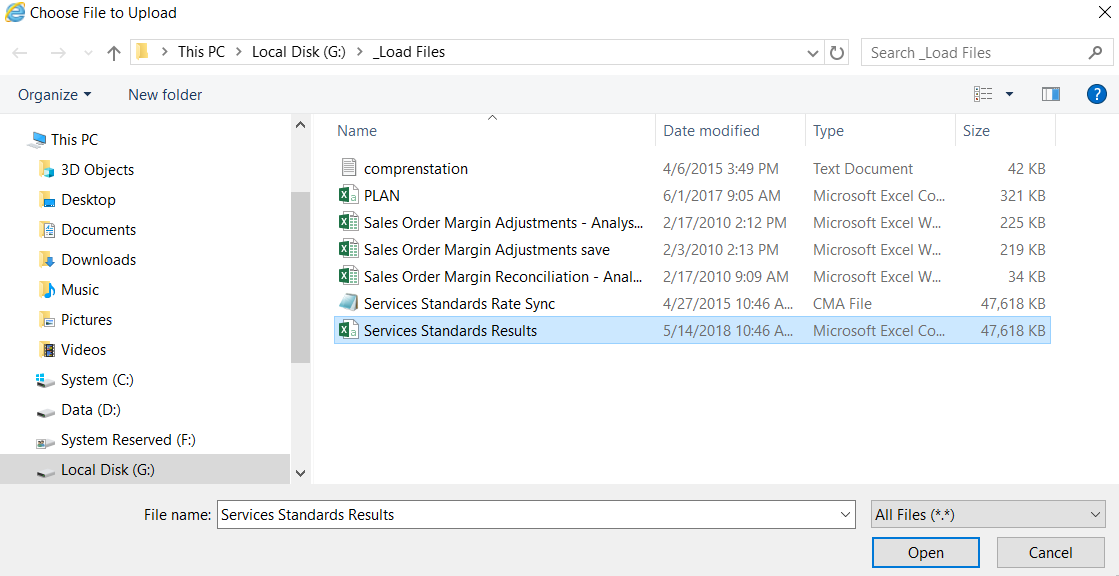
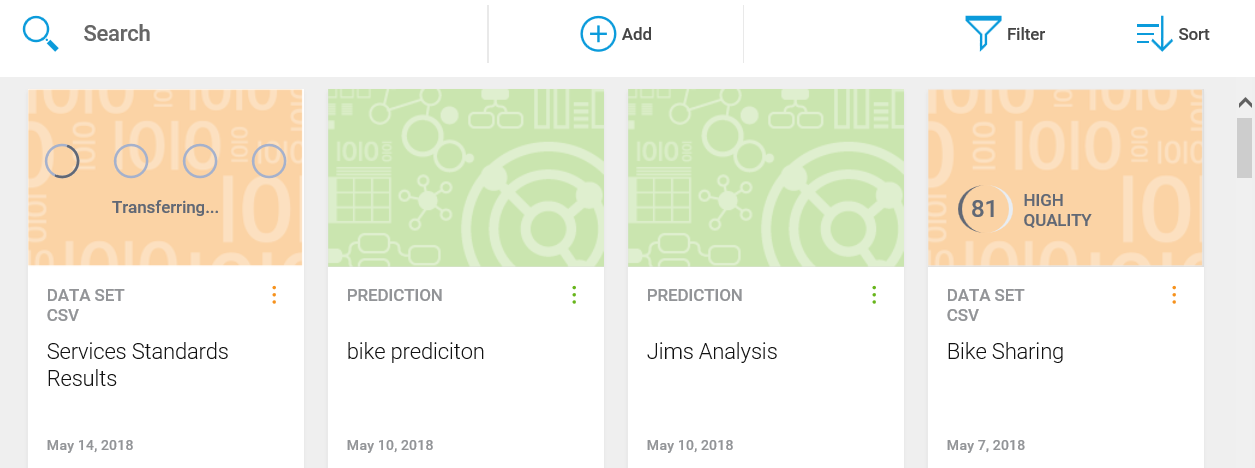
It goes without saying that the initial step is determine the source of the data that you want to use. We'll focus a lot more on this task in later chapters of this book, but for now, let's assume we have isolated a text file containing data we want to use in an IBM Watson project. So the steps are:


So, as you see, even without a programming or scripting expert's help, you can add data to your IBM Watson space, since Watson practically does that work for you!
One of the more important IBM Watson tasks is Refine (which we mentioned earlier in this chapter). Here will walk through the basics, using some Watson sample data:


There are many tasks you can perform using Refine, such as:
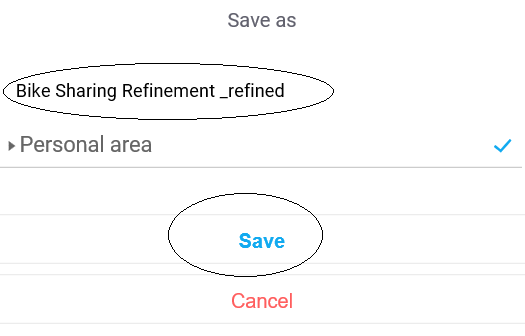
For now, let's assume we've made some of the previously-mentioned refinements to our data and want to save it as a new file. To do that, you simply click on the SAVE icon (looks such as a tiny diskette in the upper left of the page), enter an appropriate name for the new file, and click Save (on the Save as popup shown as follows):

Change the font size
Change margin width
Change background colour