Sign In Start Free Trial
Account

Add to playlist

Create a Playlist

Modal Close icon
You need to login to use this feature.
  • Book Overview & Buying Microsoft Power BI Cookbook
  • Table Of Contents Toc
Microsoft Power BI Cookbook

Microsoft Power BI Cookbook - Third Edition

By : Greg Deckler, Brett Powell
4.7 (23)
close
close
Microsoft Power BI Cookbook

Microsoft Power BI Cookbook

4.7 (23)
By: Greg Deckler, Brett Powell

Overview of this book

Since its first edition the Power BI Cookbook has been a best-selling resource for BI developers and data analysts to produce impactful, quality BI solutions. This new and updated edition retains the rigorous details and concepts readers of prior editions have enjoyed while also demonstrating powerful new capabilities and updated guidance aligned to the current state of the platform. In this book, with step-by-step instructions, you will learn to navigate the complexities of data integration and visualization in Power BI. From creating robust data models to implementing sophisticated reporting techniques, this Power BI book empowers you to make informed decisions based on actionable insights. It also introduces you to new capabilities such as Hybrid tables and scorecards, enhancing your ability to communicate and analyze business performance. It also expands and improvises on the core of the previous edition like parameterizing Power BI solutions, authoring reports, data intelligence, and integrating advanced analytics. This edition highlights the latest features and upcoming AI enhancements in Power BI. *Email sign-up and proof of purchase required
Table of Contents (17 chapters)
close
close
Preface
14
Unlock Your Exclusive Benefits
15
Other Books You May Enjoy
16
Index

Installing Additional Tools

Power BI professionals responsible for the development of semantic models (datasets) routinely utilize additional tools beyond Power BI Desktop to create and manage their models. For example, they use Tabular Editor to quickly implement changes to measures or add new objects, such as perspectives and calculation groups. Likewise, ALM Toolkit is routinely used to deploy incremental and metadata-only changes to Power BI.

Another such tool is DAX Studio, a third-party tool used to query data models, edit and format code, browse the structure and metadata of data models, and analyze the performance and execution characteristics of DAX queries. For larger and more complex data models and expressions, as well as projects involving multiple models, DAX Studio becomes an essential supplement to the development and performance-tuning processes.

Data Analysis Expressions (DAX) is the “language of Power BI,” as it is used to create the measures and queries visualized in Power BI reports and dashboards. Power BI generates and submits DAX queries to the source data model based on the structure of the visualization, user selections, and filters—just as other tools such as Excel generate MDX queries based on the selections and structure of pivot tables and slicers from workbooks. DAX expressions are also used to define security roles and can optionally be used to create columns and tables in data models, based on other tables and columns in the model, which can be refreshed at processing time and used by measures and queries. DAX serves the same function in Azure Analysis Services (AAS) and SQL Server Analysis Services (SSAS) tabular models, as well as Power Pivot for Excel models. It’s essential that BI professionals have a robust tool to develop and analyze DAX code and the data models containing these expressions.

Getting ready

To prepare for this recipe, follow this step:

  1. Download the current release from the DAX Studio website: https://daxstudio.org/downloads/. The installer version is a single file that provides a wizard-based installation and setup, while the portable version is a ZIP file that does not provide a wizard-based installation. The installer version is recommended.

You are now prepared to install DAX Studio.

How to install DAX Studio

  1. Use the Open file link or run the file from your Downloads folder. The file will be named something like DaxStudio_3_0_10_setup.exe.
  2. Once the installation starts, select the option Install for all users (recommended).
  3. If prompted by User Account Control, select the Yes button.
  4. Accept the license agreement and click the Next button.
  5. Choose a folder path to install the tool and click the Next button.
  6. Choose whether the DAX Studio add-in for Excel will also be installed. Click the Next button. Note that:
    1. The add-in for Excel is required to connect to Power Pivot for Excel data models.
    2. Additionally, when DAX Studio is opened from Excel, query results can be exported directly to Excel tables.
  7. Select the Start menu folder (the default is DAX Studio), and then click the Next button.
  8. Check the Create a desktop shortcut box and leave the Privacy checkbox unchecked. Click the Next button.
  9. Finally, click the Install button.

How it works

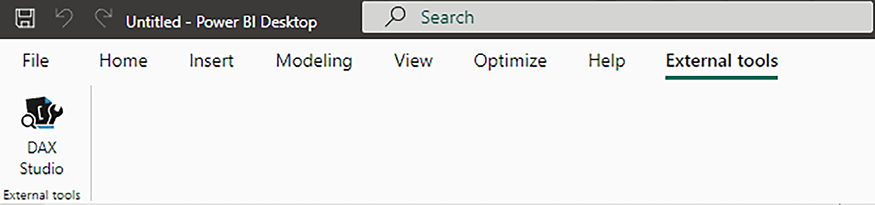
Upon full installation, including the add-in for Excel, launching Power BI Desktop will display an additional menu choice, External tools, in the ribbon. Selecting External tools in the ribbon displays all installed external tools, as shown in Figure 1.24:

Figure 1.24: DAX Studio in the Add-Ins ribbon in Excel

Clicking the DAX Studio icon from within Power BI Desktop launches DAX Studio and automatically connects to the current Power BI dataset.

If the Excel add-in was chosen during installation, a DAX Studio icon also appears on the Add-Ins tab in the Excel ribbon.

External tools for Power BI use a JavaScript Object Notation (JSON) file, stored in the directory C:\Program Files (x86)\Common Files\Microsoft Shared\Power BI Desktop\External Tools. These files have a .pbitool.json file extension, such as DAX Studio’s daxstudio.pbitool.json file. These files have the following format:

{

"version": "1.0",

"name": "DAX Studio",

"description": "Use DAX Studio for DAX authoring, diagnosis, performance tuning and analysis.",

"path": "C:\\Program Files\\DAX Studio\\DaxStudio.exe",

"arguments": "/server=\"%server%\" /database=\"%database%\"",

"iconData": "image/svg+xml;base64, … "

}

This information is read by Power BI Desktop upon starting and populates the External tools toolbar in the ribbon. This means that installing or uninstalling external tools requires Power BI Desktop to be restarted before the changes are reflected within the program.

There’s more…

There are two additional tools that are useful for Power BI, namely:

  • ALM Toolkit
  • Tabular Editor

ALM Toolkit is a third-party tool from MAQ Software that provides advanced features such as Power BI dataset comparison, code merging, partial deployments and bug fixes, source control integration for dataset metadata, and definition reuse between tabular models. To download and install ALM Toolkit, follow these steps:

  1. In a browser, navigate to http://alm-toolkit.com.
  2. Near the top of the page, click the DOWNLOAD LATEST VERSION button.
  3. Use the Open file link to launch AlmToolkitSetup.msi or open the file from your Downloads folder.

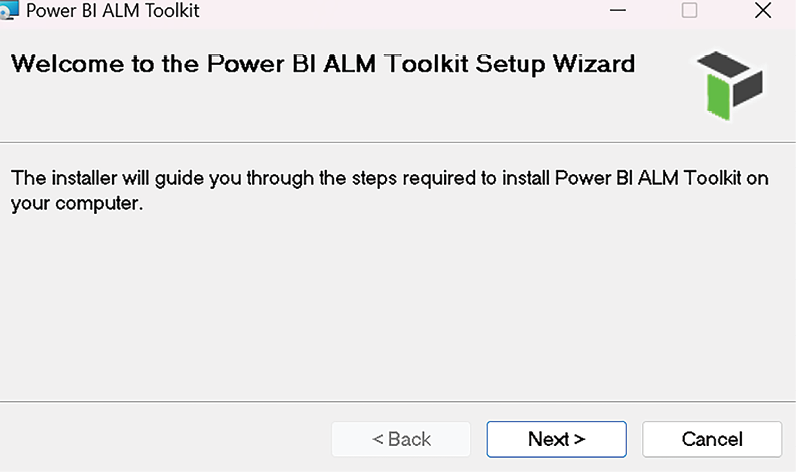
Figure 1.25: Initial installation screen for ALM Toolkit

  1. Click the Next button on the initial installation screen.
  2. Accept the license agreement and click the Next button.
  3. Choose a folder path and click the Next button.
  4. On the final installation screen, click the Next button to start the installation.
  5. If prompted by User Account Control, click the Yes button.

The Power BI ALM Toolkit can now be launched from the Windows Start menu or Power BI Desktop’s External tools toolbar.

Another powerful tool is Tabular Editor. At the time of this book being published, Tabular Editor comes in two versions, the free, open source version 2 and the commercial version 3. Tabular Editor is an alternative to SQL Server Data Tools (SSDT) for authoring and editing tabular models for Analysis Services. Tabular Editor provides a hierarchical view of the objects in your tabular model metadata, such as columns, measures, and hierarchies. Tabular Editor integrates with Power BI Desktop, allowing batch changes to DAX measures and enabling advanced capabilities, such as calculation groups and perspectives. Finally, Tabular Editor also enables offline editing capabilities by allowing you to open the tabular model directly from Model.bim files. To install and use Tabular Editor, follow these steps:

  1. Download the latest Tabular Editor from here: https://bit.ly/3bJFBvl.
  2. At the top of the page, click the Windows installer version, such as TabularEditor.2.24.0.Installer.msi. The exact version number may vary.
  3. Once the file downloads, use the Open file link or open the file from your Downloads folder.

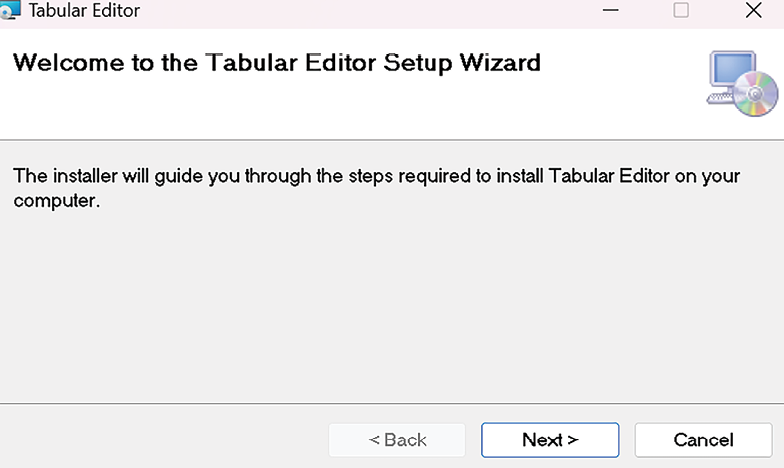
Figure 1.26: Initial installation screen for Tabular Editor

  1. Click the Next button on the initial installation screen.
  2. Accept the license agreement and click the Next button.
  3. Choose a folder path and click the Next button.
  4. Check the boxes Create Desktop shortcut and Create Program Menu shortcut, and then click the Next button.
  5. On the final installation screen, click the Next button to start the installation.
  6. If prompted by User Account Control, click the Yes button.
  7. Once installation is complete, click the Close button.

Tabular Editor can now be launched from the Windows Start menu or from Power BI Desktop’s External tools toolbar.

See also

CONTINUE READING
83
Tech Concepts
36
Programming languages
73
Tech Tools
Icon Unlimited access to the largest independent learning library in tech of over 8,000 expert-authored tech books and videos.
Icon Innovative learning tools, including AI book assistants, code context explainers, and text-to-speech.
Icon 50+ new titles added per month and exclusive early access to books as they are being written.
Microsoft Power BI Cookbook
notes
bookmark Notes and Bookmarks search Search in title playlist Add to playlist download Download options font-size Font size

Change the font size

margin-width Margin width

Change margin width

day-mode Day/Sepia/Night Modes

Change background colour

Close icon Search
Country selected

Close icon Your notes and bookmarks

Confirmation

Modal Close icon
claim successful

Buy this book with your credits?

Modal Close icon
Are you sure you want to buy this book with one of your credits?
Close
YES, BUY

Submit Your Feedback

Modal Close icon
Modal Close icon
Modal Close icon