-
Book Overview & Buying
-
Table Of Contents

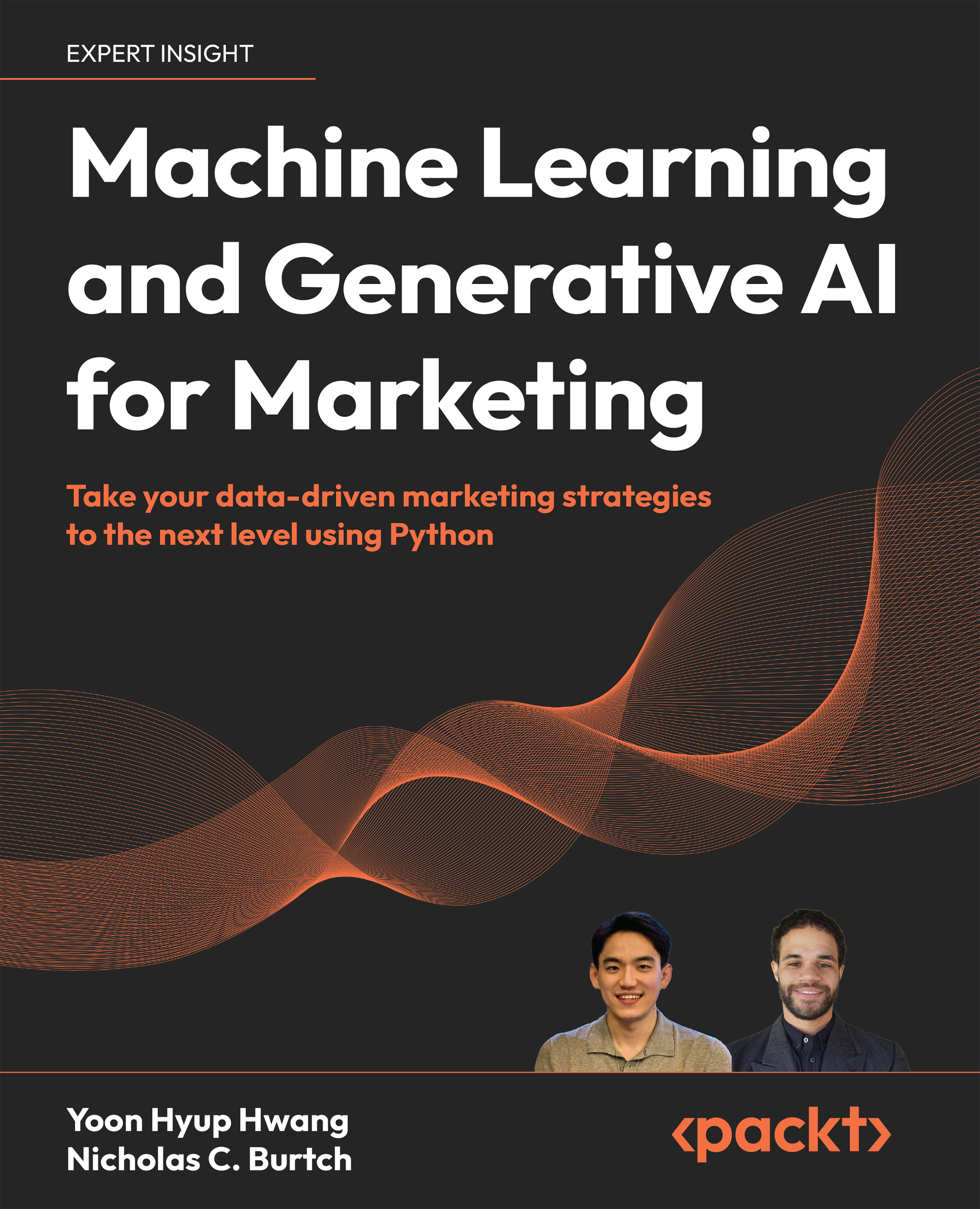
Machine Learning and Generative AI for Marketing
By :


Machine Learning and Generative AI for Marketing
By:
Overview of this book
In the dynamic world of marketing, the integration of artificial intelligence (AI) and machine learning (ML) is no longer just an advantage—it's a necessity. Moreover, the rise of generative AI (GenAI) helps with the creation of highly personalized, engaging content that resonates with the target audience.
This book provides a comprehensive toolkit for harnessing the power of GenAI to craft marketing strategies that not only predict customer behaviors but also captivate and convert, leading to improved cost per acquisition, boosted conversion rates, and increased net sales.
Starting with the basics of Python for data analysis and progressing to sophisticated ML and GenAI models, this book is your comprehensive guide to understanding and applying AI to enhance marketing strategies. Through engaging content & hands-on examples, you'll learn how to harness the capabilities of AI to unlock deep insights into customer behaviors, craft personalized marketing messages, and drive significant business growth. Additionally, you'll explore the ethical implications of AI, ensuring that your marketing strategies are not only effective but also responsible and compliant with current standards
By the conclusion of this book, you'll be equipped to design, launch, and manage marketing campaigns that are not only successful but also cutting-edge.
Table of Contents (16 chapters)
Preface


 Free Chapter
The Evolution of Marketing in the AI Era and Preparing Your Toolkit

Decoding Marketing Performance with KPIs
Unveiling the Dynamics of Marketing Success
Harnessing Seasonality and Trends for Strategic Planning
Enhancing Customer Insight with Sentiment Analysis
Leveraging Predictive Analytics and A/B Testing for Customer Engagement
Personalized Product Recommendations
Segmenting Customers with Machine Learning
Creating Compelling Content with Zero-Shot Learning
Enhancing Brand Presence with Few-Shot Learning and Transfer Learning
Micro-Targeting with Retrieval-Augmented Generation
The Future Landscape of AI and ML in Marketing
Ethics and Governance in AI-Enabled Marketing
Other Books You May Enjoy
Index