-
Book Overview & Buying
-
Table Of Contents

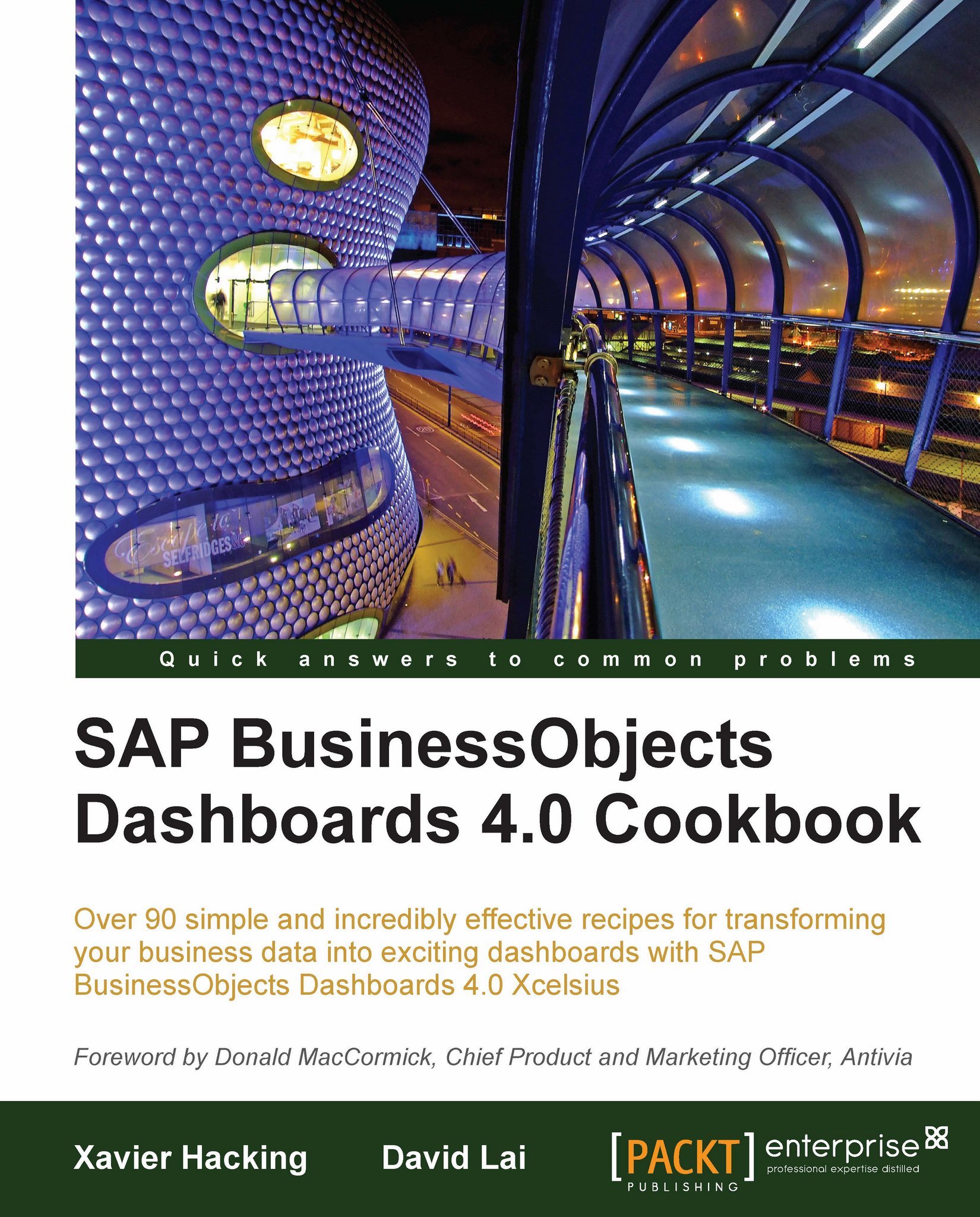
SAP BusinessObjects Dashboards 4.0 Cookbook
By :


SAP BusinessObjects Dashboards 4.0 Cookbook
By:
Overview of this book
Xcelsius 2008 was recently included in SAP’s BusinessObjects 4.0 family, rebranding “Xcelsius Enterprise” as “SAP BusinessObjects Dashboards 4.0”. With features like flexible design and what-if scenarios, the powerful dashboarding software allows enterprises to make business decisions at a glance, and this book allows you to go far beyond the basics of these techniques. This cookbook full of practical and applicable recipes will enable you to use the full latest capabilities of Dashboard Design to visually transform your business data. A wide range of recipes will equip you with the knowledge and confidence to perform tasks like configuring charts, creating drill- downs, making component colors dynamic, using alerts in maps, building pop-up screens, setting up What-If scenarios, and many more.The recipes begin by covering best practices for using the Dashboard Design spreadsheet, the data-model, and the connection with the components on the canvas, later moving on to some from-the-trenches tricks for using Excel within Dashboard Design. The book then guides you through the exploration of various data visualization components and dashboard interactivity, as well as offering recipes on using alerts, dashboard connectivity, and making the most of the aesthetics of the dashboard. Finally, the recipes conclude by considering the most important add-ons available for Dashboard Design and enabling you to perform relevant and useful tasks straight away.
Table of Contents (14 chapters)
Preface


 Free Chapter
1. Staying in Control
2. Data Visualization

3. From a Static to an Interactive Dashboard
4. Dynamic Visibility
5. Using Alerts
6. Advanced Components
7. Dashboard Look and Feel
8. Dashboard Connectivity
9. Exporting and Publishing
10. Top Third-Party Add-ons
A. Real World Dashboard Case Studies
B. Additional Resources—Supported Excel Functions and System/Software Requirements
Index