Sign In Start Free Trial
Account

Add to playlist

Create a Playlist

Modal Close icon
You need to login to use this feature.
  • Book Overview & Buying Game Development Patterns with Unreal Engine 5
  • Table Of Contents Toc
Game Development Patterns with Unreal Engine 5

Game Development Patterns with Unreal Engine 5

By : Stuart Butler, Tom Oliver
4.2 (21)
close
close
Game Development Patterns with Unreal Engine 5

Game Development Patterns with Unreal Engine 5

4.2 (21)
By: Stuart Butler, Tom Oliver

Overview of this book

Design patterns serve as a toolkit of techniques and practices that enable you to write code that’s not only faster, but also more manageable. With this book, you’ll explore a range of design patterns and learn how to apply them to projects developed in Unreal Engine 5. You’ll begin by delving into the foundational principles of coding and develop a solid understanding of the concepts, challenges, and benefits of using patterns in your code. As you progress, you’ll identify patterns that are woven into the core of Unreal Engine 5 such as Double Buffer, Flyweight, and Spatial Partitioning, followed by some of the existing tool sets that embody patterns in their design and usage including Component, Behavior Tree, and Update. In the next section of the book, you’ll start developing a series of gameplay use cases in C++ to implement a variety of design patterns such as Interface and Event-based Observers to build a decoupled communications hierarchy. You’ll also work with Singleton, Command, and State, along with Behavioral Patterns, Template, Subclass Sandbox, and Type Object. The final section focuses on using design patterns for optimization, covering Dirty Flag, Data Locality, and Object Pooling. By the end, you’ll be proficient in designing systems with the perfect C++/Blueprint blend for maintainable and scalable systems.
Table of Contents (16 chapters)
close
close
1
Part 1:Learning from Unreal Engine 5
6
Part 2: Anonymous Modular Design
10
Part 3: Building on Top of Unreal

Installing Unreal Engine 5 and preparing your development environment

Unreal Engine can be downloaded either via the Epic Games Launcher (available from https://unrealengine.com, which will install the engine for you) or as source code from GitHub (www.github.com/EpicGames), allowing users to compile the engine and modify it to fit their projects.

To engage with the activities in this book, you won’t need to compile the engine from source unless you really want to. The benefits of compiling from source will likely come much later into your journey of working with Unreal Engine and C++. You will, however, need to install version 5.0.3 (or above) of the engine and have an IDE installed. This section covers the download, installation, and setup of the engine from scratch using the Unreal Launcher and installation of Visual Studio 2022 Community. If you already have the engine and Visual Studio installed, you can skip over this section.

Firstly, you will need to download the Launcher from https://unrealengine.com by clicking the Download button in the top-right corner of the page and clicking the Download Launcher button on the following page.

Once downloaded, you will need to install the Launcher from the .msi installer.

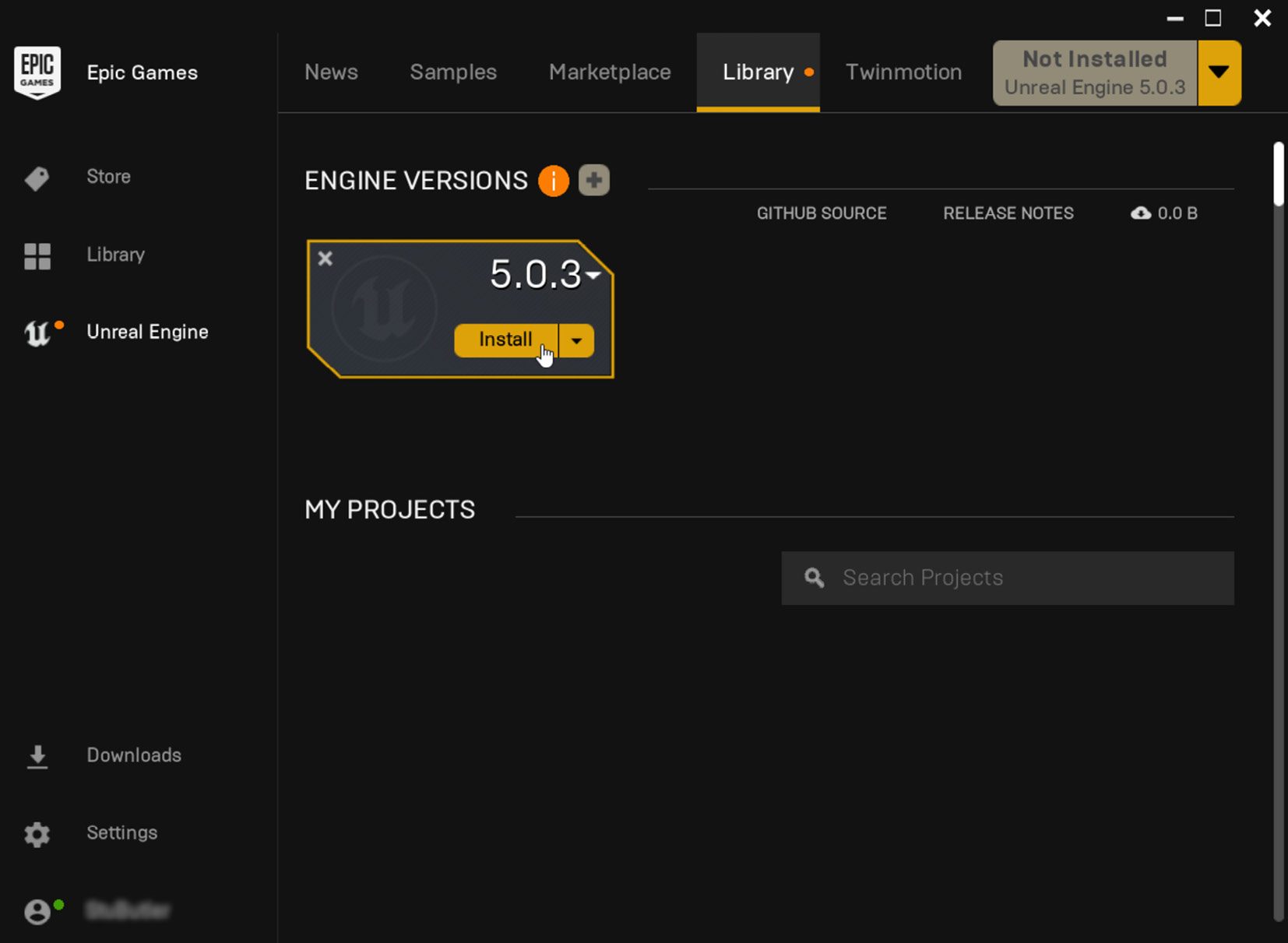
The Launcher is home to the Epic Games Store, your library of purchased and downloaded games as well as versions of Unreal Engine (4 and above). You will need to navigate to Unreal Engine and then Library, then click the yellow plus icon and select your engine version from the resulting engine slot:

Figure 1.1 – The default Epic Games Launcher with no versions of the engine installed

Figure 1.1 – The default Epic Games Launcher with no versions of the engine installed

Alternatively, if you don’t have any versions of the engine installed, you can click the yellow drop-down button in the top right of the Launcher application.

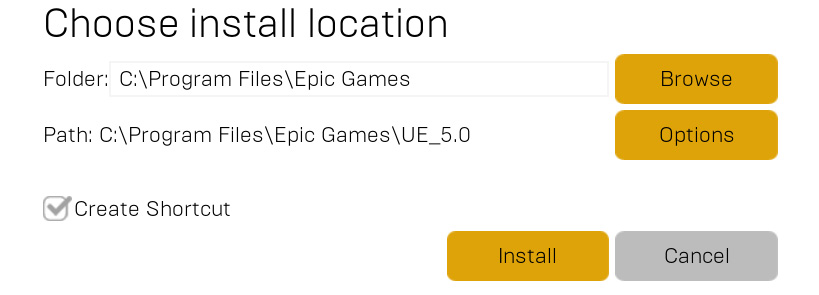
Both approaches will present you with the option of where you would like to install the engine. It is advisable to install the engine on an SSD if possible as the engine will load significantly quicker than from an HDD:

Figure 1.2 – Install location options

Figure 1.2 – Install location options

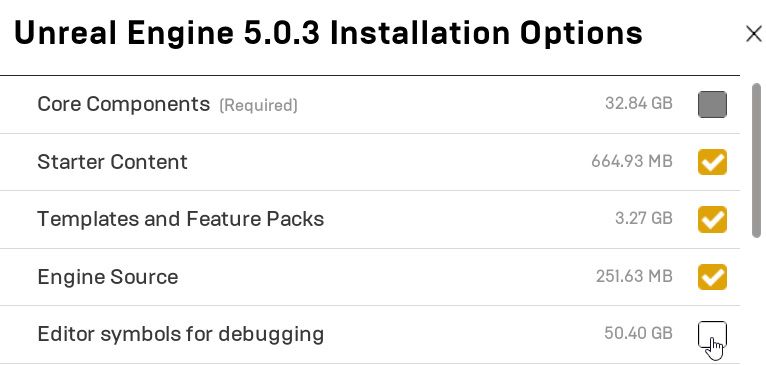
Clicking the Options button will present you with a series of optional elements for installing the engine:

Figure 1.3 – Installation options for Unreal Engine 5.0.3

Figure 1.3 – Installation options for Unreal Engine 5.0.3

We advise installing Starter Content, Templates and Feature Packs, and Engine Source.

Engine Source will make browsing and debugging code easier but does not allow you to rebuild the engine; for that functionality, you will need to download the source from GitHub, as mentioned earlier.

Editor symbols for debugging allows the debugging of C++ in the Editor. This is not required but will prove useful to facilitate jumping from the Editor to engine code and allow you to explore the code behind Blueprint nodes.

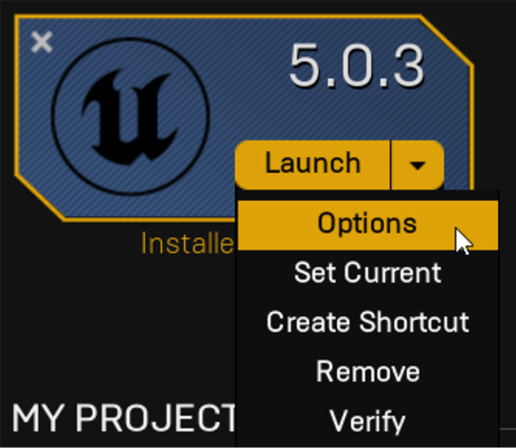
If you decide you want to add/remove elements later, you can modify these choices by clicking the down arrow next to Launch on the engine slot and selecting Options:

Figure 1.4 – Location of the Options menu on an engine slot

Figure 1.4 – Location of the Options menu on an engine slot

Enable the checkbox next to Editor symbols for debugging and click Apply.

Once you have the engine installed, you can move on to installing Visual Studio.

You will need to download the Visual Studio installer from https://visualstudio.microsoft.com/downloads/.

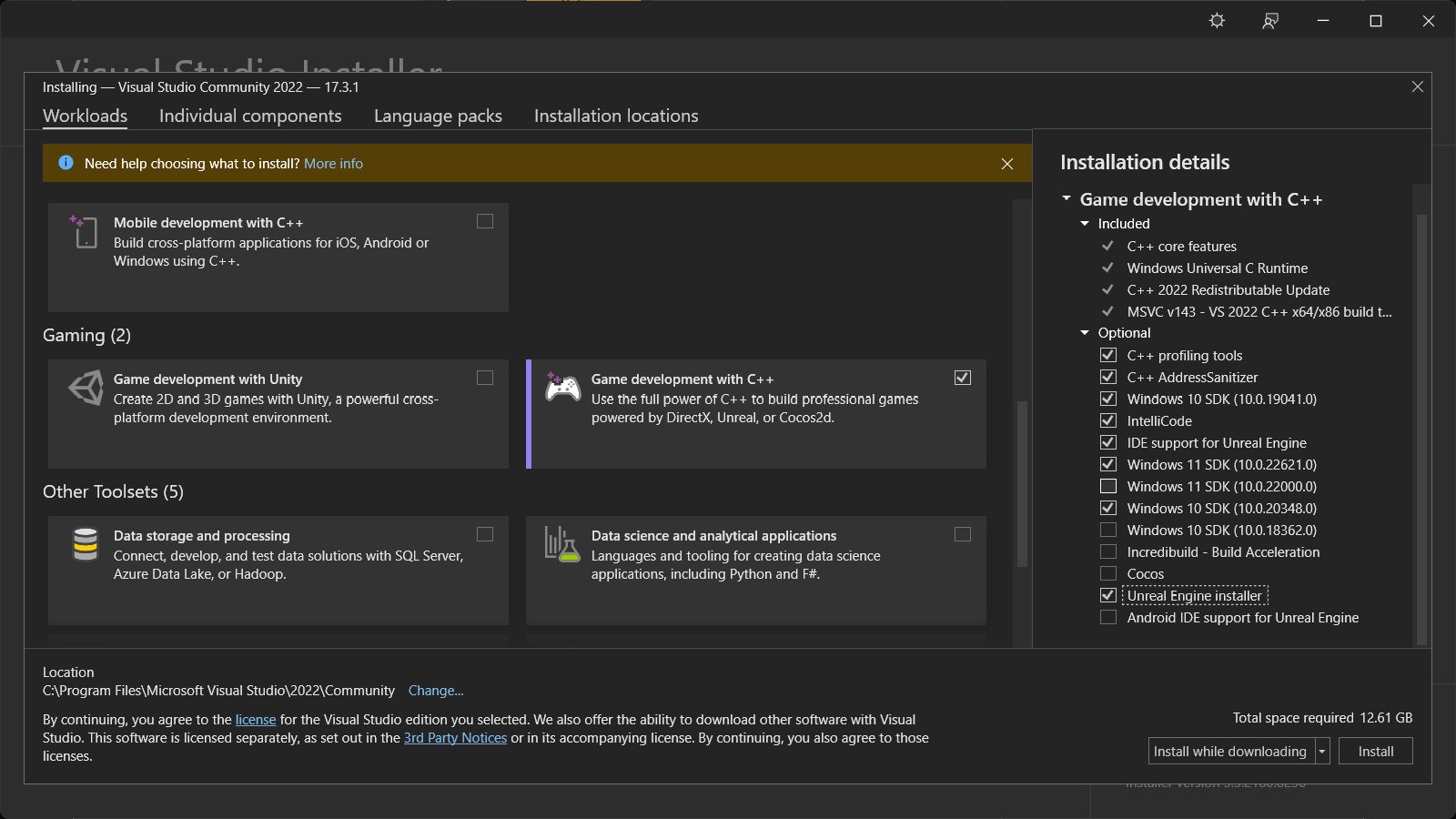
When you run the installer, select the Game Development with C++ preset in the Workloads tab and select optional components, as shown in Figure 1.5:

Figure 1.5 – Suggested installation options for Visual Studio Community 2022

Figure 1.5 – Suggested installation options for Visual Studio Community 2022

Once you have Visual Studio installed, you should be ready to go. If you want to further improve your experience of working in Visual Studio with Unreal Engine 5.0.X, you can find some additional guidance from Epic at https://docs.unrealengine.com/5.0/en-US/setting-up-visual-studio-development-environment-for-cplusplus-projects-in-unreal-engine/.

Now that we’ve installed the engine and set up our IDE, we can start exploring the link between C++ code and Blueprint.

CONTINUE READING
83
Tech Concepts
36
Programming languages
73
Tech Tools
Icon Unlimited access to the largest independent learning library in tech of over 8,000 expert-authored tech books and videos.
Icon Innovative learning tools, including AI book assistants, code context explainers, and text-to-speech.
Icon 50+ new titles added per month and exclusive early access to books as they are being written.
Game Development Patterns with Unreal Engine 5
notes
bookmark Notes and Bookmarks search Search in title playlist Add to playlist download Download options font-size Font size

Change the font size

margin-width Margin width

Change margin width

day-mode Day/Sepia/Night Modes

Change background colour

Close icon Search
Country selected

Close icon Your notes and bookmarks

Confirmation

Modal Close icon
claim successful

Buy this book with your credits?

Modal Close icon
Are you sure you want to buy this book with one of your credits?
Close
YES, BUY

Submit Your Feedback

Modal Close icon
Modal Close icon
Modal Close icon