-
Book Overview & Buying
-
Table Of Contents

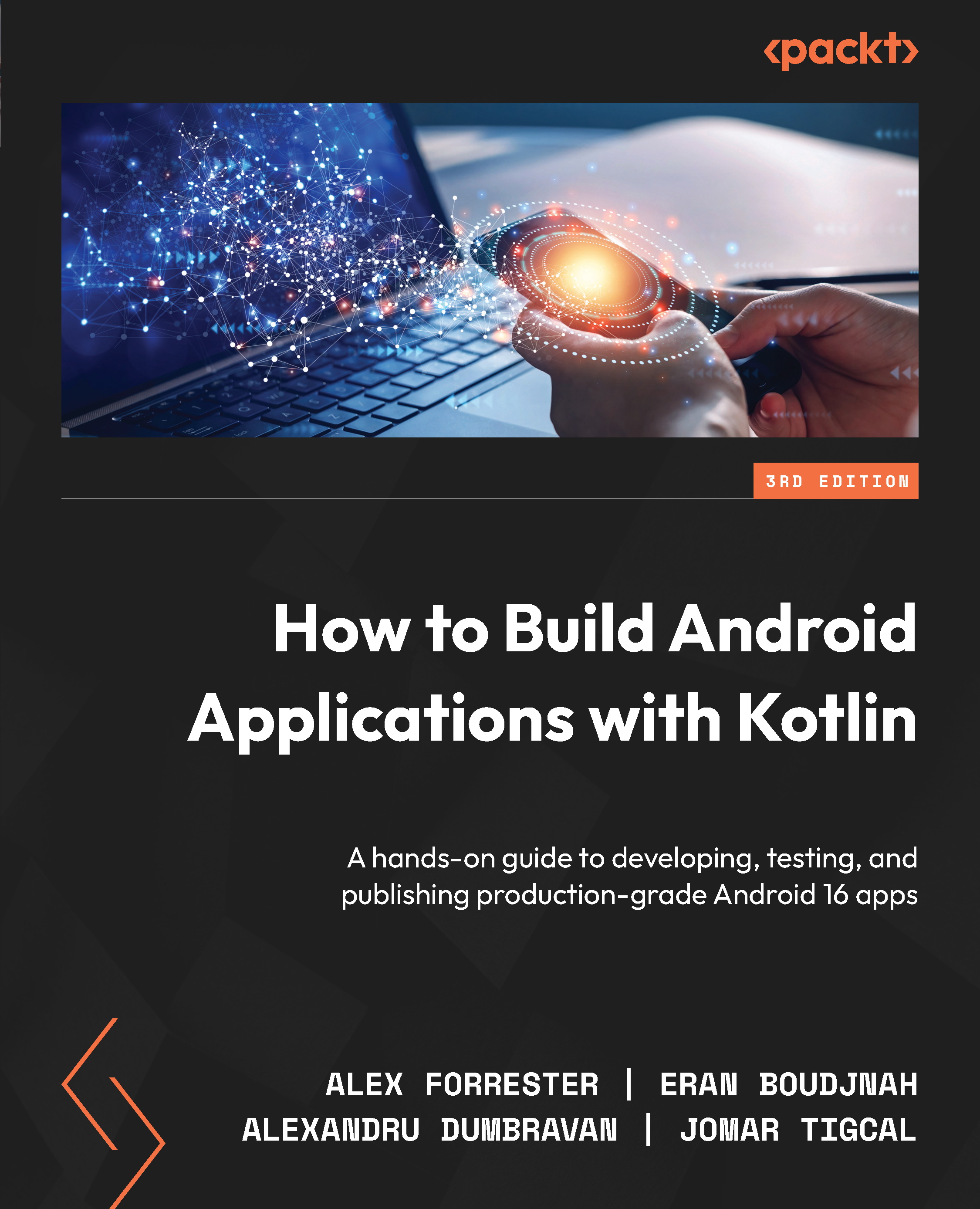
How to Build Android Applications with Kotlin - Third Edition
By :


How to Build Android Applications with Kotlin
By:
Overview of this book
Written by four veteran developers with 60+ years of collective experience, this updated third edition will jumpstart your Android development journey, focusing on Kotlin libraries and Jetpack Compose, Google’s powerful declarative UI framework.
You’ll learn the fundamentals of app development, enabling you to use Android Studio, as well as get to grips with Jetpack Compose to create your first screens, build apps to run them on virtual devices through guided exercises, and implement Jetpack Compose’s layout groups to make the most of lists, images, and maps. The book has been updated with Kotlin’s powerful networking and coroutines libraries to help you fetch data in the background from a web service and manage displaying the data using Kotlin flows. You’ll learn about testing, creating clean architecture, and persisting data, as well as exploring the dependency injection pattern and learning how to publish your apps on the Google Play Store. You'll also work on realistic projects split up into bite-size exercises and activities, along with building apps to create quizzes, read news articles, check weather reports, store recipes, retrieve movie information, and remind you where you parked your car.
By the end of this book, you'll have gained the skills and confidence to build your own creative Android apps using Kotlin.
Table of Contents (24 chapters)
Preface


Creating Your First App

Building User Screen Flows
Developing the UI with Jetpack Compose
Building App Navigation
App Components
Essential Libraries – Ktor, Kotlin Serialization, and Coil
Building Lists with Jetpack Compose
Android Permissions and Google Maps
Services, WorkManager, and Notifications
Code Structure
Testing with JUnit, Mockito, MockK, and Compose
Coroutines and Flow
Android Architecture Components
Persisting Data
Dependency Injection with Dagger, Hilt, and Koin
Polishing and Publishing an App
Architecture Patterns
Advanced Jetpack Compose
Launching Your App on Google Play
Unlock Your Book’s Exclusive Benefits
Other Books You May Enjoy
Index