Before we start exploring the animation workflow with Mecanim's tools, we need to set up the Unity project:
Once the assets have finished importing, you will start with a default blank scene.
Now, it is time to import our character model:
- Minimize Unity.
- Navigate to the location where you unzipped the project files.
- Double-click on the Models folder to view its contents.
- Double-click on the
zombie_m subfolder to view its contents.The folder contains an FBX file containing the rigged male zombie model and a separate subfolder containing the associated textures.
- Open Unity and resize the window so that both Unity and the
zombie_m folder contents are visible. - In Unity, click on the Assets folder in the Project panel.
- Drag the
zombie_m FBX asset into the Assets panel to import it.Because the FBX file contains a normal map, a window will pop up asking if you want to set this file's import settings to read it correctly.
- Click on the Fix Now button.
Note
FBX files can contain embedded bitmap textures, which can be imported with the model. This will create subfolders containing the materials and textures within the folder where the model has been imported. Leaving the materials and textures as subfolders of the model will make them difficult to find within the project.
The zombie model and two folders should now be visible in the FBX_Imports folder in the Assets panel.
In the next step, we will move the imported material and texture assets into the appropriate folders in the Unity project.
Organizing the material and textures
The material and textures associated with the zombie_m model are currently located within the FBX_Imports folder. We will move these into different folders to organize them within the hierarchy of our project:
- Double-click on the
Materials folder and drag the material asset contained within it into the PACKT_Materials folder in the Project panel. - Return to the
FBX_Imports folder by clicking on its title at the top of the Assets panel interface. - Double-click on the textures folder. This will be named to be consistent with the model.
- Drag the two bitmap textures into the
PACKT_Textures folder in the Project panel. - Return to the
FBX_Imports folder and delete the two empty subfolders.The moved material and textures will still be linked to the model. We will make sure of this by instancing it in the current empty scene.
- Drag the
zombie_m asset into the Hierarchy panel.
It may not be immediately visible within the Scene view due to the default import scale settings.
We will take care of this in the next step.
Adjusting the import scale
Unity's import settings can be adjusted to account for the different tools commonly used to create 2D and 3D assets. Import settings are adjusted in the Inspector panel, which will appear on the right of the unity interface by default:
- Click on the
zombie_m game object within the Hierarchy panel.This will bring up the file's import settings in the Inspector panel.
- Click on the Model tab.
- In the Scale Factor field, highlight the current number and type
1.Note
The character model has been modeled to scale in meters to make it compatible with Unity's units. All 3D software applications have their own native scale. Unity does a pretty good job at accommodating all of them, but it often helps to know which software was used to create them.
- Scroll down until the Materials settings are visible.
- Uncheck the Import Materials checkbox.
Now that we have got our textures and materials organized within the project, we want to make sure they are not continuously imported into the same folder as the model.
- Leave the remaining Model Import settings at their default values.
We will be discussing these later on in the book, when we demonstrate the animation import.
- Click on the Apply button. You may need to scroll down within the Inspector panel to see this:
The zombie_m character should now be visible in the Scene view:
This character model is a medium resolution model—4410 triangles and has a single 1024 x 1024 albedo texture and separate 1024 x 1024 specular and normal maps.
The character has been rigged with a basic skeleton. Creating a skeletal rig will be discussed in detail in the next chapter. The rigging process is essential if the model is to be animated.
We need to save our progress, before we get any further:
- Save the scene by navigating to File | Save Scene as....
- Choose an appropriate filename for the scene, such as
Chapter1_1. - Click on the Apply button.
Despite the fact that we have only added a single game object to the default scene, there are more steps that we will need to take to set up the character and it will be convenient for us to save the current set up in case anything goes wrong.
In the character animation, there are looping and single-shot animation sequences. Some animation sequences such as walk, run, idle are usually seamless loops designed to play back-to-back without the player being aware of where they start and end.
Other sequences, typically, shooting, hitting, being injured or dying are often single-shot animations, which do not need to loop. We will start with this kind, and discuss looping animation sequences later in the book.
In order to use Mecanim's animation tools, we need to set up the character's Avatar so that the character's hierarchy of bones is recognized and can be used correctly within Unity.
Adjusting the rig import settings and creating the Avatar
Now that we have imported the model, we will need to adjust the import settings so that the character functions correctly within our scene:
- Select
zombie_m in the Assets panel. - The asset's import settings should become visible within the Inspector panel.
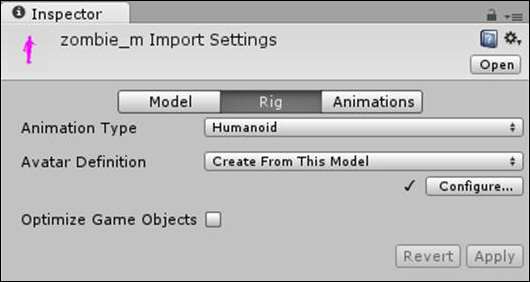
- This settings rollout contains three tabs: Model, Rig, and Animations.
- Since we have already adjusted the Scale Factor within the Model Import settings, we will move on to the Rig import settings where we can define what kind of skeleton our character has.
Choosing the appropriate rig import settings
Mecanim has three options for importing rigged models: Legacy, Generic, and Humanoid. It also has a none option that should be applied to models that are not intended to be animated.
Legacy format was previously the only option for importing skeletal animation in Unity. It is not possible to retarget animation sequences between models using Legacy, and setting up functioning state machines requires quite a bit of scripting. It is still a useful tool for importing models with fewer animation sequences and for simple mechanical animations. Legacy format animations are not compatible with Mecanim.
Generic is one of the new animation formats that are compatible with Mecanim's animator controllers. It does not have the full functionality of Mecanim's character animation tools. Animations sequences imported with the generic format cannot be retargeted and are best used for quadrupeds, mechanical devices, pretty much anything except a character with two arms and two legs.
The Humanoid animation type allows the full use of Mecanim's powerful toolset. It requires a minimum of 15 bones, and assumes that your rig is roughly human shaped with a pair of arms and legs. It can accommodate many more intermediary joints and some basic facial animation.
One of the greatest benefits of using the Humanoid type is that it allows animation sequences to be retargeted or adapted to work with different rigs. For instance, you may have a detailed player character model with a full skeletal rig (including fingers and toes joints), maybe you want to reuse this character's idle sequence with a background character that is much less detailed, and has a simpler arrangement of bones.
Mecanim makes it possible reuse purpose built motion sequences and even create useable sequences from motion capture data.
Now that we have introduced these three rig types, we need to choose the appropriate setting for our imported zombie character, which in this case is Humanoid:
- In the Inspector panel, click on the Rig tab.
- Set the Animation Type field to
Humanoid to suit our character skeleton type. - Leave Avatar Definition set to Create From This Model.
- Optimize Game Objects can be left checked.
- Click on the Apply button to save the settings and transfer all of the changes that you have made to the instance in the scene.
This is how the screenshot will look like:
Tip
The Humanoid animation type is the only one that supports retargeting. So if you are importing animations that are not unique and will be used for multiple characters, it is a good idea to use this setting.
In the next step, we will define the hierarchy of the joints in the Avatar.
The Avatar Mapping settings allow you to specify how the bones relate to the model. You can think of the Avatar as an intermediary device that translates between the character model and the animations. It will dictate how motion will be transferred to the model, so it is important that all of the models bones are correctly identified within the hierarchy.
- In the Inspector panel, click on the Configure... button to bring up the Avatar Mapping settings.
Unity will prompt you to save your scene, which is necessary because the Avatar definition is actually done in a separate, temporary scene.
- Click on the Save Scene button.
The Avatar Definition panel will become active in the Inspector panel.
The Mapping tab should be active by default. This shows a simplified diagram of a humanoid bone hierarchy. Beneath the diagram is a list where bones are selected.
- Choose the Mapping rollout in the bottom left of the panel.
- Click on Automap, Unity will attempt to assign the bones to the slots in the Avatar based on their names and position within the hierarchy.
Because our character's skeleton uses recognized naming conventions, Unity should have automatically put each bone into the right slot within the mapping definition. Any unidentified positions will show up in red, and any non-essential or optional bones that have not been identified will be displayed in gray.
Above the actual bone definition slots, there are alternate tabs for the body, head, left hand, and right hand, where more joints can be defined for more detailed rigs. With the exception of the head and neck, the bones covered under the Head tab are not that important right now. Facial animation will be covered later, in Chapter 6, Talking Heads.
The rest of the bones in the list for body, left hand, and right hand will need to be allocated. You can scroll down in the panel to see the names of the bones from your hierarchy and which position they have been placed in within the Avatar.
Tip
Note that the Avatar mapping definition only has two positions available for spine bones, if the character you are mapping has more than two bones in its spine (like this example), you can decide which of them to use.
I usually leave out the upper-spine bone, as it typically contains very little data in animation sequences, and because of its proximity to the neck and shoulders, which usually have more influence on the vertices of the model.
A common occurrence at this point of the process is a red warning display in your Scene view notifying you that the character is not in T-pose:
This is a simple fix, as we will demonstrate in the next step.
Adjusting the character's pose
Mecanim requires character models to be in a T-pose for them to be properly processed. The true T-pose is not a universal default pose for character models, and luckily Mecanim has a way to accommodate this:
- Click on the Pose rollout at the bottom of the Avatar Mapping tab within the Inspector panel.
- Choose Enforce T-pose. This will force your characters arms into a true T-pose so that they are Mecanim compatible.
Note
You may wonder why we don't just model a character in a T-pose rather than something more like an M. The main reason is that, while it is on the screen, the character's arms will usually be down by its side, modeling the arms at 45 degrees rather than 90 will minimize the amount of stretching of the mesh and textures.
Dedicated motion editing packages, such as Autodesk MotionBuilder, also require a true T-pose, so the Enforce T-Pose option within Mecanim is a good compromise and a nice touch, which saves us having to remodel or rerig a character in order to use these tools.
Checking the bone hierarchy in the Avatar
Mecanim's Avatar definition tools are responsive to bone hierarchy and naming conventions. If you are working with several character rigs that have the same bone names, it is likely you will only need to tweak the settings the first time.
The tool sometimes goes wrong. When this is the case, make sure you follow these steps:
- Once you initiate the mapping process, the skeleton in your Hierarchy panel is expanded to make it easy to drag and drop. All you have to do is drag the bones from the Hierarchy panel into the appropriate slot in the list.
- Take the time to check the bones in the list to make sure that there are no mistakes.
- Optional bones, such as the neck and toes, are quite often left out by the automatic mapping, so it is a good idea to add them (in the appropriate definition slots), at this stage, before you apply the settings.
Note
If you make a mistake, just drag the correct bone onto the field in the list to replace it.
- When you are finished, click on Done. This will save the settings of the Avatar and apply them to the instance of the model in the scene.
The Avatar asset will now be referenced in the Animator component of the character game object, which can be viewed in the Inspector panel:
At this point, our Avatar is configured, creating a link to our character's skeleton hierarchy that Unity can use.
Next, we will lay the ground work to add a simple animation that will run in the game.
Setting up the animator controller
Mecanim requires an animator controller to connect compatible animation clips with the character model. This is displayed as a node-based interface, which shows the relationships between different animation clips and the parameters that trigger them.
We can continue with the scene, or if you have closed Unity since working on the last section, re-open the scene that you saved. You can open the scene by navigating to File | Open Scene | PACKT_Scenes | Chapter1_1.
Assets imported with animation will have space for an animator controller to be added to them. Follow these steps to create the controller:
- Click on the
PACKT_Controllers folder in the Project panel. - Navigate to Create | Animator Controller.
- The Animator Controller icon will appear in the Assets panel in the lower-center of the interface.
- Rename this
zombieControl. - Click on the Animator tab to open the Animator panel. If this is not visible, add it in the menu bar by navigating to Window | Animator.
- Drag the Animator tab above its current position to undock it as a window.
Note
Undocking the Animator panel is not strictly necessary, especially if you are working with on a large monitor, but it will give you more space to view the whole state machine as it is created.
In the newly created animator controller, there are two visible states, labeled Entry and Any State:
The Entry state will usually be the starting point when the game starts or when the character is instantiated. We can use Any State to override states, which are currently running if we want something else to take priority.
Setting up a number of states for animation clips will enable greater control over the implementation of the animated sequences. We will add more states in the next step.
States are the building blocks of the animator controller. Each state includes one or more motion clip. States are linked using Transitions, visually presenting the order in which states will become active:
- Create a new state by right-clicking on the empty part of the animator graph.
- Navigate to Create State | Empty.
- Select the state by clicking on it. Rename it
Idle in the Inspector panel. - Create a second state in the same way. Name this
Hit in the Inspector panel.
Next, we will add the appropriate animation clips to the states:
- Click on the
PACKT_Animations folder within the Project panel. - In the Assets panel, expand both the
zombie_idle and zombie_attack animation assets by clicking on the small arrow on the right side of their icons. - Select the Idle state in the Animator window.
- Drag the
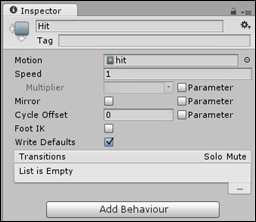
zombie_idle animation to the Motion slot in the Inspector panel: - Select the Hit state and drag the
hit animation from the expanded zombie_attack asset into the Motion slot in the Inspector panel:
These animations are now tied to the states that we have set up.
At the moment, the states are unconnected. To connect them, you need to create a parameter that will define the conditions that cause the character to switch to another state.
In the Animator interface, parameters are used to specify when states will run. They are similar to variables in Unity scripts and can take the form of integers, floats, and booleans. To create a parameter follow these steps:
- In the upper-left of the Animator window, click on the Parameters tab and the
+ symbol to create a new parameter. - Choose Trigger from the list.
In Mecanim, a trigger parameter allows you to allow a quick action. It is ideal for attack states because it is reset each time it is fired off.
- Name the parameter
Hits
This trigger parameter will determine when the zombie's attack animation will play.
The next stage is to create transitions between your two states. Transitions show how states are connected in the Animator window:
- Right click on the Idle state in the Animator window.
- Select Make Transition.
- Click once on the Hit state.
The transition is displayed as a white line with an arrow indicating its direction:
We also need to create a transition from Hit back to Idle, so the character will stop playing this animation:
- Right click on Hit and click once on Idle to create the return transition.
In the animator controller, it is the transitions that contain the parameters.
- Click once on the transition pointing from Idle to Hit. Its setting will appear in the Inspector panel.
The only change that needs to be made to the default settings, at this stage, is to change the drop down in the Conditions box at the bottom of the panel.
- Click on the arrow and select the
Hits parameter from the list.
As we want the full attack animation to play out, we will leave the Conditions box in the return transition with its default setting Exit Time. This will set the state to transition out once the animation has played through:
The Animation controller is now complete. We will add it to the male zombie character in the next step:
- Select the
zombie_m game object in the Hierarchy panel. - Drag the
zombie_control animator controller onto the Controller slot in the character's Animator component.
At this stage, when we test the game, the zombie will run its idle animation, as its Idle state is currently specified as the default state (marked in orange in the Animator window).
In order to enable the Hit state to take over, we will need to do a little scripting.
The character requires a small amount of code to enable it to switch to its Hit state and play the zombie_hit animation:
- Select the
PACKT_Scripts folder in the Project panel. - Create a new Javascript file by navigating to Create | Javascript.
- Rename the file
zombie_attack. - Double-click on the file to open it in MonoDevelop.
- At the top of the script, add the following code:
This is a variable, which is used to keep track of the character's animator controller that is attached as a component to the same game object that we will attach this script to.
Note
If you are coding in C#, rather than Javascript, the syntax is a little different. Functions are defined with the prefix void rather than function and variables are defined without the var prefix and with their type before their name, without the separating colon, such as this:
You will find the completed code (in both languages), in the project files.
By default, unity-created Javascript files contain two functions: Start and Update. We will initialize the connection to the zombie's animator controller in the Start function.
- Within the curly brackets of the
Start function, add the following line of code:Because this code is in Start, as soon as the script runs, it will gain access to the animator component and store this in the thisAnimator variable for future use.
Next, we will add some code to the Update function. Unlike Start, which runs only once, when the script is first activated, Update runs every frame, so it is usually the best place to check for input.
- Add the following code within the curly brackets of the
Update function:In the first line of code, we check for input from the Fire1 button (set up by default for the left-mouse button). When this condition is met, we trigger the Hits parameter inside the animator controller, enabling the transition to the Hit state and playing the zombie_hit animation.
- Save the script in MonoDevelop by navigating to File | Save.
If any errors appear in the console, be careful that you have not left out any semicolons (that should end all operations and variables) or curly brackets (that should start and end all functions and statements).
Tip
If you are including any comments for your own references, make sure that single-line comments are preceded with two forward slashes // and block comments are encapsulated by /* and */.
This is a pretty short, simple script. We will be elaborating on this later in the book.
We need to add the script to the zombie character. This can be done by dragging the script from the Project panel onto the zombie_m game object in the Hierarchy panel to attach it as a component.
Next, we will make a few small adjustments to the scene, to make it easier to view our animation.