Sign In Start Free Trial
Account

Add to playlist

Create a Playlist

Modal Close icon
You need to login to use this feature.
  • Book Overview & Buying Arduino Android Blueprints
  • Table Of Contents Toc
Arduino Android Blueprints

Arduino Android Blueprints

By : Marco Schwartz, Stefan Buttigieg
4.8 (4)
close
close
Arduino Android Blueprints

Arduino Android Blueprints

4.8 (4)
By: Marco Schwartz, Stefan Buttigieg

Overview of this book

This book is for those who want to learn how to build exciting Arduino projects by interfacing it with Android. You will need to have some basic experience in electronics and programming. However, you don't need to have any previous experience with the Arduino or Android platforms.
Table of Contents (12 chapters)
close
close
11
Index

Installing Java Developer Kit

Android Studio will not work without Java Developer Kit (JDK); therefore, it's necessary to know what Java version you have installed (in this particular case, the Java Runtime Environment will not be enough).

Checking the JDK version

It is mandatory that you check the version of your JDK for compatibility purposes.

Mac

Open Terminal and type the following command:

java –version

This is what will be shown on the screen:

Mac

Windows

Open Command Prompt and type the following command:

java -version

This is what will be shown on the screen:

Windows

Installing Java

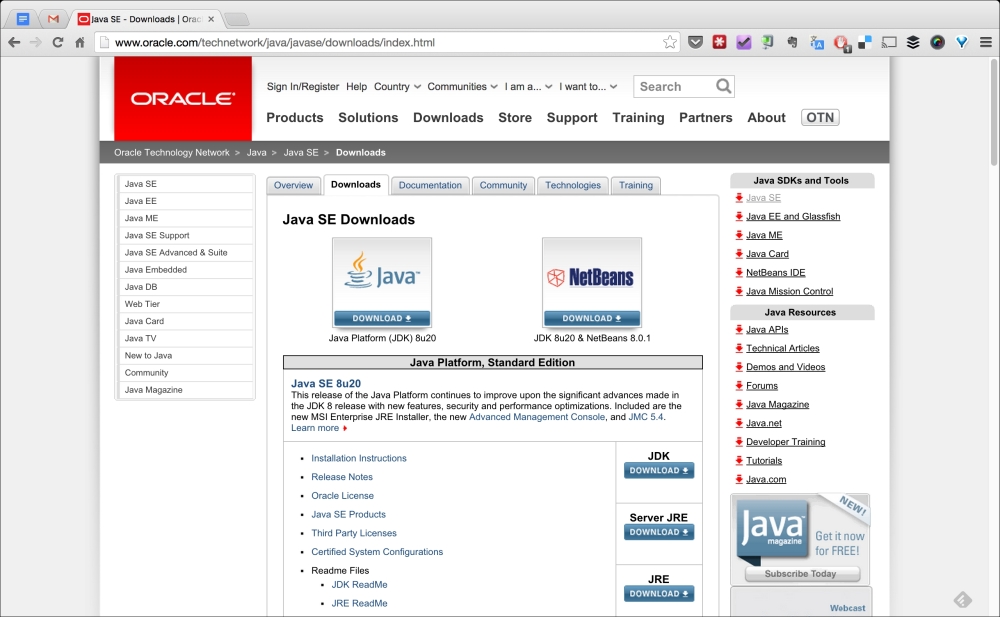
If you do not have Java installed, or if your version is below 6.0, install the Java JDK by clicking on the following customized and shortened link and choosing the version that applies for you:

http://j.mp/javadevkit-download

The following window will open:

Installing Java

The main recommendation for these projects is that you install a version of JDK 6.0 or higher.

Select the JDK for your operating system. On an Intel-based Mac, you can follow this useful table to see whether your Mac is 32-bit or 64-bit:

Processor Name

32- or 64-bit processor

Intel Core Solo

32 bit

Intel Core Duo

32 bit

Intel Core 2 Duo

64 bit

Intel Quad-Core Xeon

64 bit

Dual-Core Intel Xeon

64 bit

Quad-Core Intel Xeon

64 bit

Core i3

64 bit

Core i5

64 bit

Core i7

64 bit

You can check for Processor Name by clicking on the Apple logo in the top-left corner of your screen followed by About my Mac.

In the case of Windows, to see whether your computer is running a 32-bit or 64-bit version of Windows, you need to do the following:

  1. Click on the Start button.
  2. Right-click on My Computer, and then click on Properties. If x64 edition is listed under system, your processor is capable of running 64-bit-enabled applications.
CONTINUE READING
83
Tech Concepts
36
Programming languages
73
Tech Tools
Icon Unlimited access to the largest independent learning library in tech of over 8,000 expert-authored tech books and videos.
Icon Innovative learning tools, including AI book assistants, code context explainers, and text-to-speech.
Icon 50+ new titles added per month and exclusive early access to books as they are being written.
Arduino Android Blueprints
notes
bookmark Notes and Bookmarks search Search in title playlist Add to playlist font-size Font size

Change the font size

margin-width Margin width

Change margin width

day-mode Day/Sepia/Night Modes

Change background colour

Close icon Search
Country selected

Close icon Your notes and bookmarks

Confirmation

Modal Close icon
claim successful

Buy this book with your credits?

Modal Close icon
Are you sure you want to buy this book with one of your credits?
Close
YES, BUY

Submit Your Feedback

Modal Close icon
Modal Close icon
Modal Close icon