Sign In Start Free Trial
Account

Add to playlist

Create a Playlist

Modal Close icon
You need to login to use this feature.
  • Book Overview & Buying Appcelerator Titanium Smartphone App Development Cookbook Second Edition
  • Table Of Contents Toc
  • Feedback & Rating feedback
Appcelerator Titanium Smartphone App Development Cookbook Second Edition

Appcelerator Titanium Smartphone App Development Cookbook Second Edition

By : Jason Kneen
5 (4)
close
close
Appcelerator Titanium Smartphone App Development Cookbook Second Edition

Appcelerator Titanium Smartphone App Development Cookbook Second Edition

5 (4)
By: Jason Kneen

Overview of this book

This book will take you through the process of building cross-platform, native UI applications for the mobile from scratch. You will learn how to develop apps, how to use GPS, cameras and photos and how to build socially connected apps. You will also learn how to package them for submission to the App Store and Google Play. This cookbook takes a pragmatic approach to creating applications in JavaScript from putting together basic UIs, to handling events and implementation of third party services such as Twitter, Facebook and Push notifications. The book shows you how to integrate datasources and server APIs, and how to use local databases. The topics covered will guide you to use Appcelerator Studio tools for all the mobile features such as Geolocation, Accelerometer, animation and more. You’ll also learn about Alloy, the Appcelerator MVC framework for rapid app development, and how to transfer data between applications using URLSchemes, enabling other developers to access and launch specific parts of your app. Finally, you will learn how to register developer accounts and publish your very own applications on the App Store and Google Play.
Table of Contents (16 chapters)
close
close
15
Index

Creating charts using Raphael JS

Let's finish off our calculations visually by displaying charts and graphs. Titanium lacks a native charting API. However, there are some open source options for implementing charts, such as Google Charts. While the Google solution is free, it requires your apps to be online every time you need to generate a chart. This might be okay for some circumstances, but it is not the best solution for an application that is meant to be usable offline. Plus, Google Charts returns a generated JPG or PNG file at the requested size and in rasterized format, which is not great for zooming in when viewing on an iPhone or iPad.

A better solution is to use the open source and MIT-licensed Raphael library, which (luckily for us) has a charting component! It is not only free but also completely vector-based, which means any charts that you create will look great in any resolution, and can be zoomed in to without any loss of quality.

Note

Note that this recipe may not work on all Android devices. This is because the current version of Raphael isn't supported by non-WebKit mobile browsers. However, it will work as described here for iOS.

Getting ready

  1. Download the main Raphael JS library from http://raphaeljs.com. The direct link is http://github.com/DmitryBaranovskiy/raphael/raw/master/raphael-min.js.
  2. Download the main Charting library from http://g.raphaeljs.com (the direct link is http://github.com/DmitryBaranovskiy/g.raphael/blob/master/min/g.raphael-min.js?raw=true), and any other charting libraries that you wish to use.
  3. Download the Pie Chart library, which is at http://github.com/DmitryBaranovskiy/g.raphael/blob/master/min/g.pie-min.js?raw=true.

How to do it...

If you're following along with the LoanCalc example app, then open your project directory and put your downloaded files into a new folder called charts under the Resources directory. You can put them into the root folder if you wish, but bear in mind that you will have to ensure that your references in the following steps are correct.

To use the library, we'll be creating a webview in our app, referencing a variable that holds the HTML code to display a Raphael chart, which we'll call chartHTML. A webview is a UI component that allows you to display web pages or HTML in your application. It does not include any features of a full-fledged browser, such as navigation controls or address bars.

Create a new file called chartwin.js in the Resources directory and add the following code to it:

//create an instance of a window
module.exports = (function() {

  var chartWin = Ti.UI.createWindow({
    title : 'Loan Pie Chart'
  });

  chartWin.addEventListener("open", function() {
    
    //create the chart title using the variables we passed in from
    //app.js (our first window)
    var chartTitleInterest = 'Total Interest: $' + chartWin.totalInterest;
    var chartTitleRepayments = 'Total Repayments: $' + chartWin.totalRepayments;
      
    //create the chart using the sample html from the
    //raphaeljs.com website
    var chartHTML = '<html><head> <title>RaphaelJS Chart</title><meta name="viewport" content="width=device-width, initial-scale=1.0"/>      <script src="charts/raphael-min.js" type="text/javascript" charset="utf-8"></script>    <script src="charts/g.raphael-min.js" type="text/javascript" charset="utf-8"></script>    <script src="charts/g.pie-min.js" type="text/javascript" charset="utf-8"></script>    <script type="text/javascript" charset="utf-8"> window.onload = function () { var r = Raphael("chartDiv");  r.text.font = "12px Verdana, Tahoma, sans-serif";  r.text(150, 10, "';

    chartHTML = chartHTML + chartTitleInterest + '").attr({"font-size": 14}); r.text(150, 30, "' + chartTitleRepayments + '").attr({"font-size": 14});';

    chartHTML = chartHTML + ' r.piechart(150, 180, 130, [' + Math.round(chartWin.totalInterest) + ',' + Math.round(chartWin.principalRepayments) + ']); };
</script> </head><body>     <div id="chartDiv" style="width:320px; height: 320px; margin: 0"></div> </body></html>';

    //add a webview to contain our chart
    var webview = Ti.UI.createWebView({
      width : Ti.UI.FILL,
      height : Ti.UI.FILL,
      top : 0,
      html : chartHTML
    });
    
    chartWin.add(webview);

  });

  return chartWin;

})();

Now, back in your app.js file, create a new function at the end of the file, called openChartWindow(). This function will be executed when the user chooses Okay from the previous recipe's option dialog. It will create a new window object based on the chartwin.js file and pass to it the values needed to show the chart:

//we'll call this function if the user opts to view the loan //chart
function openChartWindow() {

  //Interest (I) = Principal (P) times Rate Per Period (r)
  //times Number of Periods (n) / 12
  var totalInterest = (tfAmount.value * (interestRate / 100) * numberMonths) / 12;
  var totalRepayments = Math.round(tfAmount.value) + totalInterest;
  
  
  var chartWindow = require("chartwin");

  chartWindow.numberMonths = numberMonths;
  chartWindow.interestRate = interestRate;
  chartWindow.totalInterest = totalInterest;
  chartWindow.totalRepayments = totalRepayments;
  chartWindow.principalRepayments = (totalRepayments - totalInterest);
    

  tab1.open(chartWindow);

}

Finally, remember to uncomment the two // openChartWindow() lines that you added in the previous recipe. Otherwise, you won't see anything!

How it works...

Essentially, what we're doing here is wrapping the Raphael library, something that was originally built for the desktop browser, into a format that can be consumed and displayed using the iOS's WebKit browser. You can find out more about Raphael at http://raphaeljs.com and http://g.raphaeljs.com, and learn how it renders charts via its JavaScript library. We'll not be explaining this in detail; rather, we will cover the implementation of the library to work with Titanium.

Our implementation consists of creating a webview component that (in this case) will hold the HTML data that we constructed in the chartHTML variable. This HTML data contains all of the code that is necessary to render the charts, including the scripts listed in item #2 of the Getting Ready section of this recipe. If you have a chart with static data, you can also reference the HTML from a file using the url property of the webview object, instead of passing all the HTML as a string.

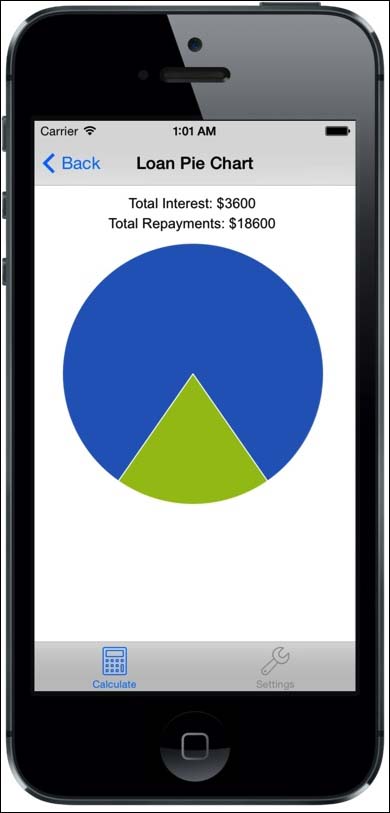
The chart itself is created using some simple JavaScript embedded in the r.piechart(150, 180, 130, n1, n2) HTML data string, where n1 and n2 are the two values we wish to display as slices in the pie chart. The other values define the center point of the chart from the top and left, respectively, followed by the chart radius.

All of this is wrapped up in a new module file defined by the chartwin.js file, which accesses the properties passed from the first tab's window in our LoanCalc app. This data is passed using exactly the same mechanism as explained in a previous recipe, Passing custom variables between Windows.

Finally, the chart window is passed back to the app.js file, within the openChartWindow() function, and from there, we use tab1.open() to open a new window within tab1. This has the effect of sliding the new window, similar to the way in which many iOS apps work (in Android, the new window would open normally).

The following screenshot shows the Raphael JS Library being used to show a pie chart based on our loan data:

How it works...
Visually different images
CONTINUE READING
83
Tech Concepts
36
Programming languages
73
Tech Tools
Icon Unlimited access to the largest independent learning library in tech of over 8,000 expert-authored tech books and videos.
Icon Innovative learning tools, including AI book assistants, code context explainers, and text-to-speech.
Icon 50+ new titles added per month and exclusive early access to books as they are being written.
Appcelerator Titanium Smartphone App Development Cookbook Second Edition
notes
bookmark Notes and Bookmarks search Search in title playlist Add to playlist font-size Font size

Change the font size

margin-width Margin width

Change margin width

day-mode Day/Sepia/Night Modes

Change background colour

Close icon Search
Country selected

Close icon Your notes and bookmarks

Confirmation

Modal Close icon
claim successful

Buy this book with your credits?

Modal Close icon
Are you sure you want to buy this book with one of your credits?
Close
YES, BUY

Submit Your Feedback

Modal Close icon
Modal Close icon
Modal Close icon