Sign In Start Free Trial
Account

Add to playlist

Create a Playlist

Modal Close icon
You need to login to use this feature.
  • Book Overview & Buying Linux Bible
  • Table Of Contents Toc
Linux Bible

Linux Bible

By : Christopher Negus
close
close
Linux Bible

Linux Bible

By: Christopher Negus

Overview of this book

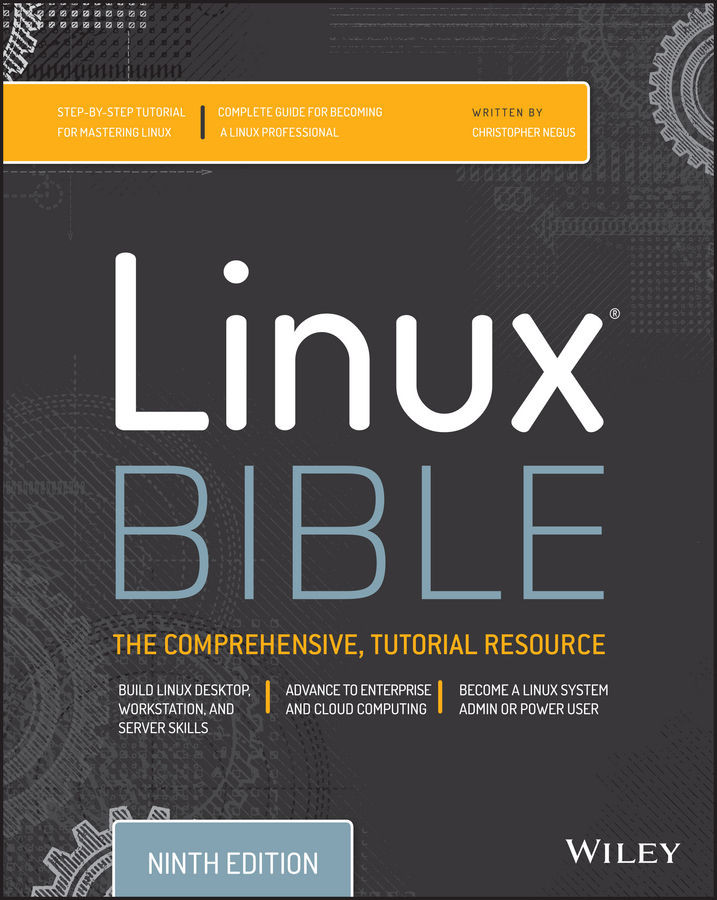
Linux Bible, 9th Edition is the ultimate hands-on Linux user guide, whether you’re a true beginner or a more advanced user navigating recent changes. This updated ninth edition covers the latest versions of Red Hat Enterprise Linux 7 (RHEL 7), Fedora 21, and Ubuntu 14.04 LTS, and includes new information on cloud computing and development with guidance on Openstack and Cloudforms. With a focus on RHEL 7, this practical guide gets you up to speed quickly on the new enhancements for enterprise-quality file systems, the new boot process and services management, firewall, and the GNOME 3 desktop. Written by a Red Hat expert, this book provides clear explanations and step-by-step instructions that demystify Linux and bring the new features seamlessly into your workflow. This useful guide assumes a base of little or no Linux knowledge and takes you step-by-step through what you need to know to get the job done.
Table of Contents (12 chapters)
close
close
8
Part VII: Appendixes
9
GNU General Public License
10
End User License Agreement

Chapter 26: Using Linux for Cloud Computing

  1. To check your computer to see if it can support KVM virtualization, type the following:
    # cat /proc/cpuinfo | grep --color -E "vmx|svm|lm"
    flags  : fpu vme de pse tsc msr pae mce cx8 apic sep mtrr pge mca
    cmov pat pse36 clflush dts acpi mmx fxsr sse sse2 ss ht tm pbe syscall
    nx pdpe1gb rdtscp lm constant_tsc arch_perfmon pebs bts rep_good
    xtopology nonstop_tsc aperfmperf pni pclmulqdq dtes64 monitor
    ds_cpl vmx smx es...

    The CPU must support either vmx or svm. The lm indicates that it is a 64-bit computer.

  2. To install a Linux system along with the packages needed to use it as a KVM host and to run the Virtual Machine Manager application, do the following:
    1. Get a live or installation image from a Linux site (such as getfedora.org), and burn it to a DVD (or otherwise make it available to install).
    2. Boot the installation image, and select to install it to a hard disk.
    3. For a Fedora Workstation, after the install is complete and you have...
Visually different images
CONTINUE READING
83
Tech Concepts
36
Programming languages
73
Tech Tools
Icon Unlimited access to the largest independent learning library in tech of over 8,000 expert-authored tech books and videos.
Icon Innovative learning tools, including AI book assistants, code context explainers, and text-to-speech.
Icon 50+ new titles added per month and exclusive early access to books as they are being written.
Linux Bible
notes
bookmark Notes and Bookmarks search Search in title playlist Add to playlist font-size Font size

Change the font size

margin-width Margin width

Change margin width

day-mode Day/Sepia/Night Modes

Change background colour

Close icon Search
Country selected

Close icon Your notes and bookmarks

Confirmation

Modal Close icon
claim successful

Buy this book with your credits?

Modal Close icon
Are you sure you want to buy this book with one of your credits?
Close
YES, BUY

Submit Your Feedback

Modal Close icon
Modal Close icon
Modal Close icon