Sign In Start Free Trial
Account

Add to playlist

Create a Playlist

Modal Close icon
You need to login to use this feature.
  • Book Overview & Buying DynamoDB Applied Design Patterns
  • Table Of Contents Toc
  • Feedback & Rating feedback
DynamoDB Applied Design Patterns

DynamoDB Applied Design Patterns

By : Uchit Hamendra Vyas
3 (2)
close
close
DynamoDB Applied Design Patterns

DynamoDB Applied Design Patterns

3 (2)
By: Uchit Hamendra Vyas

Overview of this book

If you are an intermediate to advanced DynamoDB developer looking to learn the best practices associated with efficient data modeling, this book is for you.
Table of Contents (12 chapters)
close
close
11
Index

DynamoDB data types

DynamoDB supports six data types, namely String, Number, Binary, StringSet, NumberSet, and BinarySet. To understand this better, we will get some help from the AWS management console. Once we have signed up with AWS, our management console will look for an icon to work with DynamoDB, as shown in the following screenshot:

DynamoDB data types

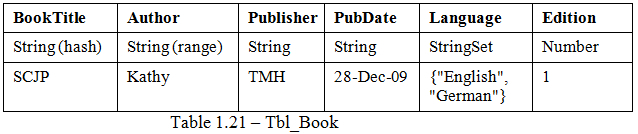
Clicking on the DynamoDB icon for the first time will take us to a getting started page, which has guidelines on starting with DynamoDB. We should click on the Create Table button to create our first table. We are now going to create the Tbl_Book table, which we have seen enough times. We are also going to insert only one item into this table. The table and its item are as shown:

DynamoDB data types

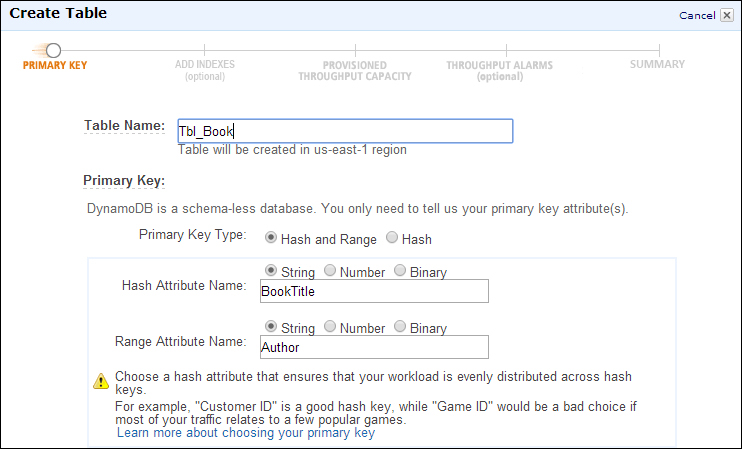
After clicking on Create Table, you will see the following page. Here you have to provide Table Name, Hash Attribute Name, and Range Attribute Name. After providing the necessary parameters, you can proceed further.

DynamoDB data types

As we discussed, during the creation of the table we need to specify only the primary key attributes along with the table name. In this table, both the key elements are of type String.

If we need to create a simple hash (without range key) primary key, then we can select the Hash radio button instead of Hash and Range.

The next page will provide an option to create secondary indexes, which we need not bother about now. Once we proceed with all the command buttons in the browser, we will see the page in the following screenshot:

DynamoDB data types

Initially, the status will be CREATING. Once it becomes ACTIVE, we can click on Explore Table (as shown in the previous screenshot) to insert (or scan) items into the table.

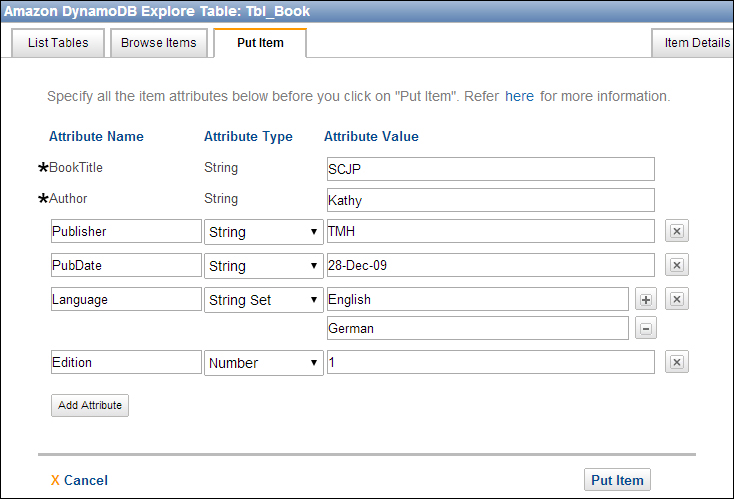
Once we have clicked on Explore Table, we should again click on the New Item button to insert an item. Clicking on this button will open the window in the following screenshot (we have already populated it to save paper):

DynamoDB data types

The mandatory attributes, name and type, will be already populated and we cannot change them. But we can add the attribute values (which must be unique).

In addition to that, we can simple click on empty textboxes (under hash and range key attribute name) to add item-specific attribute name, type, and value.

Here the first four attributes are of the type String, so we can enter the corresponding values in the attribute value field.

While entering multivalued data for a Set data type (StringSet for the Language field), specify multiple strings or numbers by clicking on the plus sign to the right of the value textbox. Once all the attributes are entered, click on the Put Item button, which will put this item into the Tbl_Book table.

To view the inserted item, click on the Browse Items tab, select the Scan radio button, and click on the Go button. Now we will be able to see the table content as shown in the following screenshot:

DynamoDB data types

The String attribute values are enclosed in double quotes, and the Set attribute values are enclosed by set brackets. The number attribute values won't be enclosed by any character.

There are a few rules while using the Set data type. These rules are as follows:

  • Set must have a nonzero number of elements (that is, empty sets are not permitted)
  • Set must not have duplicate values (that is, the Language set will not take English, English)

There is a special kind of data type, called Binary, which is capable of storing Base64 encoded values. It is also used to store images or pictures in the Base64 encoded format. We will see it in Chapter 6, Working with the DynamoDB API.

Visually different images
CONTINUE READING
83
Tech Concepts
36
Programming languages
73
Tech Tools
Icon Unlimited access to the largest independent learning library in tech of over 8,000 expert-authored tech books and videos.
Icon Innovative learning tools, including AI book assistants, code context explainers, and text-to-speech.
Icon 50+ new titles added per month and exclusive early access to books as they are being written.
DynamoDB Applied Design Patterns
notes
bookmark Notes and Bookmarks search Search in title playlist Add to playlist font-size Font size

Change the font size

margin-width Margin width

Change margin width

day-mode Day/Sepia/Night Modes

Change background colour

Close icon Search
Country selected

Close icon Your notes and bookmarks

Confirmation

Modal Close icon
claim successful

Buy this book with your credits?

Modal Close icon
Are you sure you want to buy this book with one of your credits?
Close
YES, BUY

Submit Your Feedback

Modal Close icon
Modal Close icon
Modal Close icon