Sign In Start Free Trial
Account

Add to playlist

Create a Playlist

Modal Close icon
You need to login to use this feature.
  • Book Overview & Buying Neo4j High Performance
  • Table Of Contents Toc
  • Feedback & Rating feedback
Neo4j High Performance

Neo4j High Performance

By : Sonal Raj
1 (1)
close
close
Neo4j High Performance

Neo4j High Performance

1 (1)
By: Sonal Raj

Overview of this book

If you are a professional or enthusiast who has a basic understanding of graphs or has basic knowledge of Neo4j operations, this is the book for you. Although it is targeted at an advanced user base, this book can be used by beginners as it touches upon the basics. So, if you are passionate about taming complex data with the help of graphs and building high performance applications, you will be able to get valuable insights from this book.
Table of Contents (10 chapters)
close
close
9
Index

Cloud deployment with Azure

In this section, you will learn how to deploy Neo4j to a Linux VM hosted on Azure. Azure has wizards to guide you, but we will be using Command-line Interface (CLI) tools for our setup. If CLI tools are not installed on the system, you can install them using the Node package manager with the following command:

npm install azure-cli

When the tools are installed, we open a terminal, type azure, and we are greeted with cool ASCII art and some common commands. Now, to create our new Linux VM on Azure, we need the following information:

  • The DNS name of our VM, which will later be used to access your app as DNS_name.cloudapp.net. We will be using myDNS.
  • The name of an existing Ubuntu distribution image that can be selected from existing ones (type azure vm image list to view all images) or a custom image can be uploaded. Here, we use z12k89b3b3w66g78t94rvd5b73dsrd23__Ubuntu-12_04_1-LTS-amd64-server-20140618-en-us-50GB.

You can now create the Linux VM with the following command in the terminal:

azure vm create myDNS  z12k89b3b3w66g78t94rvd5b73dsrd23__Ubuntu-12_04_1-LTS-amd64-server-20140618-en-us-50GB username -e -l "West US"

In this command, username is the default user account that will be created whose username is specified later. The -e flag enables SSH on the default port 22. The -l flag permits specifying the region where the VM will be deployed. Now we have the VM created and we can easily access it with SSH.

Since we are using an Ubuntu instance, we will install Neo4j using the Debian repository by performing the following steps:

  1. Add the repository to your system configuration:
    echo 'deb http://debian.neo4j.org/repo stable/' > /etc/apt/sources.list.d/neo4j.list
    
  2. The dependency list needs to be refreshed with the following command:
    sudo apt-get update
    
  3. Neo4j is installed using the following command:
    Sudo apt-get install neo4j
    

If we need to access Neo4j from external applications or servers, we need to configure the Neo4j properties accordingly by performing the following steps:

  1. Open the /etc/neo4j/neo4j-server.properties file. Add the following line to the file:
    org.neo4j.server.webserver.address = 0.0.0.0
  2. Also, confirm that the SSL port is enabled:
    org.neo4j.server.webserver.https.enabled = true

If the server was already started, we need to restart it with the following command:

sudo /etc/init.d/neo4j-service restart

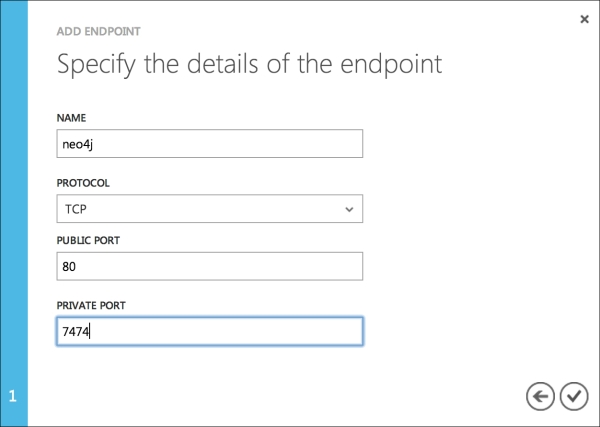
We will now navigate to the Azure portal and the port that Neo4j runs on (7474 by default) has to be opened if the server is intended to be used as a database server. In this case, we map the 7474 port with the 80 port so that the port need not be specified with the requests. We will be using the add new endpoint function of Azure for this, as shown below:

Cloud deployment with Azure

In order to test whether our installed application has successfully deployed, we can test it with the following call:

curl http://myDNS.cloudapp.net

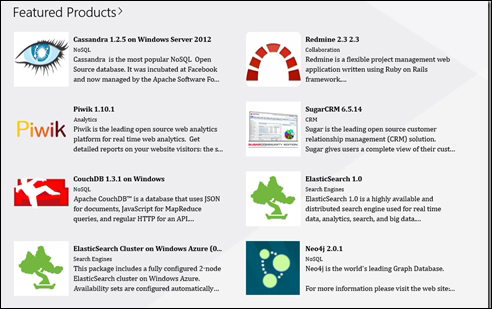
If it works, we have successfully set up Neo4j on Azure. However, the fun does not end there. If your Azure subscription gives you access to apps for the Azure store, then you will find that Neo4j has been included as an app there. So, the first thing you need to do is install Apps for Azure.

Cloud deployment with Azure

Search and select the latest version of Neo4j that is available in the store and then click on Deploy To Cloud in the screen that appears. We then need to select the data center and provide our Windows Azure Subscription details in the form of our publishsettings file.

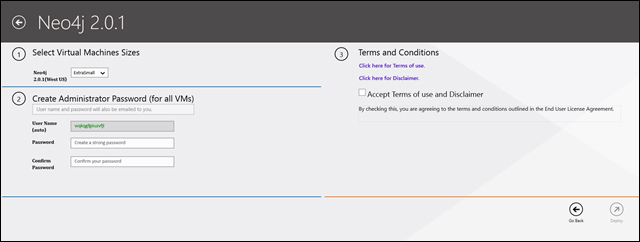
We then select the size of our VM and specify a password for the administrator that will be mailed after the completion of the deployment.

Cloud deployment with Azure

Next, once the deployment completes, you can RDP into the VM using the admin credentials from http://manage.windowsazure.com. Similar to the previous process, if we want our server to be accessible from external hosts, we will need to add the following line to the neo4j-server.properties file:

org.neo4j.server.webserver.address = 0.0.0.0
Visually different images
CONTINUE READING
83
Tech Concepts
36
Programming languages
73
Tech Tools
Icon Unlimited access to the largest independent learning library in tech of over 8,000 expert-authored tech books and videos.
Icon Innovative learning tools, including AI book assistants, code context explainers, and text-to-speech.
Icon 50+ new titles added per month and exclusive early access to books as they are being written.
Neo4j High Performance
notes
bookmark Notes and Bookmarks search Search in title playlist Add to playlist font-size Font size

Change the font size

margin-width Margin width

Change margin width

day-mode Day/Sepia/Night Modes

Change background colour

Close icon Search
Country selected

Close icon Your notes and bookmarks

Confirmation

Modal Close icon
claim successful

Buy this book with your credits?

Modal Close icon
Are you sure you want to buy this book with one of your credits?
Close
YES, BUY

Submit Your Feedback

Modal Close icon
Modal Close icon
Modal Close icon