-
Book Overview & Buying
-
Table Of Contents
-
Feedback & Rating
Selenium Essentials
By :
The WebDriver playback feature in Selenium IDE lets you run tests in any one of the most popular web browsers: Chrome, Firefox, HtmlUnit, Internet Explorer, and Opera. By default, the WebDriver playback feature is turned off and is inactive. To run Selenium IDE scripts through WebDriver, turn on the WebDriver playback settings.
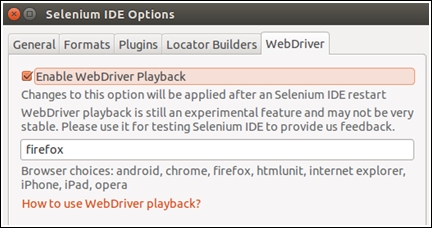
Launch the Selenium IDE and choose Selenium IDE Options from the Options menu. Switch to the WebDriver tab and select the Enable WebDriver checkbox. Now, restart the Selenium IDE to enable the WebDriver playback feature. However, on changing the browser name, restarting the IDE is not necessary. The idea discussed in these two paragraphs is shown in the following screenshot:

The following are the prerequisites that need to be fulfilled to enable the WebDriver playback feature:
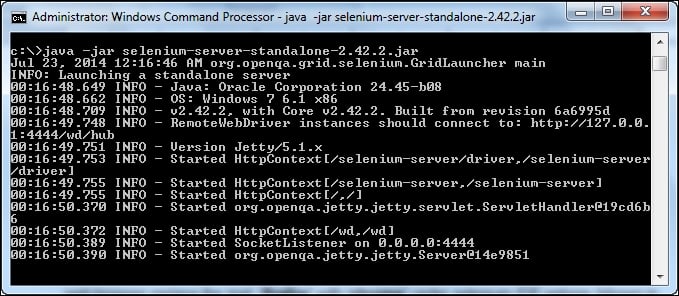
Selenium Server can be initialized manually from the terminal or Command Prompt. Open the terminal or Command Prompt, locate the Selenium Server JAR file, and run the command using the following syntax:
java -jar selenium-server-standalone-<version-number>.jar
Now you can run the command:
java -jar selenium-server-standalone-2.44.0.jar

Click on the Selenium IDE Play
button to drive tests through WebDriver. To run tests in the Chrome web browser, replace the text firefox with chrome under the Selenium IDE options, as shown in the following screenshot:

By default, it is essential to set the ChromeDriver path in your working machine. Download the latest ChromeDriver extension from http://chromedriver.storage.googleapis.com/index.html?path=2.9/.
Follow these configuration steps to set the ChromeDriver extension path for different platforms.
On Windows:
On Linux:
Open the terminal and run the following command:
$ wget http://chromedriver.storage.googleapis.com/2.7/chromedriver_linux64.zip $ Unzip chromedriver_linux64.zip $ cp chromedriver /usr/local/bin $ chmod +x /usr/local/bin/chromedriver
On Mac:
chromedriver_mac32.zip)./usr/bin.
Change the font size
Change margin width
Change background colour