-
Book Overview & Buying
-
Table Of Contents
-
Feedback & Rating
Learning ArcGIS Pro
By :
In order to use ArcGIS Pro, you must first install it. To install ArcGIS Pro, you will need to verify that your system meets or exceeds the minimum requirements, download or have access to the install files, and finally have rights to install the software on the computer you are using. We will look at each of these steps next.
It is possible to install and run ArcGIS Pro on a computer that already has ArcGIS for Desktop installed even if ArcGIS for Desktop is an older version. The two applications may exist side by side.
It can also be installed on a computer that has no other Esri products installed.
As mentioned earlier, ArcGIS Pro is a 64-bit application that supports hyperthreaded processing. This allows ArcGIS Pro to take full advantage of modern processors, such as the Intel i7 and RAM larger than 4 GB. The ability of ArcGIS Pro to make use of this increased computing capability also means the computer you run it on needs to have the power to run ArcGIS Pro.
Compared with ArcGIS for Desktop, ArcGIS Pro has higher minimum computer specifications. This includes increased hardware and operating system requirements.
ArcGIS Pro requires a 64-bit operating system (OS). It will not run on a 32-bit OS. ArcGIS Pro currently supports the following operating systems:
ArcGIS Pro versions 1.0 and 1.1 are currently not supported on Windows 10, Linux or iOS natively. Esri has said ArcGIS Pro version 1.2 will be supported on Windows 10. They have not indicated whether ArcGIS Pro will support Linux or iOS in the future. It is possible to run ArcGIS Pro on a Linux or iOS computer if you create a virtual windows machine.
ArcGIS Pro has some hefty hardware requirements. It requires modern processors and large amounts of RAM. It also requires a graphics card powerful enough to display 2D and 3D data. To ensure that ArcGIS Pro runs smoothly, you need to make sure that your computer meets or exceeds the requirements shown here:
Unlike ArcGIS for Desktop, which has limits on the amount of RAM and processor resources it can use, ArcGIS Pro will use all the resources you can throw at it. So, the more processing power and memory your computer has the better ArcGIS Pro will perform.
ArcGIS Pro is dependent on other applications that must be installed before installation. They provide supporting services which ArcGIS Pro relies on to function. These supporting applications include the following:
ArcGIS Pro does not require ArcGIS for Desktop in order to be installed on a computer.
I have been working with ArcGIS Pro since it was first released in beta. I have had the opportunity to run it on various computers as it has moved through multiple beta versions to the release of version 1.0 and now 1.1. This firsthand experience, along with my experience running ArcGIS for Desktop since it was first released, has led me to several recommendations when it comes to a system to run ArcGIS Pro.
Based on my experience, I recommend the following specifications when purchasing a computer to run ArcGIS Pro:
To get a dedicated GPU usually requires your computer to have a separate video card or adaptor. Computers with integrated video typically do not have a dedicated GPU but instead use the CPU to handle the graphics processing. This will slow your computer down. A separate video card also has a dedicated video RAM, which will also enhance your computer's ability to run ArcGIS Pro.
All these recommendations can also be applied for those running other applications, such as ArcGIS for Desktop, AutoCAD, MicroStation, Photoshop, and other graphics-intensive applications. I have run all these applications and can say that based on those experiences, any of these recommendations will help them run better.
In order to install ArcGIS Pro, you will need to download the install files from the My Esri website at https://my.esri.com/. Once there you will need to log in using your Esri global account. You will need to make sure that your global account is linked to your organization's Esri customer account in order to do this.
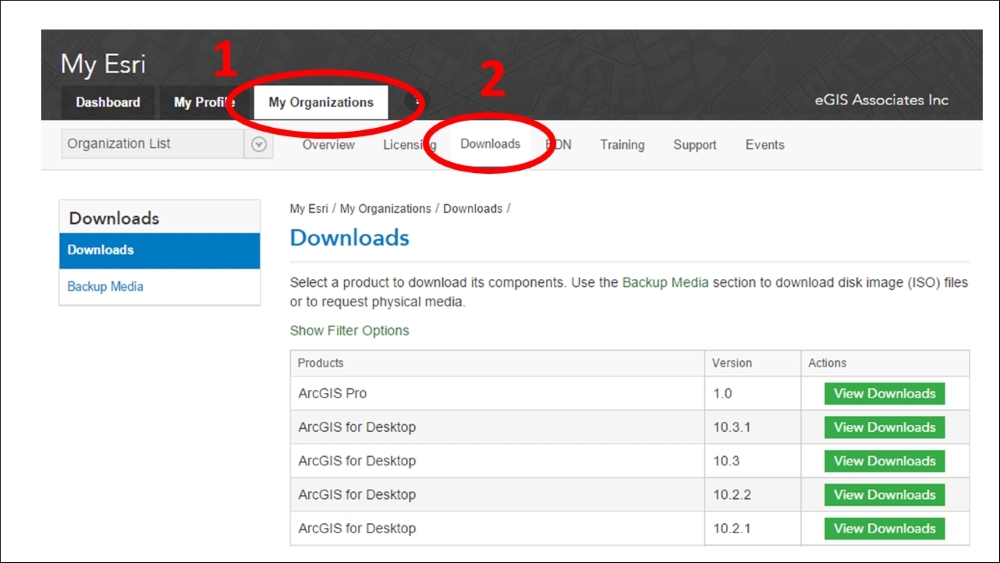
Once you are logged in to My Esri, you will need to click on the My Organizations tab and select the Downloads option, as shown in the following screenshot:

If you are not the administrator for your organizations, Esri account, you might not see the Downloads tab. If this is the case, you will need to request permissions from Esri to view the Downloads tab. To do this, you need to go to My Organizations and then the Overview tab.
Then, you need to click on Request Permissions and fill out the online form, as shown in the following image:

Once you get to the Downloads page, you will need to locate ArcGIS Pro and click on View Downloads. This will take you to the page that allows you to download several files, which you will use to install ArcGIS Pro and supporting applications. You can also check system requirements, see additional products, and select language packs:

The ArcGIS Pro download is the primary install file for the main ArcGIS Pro application. You must download this file if you wish to install ArcGIS Pro. The other two files are optional but recommended.
The ArcGIS Pro Offline Help option will install help files on your local machine, so you can access them without having an internet connection. By default, ArcGIS Pro accesses help information located on the ArcGIS Pro website, http://pro.arcgis.com. This means that you will always see the most current help documentation for the version you are using. You will need to download and install this file if you will be using ArcGIS Pro in a disconnected environment and think you might need to access the Help documentation.
By default, ArcGIS Pro allows you to run Python scripts inside the application without the need to download additional resources. However, if you wish to create scripts that will run outside ArcGIS Pro, that interact with other applications, or can be scheduled to run automatically, you will need to download the Python install files from the My Esri website.
If you cannot access your organization's Esri customer account through the My Esri website, you can request a 60-day trial from the Esri website at http://www.esri.com/software/arcgis/arcgis-for-desktop/free-trial. This free trial includes ArcGIS for Desktop, ArcGIS Extensions, ArcGIS Online, and ArcGIS Pro. Once you activate your trial, you will be sent instructions to download the install files for ArcGIS Pro in addition to other applications included with the trial. These install files are the same ones that are available through the My Esri website linked to your organization.
Now that you have downloaded the install files, you are ready to begin installing ArcGIS Pro. First, you will need to make sure that you have sufficient rights to install new software on your computer. If you do not, you will need to contact your IT department to see if they can provide assistance installing ArcGIS Pro. Then, perform the following steps:
C:\Program Files\ArcGIS\Pro\. It is recommended that you use the default location to avoid issues that could cause problems when running ArcGIS Pro after the installation.Once you have run the ArcGIS Pro installation and it is completed, you can install the ArcGIS Pro Offline Help and Python if needed. This installs in a similar manner as the main ArcGIS Pro.
ArcGIS Pro also supports a silent install, which IT staff can use to automate the install of ArcGIS Pro throughout an enterprise. This is done through the use of command line. To conduct a silent install of ArcGIS Pro for all users, use the following command line syntax:
msiexec.exe /i <setup staging location>\ArcGISPro.msi ALLUSERS=1 INSTALLDIR="C:\MyArcGISPro\" /qb
The setup staging location is the location of the install files, which you downloaded and unpackaged. This can be a mapped drive or a Universal Naming Convention (UNC) path. The following are parameter settings, which can be used in the command line.
INSTALLDIR: This parameter is not required. If it is not included in the command line for the silent install, ArcGIS Pro will install to the default location of C:\Program Files\ArcGIS\Pro\ if all users are specified.If a current user is specified it will install to C:\Users\%UserProfile%\AppData\Local\ArcGIS\Pro.
AllUSERS: This parameter determines which users will be able to start and access the ArcGIS Pro application on the installed computer.AllUSERS: 1 equals all users will have access to ArcGIS ProAllUSERS: 2 equals current user will have access to ArcGIS ProENABLEEUEI: This parameter controls the user's participation in the EUEI program. Participation in this program will send application usage and crash information to Esri automatically.ENABLEEUEI: 0 disables participation in the programENABLEEEUEI: 1 enables participation in the programqb or qr or qn: This parameter controls the display of the UI when the install is being run:qb equals show basic user interface during installqr equals show reduced user interface during installqn equals show no user interface during installAll these parameters are case sensitive.
Change the font size
Change margin width
Change background colour