Sign In Start Free Trial
Account

Add to playlist

Create a Playlist

Modal Close icon
You need to login to use this feature.
  • Book Overview & Buying QGIS Blueprints
  • Table Of Contents Toc
  • Feedback & Rating feedback
QGIS Blueprints

QGIS Blueprints

By : Mearns
4.3 (3)
close
close
QGIS Blueprints

QGIS Blueprints

4.3 (3)
By: Mearns

Overview of this book

QGIS, the world’s most popular free/open source desktop geographic information system software, enables a wide variety of use cases involving location – previously only available through expensive specialized commercial software. However, designing and executing a multi-tiered project from scratch on this complex ecosystem remains a significant challenge. This book starts with a primer on QGIS and closely related data, software, and systems. We’ll guide you through six use-case blueprints for geographic web applications. Each blueprint boils down a complex workflow into steps you can follow to reduce time lost to trial and error. By the end of this book readers should be able to build complex layered applications that visualize multiple data sets, employing different types of visualization, and give end users the ability to interact with and manipulate this data for the purpose of analysis.
Table of Contents (9 chapters)
close
close
8
Index

Visualizing GIS data

Although the data has been added to the GIS through the ETL process, it is of limited value without adding some visualization enhancements.

The layer style

The layer style is configured through the Style tab in the Layer Properties dialog. The Single Symbol style is the default style type, and it simply shows all the geographic layer objects using the same basic symbol. This setting doesn't provide any visual differentiation between objects other than their apparent geospatial characteristics. The Categorized and Graduated style types provide different styles according to the attribute table field of your choosing. Graduated, which applies to quantitative data, is particularly powerful in the way the color and symbols size are mapped to a numerical scale. This is all accomplished through the Layer Properties | Style tab.

To configure a simple graduated layer style to the data, perform the following steps:

  1. Under the Layer Properties | Style tab, select Graduated for the style type.
  2. Select your quantitative field for Column (such as temperature_mean_temp).
  3. Click on Classify to group your data into the number of classes specified (by default, 5) and to select the classification mode (Equal Interval, by default):
    The layer style
  4. Now, click on Apply.

    If you applied the preceding steps to the joined tract/temperature layer, you'd see something similar to the following image:

    The layer style
  5. You can add some layer transparency here if you'd like to simultaneously view other layers. This would be appropriate if this layer were to be included in a basemap.

    Tip

    You can save and load the layer style using the Style menu at the bottom of the Layer Properties | Style tab. For example, this is useful if you wish to apply the same style to different layers.

  6. Now, click on OK.

You will now see the following output:

The layer style

Perhaps the lower temperatures to the north of the city are related to the historical development in other parts of the city.

Labels

Labels can provide important information in a map without requiring a popup or legend. As labels are automatically placed by the software (they do not have an actual physical position in space), they are subject to particular placement issues. Also, a map with too much label text quickly becomes confusing. Sometimes, labels can be easily rendered into tiles by integrated QGIS operations. At other times, this will require an external rendering engine or a map server. These issues are discussed later on in this chapter.

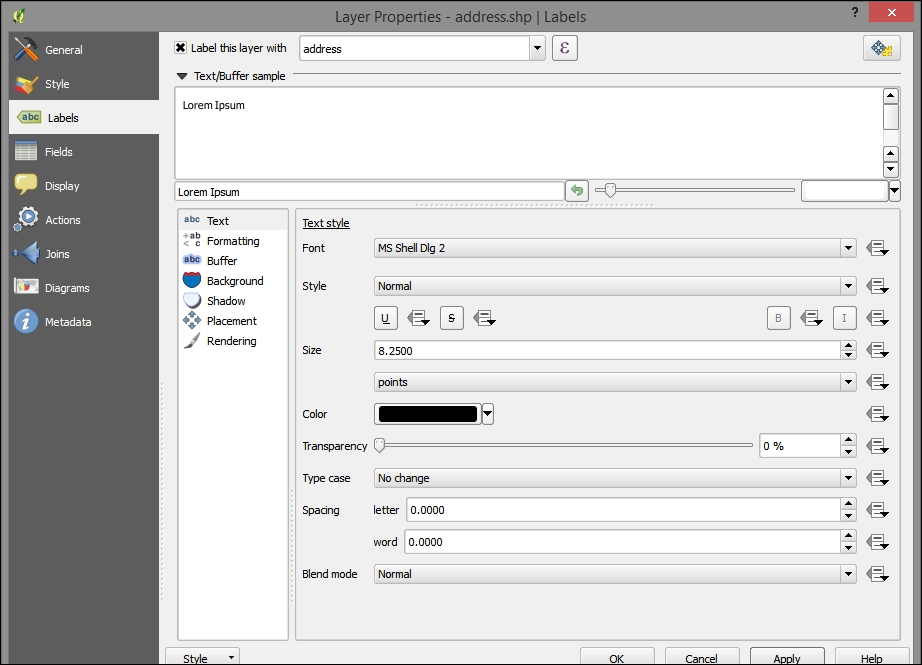
To label the address points in our example, go to that layer's Layer Properties | Labels tab. Perform the following steps:

  1. Select address for the Label this layer with field. Note that the checkbox next to this selection will be toggled. All other label style options will remain the same, as shown in the following screenshot:
    Labels
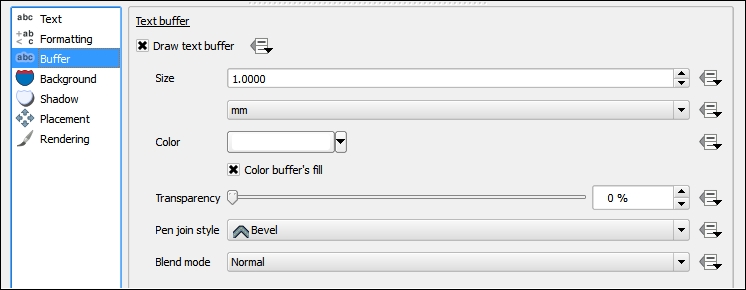
  2. Open the Buffer subtab and toggle Draw text buffer:
    Labels
  3. After you click on OK, you will see something similar to the following screenshot:
    Labels
Visually different images
CONTINUE READING
83
Tech Concepts
36
Programming languages
73
Tech Tools
Icon Unlimited access to the largest independent learning library in tech of over 8,000 expert-authored tech books and videos.
Icon Innovative learning tools, including AI book assistants, code context explainers, and text-to-speech.
Icon 50+ new titles added per month and exclusive early access to books as they are being written.
QGIS Blueprints
notes
bookmark Notes and Bookmarks search Search in title playlist Add to playlist font-size Font size

Change the font size

margin-width Margin width

Change margin width

day-mode Day/Sepia/Night Modes

Change background colour

Close icon Search
Country selected

Close icon Your notes and bookmarks

Confirmation

Modal Close icon
claim successful

Buy this book with your credits?

Modal Close icon
Are you sure you want to buy this book with one of your credits?
Close
YES, BUY

Submit Your Feedback

Modal Close icon
Modal Close icon
Modal Close icon