Sign In Start Free Trial
Account

Add to playlist

Create a Playlist

Modal Close icon
You need to login to use this feature.
  • Book Overview & Buying Learning Salesforce Visual Workflow
  • Table Of Contents Toc
  • Feedback & Rating feedback
Learning Salesforce Visual Workflow

Learning Salesforce Visual Workflow

By : Gupta
5 (1)
close
close
Learning Salesforce Visual Workflow

Learning Salesforce Visual Workflow

5 (1)
By: Gupta

Overview of this book

Learning Salesforce Visual Workflow is intended for those who want to use Flows to automate their business requirements by click not code. Salesforce maintains an incredibly user-friendly interface; no previous experience in computer coding or programming is required.
Table of Contents (8 chapters)
close
close
7
Index

Business problems

As a Salesforce administrator or developer you may get multiple business requirements from businesses to streamline the processes. Many of them are achievable by using out of the box (OOB) concepts, and for others, we have to use Apex or Visualforce pages. Visual Workflow gives us another method that will let us implement many business processes without needing custom coding. A few examples are discussed in the following sections.

Business use case 1

Sara Bareilles is working as a Vice President, Sales, in a company named Appiuss. She wants to auto close all the open opportunities with the Closed Lost stage, when an account out of business field (that is, custom field) is checked.

There are several ways to solve the given business requirement; these are mentioned in the following sections.

Solution 1 – using an Apex trigger

Because this requirement means that many child records (opportunities) need to be updated when a parent record (Account) is edited, we can't achieve the preceding business requirement using the Workflow rule. The next possibility is to use an Apex trigger. Generally, a developer writes an Apex trigger on the Account object to update all the open opportunities when an account's custom field, out of business, gets updated to True. The following is the sample code:

trigger UpdateRelatedOpportunites on Account (after update) {
  for (Account AccountToUpdate : trigger.new)
    {
        If (AccountToUpdate.Out_Of_Business__c==True)
        {
        // Your logic;
        }
    }
}

In addition, you'll need a test class, and then use a change set to deploy the trigger and test classes to production. This also means that any change to the business logic will require more development work.

Solution 2 – a combination of Visual Workflow and Process Builder

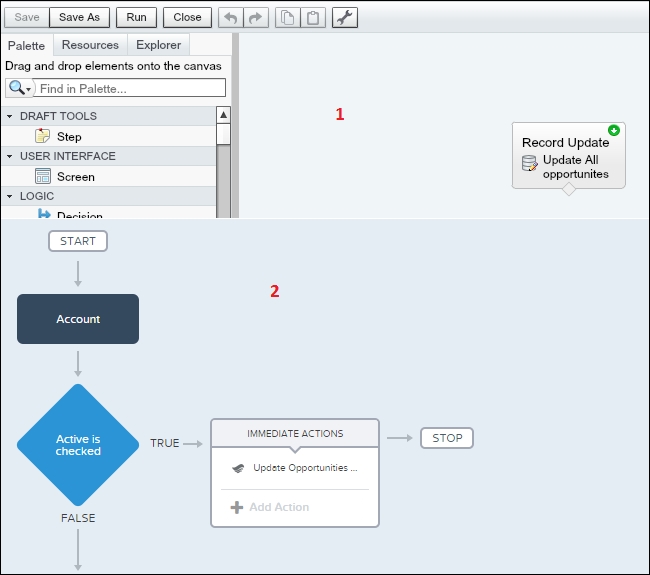
Another way to achieve the same business requirement is to use a combination of Visual Workflow and autolaunch Flow/Process Builder. Here is the description of the next screenshot:

  • A sample Flow update all the open Opportunity stage to the Closed-Lost related to an account which is marked as out of business
  • A process on the Account object, it will fire when the out of business checkbox is checked

The following screenshot represents solutions for a similar business scenario by using Visual Workflow and Process Builder:

Solution 2 – a combination of Visual Workflow and Process Builder

Process Builder is one of the ways to automate complex business processes using click not code similar to the Workflow rule and Visual Workflow. We will discuss more about this in Chapter 5, Developing Applications with Process Builder.

Business use case 2

Robby Williams is working as a Customer Success Manager in Appiuss. He wants to send a reminder e-mail on a weekly basis to all the users who don't have a profile picture on Chatter.

Again, there are plenty of ways to solve this requirement. Some of the ways are as follows.

Solution 1 – using Apex

We can't achieve this goal by the Workflow rule. For this, we have to write an Apex class that implements the Schedulable interface for the class and then use Schedule Apex to run it on a regular basis. The following is the code for this Apex class:

global class SendChatterEmail implements Schedulable
{
    global SendChatterEmail (){
      // Batch Constructor
    }

    // Start Method
    global Database.QueryLocator start(){
      /* Use SOQL query to get the records you want to operate upon
      select Id, fullPhotoUrl from User where isactive = true AND FullPhotoUrl    like '%photo/005%'*/
    }

    // Execute Logic
    global void execute(){
      // perform the operation

    }

    global void finish(){
      // Logic which we want to execute at finish
    }
}

Solution 2 – a combination of Visual Workflow and Process Builder

An alternative way to accomplish the same business requirement is to use a combination of Visual Workflow and Process Builder. Here is the description of the next screenshot:

  • This represents a Flow to send e-mail alerts to all users, who do not have profile pictures on Chatter
  • This represents the Flows action from Process Builder on a custom object (reminder notification) to trigger our Flow

The following screenshot represents the solution for business scenario 2 using Visual Workflow and Process Builder:

Solution 2 – a combination of Visual Workflow and Process Builder
Visually different images
CONTINUE READING
83
Tech Concepts
36
Programming languages
73
Tech Tools
Icon Unlimited access to the largest independent learning library in tech of over 8,000 expert-authored tech books and videos.
Icon Innovative learning tools, including AI book assistants, code context explainers, and text-to-speech.
Icon 50+ new titles added per month and exclusive early access to books as they are being written.
Learning Salesforce Visual Workflow
notes
bookmark Notes and Bookmarks search Search in title playlist Add to playlist font-size Font size

Change the font size

margin-width Margin width

Change margin width

day-mode Day/Sepia/Night Modes

Change background colour

Close icon Search
Country selected

Close icon Your notes and bookmarks

Confirmation

Modal Close icon
claim successful

Buy this book with your credits?

Modal Close icon
Are you sure you want to buy this book with one of your credits?
Close
YES, BUY

Submit Your Feedback

Modal Close icon
Modal Close icon
Modal Close icon