


-
Book Overview & Buying
-
Table Of Contents

Building CLI Applications with C# and .NET
By :


Building CLI Applications with C# and .NET
By:
Overview of this book
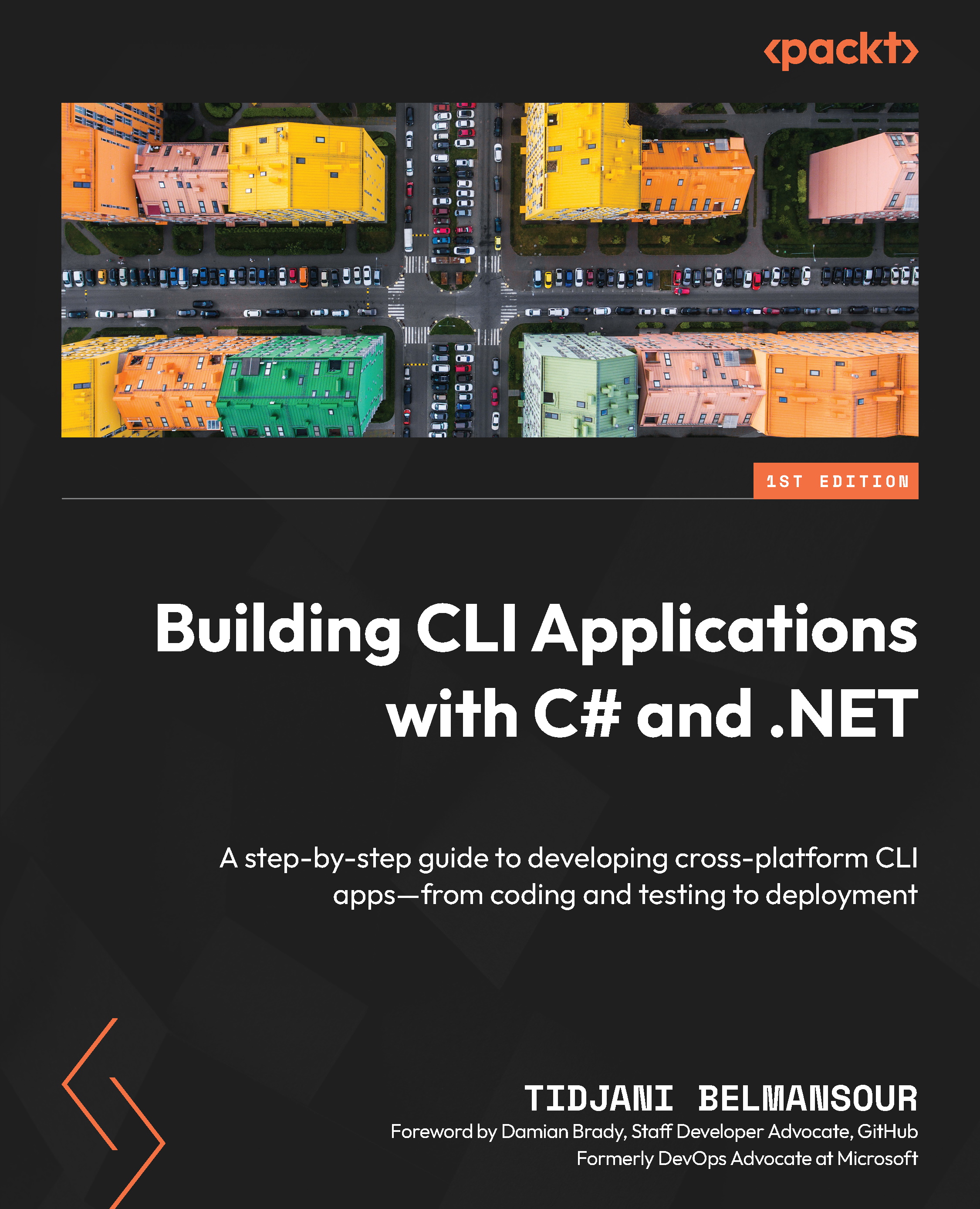
Developers and system administrators often face challenges like inefficient workflows, complex system operations, and the growing demand for robust automation tools. CLI applications provide a powerful solution by enhancing flexibility, efficiency, and productivity in various environments. This book will guide you through mastering the development of robust command-line tools using .NET.
Written by a Microsoft Azure MVP, the book’s hands-on approach ensures practical experience with real-world projects. You’ll start with an overview of foundational principles, essential concepts, and best practices for CLI application development. From there, you’ll advance to creating interactive interfaces, integrating with external APIs and services, and implementing security measures to safeguard your applications. Each chapter will build progressively from basic to advanced topics.
Beyond development, you’ll learn how to enhance application quality through testing, package for efficient distribution, and deploy effectively. The book also teaches strategies to optimize performance to ensure your applications run efficiently under heavy usage.
By the end of this book, you’ll have gained a deep understanding of CLI application development with .NET to build modular, extensible, and easy-to-maintain applications.
Table of Contents (23 chapters)
Preface


 Free Chapter
Part 1: Getting Started with CLI Applications
Chapter 1: Introduction to CLI Applications
Chapter 2: Setting Up the Development Environment

Chapter 3: Basic Concepts of Console Applications in .NET
Part 2: Foundations of Building CLI Applications
Chapter 4: Command-Line Parsing
Chapter 5: Input/Output and File Handling
Chapter 6: Error Handling and Logging
Part 3: Advanced Topics in CLI Application Development
Chapter 7: Interactive CLI Applications
Chapter 8: Building Modular and Extensible CLI Applications
Chapter 9: Working with External APIs and Services
Part 4: Testing and Deployment
Chapter 10: Testing CLI Applications
Chapter 11: Packaging and Deployment
Part 5: Advanced Techniques and Best Practices
Chapter 12: Performance Optimization and Tuning
Chapter 13: Security Considerations for CLI Applications
Chapter 14: Additional Resources and Libraries
Chapter 15: Unlock Your Exclusive Benefits
Index
Other Books You May Enjoy


