


-
Book Overview & Buying
-
Table Of Contents

Python Illustrated
By :


Python Illustrated
By:
Overview of this book
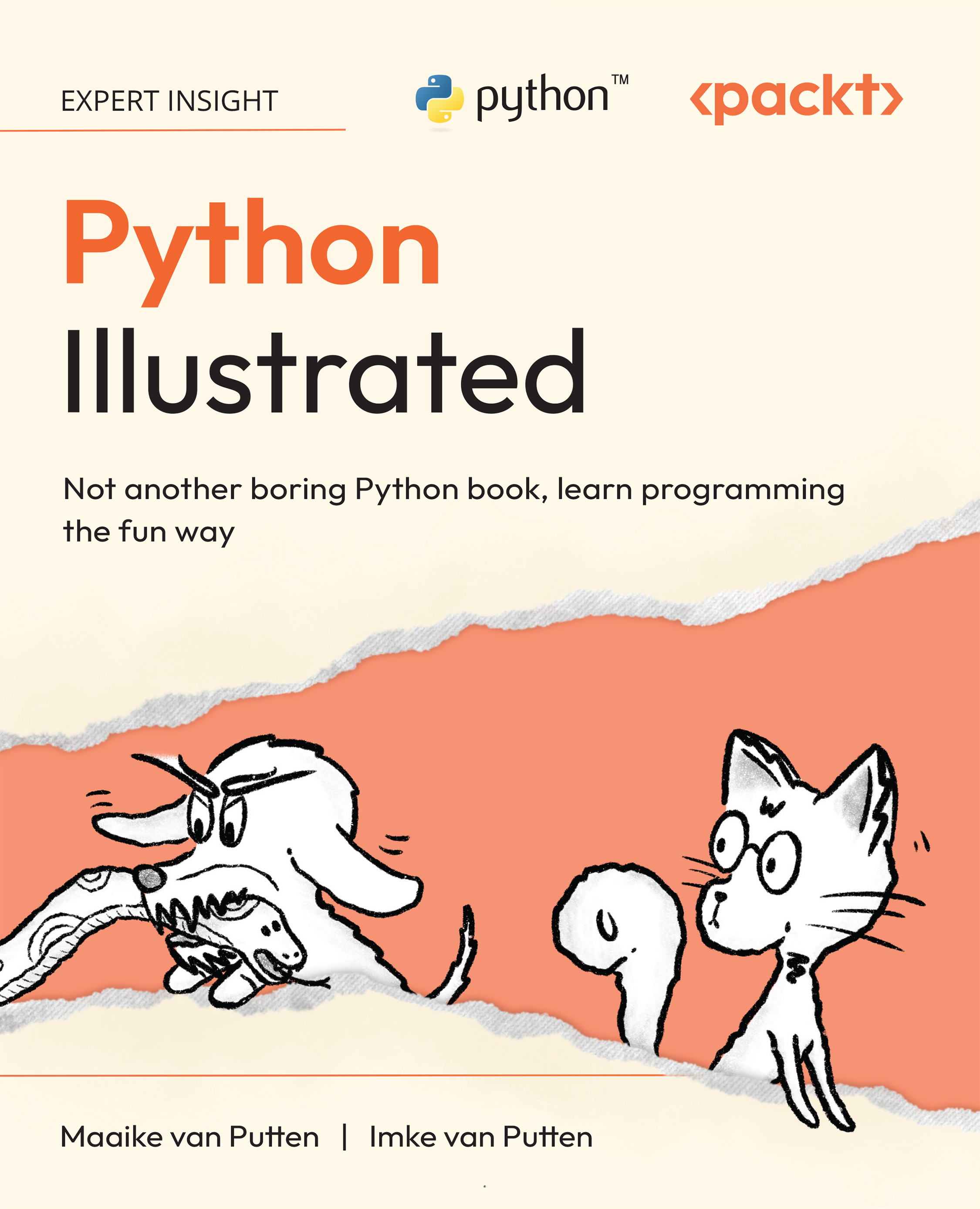
This is not your average Python programming book, because the world doesn’t need another one of those. Instead, it’s an illustrated, fun, and hands-on guide that treats learning Python like the adventure it should be. It’s designed especially for beginners who want to understand how code works without getting overwhelmed.
You’ll be guided by a cheeky, know-it-all cat who’s surprisingly good at teaching Python from scratch. Don’t worry about going through it alone; a slightly moody dachshund dog is your study buddy, learning right alongside you. Each chapter introduces a core programming concept, explains it with a playful twist, and reinforces it through human-friendly examples, analogies, and exercises. Whether you’re a software professional or someone who’s never written a single line of code, this book will help you build real Python coding skills… and even enjoy the process (shocking, right?).
Forget dry tutorials and walls of text. Python Illustrated speaks to visual learners, creative thinkers, cat lovers, dog lovers, and anyone who prefers their learning with a dash of humor. From writing your first function to understanding object-oriented programming, you’ll build a solid foundation in Python (without the usual headaches).
Table of Contents (19 chapters)
Preface


Get Your Computer Ready to Code Python
Understanding Variables and Data Types
Working with Conditional Statements
Using Lists, Tuples, and Dictionaries
Iterating with Loops
Writing Functions and Using Built-In Functions
Handling Files and Exceptions
Creating and Using Classes
Understanding Inheritance
Debugging Our Code
Next Steps
Unlock Your Exclusive Benefits
Other Books You May Enjoy
Index
Appendix A: Exercise Files
Appendix B: Quiz Answers


