Sign In Start Free Trial
Account

Add to playlist

Create a Playlist

Modal Close icon
You need to login to use this feature.
  • Book Overview & Buying Sage ACT! 2011 Dashboard and Report Cookbook
  • Table Of Contents Toc
Sage ACT! 2011 Dashboard and Report Cookbook

Sage ACT! 2011 Dashboard and Report Cookbook

By : Karen Fredricks, Roy Laudenslager
4.7 (3)
close
close
Sage ACT! 2011 Dashboard and Report Cookbook

Sage ACT! 2011 Dashboard and Report Cookbook

4.7 (3)
By: Karen Fredricks, Roy Laudenslager

Overview of this book

Sage ACT! is the top selling CRM software application, and it helps businesses to centralize contact information, organize their calendars and notes, and ultimately maximize contact relationships to optimize business efficiency and profitability. In ACT! 2011, a variety of new dashboards and reports are available for producing graphical representations of client information and for measuring the success of your sales force. This cookbook is full of practical and immediately applicable recipes that will take you from being an ACT! report and dashboard novice to a report-writing pro in no time. The recipes will show you how to create custom dashboards and reports, as well as utilize the new templates available in recent ACT! versions. You will learn to use ACT!'s Report Editor and Dashboard Designer so that you will be able to easily view important information about your business and your sales force. The recipes begin by covering the most basic elements of the ACT! reports and continue to include several recipes that will guide you through creating brand-new reports. If you have an ACT! database, you need to be able to access it quickly and logically; this book will help you do just that.
Table of Contents (16 chapters)
close
close
Sage ACT! 2011 Dashboard and Report Cookbook
Credits
About the Authors
About the Reviewer
www.PacktPub.com
Preface

Using the ACT! Reports menu

The most common method of running a report is from the Reports menu, which is located on any of the ACT! views. Ironically, you'll even find the Reports on the menu bar in the Reports view, which we will be covering later in this chapter.

Getting ready

Some of you may have used other software programs that allow you to filter a report after you run it. For example, your accounting software might let you run a Profit and Loss statement, and then change the date range once the report is run.

ACT! works a bit differently. The ACT! Reports offer only very basic filtering options; if a report doesn't contain the filter options you're looking for then you must do the filtering prior to running the report. For example, if you wanted to create a Phone List report of all of your customers, you'd first need to Create a Lookup or run a query for the customers in your database.

How to do it...

Follow these steps to run a report:

  1. Create a Lookup of Contact, Company, or Group records that you wish to include in your report.
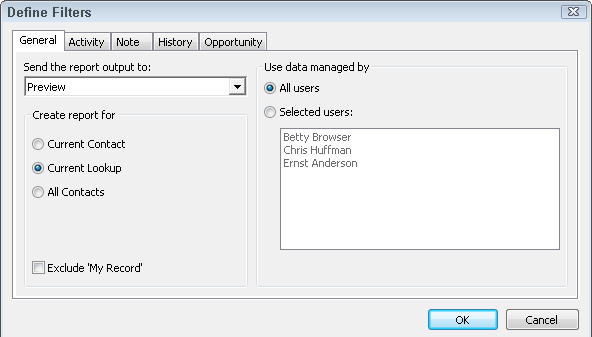
  2. Click on Reports in the menu bar, and then click the report name that you wish to run. The Define Filters dialog box appears as seen in the following screenshot:
    How to do it...
  3. Verify that the report filters are correct. You'll be learning more about the various filter options in the next chapter.
  4. Click OK to run the report.

How it works...

The Reports menu includes a main area of contact reports, as well as sub-areas for Group, Company, and Opportunity Reports. While this organization seems like a good idea on paper, in reality over half of the ACT! Reports are not listed on the ACT! Reports menu.

There's more...

As we mentioned earlier, there are over 60 reports that come with ACT! out of the box. However, because the Reports menu is a carry-over from a much older version of ACT!, you'll find fewer than 30 of the ACT! Reports actually listed in the Reports menus. And, to make finding a report even more difficult, ACT!'s file structure places all of the reports in a single folder rather than organizing the reports into more logical sub-folders.

If the report you wish to run is not listed under the Reports menu, click Group Reports, Company Reports, or Opportunity Reports to see more choices. And if you still can't find the report you'd like then click Other Contact Reports... to see all of the ACT! Reports.

Learning a bit more about specific reports

It may be helpful to have an idea about the information that appears in a few of the ACT! Reports.

  • The first three reports listed in the Reports menu (the Contact Report, Contact Directory, and Phone List) will provide you with a full page, paragraph, or a single line of information about your current Lookup of contacts
  • The History Summary reports give you a physical count of the various cleared history items
  • The Source of Referrals report is based on information that you've inputted into the Referred by field

A warning about the "Other" Report menu options

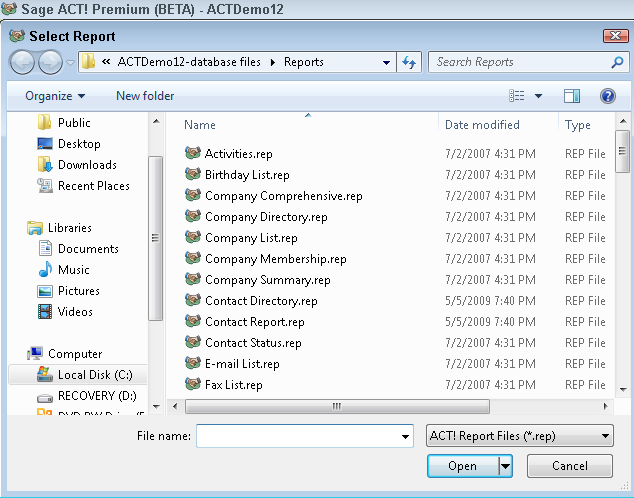
You'll see 10 Contact reports listed on the top half of the reports menu. These reports are all based on the generic contact ACT! fields that come with a basic ACT! database. You'll also notice an option for Other Contact Reports... at the bottom of this list. Unfortunately, clicking this option will result in the Select Report dialog box you see in the following screenshot, which shows you not just additional contact reports but it also all of the ACT! Reports:

A warning about the "Other" Report menu options

In addition to showing you additional Contact ACT! Reports, it also shows you additional Group, Company, and Opportunity Reports as well.

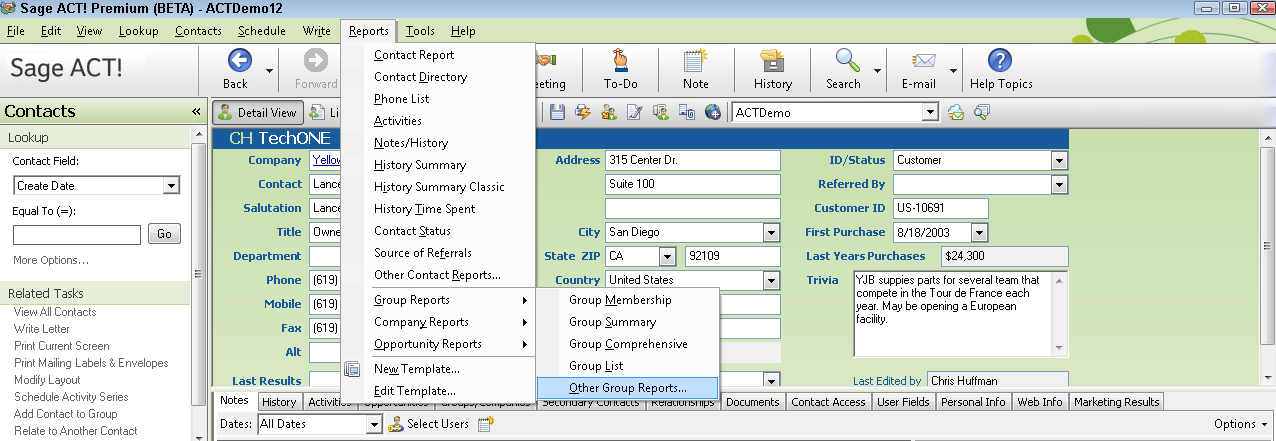
If you navigate from the basic reports menu to the Group, Company, or Opportunity reports sub-menus, you'll notice that they all contain an other section like the one you see in the following screenshot:

A warning about the "Other" Report menu options

You probably expect that if you click the Other Group Reports… option you'll be transported to a listing of various other Group reports not included in the Reports menu. Unfortunately, you're taken back to the Select Report dialog box shown earlier that lists all of the ACT! Reports.

It might seem to be a logical assumption that if you are in the Groups view and click on Reports in the menu bar, you'll see a list of all the Group reports, and that if you are in the Company view you can click on Reports, and you'll be treated to a list of Company reports. However, the Report menu is exactly the same in every one of the ACT! views.

See also

Because the Reports menu only scratches the surface of the entirety of the reports included with ACT!, you'll probably find yourself using the Reports view more often.

Note

Make sure to read the section, Working with the Reports View later in this chapter.

CONTINUE READING
83
Tech Concepts
36
Programming languages
73
Tech Tools
Icon Unlimited access to the largest independent learning library in tech of over 8,000 expert-authored tech books and videos.
Icon Innovative learning tools, including AI book assistants, code context explainers, and text-to-speech.
Icon 50+ new titles added per month and exclusive early access to books as they are being written.
Sage ACT! 2011 Dashboard and Report Cookbook
notes
bookmark Notes and Bookmarks search Search in title playlist Add to playlist font-size Font size

Change the font size

margin-width Margin width

Change margin width

day-mode Day/Sepia/Night Modes

Change background colour

Close icon Search
Country selected

Close icon Your notes and bookmarks

Confirmation

Modal Close icon
claim successful

Buy this book with your credits?

Modal Close icon
Are you sure you want to buy this book with one of your credits?
Close
YES, BUY

Submit Your Feedback

Modal Close icon
Modal Close icon
Modal Close icon