-
Book Overview & Buying
-
Table Of Contents

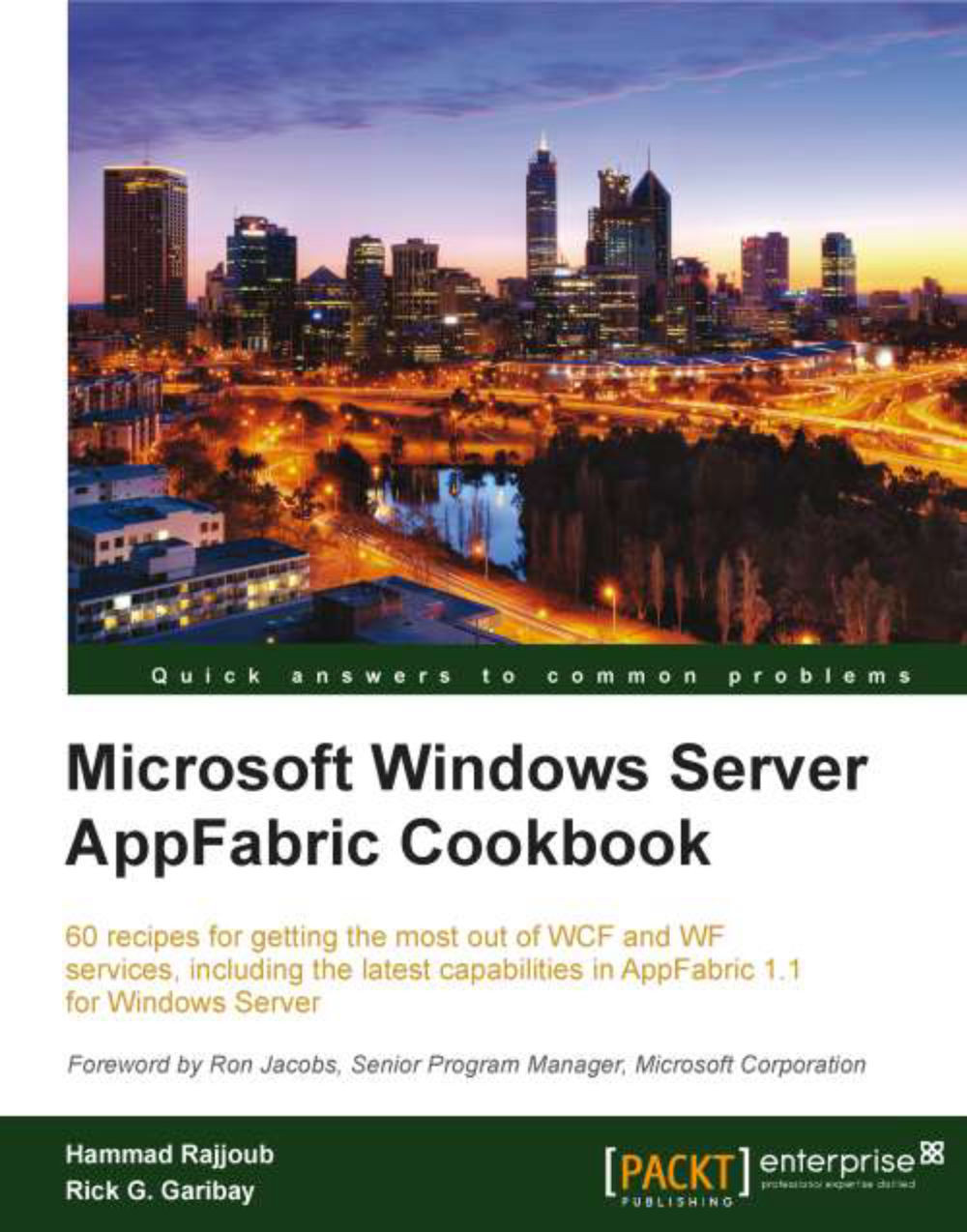
Microsoft Windows Server AppFabric Cookbook
By :


Microsoft Windows Server AppFabric Cookbook
By:
Overview of this book
Windows Server AppFabric provides a set of integrated capabilities that extend IIS and the Windows Server platform making it easier to build, scale and manage composite applications today. Windows Server AppFabric delivers the first wave of innovation within an exciting new middleware paradigm which brings performance, scalability and enhanced management capabilities to the platform for applications built on the .NET Framework using Windows Communication Foundation and Windows Workflow Foundation.'Microsoft Windows Server AppFabric Cookbook' shows you how to get the most from WCF and WF services using Windows Server AppFabric leveraging the capabilities for building composite solutions on the .NET platform. Packed with over 60 task-based and immediately reusable recipes, 'Microsoft Windows Server AppFabric Cookbook' starts by showing you how to set up your development environment to start using Windows Server AppFabric quickly. The book then moves on to provide comprehensive coverage of the most important capabilities provided by Windows Server AppFabric, diving right in to hands-on topics such as deploying WCF and WF applications to Windows Server AppFabric and leveraging the distributed caching, scalable hosting, persistence, monitoring and management capabilities that Windows Server AppFabric has to offer, with recipes covering a full spectrum of complexity from simple to intermediate and advanced.
Table of Contents (11 chapters)
Preface


 Free Chapter
1. Installing Windows Server AppFabric

2. Getting Started with AppFabric Caching
3. Windows Server AppFabric Caching — Advanced Use Cases
4. Windows Server AppFabric Hosting Fundamentals
5. More Windows Server AppFabric Hosting Features
6. Utilizing AppFabric Persistence
7. Monitoring Windows Server AppFabric Deployment
8. Scaling AppFabric Hosting, Monitoring, and Persistence
9. Configuring Windows Server AppFabric Security
Index